How to Clear Your Default Location in Windows 11


Clearing your default location in Windows 11 removes the fallback coordinates your PC uses when precise GPS or Wi-Fi data isn’t available. Windows keeps this backup location so apps like Maps and Weather can still show local information on a device with no tracking hardware, such as a desktop PC.
The catch is that the saved location can go stale. If you moved, travelled, or typed in the wrong address once, apps may keep showing the wrong city. Resetting the saved coordinates stops that. You do this in your privacy settings and it takes a minute or two. It works the same on Home and Pro, and no restart is needed.
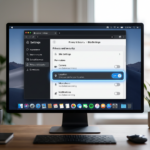
Open Settings with Win+I, go to Privacy & security Location, scroll to Default location, click Set default, delete the address in the Maps app that opens, click Save, then close Settings. Your saved fallback location is now cleared.
What is Location Service?
Location Service is the built-in Windows 11 feature that estimates where your device is. Apps like Maps and Weather use that estimate to show local information. Windows works out your general position from nearby Wi-Fi networks, your IP address and any other signals the device has. A desktop PC with no GPS chip is usually accurate only to the city or neighbourhood level.
Apps must ask for permission before they can see this data, and you stay in control of it:
- A master switch turns location off for the whole device. Changing it needs an administrator account.
- Each app has its own switch, so a tool can read your position only if you have allowed it.
- If a switch is turned off, the app can’t read your position, even if it asks.
Because apps ask for coordinates all the time, it’s worth checking now and then which ones are allowed.
Why Clear Your Default Location?
Clearing it protects your privacy, because apps stop using an old or wrong location. Here is how to do it:
- Open Settings by pressing the Windows key + I.
- Select Privacy & security in the left-hand list.
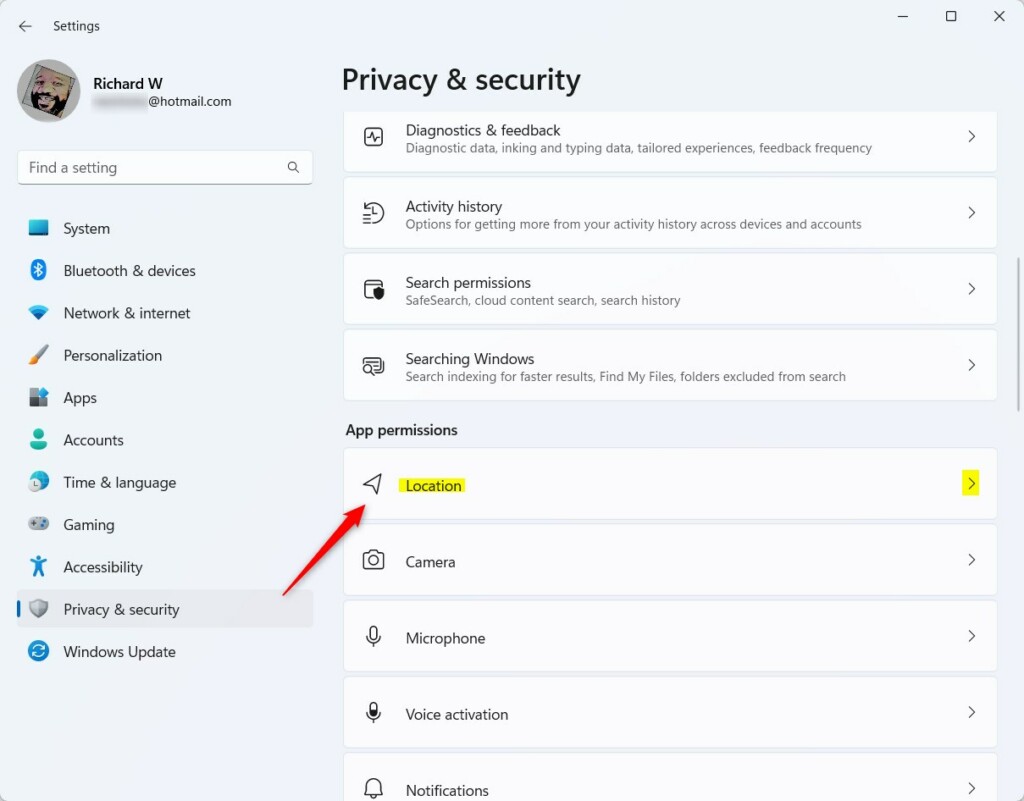
- Under App permissions, select Location. You should now see the location switches and a list of apps that have used your location recently.
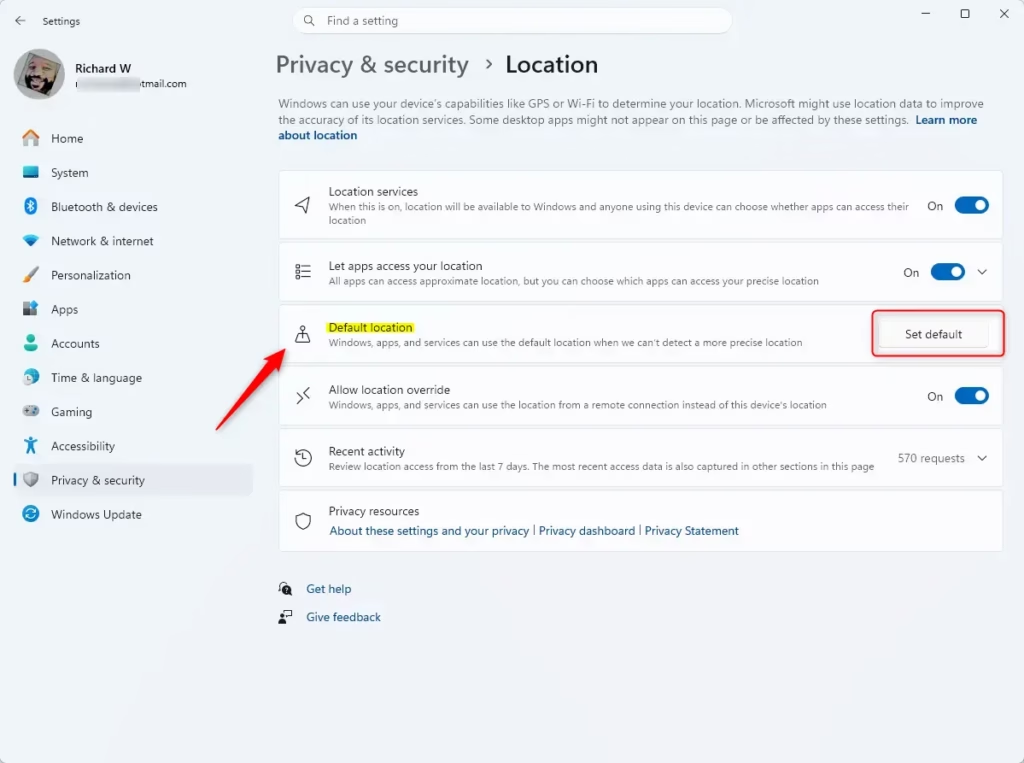
- Scroll down to the Default location entry. If you can't see it, your build of Windows 11 may place it in a slightly different spot on this page.
- Select Set default. This opens the Maps app, where you can change or remove the saved address, depending on your version of Windows.
- Close the Maps app and reopen the app that was showing the wrong place. It should now use a fresh estimate or ask you for a location.
The Location history section on the same page has its own Clear button. That button deletes the history stored on this device, so use it if you want that gone as well.
To undo the change, go back to the same page and set a default location again. If an app still shows the wrong place afterwards, check that its own location switch is on, then close and reopen the app.
Steps to Clear Your Default Location
To clear default location in Windows 11, you need to open the Settings app, go to your privacy options, and remove the saved address through the Maps app. This process stops Windows from using an old fallback address when your computer cannot detect your current physical position.- Open Settings: Press
Win + Ion your keyboard to open the Settings app. - Go to Location Settings: Click on Privacy & security on the left. Then click Location on the right. Or, you can click this link to open it directly: Open Location Settings
- Click "Set default": Under Default location, click the Set default button.
- Clear the location: In the box that opens (Maps app), delete the current location so it's empty. Then click Save.
- Close Settings: You're all done! You can now close the Settings window.
Visual Guide
Step 2Find Location Settings
Step 3Click "Set default"
Step 4Clear the location and Save

Why This Matters
- Clearing your default location helps keep your exact whereabouts private.
- Location services help things like setting the right time zone or finding your device if it's lost.
- You stay in control of which apps can see your location.
- Make sure your location settings match how much information you want to share.
Clearing your default location in Windows 11 protects your privacy by preventing apps and websites from using outdated or incorrect geographic coordinates. Managing this setting ensures that your computer only shares the location details you actually want others to see.
Summary
Clearing your default location in Windows 11 stops your system from using old geographic coordinates by removing the saved address in the Maps app. You can finish this quickly through the privacy settings menu to keep your physical whereabouts private from unwanted apps.
Was this guide helpful?

About the Author
Richard
Tech Writer, IT Professional
Richard is a writer at Geek Rewind who turns complex IT tasks into clear, step-by-step guides. He draws on years of hands-on experience in system administration and enterprise IT operations, focusing on Windows, Linux and WordPress: the problems people actually run into, and the fixes that work. His server and WordPress guides come from systems he runs himself. Richard builds and maintains the platform behind Geek Rewind, from its Ubuntu servers and Nginx configuration to its custom WordPress plugins. Many new tutorials start with readers' questions, and he's always glad to answer them in the comments.

No comments yet — be the first to share your thoughts!