How to Manage App Permissions for Documents, Pictures and Videos in Windows 11 Privacy Settings

- 25 steps
- Needs administrator rights
App permissions for Documents, Pictures and Videos control which Microsoft Store apps can open your files on Windows 11. You manage them in Settings under Privacy & security, where each folder type has its own page.
Each page has a main switch that turns access on or off for all apps at once. Below it, every app has its own switch. You can block an app from your Pictures and still let it read your Documents, because the three folder types work independently.
The quickest way to reach these settings is to press Win+R, type ms-settings:privacy-documents, and press Enter. The steps below apply to Windows 11 Home and Pro.
Open Settings Privacy & security Documents (or Pictures or Videos) and set the main switch to Off to block every Microsoft Store app from that library. Or press Win+R and type ms-settings:privacy-documents to jump straight there. The change takes effect immediately, with no restart needed.
What these permissions control, and what they don’t
The Documents, Pictures and Videos pages control apps from the Microsoft Store and other packaged apps. A packaged app uses a modern format that lets Windows isolate it from the rest of your system. When you block one of these apps, Windows stops it from browsing or reading that library on its own.
Three limits are worth knowing before you change anything:
- Traditional desktop programs are not controlled here. Programs installed with an .exe or .msi installer, such as older editors or tools you download from vendor sites, run with your account’s file access. They do not appear in these lists, and the switches do not affect them. The Controlled folder access section later in this article covers that case.
- Files you pick yourself still open. If you block an app and then choose a file in its Open dialog, the app can read that one file. Blocking stops the app from reaching into the library by itself. It does not stop the app from receiving a file you hand over.
- The settings belong to your account. Another user on the same PC has their own settings.
The File system page, further down the same list, is a separate permission with its own app list. It covers broader access to files on the PC, so it is a different switch from the three library pages.
Before you start
The per-user switches on these pages do not need administrator privileges on a standard personal PC. The one exception in this article is Controlled folder access, which does need administrator approval. That step is marked.
If a school or employer manages the PC, some switches may be locked. The troubleshooting section below describes what you will see in that case.
How to open the Documents, Pictures or Videos permission page
This section takes you to the right page. Do it once, then repeat it for each library you want to change.
- Press Win+I to open Settings.

Windows 11 Start menu with Settings gear icon highlighted. - Select Privacy & security in the left pane. The right pane now lists privacy options in groups.

- Scroll down to the App permissions group.
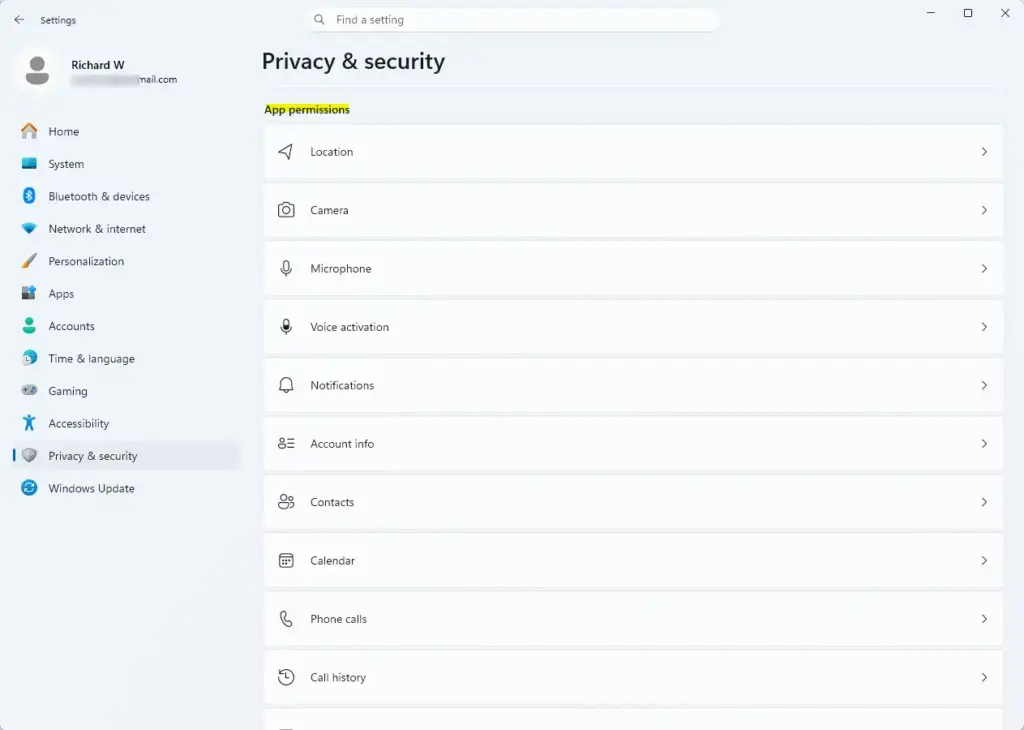
Settings › Privacy & security › App permissions - Select Documents, Pictures or Videos. The page opens with a main switch at the top and a list of apps below it.
If you cannot find the page by scrolling, use a shortcut. Press Win+R, type one of the following, and press Enter:
ms-settings:privacy-documentsms-settings:privacy-picturesms-settings:privacy-videos
The Settings window opens directly on that page. If nothing happens, check that you typed the colon and the hyphen exactly as shown.
How to block every app from a library
Use this when you want no Microsoft Store app to touch a library, for example your Documents folder. The main switch overrides the individual app switches, so you do not need to change each app.
- Open the page for the library, as described above.
- Find the main switch at the top of the page. Its label is a variation of “let apps access your documents library” (or pictures, or videos). The exact wording differs slightly between Windows 11 builds.
- Set the switch to Off. The individual app switches below it turn grey and become unavailable.
- Close Settings. The change applies immediately, and Windows does not need a restart.
Apps that are already running may keep working until you close them. Close and reopen any app you want to test.
Apps built to work with your files, such as photo viewers, video players and some note-taking apps, may show an empty library or a message that they cannot access your files. If an app you rely on stops working properly, turn the main switch back on and block individual apps instead.
How to allow or block individual apps
Use this when you want most apps to keep working and only restrict specific ones. It gives you finer control than the main switch.
- Open the page for the library you want to change.
- Check that the main switch is set to On. If it is off, the app list is greyed out and you cannot change individual apps.
- Scroll through the app list below the main switch. Each entry shows the app name and its own switch.
- Set the switch next to an app to Off to block it, or to On to allow it.
- Close and reopen the app you changed. It now follows the new setting.
The change applies to that app only. The other apps in the list keep their current setting.
A blocked app that was already using the library may show an error, an empty folder view, or a prompt to grant access. That is normal. If the app crashes instead of showing a message, turn its switch back on and check the app’s own support page.
How to review who has access across all three libraries
Each library has its own list, so an app can be allowed in Pictures and blocked in Documents. Review all three to see the full picture.
- Open Documents under Privacy & security and note which apps are set to On.
- Go back and open Pictures. Compare its list with the one you just saw.
- Go back and open Videos, and compare that list too.
- Open File system in the same App permissions group and check that list as well. An app that you block on the three library pages can still appear here with its own access.
Look for apps you do not recognise or no longer use. If you no longer need an app at all, uninstalling it removes its permissions entry. Blocking stops only that one kind of access.
Why an app is missing from the list
Several causes produce this, and they are often confused with one another. Work through the list from the top.
- It is a desktop program. As explained above, programs installed the traditional way never appear on these pages. Their access is not managed here.
- The app does not request that library. The list shows apps that have declared they use it. An app that only touches its own storage has nothing to show.
- The list is not fully loaded. Close Settings and reopen the page. If the app was installed recently, it can take a moment to show.
- The app was installed for another user. Settings shows apps for the account you are signed in to. Sign in to the account that has the app.
If you are sure the app is from the Microsoft Store and it still does not appear, official documentation does not list other known causes. Check the app's own settings, which sometimes have a separate option for the folders it can read.
Why the switches are greyed out or say settings are managed
Two different situations look similar, so identify which one applies before you change anything.
The main switch is off. The app list is greyed out because the main switch overrides it. Turn the main switch on, then adjust individual apps.
A policy controls the setting. A notice at the top of the page says some settings are managed by your organisation, and the switches do not respond to changes. This happens on work or school PCs and on PCs where an administrator applied a policy. You cannot change these from Settings, so ask whoever manages the PC. Windows Home and Pro both honour these policies, so the edition does not decide whether you are affected.
How to restrict desktop programs with Controlled folder access
The library pages cannot stop a desktop program from reading your files. Controlled folder access is the closest built-in tool. It is a Windows Security feature that guards chosen folders against unapproved programs.
It is designed to stop ransomware, which is malware that locks your files. For that reason it blocks unapproved programs from changing protected folders. It is not a general read-blocking tool. When you turn it on, Windows protects Documents, Pictures, Videos, Music and Favorites by default.
This step requires administrator privileges, and Windows may ask you to approve a prompt.
An editor, a backup tool or a game that writes to those folders can fail to save, sometimes with little explanation. The feature also works only when Microsoft Defender Antivirus is your active antivirus. If it blocks a program you trust, the fix is the Allow an app through Controlled folder access option, described after the steps.
- Open the Start menu, type Windows Security, and press Enter.
- Select Virus & threat protection.
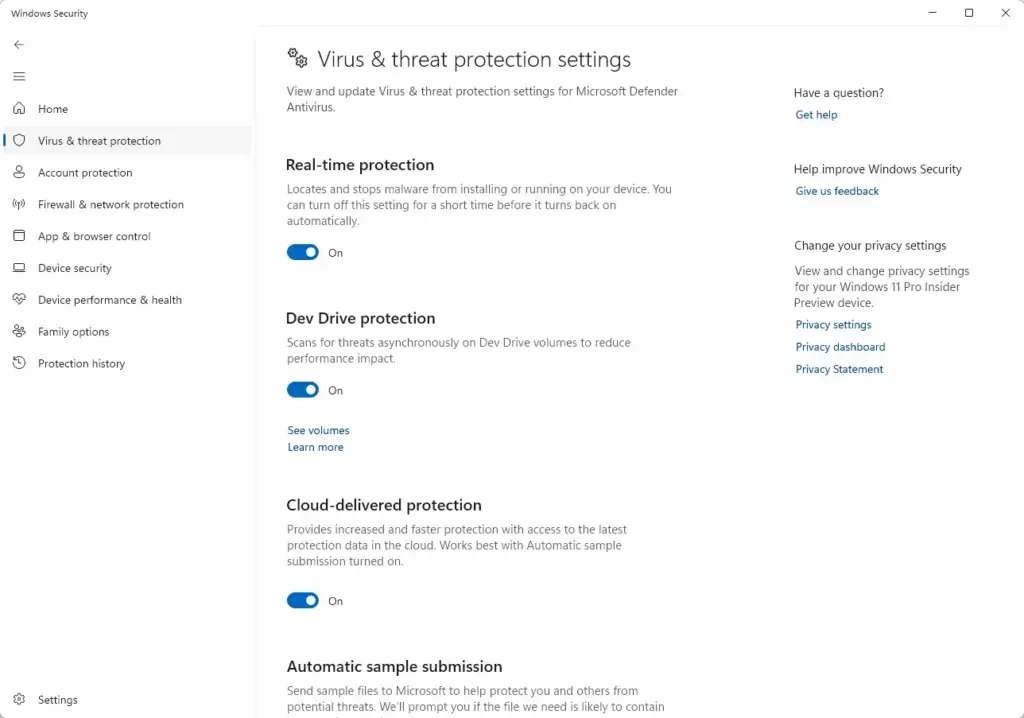
Windows Security › Virus & threat protection settings - Under Ransomware protection, select Manage ransomware protection.
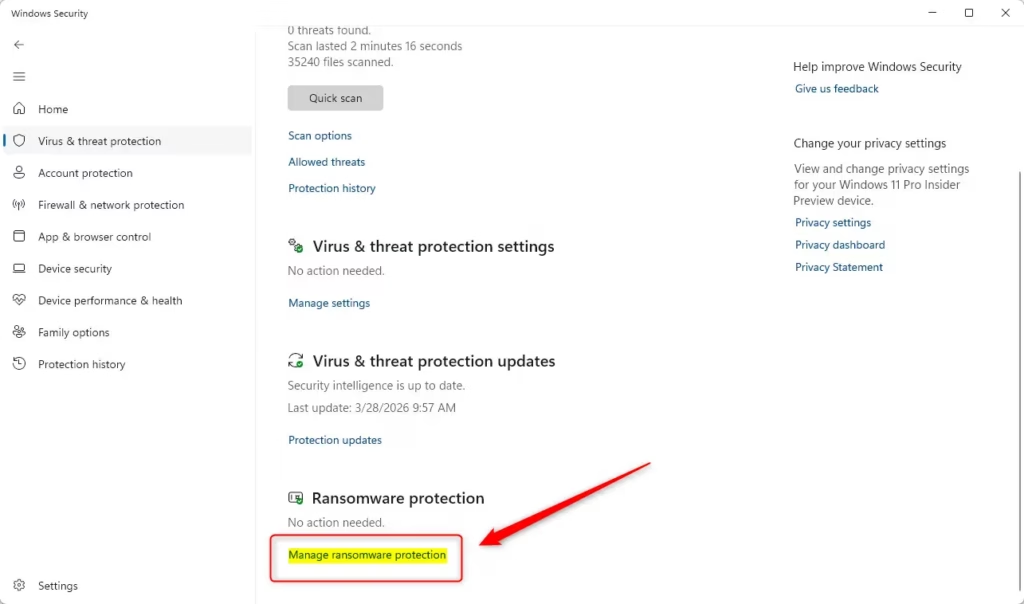
- Set Controlled folder access to On. Approve the User Account Control prompt if it appears.
If Ransomware protection is missing or the switch is locked, a third-party antivirus program may be managing protection, which means Microsoft Defender Antivirus is not the active antivirus. A policy can cause the same result. In either case Windows Security cannot change the setting.
Once the feature is on, a notification appears when a trusted program is blocked from saving to a protected folder. To fix it, return to Manage ransomware protection and select Allow an app through Controlled folder access. Add the program there, and it can save to protected folders again.
How to undo the changes
Every change on these pages can be reversed in the same place where you made it. No restart is needed for any of them.
- Open Settings, then Privacy & security, then the Documents, Pictures or Videos page.
- Set the main switch back to On if you turned it off.
- Set any individual app switches you changed back to On.
- Close and reopen the affected app so it picks up the restored access.
To undo Controlled folder access, set the Controlled folder access switch back to Off in Windows Security. This also needs administrator approval.
What to do next
If an app still opens your files after you block it, check the File system page under App permissions. That page is a separate permission with its own list.
If the app is a traditional desktop program, none of these switches apply to it. Controlled folder access or removing the program are the remaining options. Once the file permissions are settled, the Camera and Microphone pages in the same App permissions group work the same way and are the closest task to move on to.
Frequently asked questions
How to manage app permissions in 🪟 Windows 11?
Open Settings, go to Privacy & security, then select the permission you want to change—Documents, Pictures, Videos, Camera, Microphone, or others. Toggle the main switch off to block all apps, or turn off individual app switches below to deny access to specific apps only.
What app permissions should I not allow?
Deny permissions to apps you don't recognize or don't trust with that data type. For example, block camera access for apps that don't need it, or deny location permission to apps that shouldn't track where you are. Review what each permission does before allowing it.
What privacy settings should I turn off in 🪟 Windows 11?
Turn off Activity history if you don't want Windows tracking what you do. Disable advertising ID if you don't want personalized ads. Block app permissions you don't use—camera, microphone, location. Turn off app suggestions and Tailored experiences if you prefer less tracking.
Should I always grant app permissions?
No. Grant permissions only to apps that genuinely need them for their main function. A photo editor needs Pictures access, but a weather app doesn't. Denying unnecessary permissions reduces what data each app can collect about you.
Still have a question?
Answered by AI from this guide. Good questions may be added to this page — please don't include personal details.
Did this guide fix your problem?

About the Author
Richard
Tech Writer, IT Professional
Richard is a writer at Geek Rewind who turns complex IT tasks into clear, step-by-step guides. He draws on years of hands-on experience in system administration and enterprise IT operations, focusing on Windows, Linux and WordPress: the problems people actually run into, and the fixes that work. His server and WordPress guides come from systems he runs himself. Richard builds and maintains the platform behind Geek Rewind, from its Ubuntu servers and Nginx configuration to its custom WordPress plugins. Many new tutorials start with readers' questions, and he's always glad to answer them in the comments.
No comments yet — be the first to share your thoughts!