How to Access the Documents Folder on This Computer

- 27 steps
- Needs administrator rights
- Includes a restart or sign-out
The Documents folder in Windows 11 is the default place for your personal files, Word documents and some app data. On a standard setup it sits at 📁C:\
Browsing to the folder yourself is slower than the shortcut covered below. It does show you where the folder actually lives. These steps work on Windows 11 Home and Pro, and the list below takes you from the taskbar to your files.
- Open File Explorer. Click the yellow folder icon on the taskbar, or right-click the Start button and choose File Explorer.
- Click This PC in the left pane. The main window lists your drives and devices.
- Double-click your main drive, usually Local Disk (C:). You should see folders such as Program Files, Users and Windows.
- Open the Users folder. You will see one folder for each account on the PC.
- Open the folder that matches your account name. Inside it you will see Documents, Downloads, Pictures and other personal folders.
- Double-click Documents. Your files and subfolders appear in the main window.
Other folders in Users, such as Public, belong to other accounts or are shared. Ignore them. Your own files are only in the folder with your name.
Open File Explorer, click Home in the left navigation pane, then click the Documents icon under pinned folders. If Documents is not there, click This PC, double-click Local Disk (C:), open Users, open your account name folder and double-click Documents. The folder sits at 📁C:\
Using File Explorer to Access Your Documents
These steps open the Documents folder on this computer from the default File Explorer view:
- Press Win+E on your keyboard. File Explorer opens, usually on the Home view.

- Look at the left-hand navigation pane. This is the column of shortcuts down the left side of the window.
- Click Home in the navigation pane. The main window shows your pinned and frequent folders.
- Click the Documents icon once. It is among the pinned folders. The folder opens and shows your files.
Documents also appears as its own entry in the navigation pane. If it is missing from the pane, use the longer route from the section above. Click This PC, double-click your system drive (usually Local Disk (C:)), open Users, open your user profile folder, and double-click Documents.
If the shortcut has disappeared from Home, the folder itself is fine. Right-click the folder and choose the pin option to pin it again. In current Windows 11 this reads Pin to Home.
The Difference Between This PC and OneDrive Documents
Without OneDrive, the Documents folder lives only on your local drive. OneDrive is Microsoft’s cloud storage service. It can take over your Documents folder so your files are saved online and reachable from other devices. Windows often turns this on during setup when you sign in with a Microsoft account, so you may be using it without having chosen it.
Instead of the local path 📁C:\
These steps show which version you are using:
- Open the Documents folder in File Explorer. Use either route described above.
- Look at the address bar at the top of the window. It shows the full path to the folder you are in.
- Read the path. If it includes OneDrive, the folder is cloud-backed. If it shows only Users, your name and Documents, it is the local folder.
A cloud-backed folder also shows small sync status icons next to files, such as a cloud or a green check mark. Knowing which version you have matters before you move the folder or back it up.
How to Change the Save Location of Your Documents Folder
You can move the Documents folder to another drive using its built-in properties. Windows sends your files to the new location. Programs that use the standard Documents folder keep working because Windows follows the new path. No restart is needed.
Your account may need administrator permissions if it has restricted rights. If OneDrive already backs up this folder, the path points to OneDrive, so check the address bar first, as described in the previous section. Make sure the destination drive has enough free space before you start. A large Documents folder can take a while to copy.
Follow these steps to change the physical location of the folder:
- Open File Explorer. Press Win+E if you like.
- Click This PC in the left navigation pane. Your drives appear in the main window.
- Browse to your user profile directory at 📁C:\
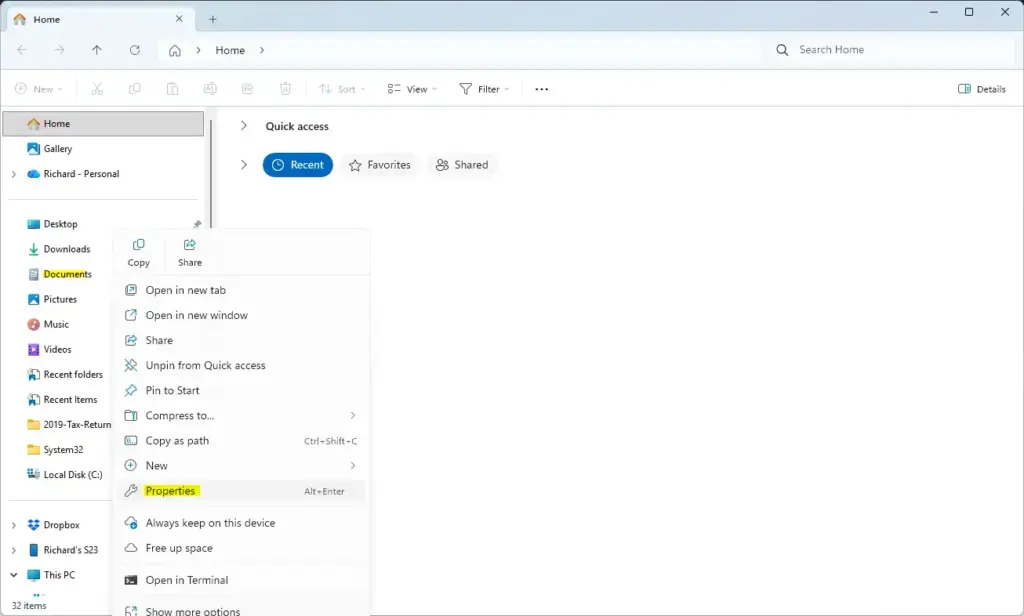
Users\ . Open your main drive, then Users, then the folder with your account name.USERNAME - Right-click the Documents folder and select Properties. A Properties window opens.
- Click the Location tab at the top of the window. The current folder path appears in a box.
- Click the Move… button. A folder picker opens.
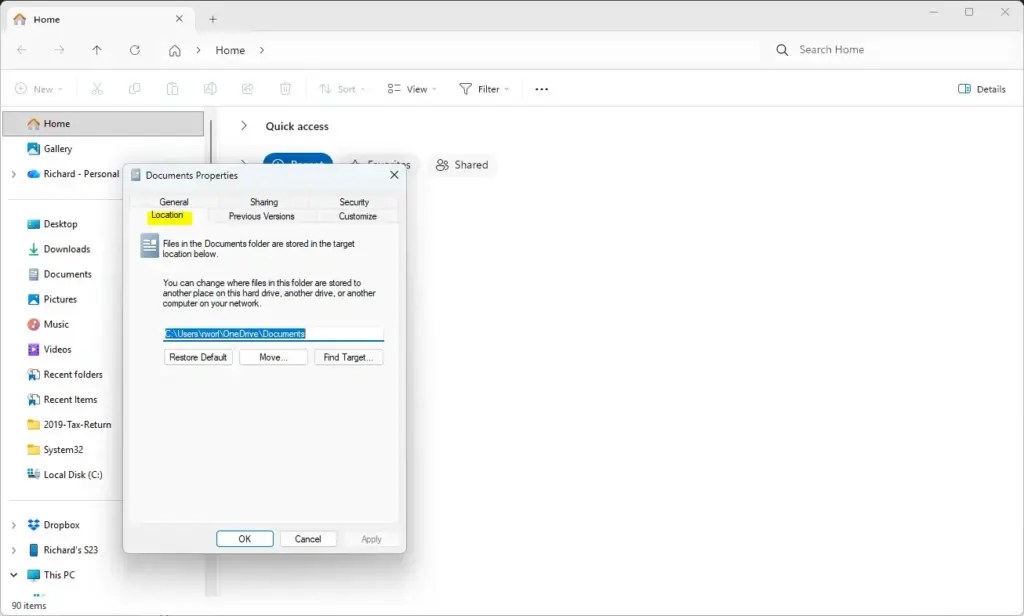
- Browse to the folder or drive where you want to keep your files. Click Select Folder. The new path now shows in the Location box.
- Click Apply. Windows asks whether to move all files from the old location to the new one.
- Click Yes on that prompt. This keeps everything together and leaves nothing behind. Wait for the copy to finish before closing the window.
To undo the move, return to the same Location tab and click Restore Default. Then apply the change and let Windows move your files back.
If this didn’t work
If you cannot find your Documents folder, work through these checks in order. Stop as soon as the folder turns up.
- Check the address bar. If the folder is cloud-backed, it may be under the OneDrive folder in your user profile rather than directly in your user profile.
- Show hidden files in File Explorer. Go to View Show Hidden items. Hidden folders now appear slightly faded.
- Open the Recycle Bin on your desktop and look for the folder or files. If you find them, right-click and choose Restore. They go back to where they were deleted from.
- Use the Windows search bar to search your entire C drive for a file you know was in the folder. Then open its file location to see where it actually lives.
- Sign out and back into your Microsoft account if a recent update has damaged your user profile. This usually brings missing folders back.
If none of this works, confirm you are signed in to the right account. A different account, such as a new local profile, has its own empty Documents folder, which can look like missing files.
Frequently asked questions
Where is the documents folder on my computer?
Your Documents folder sits on your main drive, C:, inside the Users folder. Open the folder with your account name, and Documents is inside it. Windows creates this folder automatically when you set up the PC, so it is in the same place on most computers.
How do I find documents on this computer?
Open File Explorer, click This PC in the left pane, then click Documents under it. If you cannot find it there, open C:, then Users, then the folder with your account name. To search for a specific file, type part of its name into the search box at the top right of File Explorer.
Why can't I access my documents folder?
The folder is usually blocked for one of three reasons. You may be signed in to a different account, so the folder belongs to someone else. If OneDrive backs up your Documents, a paused sync can hide the files. Or Controlled folder access in Windows Security may be stopping apps from reading it.
How do I access my documents?
Press the Win and E together to open File Explorer. Click This PC in the left pane, then double-click Documents to open it. Documents holds your Word files and other personal work, so check it first. If you cannot find a file, use the search box in File Explorer.
Still have a question?
Answered by AI from this guide. Good questions may be added to this page — please don't include personal details.
Did this guide fix your problem?

About the Author
Richard
Tech Writer, IT Professional
Richard is a writer at Geek Rewind who turns complex IT tasks into clear, step-by-step guides. He draws on years of hands-on experience in system administration and enterprise IT operations, focusing on Windows, Linux and WordPress: the problems people actually run into, and the fixes that work. His server and WordPress guides come from systems he runs himself. Richard builds and maintains the platform behind Geek Rewind, from its Ubuntu servers and Nginx configuration to its custom WordPress plugins. Many new tutorials start with readers' questions, and he's always glad to answer them in the comments.
No comments yet — be the first to share your thoughts!