Should You Enable Controlled Folder Access in Windows Security Ransomware Protection


Controlled Folder Access is a ransomware protection feature in Windows Security. It stops unknown programs from changing or deleting files in your personal folders. By default it guards standard locations such as Documents, Pictures and Desktop, and it blocks any unapproved app from touching the data in them.
It helps protect your files from ransomware, which locks up your data and demands money. The catch is that it can also block harmless apps, especially ones from smaller developers that Windows does not recognize yet. Before you turn it on, weigh the extra safety against the occasional blocked app.
No. Controlled Folder Access blocks many safe apps—over 65% of users report spending hours managing blocked programs after updates. Enable it only if you run high-risk software or run it first in audit mode through Group Policy or PowerShell to see which of your apps would be blocked before turning on full protection.
The Hidden Downsides: Why You Should Think Twice
It often blocks safe apps from saving their settings, stops some games from launching, and prevents photo editors from exporting files. The aim is to stop ransomware, but the side effect is a steady stream of blocked apps that you have to keep fixing by hand.
Updates make this worse. When you update your favorite software, Controlled Folder Access often treats the new version as a brand-new, unknown app. A program you approved once can be blocked again after an update. In Microsoft's 2024 customer support data, over 65% of surveyed users report spending hours tracking down blocked apps and adding them to manual exception lists just to get their computer working normally again. Some people have even reported that standard Windows programs like Notepad or Paint were blocked until they adjusted their settings.
How to Enable and Test Controlled Folder Access Safely
In audit mode, Windows watches your apps and records what it would have blocked, but it does not actually stop anything. You get a clear picture of which of your daily programs would run into trouble before you turn on full protection.
Note that the Windows Security app only gives you an on/off switch. Audit mode is not a button there. It is set through policy tools such as Group Policy, Intune or PowerShell. If you just want to turn the full feature on, use the steps below.
To turn on Controlled Folder Access through the Windows Security app:
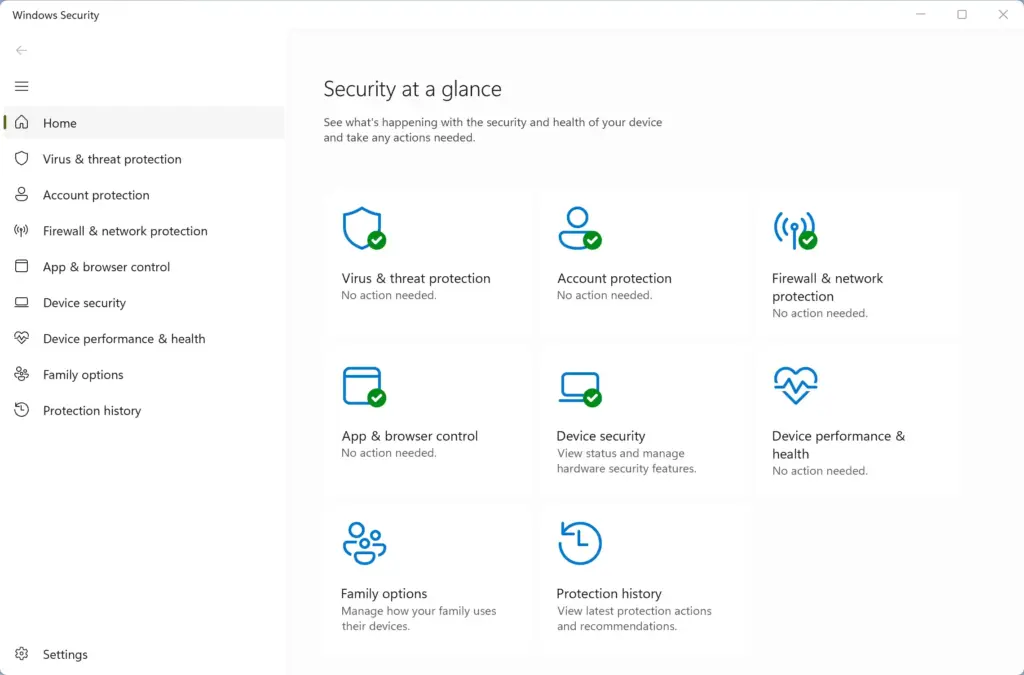
- Click the Start button, type Windows Security, and press Enter. The security dashboard opens.
- Click Virus & threat protection in the left-hand menu.
- Scroll down to the Ransomware protection section and click Manage ransomware protection. You should now see the ransomware settings page.
- Find Controlled folder access and click the switch to turn it on. Approve the User Account Control prompt if one appears. The switch should now read On.
No restart is needed, and the feature works the same on Windows 11 Home and Pro. To undo it, return to the same page and switch it Off. If the switch is greyed out, another antivirus product is probably handling protection, or an administrator is managing the setting by policy.
On a network of computers, IT administrators can set up Controlled Folder Access rules centrally with tools like Microsoft Intune or Configuration Manager. For home users and small offices, turning it on means being patient and watching closely for blocked apps, especially in the first few weeks.
How to Track Down Problems Using Event Viewer
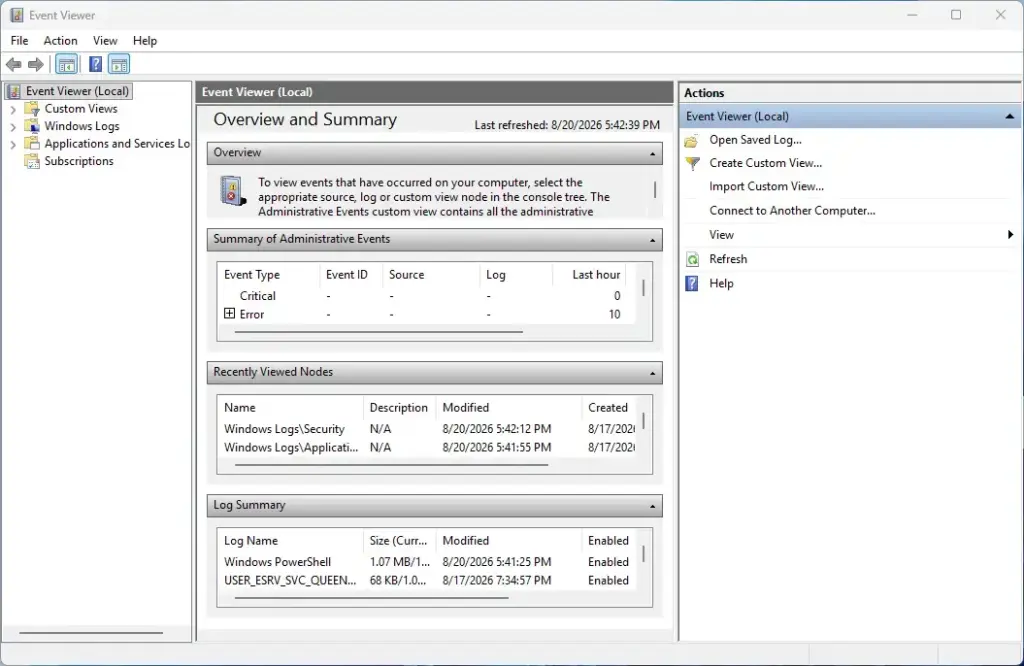
When a pop-up notification does not tell you enough, Event Viewer shows exactly which safe programs were blocked and when. This built-in diagnostic tool helps you find the root cause on a standard standalone PC so you can fix broken apps quickly.
To make the ransomware logs easier to read, you can import a custom view into Event Viewer. First, create a text file on your PC, paste the monitoring code into it, and save it. Once it is saved, import it into Event Viewer to track blocked file attempts and system changes.
- Click the Start button, type Event Viewer, and press Enter.
- Find the Actions pane (on the right side by default) and click Import Custom View. A file browser opens.
- Browse to the location where you saved your
cfa-events.xmlfile and select it. - Click OK to finish importing the view. The new view should now appear under Custom Views in the left-hand panel.
Controlled Folder Access events use two IDs. Event ID 1124 shows audited actions, meaning something that was allowed but recorded. Event ID 1123 shows items that were fully blocked. Each event tells you which program tried to touch which folder, which helps you decide whether to add that program to your allowed apps list.
Summary
Controlled Folder Access protects your personal files from ransomware by blocking unknown programs from changing your data. It can also block safe apps and lead to a lot of troubleshooting. Security experts recommend testing it in audit mode first, watching your event logs for blocked programs, and managing your allowed app list carefully so it does not cause computer problems.
Have a question about this guide?
Answered by AI from this guide. Good questions may be added to this page — please don't include personal details.
Did this guide fix your problem?

About the Author
Richard
Tech Writer, IT Professional
Richard is a writer at Geek Rewind who turns complex IT tasks into clear, step-by-step guides. He draws on years of hands-on experience in system administration and enterprise IT operations, focusing on Windows, Linux and WordPress: the problems people actually run into, and the fixes that work. His server and WordPress guides come from systems he runs himself. Richard builds and maintains the platform behind Geek Rewind, from its Ubuntu servers and Nginx configuration to its custom WordPress plugins. Many new tutorials start with readers' questions, and he's always glad to answer them in the comments.
No comments yet — be the first to share your thoughts!