How to Add or Remove Protected Folders for Controlled Folder Access in Windows 11


Remove Protected Folders
Group Policy options let you remove existing folders from Controlled Folder Access Windows 11 by editing the guarded folders list. Open the policy settings, access the show dialog box, and delete the folder path entry to stop protecting that specific location.- Select the Enabled radio button.
- Click on the Show button next to Enter the folders that should be guarded under Options.
- Delete the Value name and Value columns for the drives or folders you want to remove.
- When finished removing drives or folders, click on OK.
- Click on OK again.
Undo These Changes
To go back to the default setting:
- Select the Not Configured radio button.
- Click on OK.
- You can now close the Local Group Policy Editor.
Option 4Configure Protected Folders Using Registry Editor
Add Protected Folder to Controlled Folder Access
Registry Editor (regedit.exe, an advanced tool for editing system settings) lets you add protected folders for Controlled Folder Access Windows 11 by creating specific string values. Open the registry key path and add your folder path to secure the directory against ransomware.- REQUIRES ADMIN: Click on the Download button below to download the registry file that adds the needed registry keys and values.
- REQUIRES ADMIN: Open Registry Editor (regedit.exe).
- In the left pane, go to this key:
HKEY_LOCAL_MACHINE\SOFTWARE\Policies\Microsoft\Windows Defender\Windows Defender Exploit Guard\Controlled Folder Access\ProtectedFolders
- In the right pane of the ProtectedFolders key, right-click on an empty space. Click on New. Click on String Value.
- Type the full path of the drive or folder you want to add as the name. Example:
"Z:\"Press Enter. - Double-click on this string value to change it.
- Type the number 0. Click on OK.
Remove Protected Folder from Controlled Folder Access
Registry Editor (regedit.exe) lets you remove protected folders for Controlled Folder Access Windows 11 by deleting the corresponding string value from the registry keys. Locate the ProtectedFolders key and delete the entry for the folder you want to stop protecting.- REQUIRES ADMIN: Open Registry Editor (regedit.exe).
- In the left pane, go to this key:
HKEY_LOCAL_MACHINE\SOFTWARE\Policies\Microsoft\Windows Defender\Windows Defender Exploit Guard\Controlled Folder Access\ProtectedFolders
- In the right pane of the ProtectedFolders key, right-click on the string value (REG_SZ) of the drive or folder you want to remove. Example:
"Z:\"Click on Delete. - Click on Yes to confirm.
- When finished removing drives or folders, you can close Registry Editor.
Summary
Controlled Folder Access Windows 11 is a Microsoft Defender feature that protects your sensitive files from ransomware and unauthorized apps by blocking untrusted software. Managing your protected folders ensures your important documents stay safe while letting trusted programs run normally.
- Why Use It: Controlled Folder Access protects important files by allowing only trusted apps to access protected folders.
- Default Protection: Several system and user folders are protected by default. This gives you a basic level of security right away.
- Add Your Own Folders: You can add extra folders for protection. But you cannot remove the default folders.
- How to Configure It: You can set up the feature through Windows Security, Command Prompt, Local Group Policy Editor, or Registry Editor.
- Admin Rights Required: You must be signed in as an administrator to add or remove protected folders.
- Watch for Notifications: Pay attention to notifications that show when an untrusted app tries to access protected folders.
By following these steps, you can make your device more secure. You will prevent unauthorized apps from accessing your important files.
Add Protected Folders
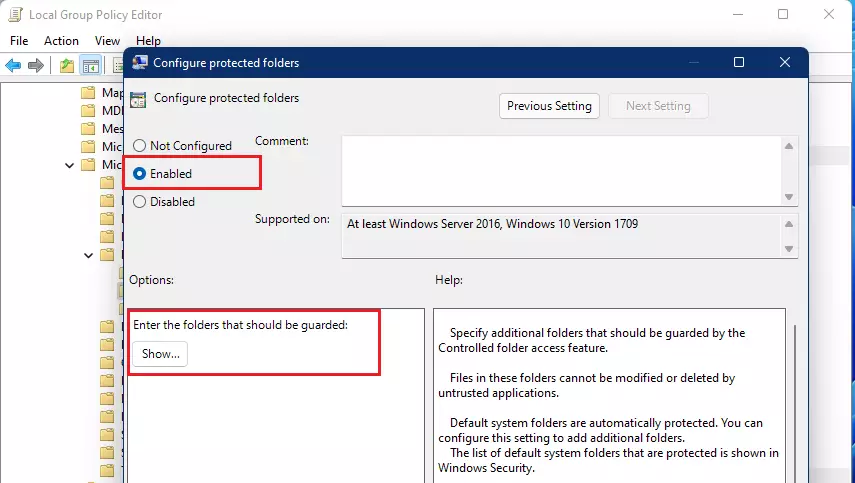
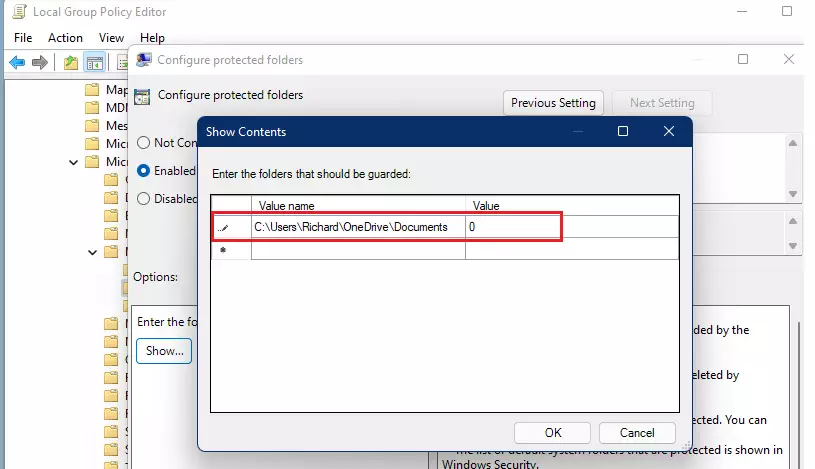
Group Policy settings let you add new protected directories for Controlled Folder Access Windows 11 by editing the policy options list. Enable the policy, open the show dialog box, and enter the exact folder path along with the value zero to guard your important data.- Select the Enabled radio button.
- Click on the Show button next to Enter the folders that should be guarded under Options.
- In the Value name column, type the full path of the drive or folder you want to add. Example:
"Z:\"- Double-click in the field to enter the full path.
- In the Value column to the right, type the number 0.
- Double-click in the field to enter the number.
- When finished adding drives or folders, click on OK.
- Click on OK again.
Remove Protected Folders
Group Policy options let you remove existing folders from Controlled Folder Access Windows 11 by editing the guarded folders list. Open the policy settings, access the show dialog box, and delete the folder path entry to stop protecting that specific location.- Select the Enabled radio button.
- Click on the Show button next to Enter the folders that should be guarded under Options.
- Delete the Value name and Value columns for the drives or folders you want to remove.
- When finished removing drives or folders, click on OK.
- Click on OK again.
Undo These Changes
To go back to the default setting:
- Select the Not Configured radio button.
- Click on OK.
- You can now close the Local Group Policy Editor.
Option 4Configure Protected Folders Using Registry Editor
Add Protected Folder to Controlled Folder Access
Registry Editor (regedit.exe, an advanced tool for editing system settings) lets you add protected folders for Controlled Folder Access Windows 11 by creating specific string values. Open the registry key path and add your folder path to secure the directory against ransomware.- REQUIRES ADMIN: Click on the Download button below to download the registry file that adds the needed registry keys and values.
- REQUIRES ADMIN: Open Registry Editor (regedit.exe).
- In the left pane, go to this key:
HKEY_LOCAL_MACHINE\SOFTWARE\Policies\Microsoft\Windows Defender\Windows Defender Exploit Guard\Controlled Folder Access\ProtectedFolders
- In the right pane of the ProtectedFolders key, right-click on an empty space. Click on New. Click on String Value.
- Type the full path of the drive or folder you want to add as the name. Example:
"Z:\"Press Enter. - Double-click on this string value to change it.
- Type the number 0. Click on OK.
Remove Protected Folder from Controlled Folder Access
Registry Editor (regedit.exe) lets you remove protected folders for Controlled Folder Access Windows 11 by deleting the corresponding string value from the registry keys. Locate the ProtectedFolders key and delete the entry for the folder you want to stop protecting.- REQUIRES ADMIN: Open Registry Editor (regedit.exe).
- In the left pane, go to this key:
HKEY_LOCAL_MACHINE\SOFTWARE\Policies\Microsoft\Windows Defender\Windows Defender Exploit Guard\Controlled Folder Access\ProtectedFolders
- In the right pane of the ProtectedFolders key, right-click on the string value (REG_SZ) of the drive or folder you want to remove. Example:
"Z:\"Click on Delete. - Click on Yes to confirm.
- When finished removing drives or folders, you can close Registry Editor.
Summary
Controlled Folder Access Windows 11 is a Microsoft Defender feature that protects your sensitive files from ransomware and unauthorized apps by blocking untrusted software. Managing your protected folders ensures your important documents stay safe while letting trusted programs run normally.
- Why Use It: Controlled Folder Access protects important files by allowing only trusted apps to access protected folders.
- Default Protection: Several system and user folders are protected by default. This gives you a basic level of security right away.
- Add Your Own Folders: You can add extra folders for protection. But you cannot remove the default folders.
- How to Configure It: You can set up the feature through Windows Security, Command Prompt, Local Group Policy Editor, or Registry Editor.
- Admin Rights Required: You must be signed in as an administrator to add or remove protected folders.
- Watch for Notifications: Pay attention to notifications that show when an untrusted app tries to access protected folders.
By following these steps, you can make your device more secure. You will prevent unauthorized apps from accessing your important files.
Add Protected Folder to Controlled Folder Access
Registry Editor (regedit.exe, an advanced tool for editing system settings) lets you add protected folders for Controlled Folder Access Windows 11 by creating specific string values. Open the registry key path and add your folder path to secure the directory against ransomware.- REQUIRES ADMIN: Click on the Download button below to download the registry file that adds the needed registry keys and values.
- REQUIRES ADMIN: Open Registry Editor (regedit.exe).
- In the left pane, go to this key:
HKEY_LOCAL_MACHINE\SOFTWARE\Policies\Microsoft\Windows Defender\Windows Defender Exploit Guard\Controlled Folder Access\ProtectedFolders
- In the right pane of the ProtectedFolders key, right-click on an empty space. Click on New. Click on String Value.
- Type the full path of the drive or folder you want to add as the name. Example:
"Z:\"Press Enter. - Double-click on this string value to change it.
- Type the number 0. Click on OK.
Remove Protected Folder from Controlled Folder Access
Registry Editor (regedit.exe) lets you remove protected folders for Controlled Folder Access Windows 11 by deleting the corresponding string value from the registry keys. Locate the ProtectedFolders key and delete the entry for the folder you want to stop protecting.- REQUIRES ADMIN: Open Registry Editor (regedit.exe).
- In the left pane, go to this key:
HKEY_LOCAL_MACHINE\SOFTWARE\Policies\Microsoft\Windows Defender\Windows Defender Exploit Guard\Controlled Folder Access\ProtectedFolders
- In the right pane of the ProtectedFolders key, right-click on the string value (REG_SZ) of the drive or folder you want to remove. Example:
"Z:\"Click on Delete. - Click on Yes to confirm.
- When finished removing drives or folders, you can close Registry Editor.
Summary
Controlled Folder Access Windows 11 is a Microsoft Defender feature that protects your sensitive files from ransomware and unauthorized apps by blocking untrusted software. Managing your protected folders ensures your important documents stay safe while letting trusted programs run normally.
- Why Use It: Controlled Folder Access protects important files by allowing only trusted apps to access protected folders.
- Default Protection: Several system and user folders are protected by default. This gives you a basic level of security right away.
- Add Your Own Folders: You can add extra folders for protection. But you cannot remove the default folders.
- How to Configure It: You can set up the feature through Windows Security, Command Prompt, Local Group Policy Editor, or Registry Editor.
- Admin Rights Required: You must be signed in as an administrator to add or remove protected folders.
- Watch for Notifications: Pay attention to notifications that show when an untrusted app tries to access protected folders.
By following these steps, you can make your device more secure. You will prevent unauthorized apps from accessing your important files.
Add Protected Folders
Group Policy settings let you add new protected directories for Controlled Folder Access Windows 11 by editing the policy options list. Enable the policy, open the show dialog box, and enter the exact folder path along with the value zero to guard your important data.- Select the Enabled radio button.
- Click on the Show button next to Enter the folders that should be guarded under Options.
- In the Value name column, type the full path of the drive or folder you want to add. Example:
"Z:\"- Double-click in the field to enter the full path.
- In the Value column to the right, type the number 0.
- Double-click in the field to enter the number.
- When finished adding drives or folders, click on OK.
- Click on OK again.
Remove Protected Folders
Group Policy options let you remove existing folders from Controlled Folder Access Windows 11 by editing the guarded folders list. Open the policy settings, access the show dialog box, and delete the folder path entry to stop protecting that specific location.- Select the Enabled radio button.
- Click on the Show button next to Enter the folders that should be guarded under Options.
- Delete the Value name and Value columns for the drives or folders you want to remove.
- When finished removing drives or folders, click on OK.
- Click on OK again.
Undo These Changes
To go back to the default setting:
- Select the Not Configured radio button.
- Click on OK.
- You can now close the Local Group Policy Editor.
Option 4Configure Protected Folders Using Registry Editor
Add Protected Folder to Controlled Folder Access
Registry Editor (regedit.exe, an advanced tool for editing system settings) lets you add protected folders for Controlled Folder Access Windows 11 by creating specific string values. Open the registry key path and add your folder path to secure the directory against ransomware.- REQUIRES ADMIN: Click on the Download button below to download the registry file that adds the needed registry keys and values.
- REQUIRES ADMIN: Open Registry Editor (regedit.exe).
- In the left pane, go to this key:
HKEY_LOCAL_MACHINE\SOFTWARE\Policies\Microsoft\Windows Defender\Windows Defender Exploit Guard\Controlled Folder Access\ProtectedFolders
- In the right pane of the ProtectedFolders key, right-click on an empty space. Click on New. Click on String Value.
- Type the full path of the drive or folder you want to add as the name. Example:
"Z:\"Press Enter. - Double-click on this string value to change it.
- Type the number 0. Click on OK.
Remove Protected Folder from Controlled Folder Access
Registry Editor (regedit.exe) lets you remove protected folders for Controlled Folder Access Windows 11 by deleting the corresponding string value from the registry keys. Locate the ProtectedFolders key and delete the entry for the folder you want to stop protecting.- REQUIRES ADMIN: Open Registry Editor (regedit.exe).
- In the left pane, go to this key:
HKEY_LOCAL_MACHINE\SOFTWARE\Policies\Microsoft\Windows Defender\Windows Defender Exploit Guard\Controlled Folder Access\ProtectedFolders
- In the right pane of the ProtectedFolders key, right-click on the string value (REG_SZ) of the drive or folder you want to remove. Example:
"Z:\"Click on Delete. - Click on Yes to confirm.
- When finished removing drives or folders, you can close Registry Editor.
Summary
Controlled Folder Access Windows 11 is a Microsoft Defender feature that protects your sensitive files from ransomware and unauthorized apps by blocking untrusted software. Managing your protected folders ensures your important documents stay safe while letting trusted programs run normally.
- Why Use It: Controlled Folder Access protects important files by allowing only trusted apps to access protected folders.
- Default Protection: Several system and user folders are protected by default. This gives you a basic level of security right away.
- Add Your Own Folders: You can add extra folders for protection. But you cannot remove the default folders.
- How to Configure It: You can set up the feature through Windows Security, Command Prompt, Local Group Policy Editor, or Registry Editor.
- Admin Rights Required: You must be signed in as an administrator to add or remove protected folders.
- Watch for Notifications: Pay attention to notifications that show when an untrusted app tries to access protected folders.
By following these steps, you can make your device more secure. You will prevent unauthorized apps from accessing your important files.
Remove Protected Folders
Group Policy options let you remove existing folders from Controlled Folder Access Windows 11 by editing the guarded folders list. Open the policy settings, access the show dialog box, and delete the folder path entry to stop protecting that specific location.- Select the Enabled radio button.
- Click on the Show button next to Enter the folders that should be guarded under Options.
- Delete the Value name and Value columns for the drives or folders you want to remove.
- When finished removing drives or folders, click on OK.
- Click on OK again.
Undo These Changes
To go back to the default setting:
- Select the Not Configured radio button.
- Click on OK.
- You can now close the Local Group Policy Editor.
Option 4Configure Protected Folders Using Registry Editor
Add Protected Folder to Controlled Folder Access
Registry Editor (regedit.exe, an advanced tool for editing system settings) lets you add protected folders for Controlled Folder Access Windows 11 by creating specific string values. Open the registry key path and add your folder path to secure the directory against ransomware.- REQUIRES ADMIN: Click on the Download button below to download the registry file that adds the needed registry keys and values.
- REQUIRES ADMIN: Open Registry Editor (regedit.exe).
- In the left pane, go to this key:
HKEY_LOCAL_MACHINE\SOFTWARE\Policies\Microsoft\Windows Defender\Windows Defender Exploit Guard\Controlled Folder Access\ProtectedFolders
- In the right pane of the ProtectedFolders key, right-click on an empty space. Click on New. Click on String Value.
- Type the full path of the drive or folder you want to add as the name. Example:
"Z:\"Press Enter. - Double-click on this string value to change it.
- Type the number 0. Click on OK.
Remove Protected Folder from Controlled Folder Access
Registry Editor (regedit.exe) lets you remove protected folders for Controlled Folder Access Windows 11 by deleting the corresponding string value from the registry keys. Locate the ProtectedFolders key and delete the entry for the folder you want to stop protecting.- REQUIRES ADMIN: Open Registry Editor (regedit.exe).
- In the left pane, go to this key:
HKEY_LOCAL_MACHINE\SOFTWARE\Policies\Microsoft\Windows Defender\Windows Defender Exploit Guard\Controlled Folder Access\ProtectedFolders
- In the right pane of the ProtectedFolders key, right-click on the string value (REG_SZ) of the drive or folder you want to remove. Example:
"Z:\"Click on Delete. - Click on Yes to confirm.
- When finished removing drives or folders, you can close Registry Editor.
Summary
Controlled Folder Access Windows 11 is a Microsoft Defender feature that protects your sensitive files from ransomware and unauthorized apps by blocking untrusted software. Managing your protected folders ensures your important documents stay safe while letting trusted programs run normally.
- Why Use It: Controlled Folder Access protects important files by allowing only trusted apps to access protected folders.
- Default Protection: Several system and user folders are protected by default. This gives you a basic level of security right away.
- Add Your Own Folders: You can add extra folders for protection. But you cannot remove the default folders.
- How to Configure It: You can set up the feature through Windows Security, Command Prompt, Local Group Policy Editor, or Registry Editor.
- Admin Rights Required: You must be signed in as an administrator to add or remove protected folders.
- Watch for Notifications: Pay attention to notifications that show when an untrusted app tries to access protected folders.
By following these steps, you can make your device more secure. You will prevent unauthorized apps from accessing your important files.
Add Protected Folders
Group Policy settings let you add new protected directories for Controlled Folder Access Windows 11 by editing the policy options list. Enable the policy, open the show dialog box, and enter the exact folder path along with the value zero to guard your important data.- Select the Enabled radio button.
- Click on the Show button next to Enter the folders that should be guarded under Options.
- In the Value name column, type the full path of the drive or folder you want to add. Example:
"Z:\"- Double-click in the field to enter the full path.
- In the Value column to the right, type the number 0.
- Double-click in the field to enter the number.
- When finished adding drives or folders, click on OK.
- Click on OK again.
Remove Protected Folders
Group Policy options let you remove existing folders from Controlled Folder Access Windows 11 by editing the guarded folders list. Open the policy settings, access the show dialog box, and delete the folder path entry to stop protecting that specific location.- Select the Enabled radio button.
- Click on the Show button next to Enter the folders that should be guarded under Options.
- Delete the Value name and Value columns for the drives or folders you want to remove.
- When finished removing drives or folders, click on OK.
- Click on OK again.
Undo These Changes
To go back to the default setting:
- Select the Not Configured radio button.
- Click on OK.
- You can now close the Local Group Policy Editor.
Option 4Configure Protected Folders Using Registry Editor
Add Protected Folder to Controlled Folder Access
Registry Editor (regedit.exe, an advanced tool for editing system settings) lets you add protected folders for Controlled Folder Access Windows 11 by creating specific string values. Open the registry key path and add your folder path to secure the directory against ransomware.- REQUIRES ADMIN: Click on the Download button below to download the registry file that adds the needed registry keys and values.
- REQUIRES ADMIN: Open Registry Editor (regedit.exe).
- In the left pane, go to this key:
HKEY_LOCAL_MACHINE\SOFTWARE\Policies\Microsoft\Windows Defender\Windows Defender Exploit Guard\Controlled Folder Access\ProtectedFolders
- In the right pane of the ProtectedFolders key, right-click on an empty space. Click on New. Click on String Value.
- Type the full path of the drive or folder you want to add as the name. Example:
"Z:\"Press Enter. - Double-click on this string value to change it.
- Type the number 0. Click on OK.
Remove Protected Folder from Controlled Folder Access
Registry Editor (regedit.exe) lets you remove protected folders for Controlled Folder Access Windows 11 by deleting the corresponding string value from the registry keys. Locate the ProtectedFolders key and delete the entry for the folder you want to stop protecting.- REQUIRES ADMIN: Open Registry Editor (regedit.exe).
- In the left pane, go to this key:
HKEY_LOCAL_MACHINE\SOFTWARE\Policies\Microsoft\Windows Defender\Windows Defender Exploit Guard\Controlled Folder Access\ProtectedFolders
- In the right pane of the ProtectedFolders key, right-click on the string value (REG_SZ) of the drive or folder you want to remove. Example:
"Z:\"Click on Delete. - Click on Yes to confirm.
- When finished removing drives or folders, you can close Registry Editor.
Summary
Controlled Folder Access Windows 11 is a Microsoft Defender feature that protects your sensitive files from ransomware and unauthorized apps by blocking untrusted software. Managing your protected folders ensures your important documents stay safe while letting trusted programs run normally.
- Why Use It: Controlled Folder Access protects important files by allowing only trusted apps to access protected folders.
- Default Protection: Several system and user folders are protected by default. This gives you a basic level of security right away.
- Add Your Own Folders: You can add extra folders for protection. But you cannot remove the default folders.
- How to Configure It: You can set up the feature through Windows Security, Command Prompt, Local Group Policy Editor, or Registry Editor.
- Admin Rights Required: You must be signed in as an administrator to add or remove protected folders.
- Watch for Notifications: Pay attention to notifications that show when an untrusted app tries to access protected folders.
By following these steps, you can make your device more secure. You will prevent unauthorized apps from accessing your important files.
In that window, choose Enabled to add folders, then use the Show button in the Options area to enter each folder path. To stop protecting the folders you added through policy, set the policy back to Not Configured or Disabled. Click OK when you finish. The policy applies at the next policy refresh, or after you restart or sign out and back in.
Add Protected Folder to Controlled Folder Access
Registry Editor (regedit.exe, an advanced tool for editing system settings) lets you add protected folders for Controlled Folder Access Windows 11 by creating specific string values. Open the registry key path and add your folder path to secure the directory against ransomware.- REQUIRES ADMIN: Click on the Download button below to download the registry file that adds the needed registry keys and values.
- REQUIRES ADMIN: Open Registry Editor (regedit.exe).
- In the left pane, go to this key:
HKEY_LOCAL_MACHINE\SOFTWARE\Policies\Microsoft\Windows Defender\Windows Defender Exploit Guard\Controlled Folder Access\ProtectedFolders
- In the right pane of the ProtectedFolders key, right-click on an empty space. Click on New. Click on String Value.
- Type the full path of the drive or folder you want to add as the name. Example:
"Z:\"Press Enter. - Double-click on this string value to change it.
- Type the number 0. Click on OK.
Remove Protected Folder from Controlled Folder Access
Registry Editor (regedit.exe) lets you remove protected folders for Controlled Folder Access Windows 11 by deleting the corresponding string value from the registry keys. Locate the ProtectedFolders key and delete the entry for the folder you want to stop protecting.- REQUIRES ADMIN: Open Registry Editor (regedit.exe).
- In the left pane, go to this key:
HKEY_LOCAL_MACHINE\SOFTWARE\Policies\Microsoft\Windows Defender\Windows Defender Exploit Guard\Controlled Folder Access\ProtectedFolders
- In the right pane of the ProtectedFolders key, right-click on the string value (REG_SZ) of the drive or folder you want to remove. Example:
"Z:\"Click on Delete. - Click on Yes to confirm.
- When finished removing drives or folders, you can close Registry Editor.
Summary
Controlled Folder Access Windows 11 is a Microsoft Defender feature that protects your sensitive files from ransomware and unauthorized apps by blocking untrusted software. Managing your protected folders ensures your important documents stay safe while letting trusted programs run normally.
- Why Use It: Controlled Folder Access protects important files by allowing only trusted apps to access protected folders.
- Default Protection: Several system and user folders are protected by default. This gives you a basic level of security right away.
- Add Your Own Folders: You can add extra folders for protection. But you cannot remove the default folders.
- How to Configure It: You can set up the feature through Windows Security, Command Prompt, Local Group Policy Editor, or Registry Editor.
- Admin Rights Required: You must be signed in as an administrator to add or remove protected folders.
- Watch for Notifications: Pay attention to notifications that show when an untrusted app tries to access protected folders.
By following these steps, you can make your device more secure. You will prevent unauthorized apps from accessing your important files.
Remove Protected Folders
Group Policy options let you remove existing folders from Controlled Folder Access Windows 11 by editing the guarded folders list. Open the policy settings, access the show dialog box, and delete the folder path entry to stop protecting that specific location.- Select the Enabled radio button.
- Click on the Show button next to Enter the folders that should be guarded under Options.
- Delete the Value name and Value columns for the drives or folders you want to remove.
- When finished removing drives or folders, click on OK.
- Click on OK again.
Undo These Changes
To go back to the default setting:
- Select the Not Configured radio button.
- Click on OK.
- You can now close the Local Group Policy Editor.
Option 4Configure Protected Folders Using Registry Editor
Add Protected Folder to Controlled Folder Access
Registry Editor (regedit.exe, an advanced tool for editing system settings) lets you add protected folders for Controlled Folder Access Windows 11 by creating specific string values. Open the registry key path and add your folder path to secure the directory against ransomware.- REQUIRES ADMIN: Click on the Download button below to download the registry file that adds the needed registry keys and values.
- REQUIRES ADMIN: Open Registry Editor (regedit.exe).
- In the left pane, go to this key:
HKEY_LOCAL_MACHINE\SOFTWARE\Policies\Microsoft\Windows Defender\Windows Defender Exploit Guard\Controlled Folder Access\ProtectedFolders
- In the right pane of the ProtectedFolders key, right-click on an empty space. Click on New. Click on String Value.
- Type the full path of the drive or folder you want to add as the name. Example:
"Z:\"Press Enter. - Double-click on this string value to change it.
- Type the number 0. Click on OK.
Remove Protected Folder from Controlled Folder Access
Registry Editor (regedit.exe) lets you remove protected folders for Controlled Folder Access Windows 11 by deleting the corresponding string value from the registry keys. Locate the ProtectedFolders key and delete the entry for the folder you want to stop protecting.- REQUIRES ADMIN: Open Registry Editor (regedit.exe).
- In the left pane, go to this key:
HKEY_LOCAL_MACHINE\SOFTWARE\Policies\Microsoft\Windows Defender\Windows Defender Exploit Guard\Controlled Folder Access\ProtectedFolders
- In the right pane of the ProtectedFolders key, right-click on the string value (REG_SZ) of the drive or folder you want to remove. Example:
"Z:\"Click on Delete. - Click on Yes to confirm.
- When finished removing drives or folders, you can close Registry Editor.
Summary
Controlled Folder Access Windows 11 is a Microsoft Defender feature that protects your sensitive files from ransomware and unauthorized apps by blocking untrusted software. Managing your protected folders ensures your important documents stay safe while letting trusted programs run normally.
- Why Use It: Controlled Folder Access protects important files by allowing only trusted apps to access protected folders.
- Default Protection: Several system and user folders are protected by default. This gives you a basic level of security right away.
- Add Your Own Folders: You can add extra folders for protection. But you cannot remove the default folders.
- How to Configure It: You can set up the feature through Windows Security, Command Prompt, Local Group Policy Editor, or Registry Editor.
- Admin Rights Required: You must be signed in as an administrator to add or remove protected folders.
- Watch for Notifications: Pay attention to notifications that show when an untrusted app tries to access protected folders.
By following these steps, you can make your device more secure. You will prevent unauthorized apps from accessing your important files.
Add Protected Folders
Group Policy settings let you add new protected directories for Controlled Folder Access Windows 11 by editing the policy options list. Enable the policy, open the show dialog box, and enter the exact folder path along with the value zero to guard your important data.- Select the Enabled radio button.
- Click on the Show button next to Enter the folders that should be guarded under Options.
- In the Value name column, type the full path of the drive or folder you want to add. Example:
"Z:\"- Double-click in the field to enter the full path.
- In the Value column to the right, type the number 0.
- Double-click in the field to enter the number.
- When finished adding drives or folders, click on OK.
- Click on OK again.
Remove Protected Folders
Group Policy options let you remove existing folders from Controlled Folder Access Windows 11 by editing the guarded folders list. Open the policy settings, access the show dialog box, and delete the folder path entry to stop protecting that specific location.- Select the Enabled radio button.
- Click on the Show button next to Enter the folders that should be guarded under Options.
- Delete the Value name and Value columns for the drives or folders you want to remove.
- When finished removing drives or folders, click on OK.
- Click on OK again.
Undo These Changes
To go back to the default setting:
- Select the Not Configured radio button.
- Click on OK.
- You can now close the Local Group Policy Editor.
Option 4Configure Protected Folders Using Registry Editor
Add Protected Folder to Controlled Folder Access
Registry Editor (regedit.exe, an advanced tool for editing system settings) lets you add protected folders for Controlled Folder Access Windows 11 by creating specific string values. Open the registry key path and add your folder path to secure the directory against ransomware.- REQUIRES ADMIN: Click on the Download button below to download the registry file that adds the needed registry keys and values.
- REQUIRES ADMIN: Open Registry Editor (regedit.exe).
- In the left pane, go to this key:
HKEY_LOCAL_MACHINE\SOFTWARE\Policies\Microsoft\Windows Defender\Windows Defender Exploit Guard\Controlled Folder Access\ProtectedFolders
- In the right pane of the ProtectedFolders key, right-click on an empty space. Click on New. Click on String Value.
- Type the full path of the drive or folder you want to add as the name. Example:
"Z:\"Press Enter. - Double-click on this string value to change it.
- Type the number 0. Click on OK.
Remove Protected Folder from Controlled Folder Access
Registry Editor (regedit.exe) lets you remove protected folders for Controlled Folder Access Windows 11 by deleting the corresponding string value from the registry keys. Locate the ProtectedFolders key and delete the entry for the folder you want to stop protecting.- REQUIRES ADMIN: Open Registry Editor (regedit.exe).
- In the left pane, go to this key:
HKEY_LOCAL_MACHINE\SOFTWARE\Policies\Microsoft\Windows Defender\Windows Defender Exploit Guard\Controlled Folder Access\ProtectedFolders
- In the right pane of the ProtectedFolders key, right-click on the string value (REG_SZ) of the drive or folder you want to remove. Example:
"Z:\"Click on Delete. - Click on Yes to confirm.
- When finished removing drives or folders, you can close Registry Editor.
Summary
Controlled Folder Access Windows 11 is a Microsoft Defender feature that protects your sensitive files from ransomware and unauthorized apps by blocking untrusted software. Managing your protected folders ensures your important documents stay safe while letting trusted programs run normally.
- Why Use It: Controlled Folder Access protects important files by allowing only trusted apps to access protected folders.
- Default Protection: Several system and user folders are protected by default. This gives you a basic level of security right away.
- Add Your Own Folders: You can add extra folders for protection. But you cannot remove the default folders.
- How to Configure It: You can set up the feature through Windows Security, Command Prompt, Local Group Policy Editor, or Registry Editor.
- Admin Rights Required: You must be signed in as an administrator to add or remove protected folders.
- Watch for Notifications: Pay attention to notifications that show when an untrusted app tries to access protected folders.
By following these steps, you can make your device more secure. You will prevent unauthorized apps from accessing your important files.
Controlled Folder Access in Windows 11 blocks ransomware and unknown apps from changing or deleting personal files stored on your PC. It is a built-in Microsoft Defender security feature. As soon as you turn it on, it protects the default folders such as Documents, Pictures, and Videos.
Open Windows Security Virus & threat protection Manage ransomware protection Protected folders. Click Add a protected folder, select your folder, and click Select Folder. To remove a folder you added, click it in the list, then click Remove and confirm with OK.
You can add extra folders to this list to keep important games, tax records, and family photos safe from digital threats. Once a folder is protected, an app that is not trusted cannot change its contents unless you allow that app.
These are the default protected folders:
- C:\Users\<username>\Documents
- C:\Users\Public\Documents
- C:\Users\<username>\Pictures
- C:\Users\Public\Pictures
- C:\Users\Public\Videos
- C:\Users\<username>\Videos
- C:\Users\<username>\Music
- C:\Users\Public\Music
- C:\Users\<username>\Favorites
You can add other folders to protect, but you cannot remove the default folders listed above. You can protect folders, drives, network shares, and mapped drives. Environment variables and wildcards are supported.
Reference:
Customize controlled folder access - Microsoft Defender for Endpoint
Use this feature to add other folders that should be protected by Controlled Folder Access. If an app is incorrectly blocked from changing important files, you can allow that app instead.
What You Need to Know:
- You must be signed in as an administrator to add or remove protected folders.
- Controlled Folder Access must be turned on before you can add or remove protected folders. If the setting is off, turn it on first on the same Windows Security page.
- Microsoft Defender Antivirus must be your active antivirus. If a third-party antivirus has taken over, or your organization manages the setting, the options may be missing or greyed out.
- None of these changes needs a restart.
Option 1Add or Remove Protected Folders Using Windows Security
Windows Security is the simplest way to manage protected folders. It works in both Home and Pro editions.
- Open Windows Security. You can search for it in the Start menu.
- Click on Virus & threat protection. You should now see the Virus & threat protection page with your scan options and protection settings.
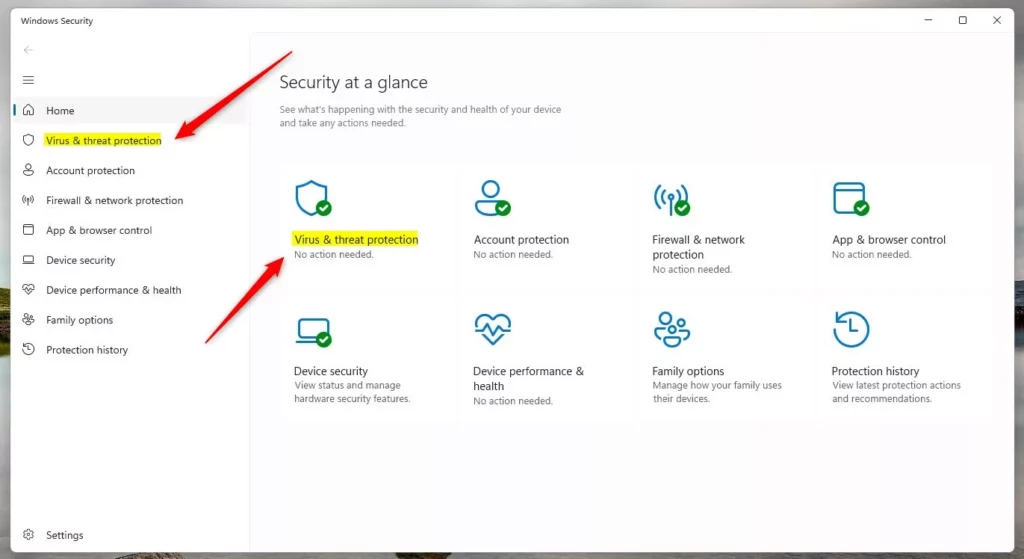
- Do one of the following:
- Click on the Manage ransomware protection link under Ransomware protection.
- Click on the Manage settings link under Virus & threat protection settings. Then click on the Manage Controlled folder access link under Controlled folder access.
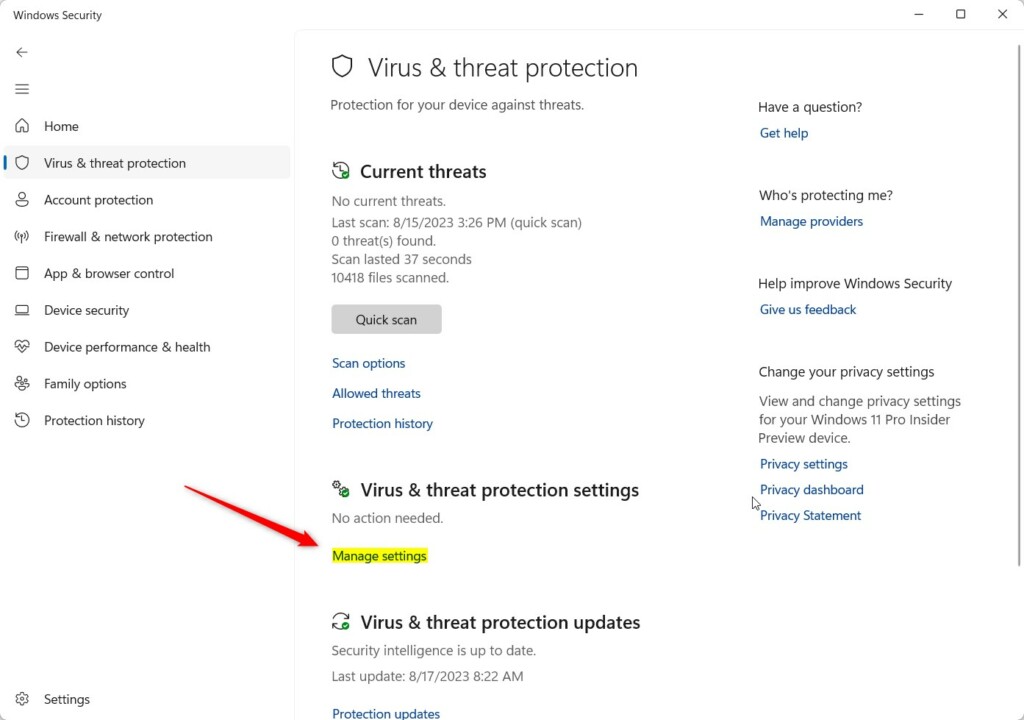
Look for the Controlled folder access switch and make sure it is set to On. If it is off, the Protected folders link will not be available. If you get a User Account Control prompt after turning it on, click Yes.
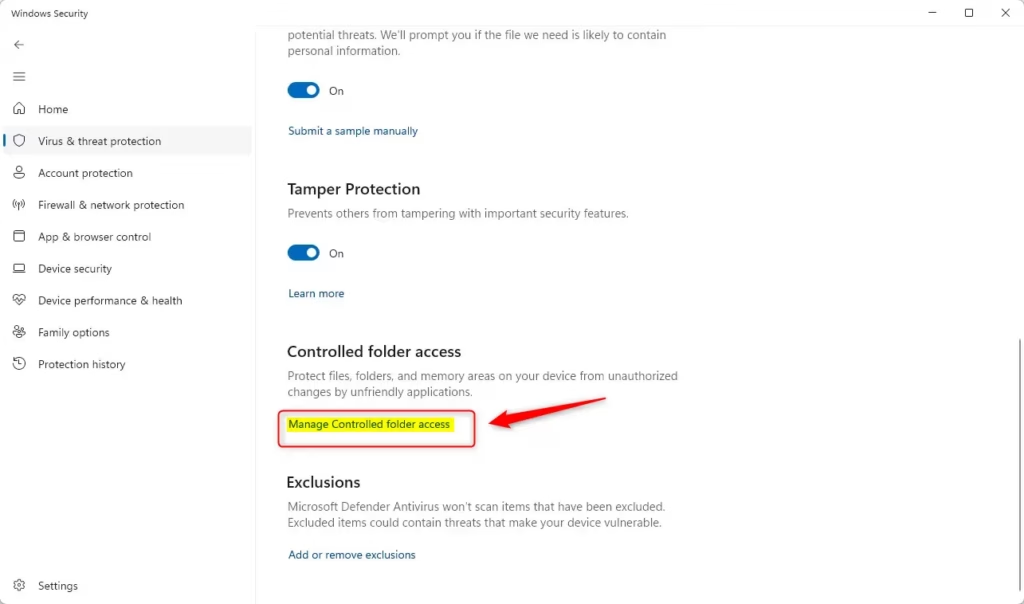
Check those before you try anything else.
- Click on the Protected folders link. You should now see the list of folders that Controlled Folder Access is protecting, along with an Add a protected folder button.
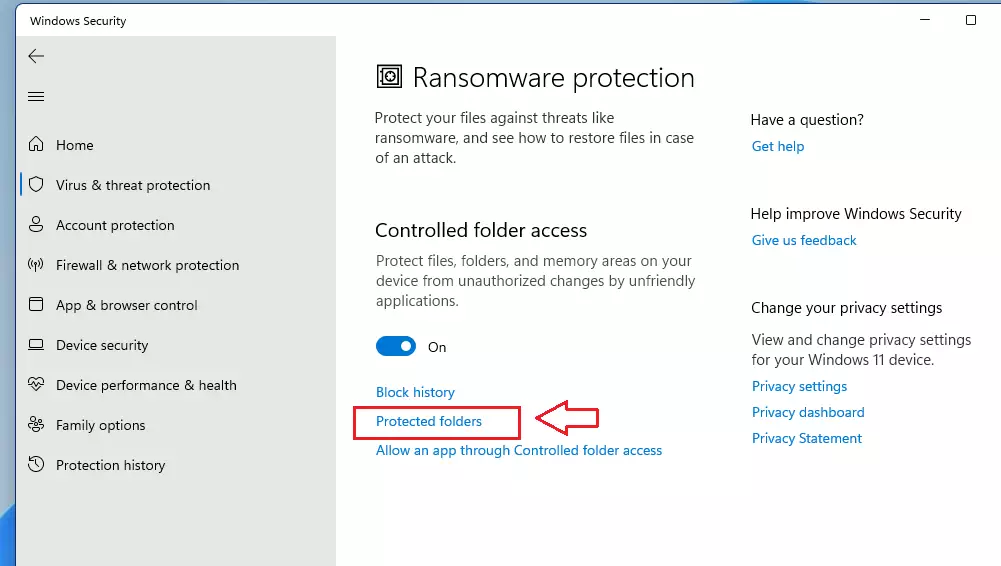
The default folders appear in this list too. They are locked in, so you cannot remove them. Only the folders you add yourself can be removed.
Add Protected Folders to Controlled Folder Access
To add a protected folder:
- Click on Add a protected folder. Approve the User Account Control prompt if one appears. A folder picker window opens.
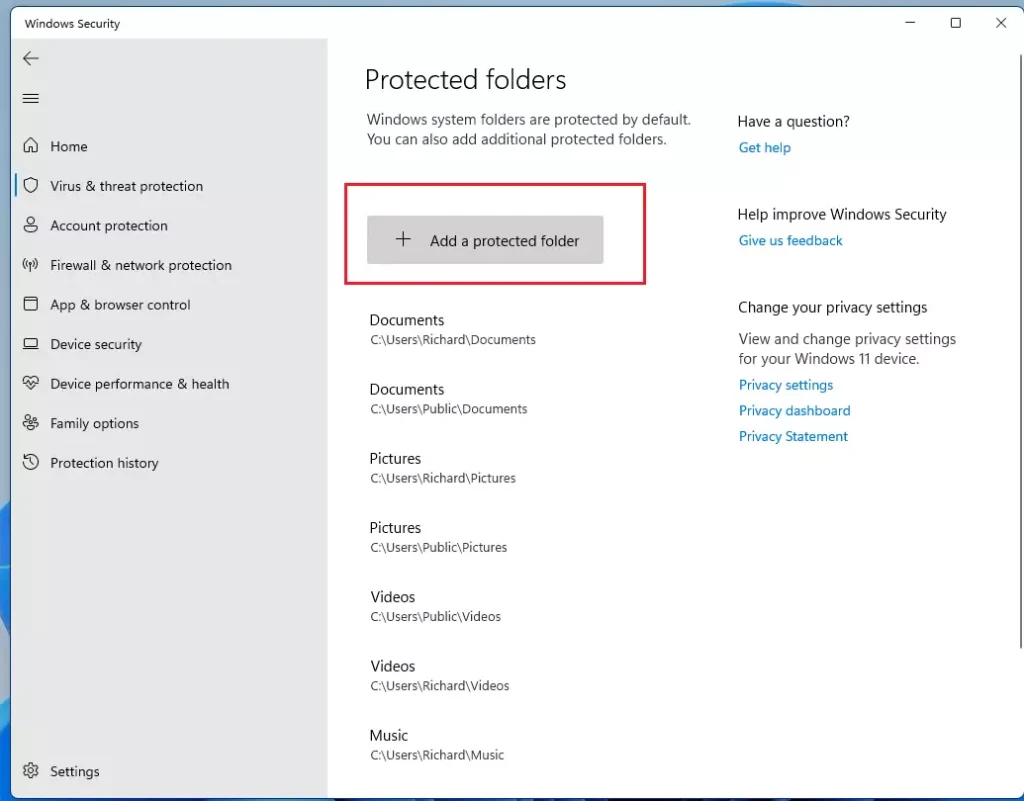
- Go to and select the drive or folder you want to add. Click on Select Folder. The folder should now appear in the Protected folders list.
Remove Protected Folders from Controlled Folder Access
To remove a protected folder you added earlier:
- Click on the protected folder you want to remove to open it. A Remove button appears under it.
- Click on Remove.
- Click on OK to confirm. (See screenshot below)
The folder disappears from the list. Apps are no longer blocked from changing files in it. To protect it again, just add it again. When you finish adding or removing protected folders, you can close Windows Security.
Option 2Add or Remove Protected Folders Using Command
You can also manage protected folders from the command line. This is quicker when you have several folders to add, and it works in both Home and Pro.
- REQUIRES ADMIN: Open Windows Terminal (Admin). Select either Windows PowerShell or Command Prompt. Right-clicking the Start button and choosing Terminal (Admin) is the fastest way.
- Type the command below into Windows Terminal (Admin). Press Enter.
Run it as administrator, or it will fail with an access error. On success it usually prints nothing, so check the Protected folders list in Windows Security if you want to confirm it worked.
PowerShell Add-MpPreference -ControlledFolderAccessProtectedFolders "<full path>"OR
To remove a protected folder:
PowerShell Remove-MpPreference -ControlledFolderAccessProtectedFolders "<full path>"Replace <full path> in the commands above with the actual full path of the drive or folder you want to add or remove. Include the whole path, such as the drive letter and every folder name. If the path contains spaces, put it in quotation marks. Removal only works for folders you added. The default folders cannot be removed.
Example:
PowerShell Add-MpPreference -ControlledFolderAccessProtectedFolders "Z:\"PowerShell Remove-MpPreference -ControlledFolderAccessProtectedFolders "Z:\"- When finished, you can close Windows Terminal (Admin).
Option 3Configure Protected Folders Using Local Group Policy Editor
It lets administrators configure Controlled Folder Access on Windows 11 Pro, Enterprise, and Education. Windows 11 Home does not include it, so use Windows Security or the command line there. Keep in mind that a folder list set by policy may be locked in the Windows Security app.
- REQUIRES ADMIN: Open the Local Group Policy Editor (gpedit.msc). You can type gpedit.msc in the Start menu search or in the Run box.
- In the left pane, go to this location: (See screenshot below)
- Computer Configuration Administrative Templates Windows Components Microsoft Defender Antivirus Microsoft Defender Exploit Guard Controlled folder access
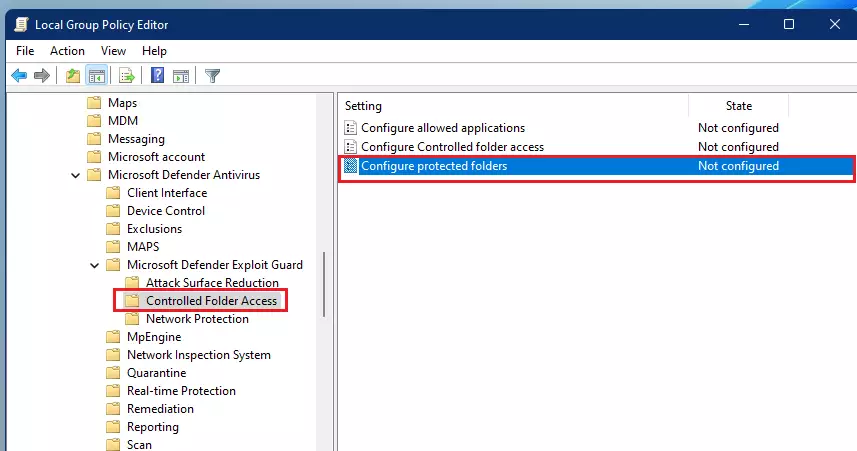
- In the right pane under Controlled folder access, double-click on the Configure protected folders policy. A settings window for that policy opens.
Remove Protected Folder from Controlled Folder Access
Registry Editor (regedit.exe) lets you remove protected folders for Controlled Folder Access Windows 11 by deleting the corresponding string value from the registry keys. Locate the ProtectedFolders key and delete the entry for the folder you want to stop protecting.- REQUIRES ADMIN: Open Registry Editor (regedit.exe).
- In the left pane, go to this key:
HKEY_LOCAL_MACHINE\SOFTWARE\Policies\Microsoft\Windows Defender\Windows Defender Exploit Guard\Controlled Folder Access\ProtectedFolders
- In the right pane of the ProtectedFolders key, right-click on the string value (REG_SZ) of the drive or folder you want to remove. Example:
"Z:\"Click on Delete. - Click on Yes to confirm.
- When finished removing drives or folders, you can close Registry Editor.
Summary
Controlled Folder Access Windows 11 is a Microsoft Defender feature that protects your sensitive files from ransomware and unauthorized apps by blocking untrusted software. Managing your protected folders ensures your important documents stay safe while letting trusted programs run normally.
- Why Use It: Controlled Folder Access protects important files by allowing only trusted apps to access protected folders.
- Default Protection: Several system and user folders are protected by default. This gives you a basic level of security right away.
- Add Your Own Folders: You can add extra folders for protection. But you cannot remove the default folders.
- How to Configure It: You can set up the feature through Windows Security, Command Prompt, Local Group Policy Editor, or Registry Editor.
- Admin Rights Required: You must be signed in as an administrator to add or remove protected folders.
- Watch for Notifications: Pay attention to notifications that show when an untrusted app tries to access protected folders.
By following these steps, you can make your device more secure. You will prevent unauthorized apps from accessing your important files.
In that window, choose Enabled to add folders, then use the Show button in the Options area to enter each folder path. To stop protecting the folders you added through policy, set the policy back to Not Configured or Disabled. Click OK when you finish. The policy applies at the next policy refresh, or after you restart or sign out and back in.
Add Protected Folder to Controlled Folder Access
Registry Editor (regedit.exe, an advanced tool for editing system settings) lets you add protected folders for Controlled Folder Access Windows 11 by creating specific string values. Open the registry key path and add your folder path to secure the directory against ransomware.- REQUIRES ADMIN: Click on the Download button below to download the registry file that adds the needed registry keys and values.
- REQUIRES ADMIN: Open Registry Editor (regedit.exe).
- In the left pane, go to this key:
HKEY_LOCAL_MACHINE\SOFTWARE\Policies\Microsoft\Windows Defender\Windows Defender Exploit Guard\Controlled Folder Access\ProtectedFolders
- In the right pane of the ProtectedFolders key, right-click on an empty space. Click on New. Click on String Value.
- Type the full path of the drive or folder you want to add as the name. Example:
"Z:\"Press Enter. - Double-click on this string value to change it.
- Type the number 0. Click on OK.
Remove Protected Folder from Controlled Folder Access
Registry Editor (regedit.exe) lets you remove protected folders for Controlled Folder Access Windows 11 by deleting the corresponding string value from the registry keys. Locate the ProtectedFolders key and delete the entry for the folder you want to stop protecting.- REQUIRES ADMIN: Open Registry Editor (regedit.exe).
- In the left pane, go to this key:
HKEY_LOCAL_MACHINE\SOFTWARE\Policies\Microsoft\Windows Defender\Windows Defender Exploit Guard\Controlled Folder Access\ProtectedFolders
- In the right pane of the ProtectedFolders key, right-click on the string value (REG_SZ) of the drive or folder you want to remove. Example:
"Z:\"Click on Delete. - Click on Yes to confirm.
- When finished removing drives or folders, you can close Registry Editor.
Summary
Controlled Folder Access Windows 11 is a Microsoft Defender feature that protects your sensitive files from ransomware and unauthorized apps by blocking untrusted software. Managing your protected folders ensures your important documents stay safe while letting trusted programs run normally.
- Why Use It: Controlled Folder Access protects important files by allowing only trusted apps to access protected folders.
- Default Protection: Several system and user folders are protected by default. This gives you a basic level of security right away.
- Add Your Own Folders: You can add extra folders for protection. But you cannot remove the default folders.
- How to Configure It: You can set up the feature through Windows Security, Command Prompt, Local Group Policy Editor, or Registry Editor.
- Admin Rights Required: You must be signed in as an administrator to add or remove protected folders.
- Watch for Notifications: Pay attention to notifications that show when an untrusted app tries to access protected folders.
By following these steps, you can make your device more secure. You will prevent unauthorized apps from accessing your important files.
Remove Protected Folders
Group Policy options let you remove existing folders from Controlled Folder Access Windows 11 by editing the guarded folders list. Open the policy settings, access the show dialog box, and delete the folder path entry to stop protecting that specific location.- Select the Enabled radio button.
- Click on the Show button next to Enter the folders that should be guarded under Options.
- Delete the Value name and Value columns for the drives or folders you want to remove.
- When finished removing drives or folders, click on OK.
- Click on OK again.
Undo These Changes
To go back to the default setting:
- Select the Not Configured radio button.
- Click on OK.
- You can now close the Local Group Policy Editor.
Option 4Configure Protected Folders Using Registry Editor
Add Protected Folder to Controlled Folder Access
Registry Editor (regedit.exe, an advanced tool for editing system settings) lets you add protected folders for Controlled Folder Access Windows 11 by creating specific string values. Open the registry key path and add your folder path to secure the directory against ransomware.- REQUIRES ADMIN: Click on the Download button below to download the registry file that adds the needed registry keys and values.
- REQUIRES ADMIN: Open Registry Editor (regedit.exe).
- In the left pane, go to this key:
HKEY_LOCAL_MACHINE\SOFTWARE\Policies\Microsoft\Windows Defender\Windows Defender Exploit Guard\Controlled Folder Access\ProtectedFolders
- In the right pane of the ProtectedFolders key, right-click on an empty space. Click on New. Click on String Value.
- Type the full path of the drive or folder you want to add as the name. Example:
"Z:\"Press Enter. - Double-click on this string value to change it.
- Type the number 0. Click on OK.
Remove Protected Folder from Controlled Folder Access
Registry Editor (regedit.exe) lets you remove protected folders for Controlled Folder Access Windows 11 by deleting the corresponding string value from the registry keys. Locate the ProtectedFolders key and delete the entry for the folder you want to stop protecting.- REQUIRES ADMIN: Open Registry Editor (regedit.exe).
- In the left pane, go to this key:
HKEY_LOCAL_MACHINE\SOFTWARE\Policies\Microsoft\Windows Defender\Windows Defender Exploit Guard\Controlled Folder Access\ProtectedFolders
- In the right pane of the ProtectedFolders key, right-click on the string value (REG_SZ) of the drive or folder you want to remove. Example:
"Z:\"Click on Delete. - Click on Yes to confirm.
- When finished removing drives or folders, you can close Registry Editor.
Summary
Controlled Folder Access Windows 11 is a Microsoft Defender feature that protects your sensitive files from ransomware and unauthorized apps by blocking untrusted software. Managing your protected folders ensures your important documents stay safe while letting trusted programs run normally.
- Why Use It: Controlled Folder Access protects important files by allowing only trusted apps to access protected folders.
- Default Protection: Several system and user folders are protected by default. This gives you a basic level of security right away.
- Add Your Own Folders: You can add extra folders for protection. But you cannot remove the default folders.
- How to Configure It: You can set up the feature through Windows Security, Command Prompt, Local Group Policy Editor, or Registry Editor.
- Admin Rights Required: You must be signed in as an administrator to add or remove protected folders.
- Watch for Notifications: Pay attention to notifications that show when an untrusted app tries to access protected folders.
By following these steps, you can make your device more secure. You will prevent unauthorized apps from accessing your important files.
Add Protected Folders
Group Policy settings let you add new protected directories for Controlled Folder Access Windows 11 by editing the policy options list. Enable the policy, open the show dialog box, and enter the exact folder path along with the value zero to guard your important data.- Select the Enabled radio button.
- Click on the Show button next to Enter the folders that should be guarded under Options.
- In the Value name column, type the full path of the drive or folder you want to add. Example:
"Z:\"- Double-click in the field to enter the full path.
- In the Value column to the right, type the number 0.
- Double-click in the field to enter the number.
- When finished adding drives or folders, click on OK.
- Click on OK again.
Remove Protected Folders
Group Policy options let you remove existing folders from Controlled Folder Access Windows 11 by editing the guarded folders list. Open the policy settings, access the show dialog box, and delete the folder path entry to stop protecting that specific location.- Select the Enabled radio button.
- Click on the Show button next to Enter the folders that should be guarded under Options.
- Delete the Value name and Value columns for the drives or folders you want to remove.
- When finished removing drives or folders, click on OK.
- Click on OK again.
Undo These Changes
To go back to the default setting:
- Select the Not Configured radio button.
- Click on OK.
- You can now close the Local Group Policy Editor.
Option 4Configure Protected Folders Using Registry Editor
Add Protected Folder to Controlled Folder Access
Registry Editor (regedit.exe, an advanced tool for editing system settings) lets you add protected folders for Controlled Folder Access Windows 11 by creating specific string values. Open the registry key path and add your folder path to secure the directory against ransomware.- REQUIRES ADMIN: Click on the Download button below to download the registry file that adds the needed registry keys and values.
- REQUIRES ADMIN: Open Registry Editor (regedit.exe).
- In the left pane, go to this key:
HKEY_LOCAL_MACHINE\SOFTWARE\Policies\Microsoft\Windows Defender\Windows Defender Exploit Guard\Controlled Folder Access\ProtectedFolders
- In the right pane of the ProtectedFolders key, right-click on an empty space. Click on New. Click on String Value.
- Type the full path of the drive or folder you want to add as the name. Example:
"Z:\"Press Enter. - Double-click on this string value to change it.
- Type the number 0. Click on OK.
Remove Protected Folder from Controlled Folder Access
Registry Editor (regedit.exe) lets you remove protected folders for Controlled Folder Access Windows 11 by deleting the corresponding string value from the registry keys. Locate the ProtectedFolders key and delete the entry for the folder you want to stop protecting.- REQUIRES ADMIN: Open Registry Editor (regedit.exe).
- In the left pane, go to this key:
HKEY_LOCAL_MACHINE\SOFTWARE\Policies\Microsoft\Windows Defender\Windows Defender Exploit Guard\Controlled Folder Access\ProtectedFolders
- In the right pane of the ProtectedFolders key, right-click on the string value (REG_SZ) of the drive or folder you want to remove. Example:
"Z:\"Click on Delete. - Click on Yes to confirm.
- When finished removing drives or folders, you can close Registry Editor.
Summary
Controlled Folder Access Windows 11 is a Microsoft Defender feature that protects your sensitive files from ransomware and unauthorized apps by blocking untrusted software. Managing your protected folders ensures your important documents stay safe while letting trusted programs run normally.
- Why Use It: Controlled Folder Access protects important files by allowing only trusted apps to access protected folders.
- Default Protection: Several system and user folders are protected by default. This gives you a basic level of security right away.
- Add Your Own Folders: You can add extra folders for protection. But you cannot remove the default folders.
- How to Configure It: You can set up the feature through Windows Security, Command Prompt, Local Group Policy Editor, or Registry Editor.
- Admin Rights Required: You must be signed in as an administrator to add or remove protected folders.
- Watch for Notifications: Pay attention to notifications that show when an untrusted app tries to access protected folders.
By following these steps, you can make your device more secure. You will prevent unauthorized apps from accessing your important files.
Was this guide helpful?

About the Author
Richard
Tech Writer, IT Professional
Richard is a writer at Geek Rewind who turns complex IT tasks into clear, step-by-step guides. He draws on years of hands-on experience in system administration and enterprise IT operations, focusing on Windows, Linux and WordPress: the problems people actually run into, and the fixes that work. His server and WordPress guides come from systems he runs himself. Richard builds and maintains the platform behind Geek Rewind, from its Ubuntu servers and Nginx configuration to its custom WordPress plugins. Many new tutorials start with readers' questions, and he's always glad to answer them in the comments.


No comments yet — be the first to share your thoughts!