How to Access the Videos Folder in Windows 11


The Videos folder in Windows 11 is a default user directory located at 📁C:\
Open this folder in File Explorer to find, move, or delete large video files that take up valuable space on your PC hard drive. This guide shows three things: how to open the folder, how to pin it to the Start menu , and how to move it to another drive when your C drive runs low. It also covers the registry route and how OneDrive affects the folder.
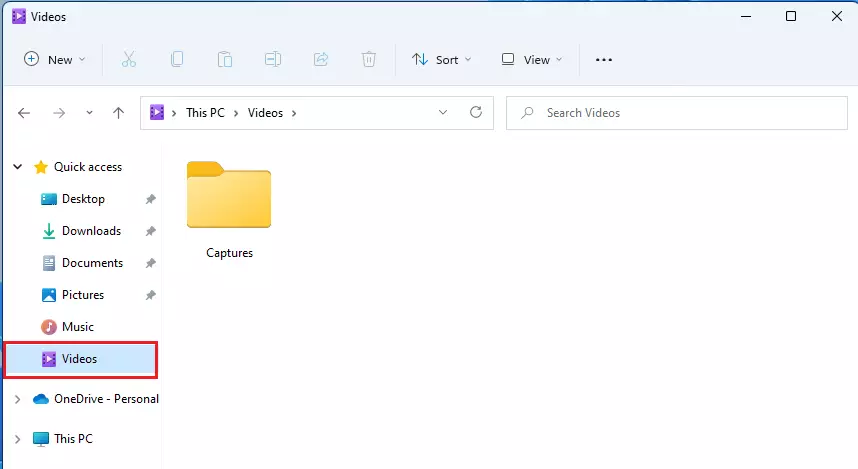
Open File Explorer and click “Videos” under Quick Access on the left sidebar. This will immediately display all your saved video files. You can also find it at C:Users[YourUsername]Videos.
What Is the Videos Folder?
The Videos folder in Windows 11 is the default system library where your computer stores downloaded clips, screen recordings, and movie files. Having a dedicated Videos folder keeps your media organised in one spot. You don’t have to search through random folders on your hard drive every time you want to watch or edit something.
It is one of the standard folders Windows creates for every user account, next to Documents, Pictures, Music and Downloads. Each user on the PC gets their own Videos folder, so another person’s clips won’t show up in yours.
This central media hub stops you from hunting across a cluttered hard drive for a specific clip. Many recording tools and video apps save here by default. For example, game clips recorded with the Xbox Game Bar go into a Captures subfolder inside Videos. Your browser normally saves downloads to the Downloads folder instead, unless you have changed its download location.
New files arrive here automatically whenever an app or capture tool is set to save to Videos. Keeping files in one spot simplifies overall media management. It also makes backups easier, because you only need to copy one folder to protect your clips.
Where Is the Videos Folder Located?
By default, your Videos folder is located at:
C:\Users\genericuser\Videos
Remember to replace "genericuser" with your actual Windows username. Typing %USERPROFILE%\Videos into the File Explorer address bar provides a quicker path to the same location. Press Enter after you type it, and File Explorer jumps straight to your Videos folder.
If you have moved the folder to another drive, this default path may no longer be where your files are. The address bar will still take you to the right place, because Windows redirects it to the new location.
How to Find the Videos Folder Using File Explorer
Opening the directory through File Explorer offers the quickest route. The steps below work the same on Windows 11 Home and Pro.
- Click the yellow folder icon on your taskbar. File Explorer opens. If the icon is not on your taskbar, press the Windows key + E instead.
- Look at the sidebar on the left. This is the navigation pane. You should see entries such as Home, Gallery, and your pinned folders. If the pane is hidden, click View > Show Navigation pane
- Click on "Videos" under the "Quick Access" area. The folder opens in the main window and shows its contents. If Videos is not pinned there, click This PC in the sidebar and double-click Videos in the Folders list.

Clicking the directory opens it to display all saved video files. If the folder looks empty, you may not have saved anything there yet, or your clips may be stored in another location.
To find the files that eat the most space, click Sort in the File Explorer toolbar and choose Size. The largest files then move to the top or bottom of the list, and you can click Sort again to flip the order. Right-click a file you no longer need and choose Delete to send it to the Recycle Bin. Remember to empty the Recycle Bin, or the space won't come back.
How to Add Videos to Your Start Menu
You can add the Videos folder to your Start menu in Windows 11 by changing a quick setting in the Personalization menu. Putting the Videos shortcut right next to the power button lets you open your media library with a single click instead of digging through File Explorer every time you need a file.
- Press the Windows key + I to open Settings.
- Go to Personalization Start The Start settings page opens on the right.
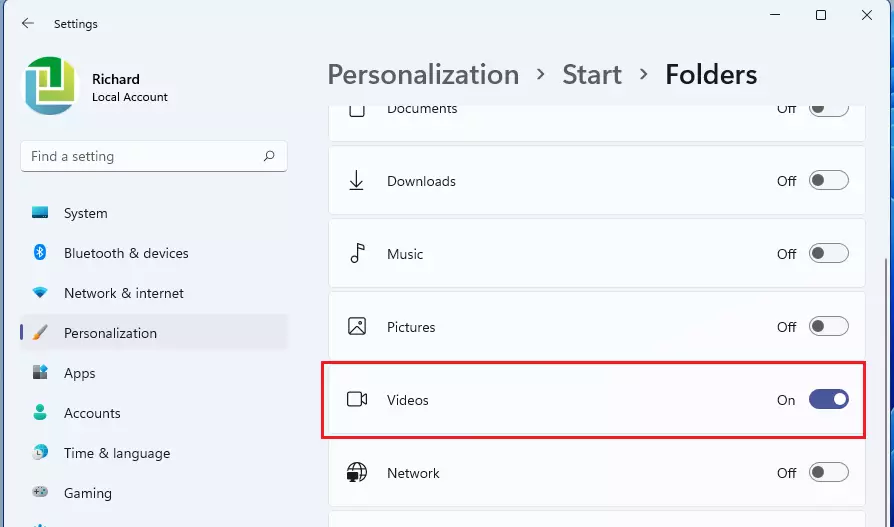
- Scroll down and click on Folders. A list of folders with a toggle beside each one appears.
- Find the "Videos" toggle and turn it On. The change applies immediately, so you don't need to restart.
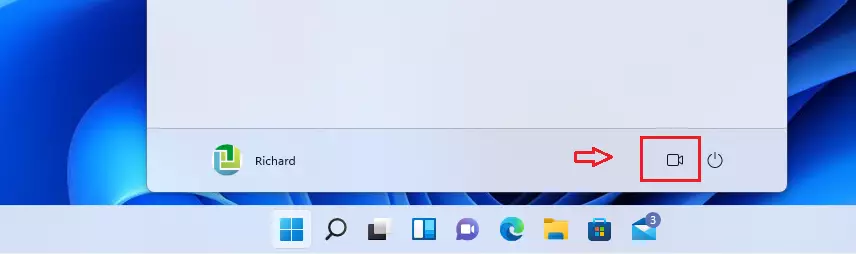
The Videos folder will now show up right next to the Power button in the Start menu. Open the Start menu to check. You should see a small film-style icon beside the power icon, and clicking it opens your Videos folder.
To undo this, go back to Personalization Start Folders and turn the Videos toggle Off. This only removes the shortcut. Your files stay where they are.
Managing Storage and Moving the Videos Folder
You can move the Videos folder to another hard drive in Windows 11 when your main C drive starts running out of space. Relocating the folder using the Properties menu lets you keep storing large movie files and recordings on an external or secondary drive without changing how apps save your media. Apps keep saving to "Videos", and Windows quietly sends the files to the new place.
Boot drives running low on storage benefit from relocating large media libraries elsewhere. Before you start, make sure the destination drive is connected and has enough free space. If you plan to use an external drive, remember it must be plugged in whenever you want to reach your videos.
- Open File Explorer and find the Videos folder in the sidebar.
- Right-click the Videos folder and choose Properties. The Videos Properties window opens.
- Select the Location tab. It shows the current path of the folder.
- Click Move, then browse to the drive and folder you want to use. You can create a new folder here if you need one.
- Click Select Folder, then click Apply.
- When Windows asks whether to move all files from the old location to the new one, click Yes. If you click No, your existing files stay on the old drive and only new files go to the new location.
Large libraries can take a while to copy, so wait for the progress window to finish. To undo the move, open the same Location tab and click Restore Default, then apply the change and move the files back when asked.
If the Location tab is missing, the folder may be managed by OneDrive backup or by a policy on a work or school PC. In that case, change the OneDrive backup settings first (see the OneDrive section below) or ask your administrator.
Advanced Automation and Registry Management
Advanced users comfortable with system modifications can alter the directory path through the Windows Registry Editor (a database for low-level operating system settings).
For most people this is not needed, because the Properties method above changes the same setting more safely and can also move your files. A wrong registry edit can break folder locations or other settings. If you still go this way, create a restore point and export a backup of the key before you change anything. You will probably need to sign out and back in, or restart, before the new path takes effect.
OneDrive Integration
Windows 11 often syncs personal directories to OneDrive (Microsoft's cloud storage service). In File Explorer, a blue cloud icon next to a file means it is stored online only. Circling arrows mean the file is syncing right now. Large video files can use a lot of your cloud storage and upload bandwidth, so it pays to check what is being synced.
Managing this behavior inside the OneDrive settings menu preserves local disk space and cloud quota. To review it:
- Click the OneDrive cloud icon in the notification area at the right end of the taskbar. You may need to click the up arrow to show hidden icons.
- Click the Settings gear icon, then choose Settings.
- Open Sync and backup and click Manage backup. You will see which folders OneDrive is backing up.
- Turn off any folder you don't want in the cloud. Windows may ask you to confirm. Files already uploaded may stay in OneDrive, so check your OneDrive folder afterwards.
Summary
The Videos folder remains the central repository for keeping media files organized and accessible in Windows 11. Open it from File Explorer, pin it to Start for quick access, and move it to a bigger drive when space gets tight.
Have a question about this guide?
Answered by AI from this guide. Good questions may be added to this page — please don't include personal details.
Did this guide fix your problem?

About the Author
Richard
Tech Writer, IT Professional
Richard is a writer at Geek Rewind who turns complex IT tasks into clear, step-by-step guides. He draws on years of hands-on experience in system administration and enterprise IT operations, focusing on Windows, Linux and WordPress: the problems people actually run into, and the fixes that work. His server and WordPress guides come from systems he runs himself. Richard builds and maintains the platform behind Geek Rewind, from its Ubuntu servers and Nginx configuration to its custom WordPress plugins. Many new tutorials start with readers' questions, and he's always glad to answer them in the comments.
Perhaps you can help me. When I download videos in windows 11 they end up in the pictures folder as though they are images. I try to drag and drop them to “videos” but that does not work. It’s so frustrating because I have images and videos in my pictures folder and can’t separate them. What am I doing wrong? Thanks.