Reset Default Apps to Microsoft Recommendations in Windows 11

You can reset every default app in Windows 11 back to Microsoft’s recommended choices from one button in Settings. Open Settings Apps Default apps, scroll to the bottom of the page, and select Reset next to Reset all default apps.
The reset changes which app opens each file type and link type for your account. It does not uninstall anything and does not touch your files. This article walks through the full reset and shows how to reset only one file type. It also explains what to do if the button is missing or the old defaults come back.
To reset every default app in Windows 11 back to Microsoft’s recommended apps, open Settings , select Apps, then Default apps, scroll to the bottom and select Reset next to Reset all default apps. This changes only which app opens each file and link type for your account. It does not uninstall any programs or delete your files.
What “Reset All Default Apps” Changes
Windows keeps a list of file associations (rules that tell Windows which app opens a given file type, such as .pdf or .jpg). It also keeps a list of protocol associations (rules for link types, such as https:// for web links or mailto: for email links). When you install a program like Chrome, VLC or Adobe Acrobat, it often asks to become the default and changes those rules.
The reset replaces your current rules with the ones Microsoft ships with Windows 11. In practice, that means:
- Web links and HTML files go back to Microsoft Edge.
- Pictures go back to the Photos app.
- Music and video files go back to the Windows media apps.
- PDF files go back to Edge.
The exact apps depend on your Windows 11 version and which Microsoft apps are installed. Treat the list above as typical, not guaranteed.
What the reset does not do
It does not remove Chrome, Firefox, VLC or any other program. They stay installed and you can still open them from the Start menu . The reset only changes which app Windows picks when you double-click a file or select a link.
It also does not change other user accounts on the PC. Each account has its own set of defaults, so each person who wants a reset has to do it while signed in to their own account.
Do you need administrator rights?
No. The reset applies to your own account, so a standard user (an account without administrator rights) can run it. You do not need to approve a User Account Control prompt (the "Do you want to allow this app to make changes?" box).
Before You Reset: Note Your Current Defaults
Once you select Reset, Windows does not keep a list of what your defaults were. If you rely on a few custom choices, such as a different PDF reader or media player, record them first so you can set them again quickly.
- Press the Windows key + I to open Settings.

- Select Apps in the left pane, then select Default apps. You see a list of installed apps and a search box labelled Set a default for a file type or link type.
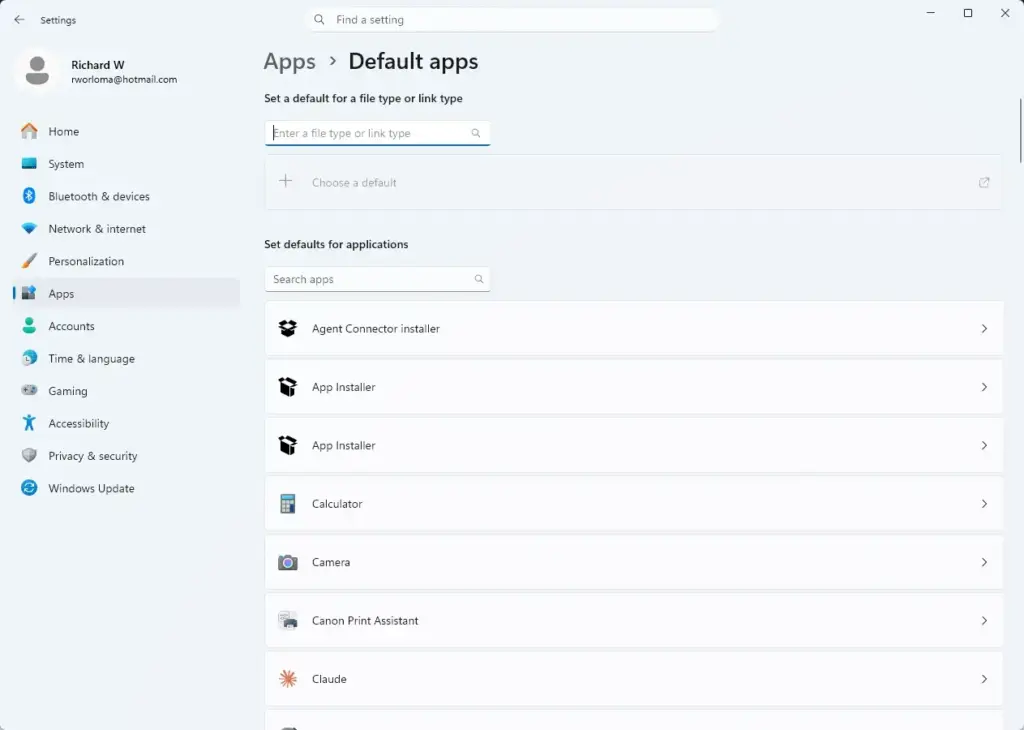
Settings › Apps › Default apps - Scroll through the list and note which apps you set as defaults. A screenshot is the fastest way: press the Windows key + Shift + S, drag over the area, and paste it into a document or Paint.
If you only care about one or two file types, skip the full reset and use the single file type method later in this article. That leaves everything else alone.
How to Reset All Default Apps to Microsoft Recommendations
This is the main method. It resets every file type and link type for your account in one action. Use it when several defaults are wrong, for example after a third-party program changed many of them at once. Follow these steps:
- Open Settings, select Apps, then select Default apps.
- Scroll to the bottom of the page.
- Select Reset next to Reset all default apps.
Reset from Settings
- Press the Windows key + I to open Settings.
- Select Apps in the left pane.
- Select Default apps. The page lists your installed apps, with a search box at the top.
- Scroll to the bottom of the page. Look for Reset all default apps with a Reset button beside it. On some builds this sits under a Related settings heading.
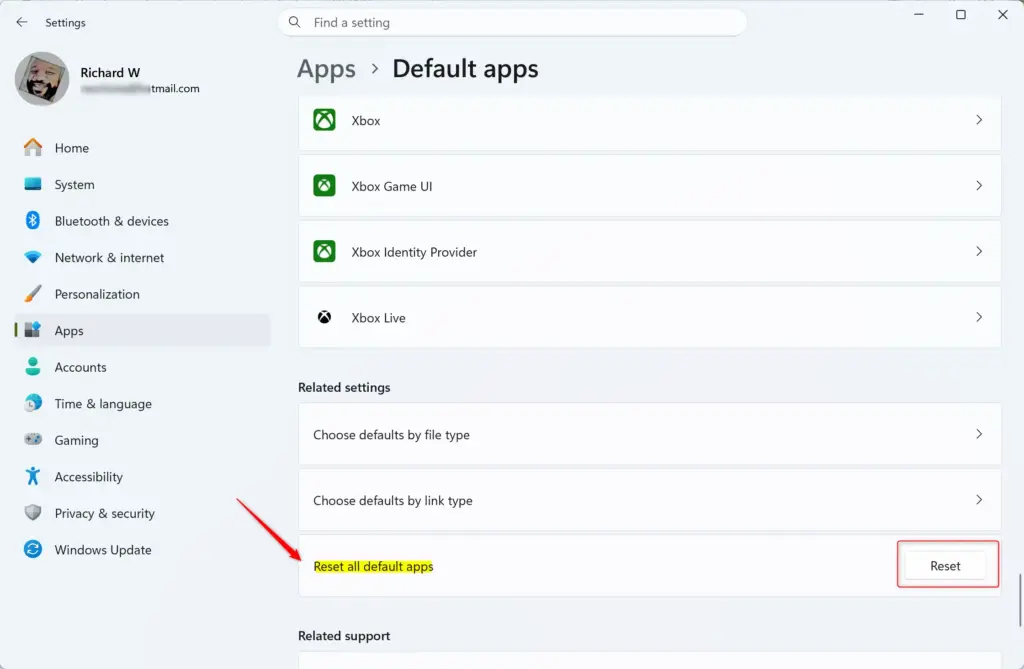
Reset all default apps button in Windows 11 settings. - Select Reset. Windows applies the change right away and, on most builds, shows a check mark beside the button. If your build shows a confirmation prompt, confirm it.
You do not need to restart the PC. To check that it worked, double-click a file such as a .jpg or select a web link. Windows should open it in the Microsoft default app for that type.
If the old app still shows on a file's icon or in the Open with menu, the screen may be showing old information that Windows has saved. Sign out and sign back in. That refreshes File Explorer.
Where to find the button on older 🪟 Windows 11 builds
The Default apps page has been reorganised more than once since Windows 11 launched, and Microsoft moves options between builds. The button has stayed on this page. If you do not see the exact wording above, scroll slowly through the whole page and look for any entry containing the word Reset. Windows 10 used the wording Reset to the Microsoft recommended defaults for the same action, which is why many guides and the search phrase use that name.
If you cannot find it at all, open Settings, type default apps in the search box, and select the result. Then scroll to the bottom.
Reset One File Type or Link Type Instead
A full reset is more than you need when only one thing is wrong, such as .pdf files opening in the wrong app. Pick the file type directly and choose the app you want. This lets you set it back to the Microsoft app without touching your other choices.
- Open Settings Apps Default apps
Settings › Apps › Default apps - Select the search box labelled Set a default for a file type or link type and type the extension, for example .pdf. For a link type, type the name, for example https or mailto.
- Select the matching entry in the results. A box opens that lists the apps that can handle this type.
- Select the app you want. For the Microsoft default, choose the Microsoft app that fits the type, such as Microsoft Edge for .pdf or Photos for .jpg.
- Select Set default, if your build shows that button, or select OK. The entry now shows your chosen app.
You can also work from the app side. In the same Default apps list, select the app itself, such as Microsoft Edge or Photos. Windows shows every file type and link type that app can open and which ones it currently handles.
Select a type and choose the app you want. This is faster when you want to give one app back several file types.
Reset Default Apps When the Option Is Missing or Fails
Most of the time the reset works on the first try. These are the situations where it does not, and what to do about each.
The Reset button is greyed out or does nothing
On a work or school PC, an administrator can control the default apps for everyone through management tools. In that case Settings may show a message that some settings are managed by your organization.
The reset may do nothing, or your defaults may return to the managed choices the next time you sign in. You cannot override this from your own account. Ask your IT department which defaults they set for all users and whether they can change them.
The app you want does not appear in the list
An app only appears under Default apps if it registered itself with Windows as able to open that file type. If Photos, Media Player or another Microsoft app is missing, it may have been removed. Open the Microsoft Store, search for the app, and install it. Run the reset again after it installs, and then check the file type.
A third-party app takes the default back
Some programs check at launch whether they are still the default app. If they are not, they either ask you or change it themselves. If one of your reset defaults keeps changing back, open that program's own settings and turn off the option that says it should check or set itself as the default.
The wording varies by program. Look for Make default or Check if this is the default.
Windows asks "How do you want to open this?" after the reset
That prompt appears when no app is assigned to a file type. If you see it for a type that should have a Microsoft app, the app is probably not installed, as described above. Choose an app from the prompt or install the Microsoft one.
Web links still open in the wrong browser
Browsers hold more than one default entry: one for web links (the http and https protocols) and one for file types such as .html. After the reset, check the browser list in Settings Apps Default apps
Select Microsoft Edge and look at the entries for HTTP, HTTPS, .htm and .html. Each one should show Microsoft Edge. If one does not, select that entry and choose Microsoft Edge.
Do Not Use Reset This PC for This
That reinstalls Windows and removes apps, and depending on the option you pick it can remove personal files too. It is far more than you need to restore default apps. Use it only when you have a separate reason to reinstall Windows, and back up your files first.
Registry and Group Policy Methods
The Settings route above is the supported way to reset default apps. This article does not give a registry edit (a change to the settings database that Windows uses) or a Group Policy setting (a rule that an IT team sets for many PCs) for this task. This article does not include a registry path for file association data. Editing that data by hand can leave file types with no working app.
If you want to manage defaults across several PCs, that is a job for your organization's management tools. Follow your IT team's documentation.
Check That the Reset Worked
Test it with the file types you care about most. Each test takes a few seconds.
- Open File Explorer with the Windows key + E and find a picture, such as a .jpg or .png. Double-click it. It should open in the Microsoft default, usually Photos.
- Find a PDF and double-click it. It should open in Microsoft Edge unless you have set a different PDF app since the reset.
- Select a web link in an email or document. It should open in Microsoft Edge.
If a file does not open in the app you expect, right-click it and select Open with. This shows which app Windows treats as the default and lets you pick another one for that file type.
If This Didn't Work
The reset has no undo, so to go back to a custom choice, set that file type again in Settings Apps Default apps, using the file type list in Settings as a guide, or the steps earlier in this article. If one file type keeps reverting after the reset, check whether the app that takes it over has a "set as default" option in its own settings. Turn that option off. If your PC is managed by an organization, the defaults you see may be set by an administrator, and only they can change them.
Have a question about this guide?
Answered by AI from this guide. Good questions may be added to this page — please don't include personal details.
Did this guide fix your problem?

About the Author
Richard
Tech Writer, IT Professional
Richard is a writer at Geek Rewind who turns complex IT tasks into clear, step-by-step guides. He draws on years of hands-on experience in system administration and enterprise IT operations, focusing on Windows, Linux and WordPress: the problems people actually run into, and the fixes that work. His server and WordPress guides come from systems he runs himself. Richard builds and maintains the platform behind Geek Rewind, from its Ubuntu servers and Nginx configuration to its custom WordPress plugins. Many new tutorials start with readers' questions, and he's always glad to answer them in the comments.
No comments yet — be the first to share your thoughts!