

Copilot in Microsoft Edge uses your browsing data as context when you ask it questions. The Context Clues setting controls that access. This tutorial shows you how to turn Allow Copilot to read context clues on the web on or off for your account in Windows 10 and Windows 11.
To turn Context Clues off in Edge, open Settings and more (the 3 dots), click Settings, then click Copilot and AI and switch off Allow Copilot to read context clues on the web. Copilot then stops reading your browsing data, though suggestions still appear. No administrator rights are needed, and the setting applies only to your account.
What Context Clues does
Context Clues decides whether Copilot can read your browsing data in Edge. Here is what it covers. The Microsoft Copilot app connects to the Microsoft 365 apps and content you use every day. It creates documents, spreadsheets, and presentations, lets you choose between leading AI models, and keeps your data protected.
Copilot adapts to the account you sign in with. Work or school accounts get a licensed version of Copilot with enterprise data protection (a set of privacy controls for organizations). A personal account gets an experience for individuals, with or without a Microsoft 365 Personal, Family, or Premium subscription.
Copilot gives better answers when it can use your browsing data. The Context Clues setting in Edge controls whether it gets that access.
Chat suggestions
When you open Copilot in Edge, it suggests prompts to help you start a conversation. Edge builds these suggestions from the current page title and web address (URL). Context Clues doesn’t affect these suggestions. Select a suggestion tile to start a conversation.
If Context Clues is off, you see generic suggestions instead.
Questions and requests
When you ask Copilot a question or make a request, Edge shares browsing data with Copilot as extra context. For a request such as "Help me plan a trip to Cannon Beach", Copilot analyzes the shared data and works that context into its response.
Copilot also uses shared browsing data when you ask it to analyze or summarize a page. It uses the data too when you ask it to create content such as podcasts, study guides, or quizzes.
If Context Clues is off, Copilot can't access your browsing data. It won't answer questions or carry out requests that depend on the sites you visit. Turn Context Clues off when you browse sites that contain information you don't want to share with Copilot.
Browsing data isn't stored in your conversation history. Copilot stores only your prompt and its response in your conversation history.
Copilot can use these kinds of browsing data when Context Clues is on:
- URL
- Page title
- Page content or screenshots
- Browsing history
How to turn Context Clues on or off in Edge
Open Edge Settings and select Copilot and AI. Then turn the Allow Copilot to read context clues on the web switch on or off. No administrator privileges are required.
- Open Microsoft Edge.
- Sign in to Microsoft Edge with your Microsoft account if you want to sync your settings.
Microsoft account login page for signing in with email and password. - Click or tap the Settings and more (3 dots) button on the toolbar, then click or tap Settings.

micrsoft edge browser more option and settings - Click or tap Copilot and AI in the Settings pane.
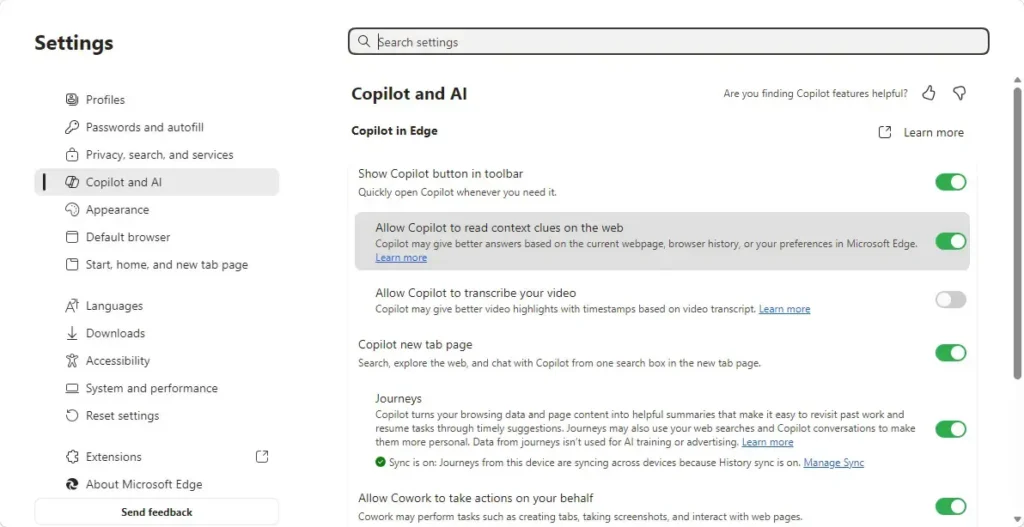
- Turn Allow Copilot to read context clues on the web on or off. On is the default.
What to do next
The setting applies to your account, so check it again if you sign in to Edge with a different account.
Have a question about this guide?
Answered by AI from this guide. Good questions may be added to this page — please don't include personal details.
Did this guide fix your problem?

About the Author
Richard
Tech Writer, IT Professional
Richard is a writer at Geek Rewind who turns complex IT tasks into clear, step-by-step guides. He draws on years of hands-on experience in system administration and enterprise IT operations, focusing on Windows, Linux and WordPress: the problems people actually run into, and the fixes that work. His server and WordPress guides come from systems he runs himself. Richard builds and maintains the platform behind Geek Rewind, from its Ubuntu servers and Nginx configuration to its custom WordPress plugins. Many new tutorials start with readers' questions, and he's always glad to answer them in the comments.
No comments yet — be the first to share your thoughts!