

Open Microsoft Edge, click the Settings and more menu (three dots), select Settings, then click AI innovations or Start, home, and new tab page on the left. Find the Copilot new tab page toggle and switch it on or off. Open a new tab to see the change take effect immediately.
Why use the Copilot new tab page?
The Copilot new tab page in Microsoft Edge replaces your normal start screen with an AI chat box and smart shortcuts. Microsoft turns this layout on by default in Edge version 120 and newer. It gives you quick access to writing help and web searches.
If you prefer a clean start screen without AI tools, you can switch it off in the browser settings. Your usual background pictures and favorite website shortcuts come back with a few clicks. You can switch it on again the same way.
What happens when you are done?
With the Copilot layout on, the new tab screen becomes a search and chat hub. You can ask the AI a question directly from the search box instead of scrolling through a list of results. Themes and suggestions are also tailored to what you have been browsing.
Turning the option on replaces the standard new tab screen with the AI-powered search box and chat interface. Turning it off restores the classic layout with your background and quick links. The change shows up on every new tab you open after you flip the toggle. Tabs that are already open keep their old layout until you reload them or open a new one.
Edge also works as a personal AI assistant. With Copilot mode active, conversational search sits at the front of your browsing routine.
Introducing Copilot Mode in Edge: A new way to browse the web
Browsing habits stayed much the same for years. AI now changes how you work with information. It speeds up retrieval and adds context to what you find.
Microsoft Edge Browser Policy Documentation CopilotNewTabPageEnabled
How to change your Copilot settings
Menu names can shift a little between Edge releases, so I list the two labels you are most likely to see.
- Open Microsoft Edge.
- Click the Settings and more menu. It is the three dots in the top right corner. You can also press Alt+F. A drop-down menu opens.
- Select Settings. The settings page opens in a new tab with a list of categories on the left.
- Look at the left-hand menu and click AI innovations or Start, home, and new tab page. Which one you get depends on your Edge version, so check both if the first is missing.
- If you cannot see the left-hand menu, click the three-bar icon in the top left, or make the browser window wider. A narrow window hides the menu.
- Find the setting for Copilot new tab page. If you cannot find it, update Edge through Settings About Microsoft Edge and look again. On a PC managed by work or school, an administrator policy may hide or lock the option.
- Switch the toggle to On to get the Copilot layout, or Off to get the classic one. The toggle changes position straight away.
You should see either the AI chat box layout or your usual background and quick links. To undo the change, come back to the same setting and flip the toggle the other way.

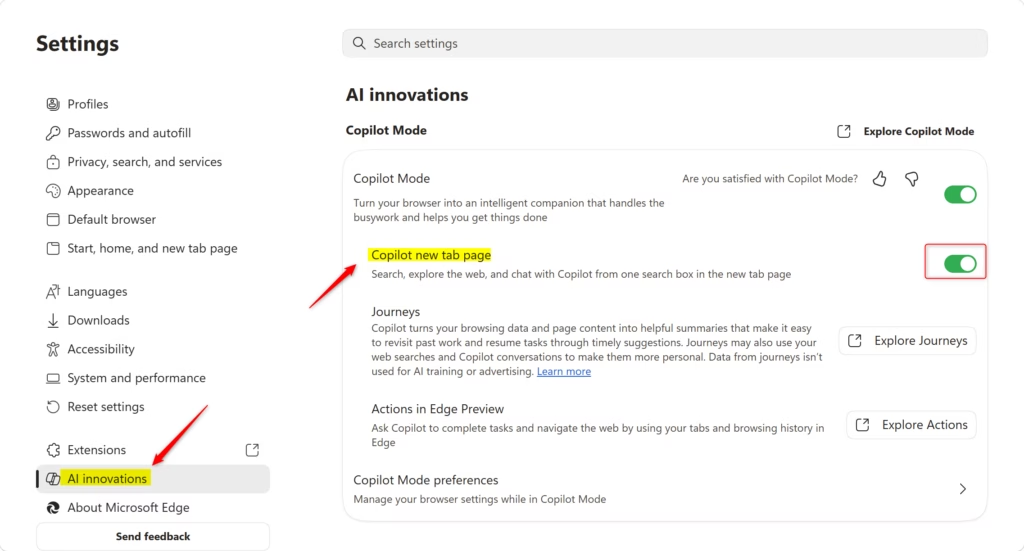
Close the settings tab when you are done. Edge saves your change automatically, so there is no Save button to click and no need to restart the browser.
Summary
With the Copilot new tab page on, Edge opens to an AI-centered start screen instead of the standard one. You can switch it on or off in the Edge settings whenever your preference changes. You do not need administrator permissions. The setting applies only to your own user profile, so other people who use the same PC are not affected.
Frequently asked questions
Why does edge open a new Copilot window when clicking search results?
Edge opens a Copilot window when a link or search result comes from a Copilot answer, or when Copilot is set to open alongside your searches. To stop it, open Edge settings, select Copilot, and check the options that control when Copilot opens. Turning off the setting that links searches to Copilot stops the window from appearing.
How do I remove the Copilot powered new tab page?
Open Edge, select Settings and more, then choose Settings. Select New tab page, and pick the Classic layout instead of Copilot. Your background pictures and favorite shortcuts return on the next tab you open. Tabs that are already open will keep their current look until you close them.
How to amend new tab in edge?
To change the new tab page in Edge, open Settings and select New tab page. Choose the layout you want, such as Classic or Copilot. You can also change the background image and turn quick links on or off. The changes apply to every new tab you open after you save them.
What is Copilot new tab in page edge?
The Copilot new tab page is a start screen in Microsoft Edge that replaces the usual page with an AI chat box, search bar, and smart shortcuts. Microsoft turns it on by default in Edge version 120 and newer. You can switch it off to return to the classic page with your background and quick links.
What is the new tab?
The new tab is the page Edge shows when you open a fresh tab, either by pressing Ctrl+T or selecting the plus sign. It usually includes a search box, quick links to websites you visit often, and a background picture. You can change its layout and content in Edge settings.
How do I turn off the Copilot new tab option or revert it back to where I can search and see news if I scroll down? I am using edge mobile?
The Copilot new tab option is found in Edge settings on a Windows 11 computer. In Edge on your phone, open the menu, select Settings, and look for New tab page or Start page. If you see a Copilot option, choose the classic layout that shows search and news. If the option is missing, the mobile app may not offer this layout.
Still have a question?
Answered by AI from this guide. Good questions may be added to this page — please don't include personal details.
Did this guide fix your problem?

About the Author
Richard
Tech Writer, IT Professional
Richard is a writer at Geek Rewind who turns complex IT tasks into clear, step-by-step guides. He draws on years of hands-on experience in system administration and enterprise IT operations, focusing on Windows, Linux and WordPress: the problems people actually run into, and the fixes that work. His server and WordPress guides come from systems he runs himself. Richard builds and maintains the platform behind Geek Rewind, from its Ubuntu servers and Nginx configuration to its custom WordPress plugins. Many new tutorials start with readers' questions, and he's always glad to answer them in the comments.
No comments yet — be the first to share your thoughts!