How to Enable Copilot Mode in Microsoft Edge on Windows 11

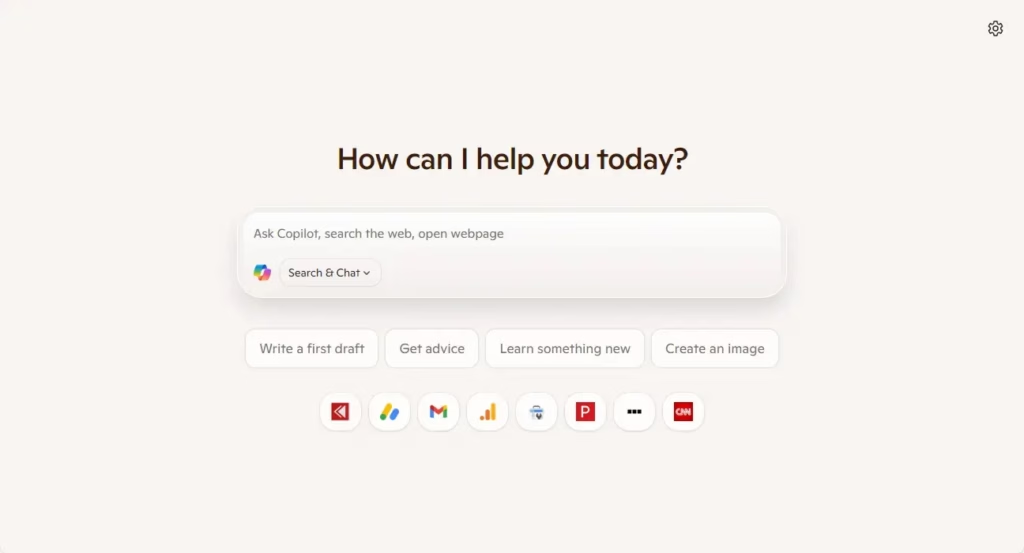
Copilot mode in Microsoft Edge version 136.0.3240.92 adds a built-in AI assistant that helps you search and write faster while you browse. It places a small chat icon next to your address bar, so you can ask a question without leaving the page you are on.
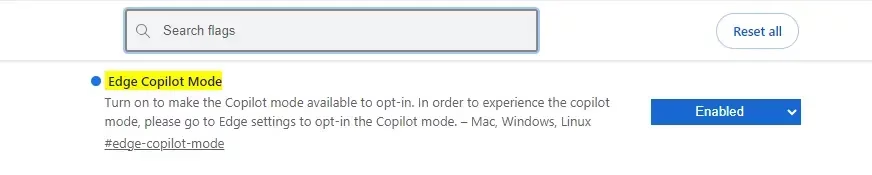
Microsoft is rolling this feature out in stages, so it may not show up on your PC yet. If it is missing, you can switch it on with a hidden experimental flag, covered later in this guide. This works best on the testing versions of the browser: Canary, Beta, or Dev. The Stable version may not have the feature at all, depending on when it reaches your account.
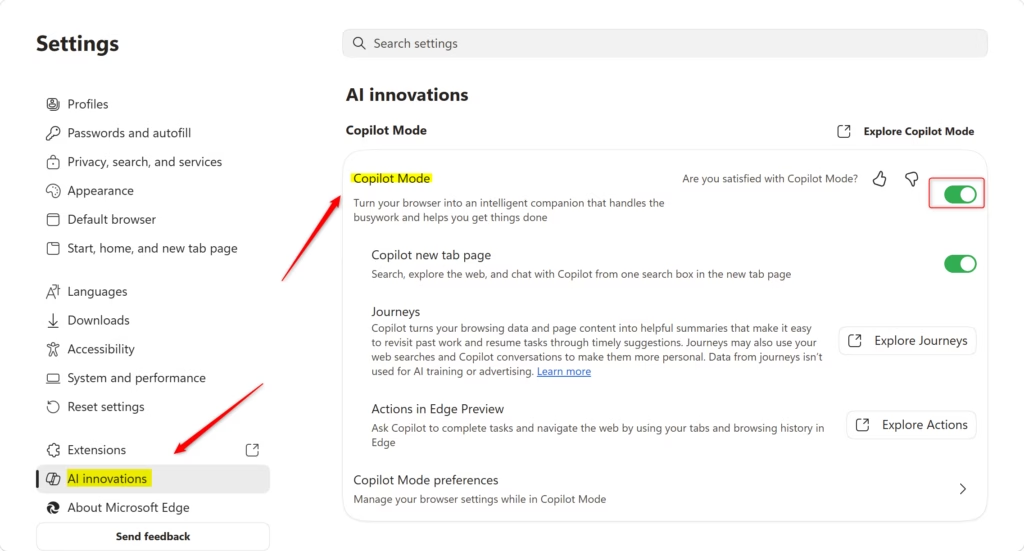
Open Edge settings, click “AI innovations” in the left menu, and use the toggle to enable Copilot Mode. If the option is missing, navigate to edge://flags/#edge-copilot-mode in your address bar.
How to turn Copilot Mode on or off
The normal way to turn Copilot mode on or off is the browser’s settings page. Open Settings , go to the AI innovations section, and use the toggle switch there. The toggle gives you direct control over whether the AI assistant stays active while you browse. The steps below take about a minute. It works the same on Windows 11 Home and Pro, because the setting belongs to Edge, not to Windows.
- Open your Microsoft Edge browser. Make sure it is up to date, since older builds may not include the feature.
- Click the Settings and more button (the three dots in the top right corner). A drop-down menu opens.
- Select Settings from the menu. Settings opens in a new tab.
- Click on AI innovations in the menu on the left side of the screen. The AI options appear on the right. If you do not see this entry, your version of Edge does not have the feature yet.
- Use the toggle switch to turn Copilot Mode On or Off. When it is on, the chat icon appears next to the address bar. To undo the change, come back to this page and switch it Off.

If the option does not appear, you may need to enable a hidden flag (an experimental browser setting) manually. (Admin privileges might be necessary depending on the system setup.)
On a work or school PC, an administrator may control Edge through policy. In that case the toggle can be missing or greyed out, and a flag may not override it. If that happens, ask your IT team.
edge://flags/#edge-copilot-mode
Closing the settings tab finishes the process. Microsoft Edge saves changes automatically, so you do not need to click a save button. Turning the toggle on or off does not normally require a restart. If the icon does not appear or disappear right away, close and reopen Edge.
Summary
If you cannot find Copilot mode in your standard browser settings, you can use a hidden experimental flag to force it to appear. Flags are unfinished features, so they can change or disappear between Edge versions. Follow these steps:
- Open a new tab in Edge.
- Type `edge://flags/#edge-copilot-mode` into the address bar and press Enter. The experimental features page opens with the Copilot mode flag at the top.
- Open the drop-down next to the flag and select Enabled.
- Click Restart at the bottom of the page. Edge closes and reopens, and your tabs are restored.
- Check Settings AI innovations again. The Copilot Mode toggle should now be there.
If the setting is still missing, type `edge://flags/#edge-copilot-mode` into the address bar to open the hidden experimental menu again and check that the flag still says Enabled. Then confirm you are on a recent build by going to Settings About Microsoft Edge, which also checks for updates. If it still does not show, try the Canary, Beta, or Dev version of Edge, since new features usually land there first.
To undo any of this, switch the Copilot Mode toggle Off in settings. If you used the flag, set it back to Default on the flags page and click Restart.
Have a question about this guide?
Answered by AI from this guide. Good questions may be added to this page — please don't include personal details.
Did this guide fix your problem?

About the Author
Richard
Tech Writer, IT Professional
Richard is a writer at Geek Rewind who turns complex IT tasks into clear, step-by-step guides. He draws on years of hands-on experience in system administration and enterprise IT operations, focusing on Windows, Linux and WordPress: the problems people actually run into, and the fixes that work. His server and WordPress guides come from systems he runs himself. Richard builds and maintains the platform behind Geek Rewind, from its Ubuntu servers and Nginx configuration to its custom WordPress plugins. Many new tutorials start with readers' questions, and he's always glad to answer them in the comments.
No comments yet — be the first to share your thoughts!