

Copilot Actions in Windows 11 Edge is a built-in browser tool that lets the Microsoft AI (artificial intelligence) assistant help you get things done on web pages. Starting with version 114 of the Microsoft Edge browser, this feature lets you do tasks like summarize long articles or write email replies right inside your browser window.
You can turn this setting on or off anytime depending on whether you want the AI to lend a hand while you browse the web. Nothing is permanent, and the same settings page lets you reverse your choice later.
Open Microsoft Edge, click Settings and more (three dots) in the top right, select Settings, then click AI innovations in the left sidebar. Switch Actions in Edge Preview to the On position and choose your security level: Light, Balanced, or Strict.
Why use Copilot Actions?
Copilot Actions save users time by completing repetitive tasks like visiting specific websites or summarizing information. Copilot Actions act as a personal assistant, making the browsing experience more efficient.
Edge is updated often, and AI features are usually rolled out in stages. Because of that, the wording and position of the options can differ slightly between Edge builds. If you do not see an option described below, check that Edge is up to date first (Settings About Microsoft Edge).
What happens when done?
The setting applies to your Edge profile, not to the whole PC. It works the same on Windows 11 Home and Pro. If your PC is managed by a work or school organization, an administrator may control this option, and it may appear greyed out or missing.
How to change Copilot Actions settings
- Open Microsoft Edge. The browser window opens with your home page or your last session.
- Click the Settings and more (three dots) menu icon in the top right corner and select Settings. The Settings page opens in a new tab with a list of categories on the left.
- Click on AI innovations in the left sidebar. The right pane now shows the AI features available to your account.
- Select Actions in Edge Preview in the right pane. The options for this feature open, and you can use them to allow or restrict Copilot Actions.
If AI innovations is not in the sidebar, update Edge and restart the browser. The feature may also not have reached your region or account yet, since it is labeled a preview. A restart of Windows is not needed. To undo the change, go back to the same page in Settings and switch the option off.

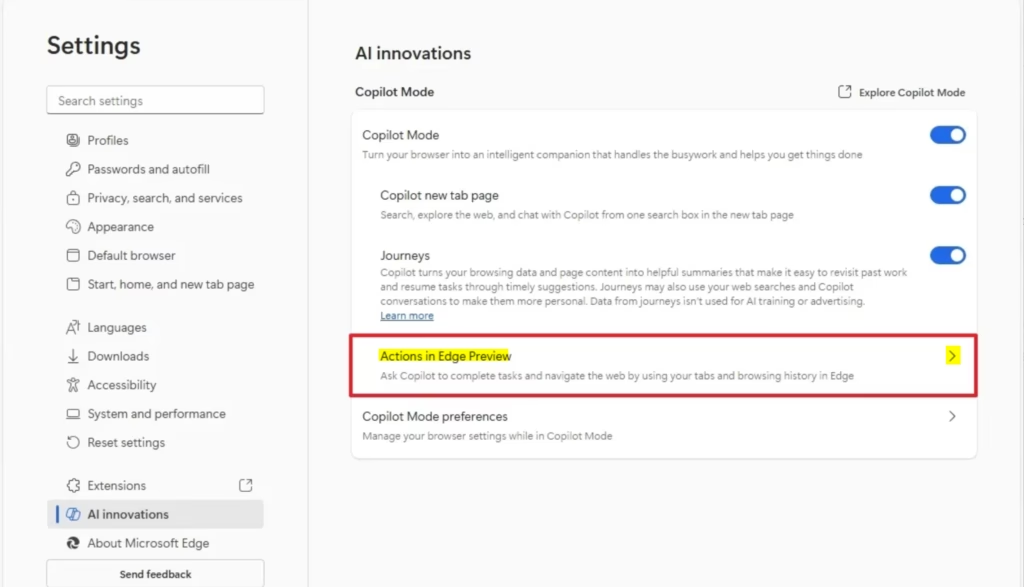
Turn On Copilot Actions
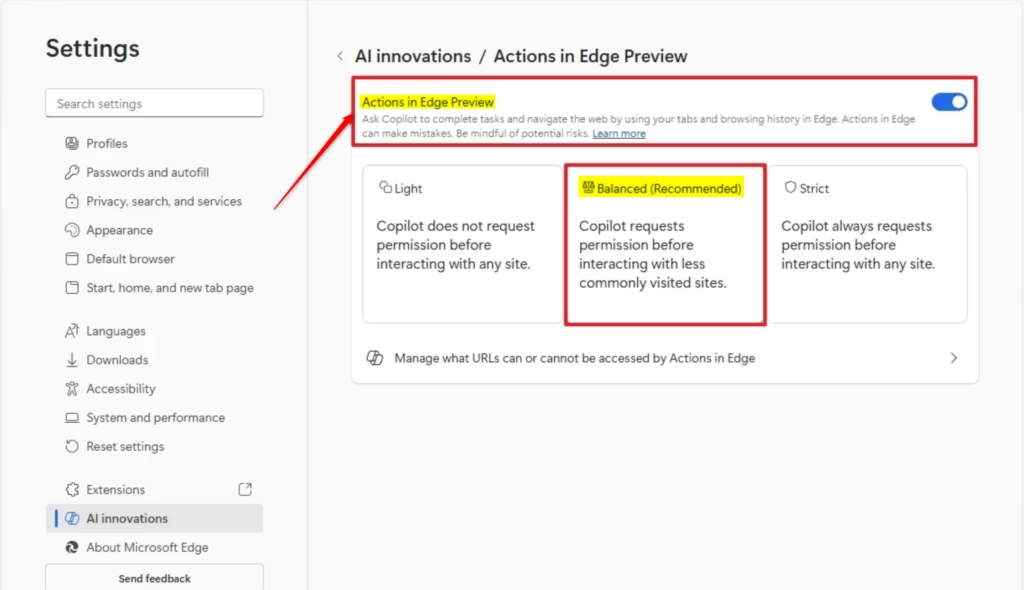
You can enable Copilot Actions in Windows 11 Edge by opening your browser settings and switching the 'Actions in Edge Preview' option to the on position. This hidden feature lets the AI help you browse the web, and you can pick between Light, Balanced, or Strict security levels to control what the AI is allowed to do on the pages you visit.- Switch Actions in Edge Preview to the On position.
- Choose your preferred permission level:
- Light (least secure): Allows the AI to act on most sites without asking you first.
- Balanced (recommended): The AI works on trusted sites automatically but asks for permission on unfamiliar sites.
- Strict (most secure): The AI asks for your permission before working on any website.
- Click Manage what URLs can or cannot be accessed by Actions in Edge to create your own custom lists of allowed or blocked websites.
Turn Off Copilot Actions
- Switch Actions in Edge Preview to the Off position. This is the default setting for most users.
Once you have finished, you can simply close the Settings tab.
Summary
Copilot Actions automatically browse the web. Users control AI activity through security settings: Light, Balanced, or Strict. Managing which sites Copilot Actions can use gives users control over browsing behavior.
References:
Copilot Actions in Edge - Microsoft Support
Was this guide helpful?

About the Author
Richard
Tech Writer, IT Professional
Richard is a writer at Geek Rewind who turns complex IT tasks into clear, step-by-step guides. He draws on years of hands-on experience in system administration and enterprise IT operations, focusing on Windows, Linux and WordPress: the problems people actually run into, and the fixes that work. His server and WordPress guides come from systems he runs himself. Richard builds and maintains the platform behind Geek Rewind, from its Ubuntu servers and Nginx configuration to its custom WordPress plugins. Many new tutorials start with readers' questions, and he's always glad to answer them in the comments.




No comments yet — be the first to share your thoughts!