

Microsoft Edge includes a visual style called the Copilot theme. You can turn it on or off from the browser settings in a few clicks, and you don’t need administrator rights or a restart.
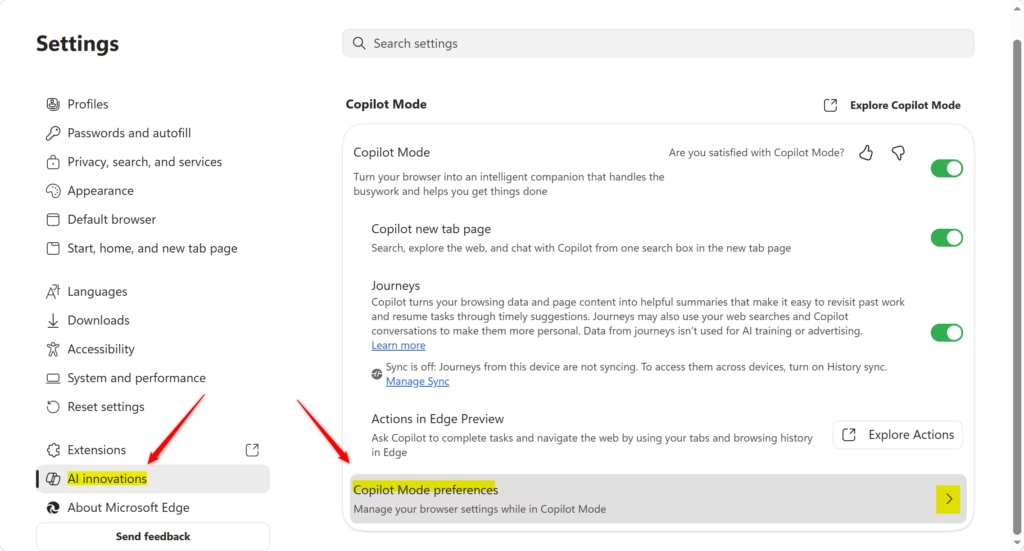
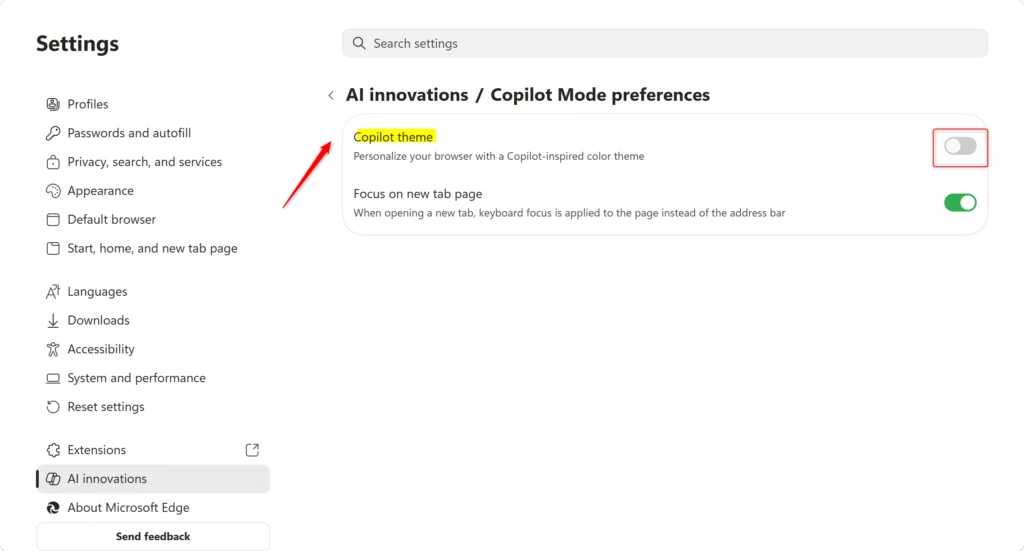
Open Microsoft Edge, click Settings and more (three dots) > Settings, select AI innovations Copilot Mode preferences, then toggle Copilot theme On or Off. The browser colors change immediately.
Why use the Copilot theme?
When the Copilot theme is on, Edge changes its colors and layout to match the Copilot AI interface. The aim is to make the browser look more modern and more closely tied to the AI tools. If you prefer the classic Microsoft Edge look, turn this setting off.
If you don’t see it, update Edge first. The AI innovations page and the Copilot Mode options only appear in recent versions, and they may not be offered in every region or on every managed work device.
What happens when you are done?
The change applies right away. Your browser windows either pick up the Copilot-inspired colors or go back to the default theme, and you don’t need to restart Edge. If you later pick a different theme by hand, that theme overrides the Copilot theme and switches it off automatically. So if the Copilot look disappears and you didn’t turn it off, check whether a theme was changed.
How to change your Copilot theme settings
- Open Microsoft Edge.
- Click the Settings and more menu (the three dots in the top right corner, or press Alt+F), then click Settings. Edge opens the settings in a new tab.
- Click AI innovations in the menu on the left. The AI-related options appear in the main window.
- Click Copilot Mode preferences in the main window.
If AI innovations isn’t in the left-hand menu, your version of Edge may be out of date, or the feature may not be available for your account or region.

- Use the toggle switch to turn Copilot theme On or Off, depending on which look you want. The browser colors change as soon as you flip the switch.
- Close the Settings tab. Edge saves the change automatically, so there is nothing to confirm.
To undo the change, return to the same page and flip the toggle back.
Summary
Edge has a visual setting that changes how Copilot looks in the browser, and you can switch it on or off in a few clicks.
References:
Introducing Copilot Mode in Edge: A new way to browse the web
Was this guide helpful?

About the Author
Richard
Tech Writer, IT Professional
Richard is a writer at Geek Rewind who turns complex IT tasks into clear, step-by-step guides. He draws on years of hands-on experience in system administration and enterprise IT operations, focusing on Windows, Linux and WordPress: the problems people actually run into, and the fixes that work. His server and WordPress guides come from systems he runs himself. Richard builds and maintains the platform behind Geek Rewind, from its Ubuntu servers and Nginx configuration to its custom WordPress plugins. Many new tutorials start with readers' questions, and he's always glad to answer them in the comments.



No comments yet — be the first to share your thoughts!