How to Use the Dark Theme in Microsoft Edge


Dark theme in Microsoft Edge turns bright white menus and tabs into shades of gray and black. That reduces eye strain when you browse the web in low light. It is a built-in display setting and works on all current versions of the browser.
You can turn on dark mode in Microsoft Edge even when Windows 10 or Windows 11 uses a light system theme. Edge keeps its own theme setting, so changing it does not affect other apps or the rest of Windows.
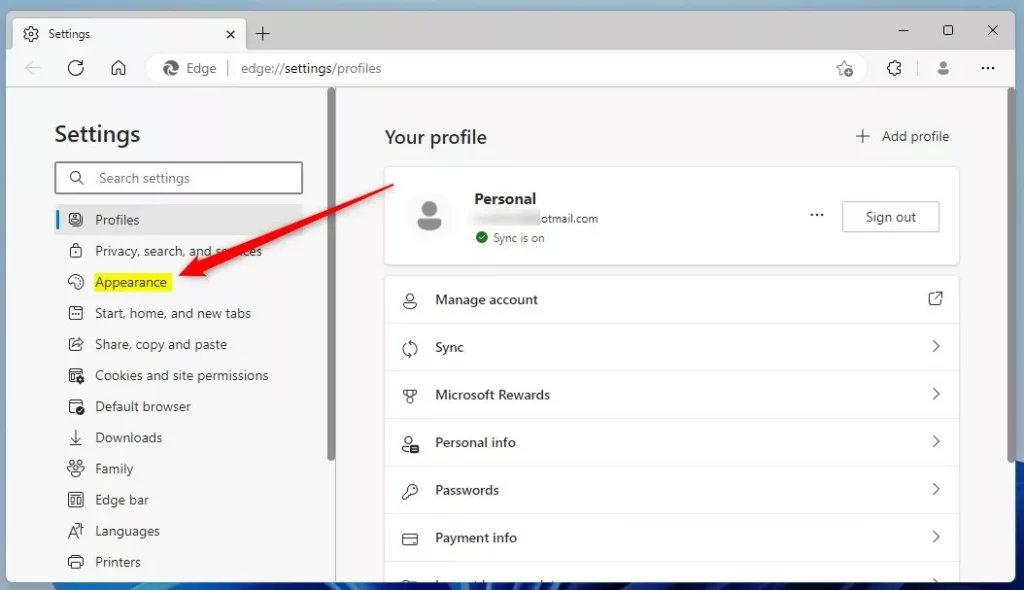
Open Microsoft Edge, click the Settings and more menu (three dots) in the top right, select Settings, then click Appearance on the left. Find the Theme dropdown under “Overall appearance” and select Dark. The browser turns dark immediately.
Use the dark theme in Microsoft Edge
To use the dark theme, open the browser menu, go to Settings , and then open the Appearance page. The theme setting is there. Switching it to dark changes the menus, tabs and overall look of the browser. The steps below take you through it one screen at a time.
- Open Microsoft Edge.
- Click the Settings and more menu (the three dots icon) in the top right corner. A list of options opens.
- Select Settings from the list. The Settings page opens in a new tab.

- On the left side of the screen, click Appearance. If the left pane is hidden because the window is narrow, widen the window or click the menu icon at the top of the Settings page to show it.
- You should now see the appearance options on the right, starting with the “Overall appearance” section.
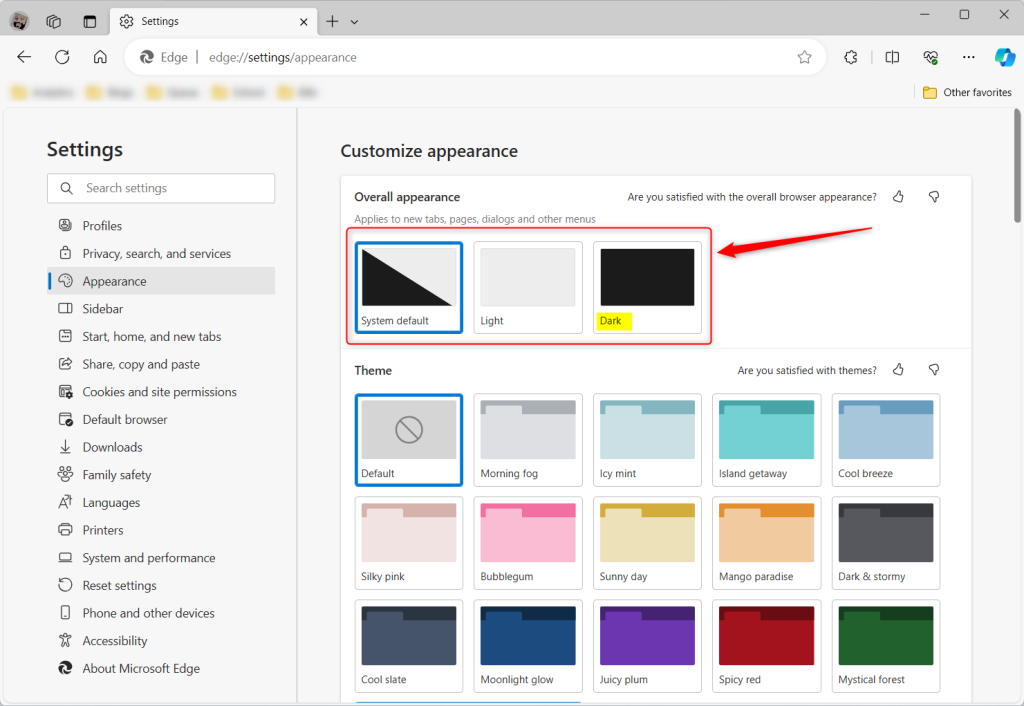
- Find the Theme dropdown menu under the “Overall appearance” section.
- Open the dropdown and select Dark to force the dark theme. The browser frame, tabs and menus turn dark right away, and you do not need to restart.
- If you would rather have Edge follow Windows, select System default instead. Edge then switches between light and dark when your Windows color mode changes. In Windows 11 that setting is under Settings Personalization Colors
To undo the change, return to the same dropdown and choose Light or System default.
Dark mode for web content
Many websites still show a white background because they have no dark design of their own. Edge has a hidden experimental setting that forces a dark appearance on those pages. It lives on the flags page, where Edge keeps features that are still being tested.
Follow these steps to turn it on:
- Type
edge://flagsin your address bar and press Enter. A page with a warning about experimental features opens. - Search for "Auto Dark Mode for Web Contents."
- Change the setting from "Default" to "Enabled."
- Click the Restart button at the bottom of the screen. Edge closes and reopens, and it usually restores your tabs.
If the search finds nothing, your version no longer has the flag. Forced dark mode can also make some pages look wrong, for example with images that are hard to see or text that is hard to read. If a site looks broken, go back to the flags page, set the option back to "Default," and restart Edge to undo it.
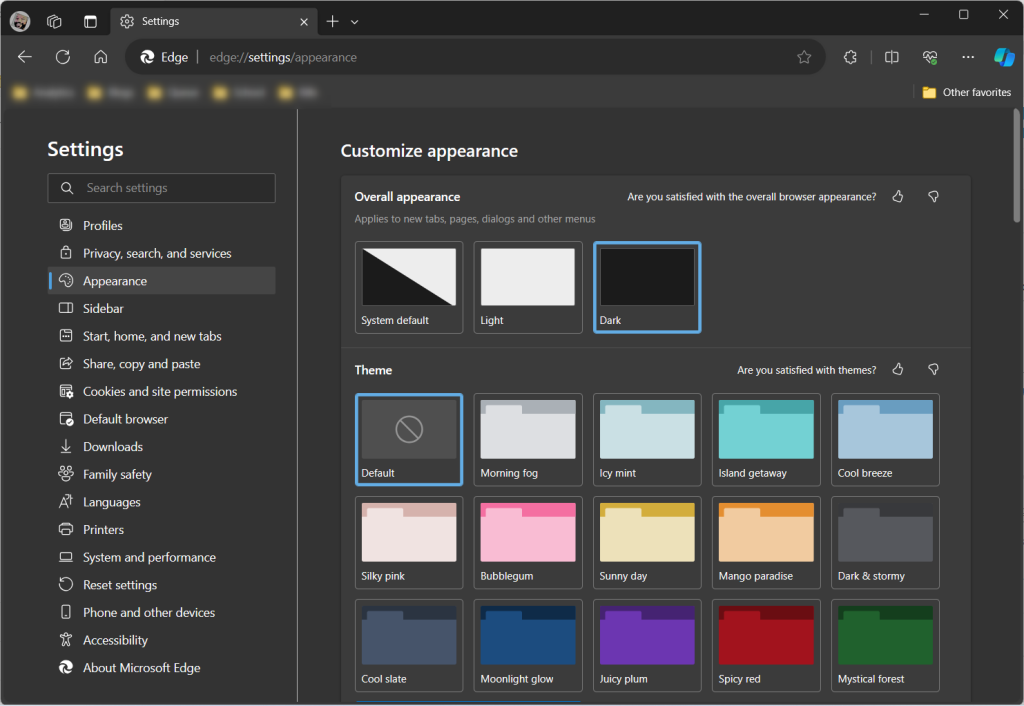
The browser now renders every tab and menu using the dark color scheme. With the flag enabled, web pages that do not support dark mode are darkened as well.
Reference:
Have a question about this guide?
Answered by AI from this guide. Good questions may be added to this page — please don't include personal details.
Did this guide fix your problem?

About the Author
Richard
Tech Writer, IT Professional
Richard is a writer at Geek Rewind who turns complex IT tasks into clear, step-by-step guides. He draws on years of hands-on experience in system administration and enterprise IT operations, focusing on Windows, Linux and WordPress: the problems people actually run into, and the fixes that work. His server and WordPress guides come from systems he runs himself. Richard builds and maintains the platform behind Geek Rewind, from its Ubuntu servers and Nginx configuration to its custom WordPress plugins. Many new tutorials start with readers' questions, and he's always glad to answer them in the comments.
No comments yet — be the first to share your thoughts!