How to Enable or Disable Import Edge Browsing Data in Copilot on Windows 11

Copilot imports your browsing data from Microsoft Edge by default, and this tutorial shows you how to turn that off or back on. The Copilot app can use your Edge browsing data. Here is what it does with that data and how to change it. It connects to the Microsoft 365 apps and content you use every day, creates documents, spreadsheets, and presentations, and lets you choose between AI models. It also uses Work IQ and Cowork, two Microsoft features for organising work.
What you see depends on the account you sign in with, so check this before you change any settings. A work or school account gets a version of Copilot that your organisation licenses, with data protection set up by that organisation. A personal account gets an experience for individuals, with or without a Microsoft 365 Personal, Family, or Premium subscription.
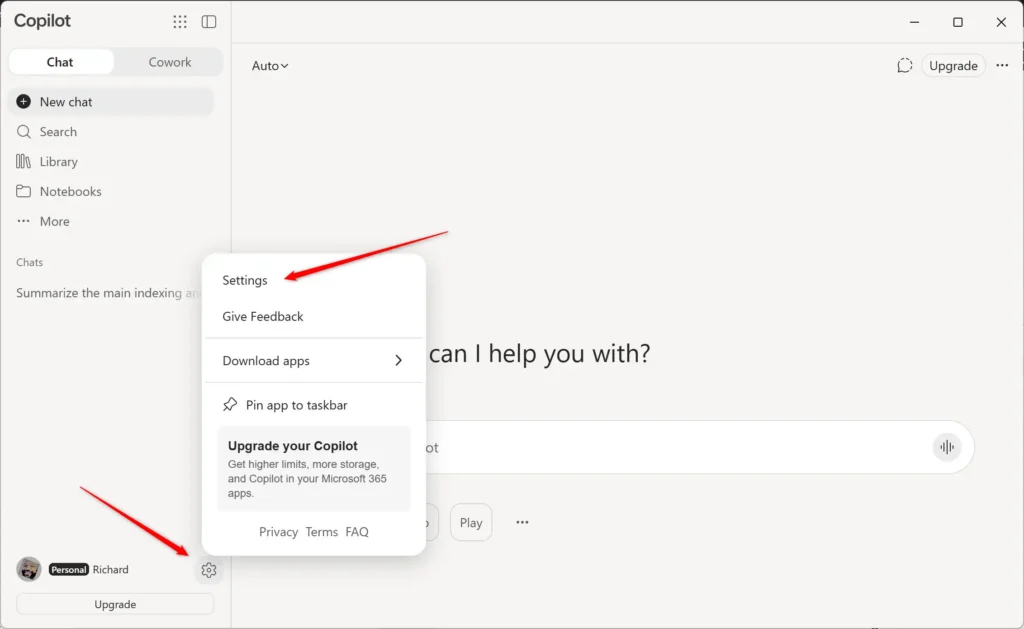
Open the Copilot app, select the settings icon for Chat settings, then go to Web browsing Import browser data. Turn off Bring over your browsing data from Microsoft Edge to stop Copilot importing your passwords, browsing history and cookies from Edge. The setting is on by default, and you do not need administrator privileges to change it.
How Copilot uses your Edge browsing data
The Copilot app on Windows 11 can open web pages in its own window, so you do not need to leave the app. Websites that Copilot shares in chat open inside the desktop app, side by side with the conversation. You can manage tabs, switch to full screen, or open links in an external browser.
Copilot uses this data when it loads web pages inside the app.
Edge keeps its own data on your device in a similar way. Copilot stores its copy separately, so changing the Edge setting does not delete it.
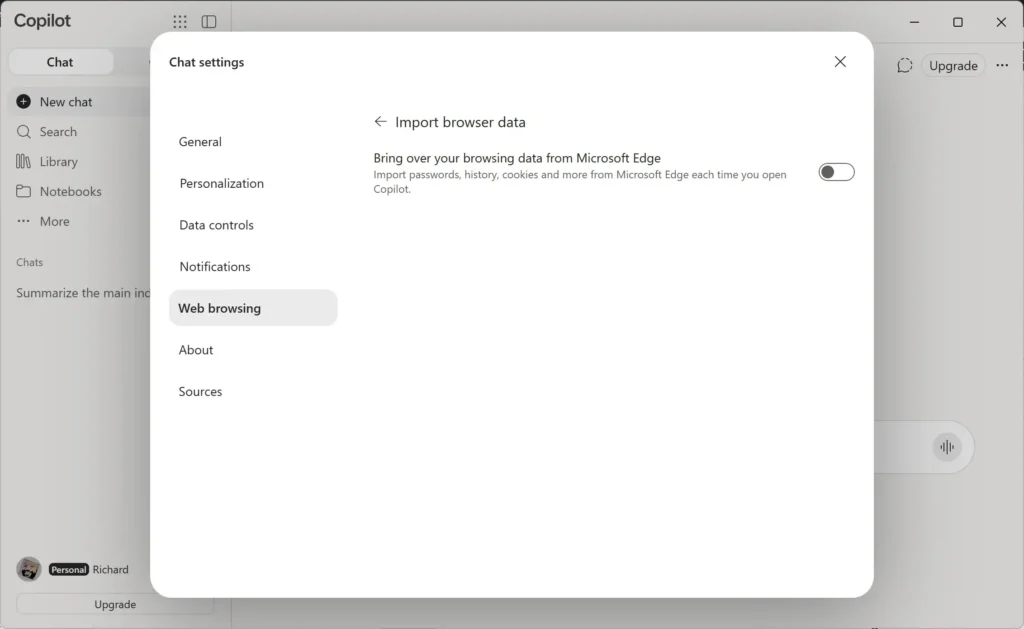
Turn the Bring over your browsing data from Microsoft Edge option in Copilot's Chat settings on or off to control the import. You do not need administrator privileges to change it.
Turn Import Edge browsing data on or off in Copilot
- Open the Copilot app.
- Open Copilot Chat settings.
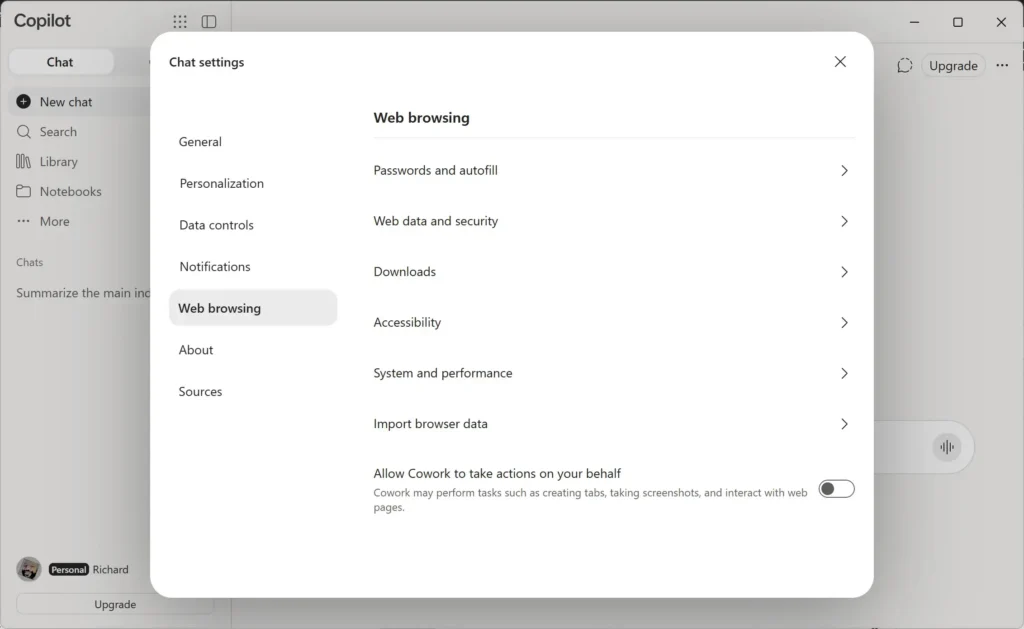
- Select Web browsing on the left side, then select Import browser data.
- Turn Bring over your browsing data from Microsoft Edge on (the default) or off, depending on what you want.
If this didn't work
To undo the change, go back to Chat settings Web browsing and turn Bring over your browsing data from Microsoft Edge back to its previous setting. If the steps do not work, check for a Copilot app update.
Frequently asked questions
How to import bookmarks into edge?
Open Microsoft Edge and select Settings and more (the three dots at the top right). Go to Settings, then Profiles, then Import browser data. Choose the browser that holds your bookmarks, such as Chrome or Firefox, check Favorites or bookmarks, and select Import. Edge copies them into your Favorites bar.
How to enable mobile hotspot in 🪟 Windows 11?
Open Settings and go to Network & internet, then Mobile hotspot. Turn on the switch under Share my Internet connection. Select Edit to set a network name and password. Your device needs a working internet connection and a Wi-Fi adapter to share it.
How to disable automatic updates in 🪟 Windows 11?
You can't switch off Windows Update entirely in most editions, but you can pause it. Open Settings, go to Windows Update, and select Pause updates for up to five weeks. Turning off updates for good leaves your PC open to security risks, so pause them only for a short time.
How to enable tracking prevention in edge?
Open Edge and select Settings and more, then Settings. Choose Privacy, search, and services. Under Tracking prevention, select Balanced, which is the default, or Strict to block more trackers. Strict may break some websites, so switch back to Balanced if a page doesn't load correctly.
How to import pictures from an sd card to 🪟 Windows 11 and not to cloud?
Plug in the SD card and open File Explorer. Under This PC, click the card's drive. Select the photos, press Ctrl+C to copy, then open your Pictures folder and press Ctrl+V. Files copied this way stay on your PC and don't go to OneDrive unless you move them there.
Still have a question?
Answered by AI from this guide. Good questions may be added to this page — please don't include personal details.
Did this guide fix your problem?

About the Author
Richard
Tech Writer, IT Professional
Richard is a writer at Geek Rewind who turns complex IT tasks into clear, step-by-step guides. He draws on years of hands-on experience in system administration and enterprise IT operations, focusing on Windows, Linux and WordPress: the problems people actually run into, and the fixes that work. His server and WordPress guides come from systems he runs himself. Richard builds and maintains the platform behind Geek Rewind, from its Ubuntu servers and Nginx configuration to its custom WordPress plugins. Many new tutorials start with readers' questions, and he's always glad to answer them in the comments.
No comments yet — be the first to share your thoughts!