What Breaks When You Turn Off Location Tracking in Windows 11 Privacy Settings

- 4 ways to do it
- Needs administrator rights
- Group Policy needs Windows 11 Pro, Enterprise or Education
- Includes a restart or sign-out
Location tracking in Windows 11 privacy settings gathers data from nearby Wi-Fi networks, Bluetooth beacons, IP addresses, and cellular hardware to work out where your device is. Turning off the master switch, found under Settings Privacy & security Location, stops the operating system and installed apps from finding your approximate geographic position.
The Windows location service processes that hardware data to calculate your latitude and longitude. When an app asks for your position, Windows checks the app’s permission, queries the location platform, and hands back the coordinates. With the feature off, none of that happens, and apps have nothing to ask for.
The sections below cover what stops working, four ways to change the setting, and how to limit location access without losing everything.
Turning off the Location services master switch in Settings Privacy & security Location prevents all apps from accessing your real-time coordinates. Maps, Weather, and location-dependent apps stop working until you re-enable it. Per-app location permissions become unavailable when the master switch is off.
Manage location settings
The Settings app controls which apps know where you are. The same page lets you turn location off for the whole computer or for one app at a time.
Before you start, check your account type. Turning location off for the whole device requires an administrator account. On a standard account, the master switch may be greyed out, or Windows may ask for administrator credentials. If your PC is managed by an organization, a policy may also lock the setting.
To turn Windows location settings on or off:
- Press Win+I to open Settings. The Settings window opens.

Windows 11 Start menu with Settings gear icon highlighted. - Select Privacy & security in the left-hand menu. The privacy options appear on the right.

- Scroll to the App permissions section and click Location. The Location page opens.
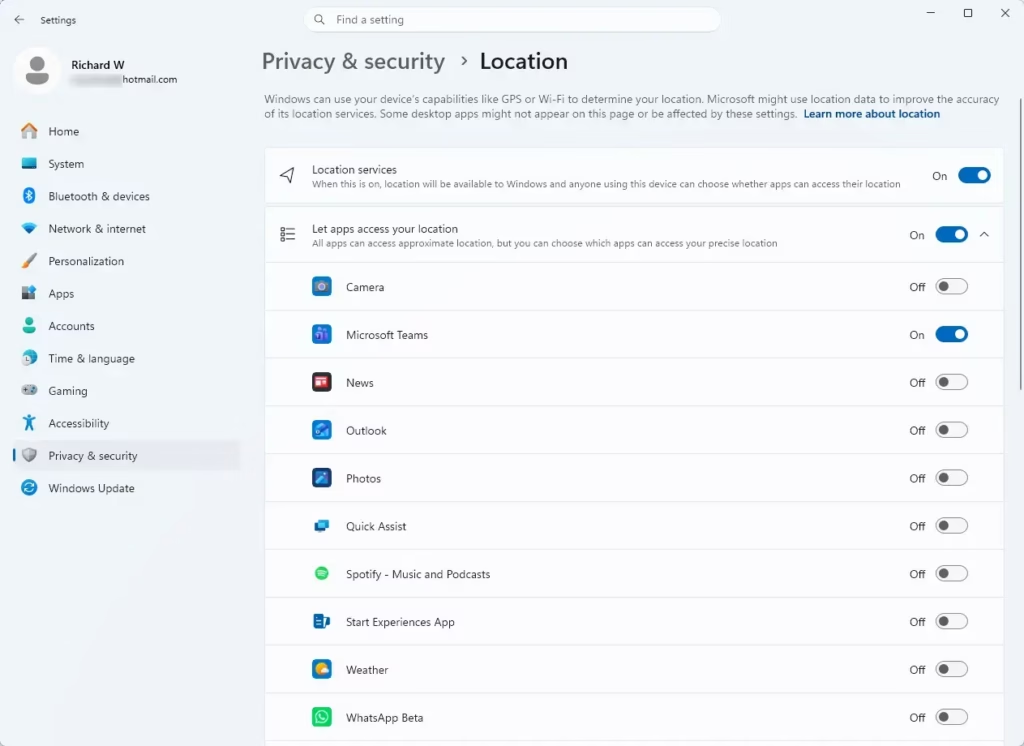
Managing app permissions for location access in Windows 11. - Set the Location services switch to Off or On, depending on what you want. The page now shows the new state, and the app list below it is greyed out when the switch is off.
That’s it. Location is now off or on for the whole device, and the change applies to every account on the PC.
To undo the change, flip the switch back. No restart is needed. If the switch stays greyed out even on an administrator account, a Group Policy setting is probably managing it.
Location service
The Location services switch is the master control for geographic tracking on the whole computer. With it off, no app can get your real-time coordinates, and Windows stops using its hardware sensors and network data to work out a position.
Per-app switches only matter while the master switch is on. If an app still cannot find you, check the master switch first.
Desktop apps need a second check. Classic programs installed outside the Microsoft Store do not get their own entry in the app list. They are covered by a separate Let desktop apps access your location toggle on the same page. With the master switch on, make sure this toggle is set the way you want too.
Location history
To clear it:
- Press Win+I to open Settings.
- Go to Settings Privacy & security Location. The Location page opens.
Settings › Privacy › Location - Find the Location history section and click the Clear button to wipe the stored data.
That’s it. The stored location history on this device is now empty, and the change takes effect right away.
The exact label and wording of this section can differ slightly between Windows 11 builds, so look for the nearest match if yours reads a little differently. Clearing only removes what is stored on the device. It does not turn location off, and apps can fill the history again if location is still enabled.
Default location
A default location lets built-in apps like Weather or Maps use a fixed home or office address instead of real-time coordinates. It is useful when tracking is off, or when your device cannot work out a position. Windows only uses it as a fallback.
To configure a default location:
- Open Settings and go to Privacy & security Location. The Location page opens.
Settings › Privacy › Location - Scroll down to the Default location section.
- Click the Set default button. The Maps app opens.
- Define the fallback address you want Windows to use, and save it in Maps.
That’s it. Windows now has a fixed fallback address that apps can use when they cannot get a live position.
Pick an address you are comfortable with apps seeing, because they may read it like any other location.
Allow location override
Some specialized applications need to override the system-wide default location or force particular geographic parameters, for example for testing or navigation. Those controls live in the same area, under Privacy & security Location. Changing them for the whole device usually requires a user account with administrative privileges.
If an option is missing or greyed out, you are most likely signed in with a standard account or a Group Policy setting is managing it.
Notify when apps request location
Whenever an app is actively using your location, Windows shows a small location icon in the taskbar system tray. It looks like an outlined arrow or pointer. Hover over it to see that something has accessed your position.
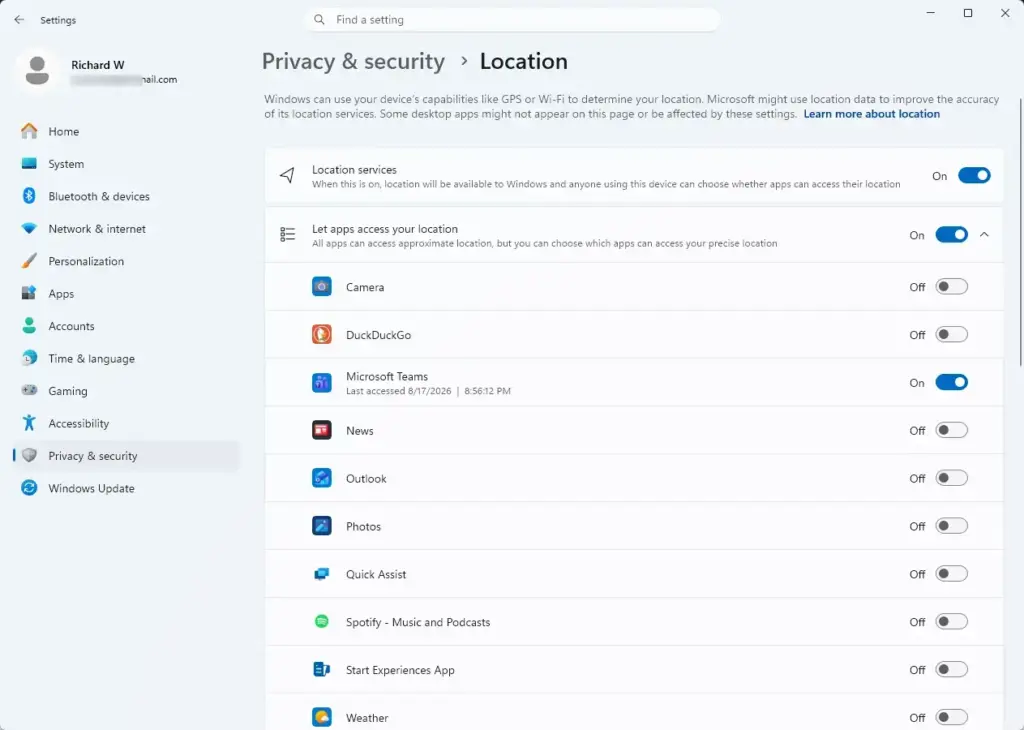
The Location settings page also lists the apps that have asked for your position recently. This gives you a plain view of background tracking without any extra tools. Your Microsoft account privacy dashboard online can show location activity tied to your account as well.
Location for websites in Microsoft Edge
Web browsers such as Microsoft Edge manage location permissions separately from the Windows system settings. Individual websites in Edge can still ask for permission to use your geographic data, even if you turned off location tracking in Windows.
If you want to be sure no site gets a position, also check the site permissions in the browser. Each browser keeps its own list of allowed and blocked sites.
What actually breaks when location tracking is off
With location tracking off, the built-in Weather app can no longer find your current city automatically when you travel. You have to pick a city by hand. The Maps app loses turn-by-turn GPS navigation and cannot center the map on your moving vehicle.
Third-party Microsoft Store apps are affected too. Food delivery apps, local ride-sharing tools, and retail software may show error screens, fail to load local store locators, or make you type your zip code every time you open them. Background telemetry tied to region-locking and localized digital rights management may also log silent errors in the event logs.
If something suddenly stops finding “nearby” results, location being off is the first thing to check.
Methods to enable or disable Windows location services
Method 1Using Windows Settings (per user control)
The fastest way to change location tracking is the Settings app. This method works on both Home and Pro editions of Windows 11. Turning off location for the whole device needs an administrator account, so sign in with one first.
- Press Win+I to open Settings.
- Click Privacy & security in the sidebar.
- Select Location. The Location page opens.
- Set the Location services switch to Off. The app list below it greys out.
That’s it. Location is now off for the whole device, and no app can read your position through Windows.
To reverse this, set the switch back to On. No restart is needed.
Method 2Configure via Group Policy (for IT admins)
Group Policy (a feature that lets administrators configure operating system settings for many users and computers) lets IT admins control location settings across a network. The Group Policy Editor is only included in Windows 11 Pro, Enterprise, and Education. It is not available on Home.
- Press Win+R to open the Run dialog box.
- Type gpedit.msc and press Enter. The Local Group Policy Editor opens.
- Navigate to Computer Configuration Administrative Templates Windows Components Location and Sensors.
- Double-click the Turn off location policy. A settings window for the policy opens.
- Select Enabled to disable location services across the whole machine, then click Apply and OK.
That’s it. The policy is now enabled, and location services are blocked for every user on this machine.
To undo it, open the same policy and select Not Configured or Disabled. While the policy is enabled, the switch in Settings will be greyed out. If the machine is domain-joined, a domain policy can override your local change.
Method 3Enable or disable via Registry Editor
Registry Editor (an advanced database tool for viewing and changing system configuration settings) lets you change the setting directly. Be careful here, because a wrong edit can cause problems. Export the key first by right-clicking it and choosing Export, so you have a backup to restore. You need an administrator account.
- Press Win+R, type regedit, and press Enter to open the Registry Editor. Approve the User Account Control prompt if it appears.
- Navigate to the following path: 🗝️HKEY_LOCAL_MACHINE\
SOFTWARE\ Microsoft\ Windows\ CurrentVersion\ CapabilityAccessManager\ ConsentStore\ location - Look for the value named Value in the right-hand pane.
- Double-click Value and change its data string from Allow to Deny to block location access. Click OK.
That’s it. The registry now tells Windows to deny location access on this machine.
To reverse the change, set the data back to Allow. Check the Location page in Settings afterwards to confirm it reflects the new state. If it does not, sign out and back in, or restart.
Method 4Use PowerShell for deployment
PowerShell (a command-line tool for running tasks and managing system settings) lets system administrators turn off location services automatically on many computers at once. It does this by changing the same registry keys for the location service consent store that you edited by hand above.
Before you run anything, create a restore point. Search for “Create a restore point” in the Start menu, open System Protection, and click Create. If System Protection is off for your drive, turn it on first.
Also export the registry keys the script will change. In Registry Editor, right-click each key, choose Export, and save the .reg file somewhere safe. Double-clicking that file later puts the original values back.
- Right-click the Start button and select Terminal (Admin) or PowerShell (Admin). Approve the User Account Control prompt if it appears.
- Type the deployment command strings that modify the registry keys controlling the location service consent store.
- Press Enter to run the script, then restart the machine to apply the changes.
That’s it. The script has changed the location consent settings, and after the restart the machine should apply them.
Test any script on a single machine before you roll it out, and keep a matching script that restores the original values.
Pro tips for managing location services in Windows
Manage location permissions per app
Turning location off globally breaks features you may want to keep. A better option is to limit access one app at a time. Leave Location services on, scroll down the Privacy & security Location page, and set the switch for each app you do not trust to Off.
That way trusted utilities like Maps keep working, while untrusted background tools lose access. You can turn any app back on at any time from the same list.
Remember that desktop apps are controlled by the separate Let desktop apps access your location toggle, not by this list. Check it as well if you want to restrict classic programs.
Find My Device dependency
Turning off location tracking directly affects the Find My Device feature. If your laptop or tablet is lost or stolen, Windows cannot record its coordinates, so you cannot see its last known position on your Microsoft account dashboard.
If you rely on Find My Device, keep location on for that device and restrict individual apps instead.
Audit location activity
The Location page lists apps with recent activity, which shows which apps accessed your location lately. Windows shows a time stamp directly beneath each app’s toggle. Use these to spot apps that check your position more often than they should, or background processes you do not recognize.
Desktop apps that used your location recently appear under the Let desktop apps access your location toggle instead of in the main app list. Look in both places for a full picture.
If an app looks suspicious, switch its toggle to Off. If it is something you did not install, look into where it came from.
Roaming Profiles & Consistency
In enterprise environments that use roaming user profiles, push your location policies through Group Policy rather than relying on local Settings changes. Local changes can differ from machine to machine and may not follow the user. Group Policy keeps privacy and functionality consistent across all network workstations.
Have a question about this guide?
Answered by AI from this guide. Good questions may be added to this page — please don't include personal details.
Did this guide fix your problem?

About the Author
Richard
Tech Writer, IT Professional
Richard is a writer at Geek Rewind who turns complex IT tasks into clear, step-by-step guides. He draws on years of hands-on experience in system administration and enterprise IT operations, focusing on Windows, Linux and WordPress: the problems people actually run into, and the fixes that work. His server and WordPress guides come from systems he runs himself. Richard builds and maintains the platform behind Geek Rewind, from its Ubuntu servers and Nginx configuration to its custom WordPress plugins. Many new tutorials start with readers' questions, and he's always glad to answer them in the comments.
No comments yet — be the first to share your thoughts!