What Breaks When You Disable the Windows 11 Location Service Globally

The Windows 11 location service is a built-in feature that uses your internet connection, nearby wireless networks, and GPS data (if your device has a GPS chip) to tell apps and websites where you are. Turning it off globally stops Windows from working out your position. It also breaks anything that needs that position, such as Maps, weather widgets, and automatic time zone updates.
To turn it off, open the Start menu , click Settings, select Privacy & security, and choose Location. Turning the service off can save a little battery and stops apps from collecting a record of where you have been. The trade-off is that maps and local search results stop working automatically. You will have to type in your location by hand.
Disabling the Windows 11 Location Service globally breaks the Weather app’s local forecasts, Maps’ ability to center on your position, Find My Device tracking, automatic time zone updates, and website location requests. The Maps app cannot provide turn-by-turn directions from your current location, and you must manually enter addresses and ZIP codes instead.
Core Features That Break When You Disable Location Globally
Your computer can no longer update the local weather on its own, center map apps on your current position, or use Find My Device (a tool that helps you track down a lost laptop). Here is what you will notice:
- The Weather app: It loses your city. It cannot show a local forecast or severe weather alerts until you type in a city name yourself.
- Maps and navigation: The Maps app cannot center on your current position, give turn-by-turn directions from where you are standing, or show nearby businesses. You can still search for an address and plan a route between two typed-in places.
- Find My Device: If your laptop is lost or stolen, Find My Device cannot place it on a map. That makes recovering it much harder. If you carry a laptop around, think hard before turning location off globally.
- Time zone settings: If you travel, the Set time zone automatically option under Time & language may stop working, and your computer may not update your local time. You can set the time zone by hand instead.
- Website location prompts: Websites in your browser cannot ask for your location. Store finders, local restaurant menus, and regional shipping estimates will need a typed-in ZIP or postal code.
Some apps show an error or a blank map rather than a clear message. If an app suddenly stops showing local information after you changed this setting, location is the first thing to check.
How to Turn Off Location Services in 🪟 Windows 11
If you want location off for the whole computer, you can do it from the main Settings app in a few clicks. If you only want to stop certain apps from seeing where you are, you can control access one app at a time and leave the rest working. The sections below cover both, then the administrator methods for managing many machines.
Method 1Turn Off Location Using the Settings App
The Settings app has one master switch that turns location off for the whole device. When an administrator turns it off, it applies to every user account on the computer, and apps and system features can no longer get your position. If you are signed in with a standard account, you may not be able to change the device-wide switch. In that case, ask an administrator.
- Press the Windows key + I to open the Settings app.
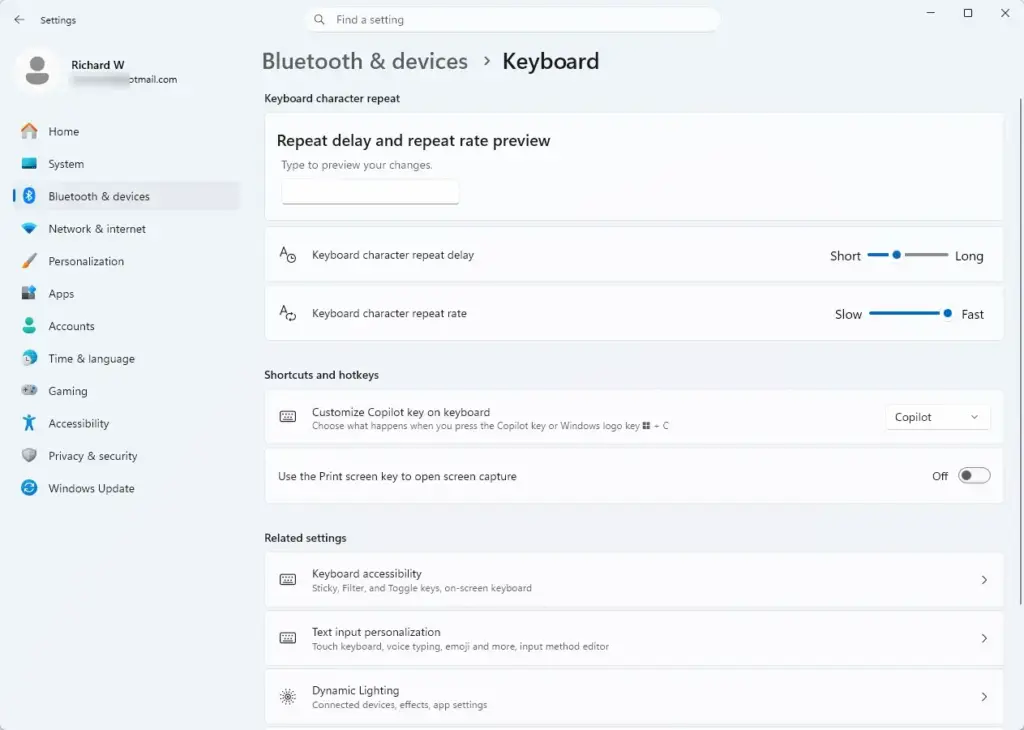
Settings › Bluetooth › Keyboard - Click Privacy & security on the left side of the window. The privacy options now appear on the right.
- Scroll down to the App permissions list and click Location. The location settings page opens.
- Find the switch labeled Location services (some builds label it simply Location) and click it to set it to Off. The switch moves to the left and reads Off.
Once the main switch is off, the per-app switches further down the page are greyed out. To undo the change, come back to the same page and turn Location services back to On. No restart is needed in either direction.
Method 2Clear Location History
Turning location off does not erase what Windows already stored. Clearing the location history deletes the saved position records on this device, so other users or apps on the computer cannot look at the places it has been. Do this before or after you turn the service off. Either order works.
- Press the Windows key + I to open the Settings app.

Settings - Click Privacy & security.
- Click Location.
- Scroll down until you see Location history.
- Click the Clear button next to "Clear location history for this device."
If you do not see a Location history section, your Windows 11 version may not show it. Clearing history only removes records stored on this device. It does not touch location data that an app or website has already sent to its own servers. You would need to delete that from the app's own account settings.
Method 3Control Location Permissions Per App
If a full shutdown breaks too much, control location app by app instead. This lets trusted tools like mapping software keep working while apps you do not trust are blocked from seeing where you are. It is usually the better choice on a laptop you travel with.
- Open the Settings app and go to Privacy & security.
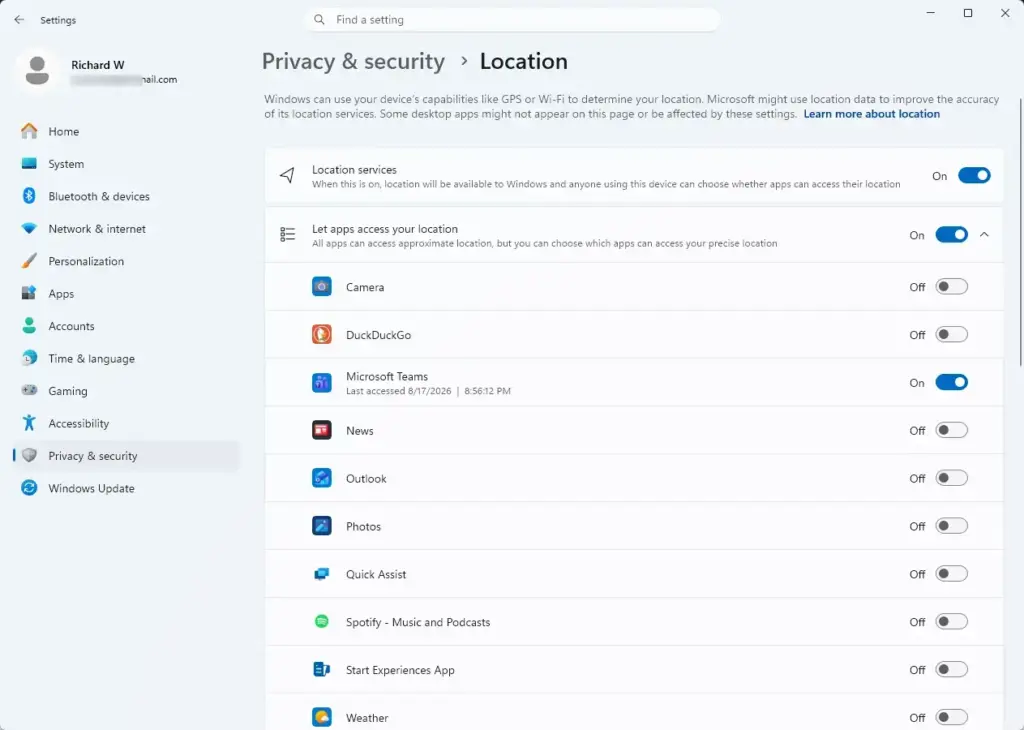
- Click Location. Make sure Location services is set to On. If it is off, the app switches below are greyed out and you cannot change them.
- Scroll down to the list of apps under Let apps access your location.
- Click the switch next to any app you do not want to know where you are and set it to Off. The switch moves to the left and reads Off.
Only apps that have already asked for your location appear in this list. If an app you want to block is missing, it has not requested location yet, and you will be prompted when it does. Classic desktop programs are covered by a separate Let desktop apps access your location option further down the page. These per-app choices are saved for your user account only, so each person on the PC sets their own.
How IT Administrators Control Location Services
In a work or school environment, administrators often need to control location settings on many computers at once. They use central tools to lock the setting down so users cannot switch it back on. The two methods below do that on a single computer, and the Group Policy method can also be applied across a domain.
Test them on one machine first, and know how to undo the change before you roll it out to others.
Configure via Group Policy
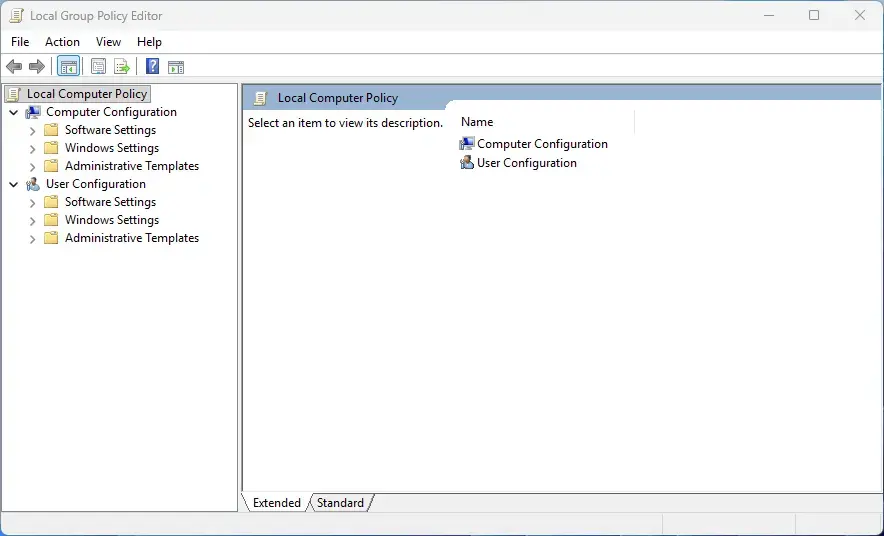
Group Policy can turn location off for the whole operating system and apply to every user account on the computer. You do this in the Local Group Policy Editor (a tool for managing system settings). This editor is included in Windows 11 Pro, Enterprise, and Education. It is not available in Windows 11 Home, so Home users should use the Registry Editor method that follows.
- Press the Windows key + R to open the Run dialog box.
- Type
gpedit.mscinto the box and press Enter. The Local Group Policy Editor opens. If Windows says it cannot find the file, you are probably on Home edition. - In the left pane, go to Computer Configuration, then Administrative Templates, then Windows Components, and click Location and Sensors. The available policies appear in the right pane.
- Double-click the setting named Turn off location. A settings window opens.
- Select the Enabled option to turn off location services globally, then click OK.
Settings › Privacy › Location
The policy normally takes effect after a restart, or after Windows next refreshes its policies. Restarting is the simplest way to be sure. Once it applies, the location switch in Settings is usually locked, and Windows may show a message that your organization manages some settings. To undo it, open the same setting and choose Not Configured (or Disabled), then click OK and restart.
Configure via Registry Editor
The Registry Editor (a database that stores Windows settings) can also disable location for every user on the machine. This method works on both Home and Pro. It makes the same kind of change as the Group Policy setting, by adding a policy value by hand. Because a wrong edit in the registry can cause problems, back it up first: in Registry Editor, click File, then Export, and save a copy.
- Press the Windows key + R to open the Run dialog box.
- Type
regeditinto the box and press Enter. Click Yes if the User Account Control prompt appears. The Registry Editor opens.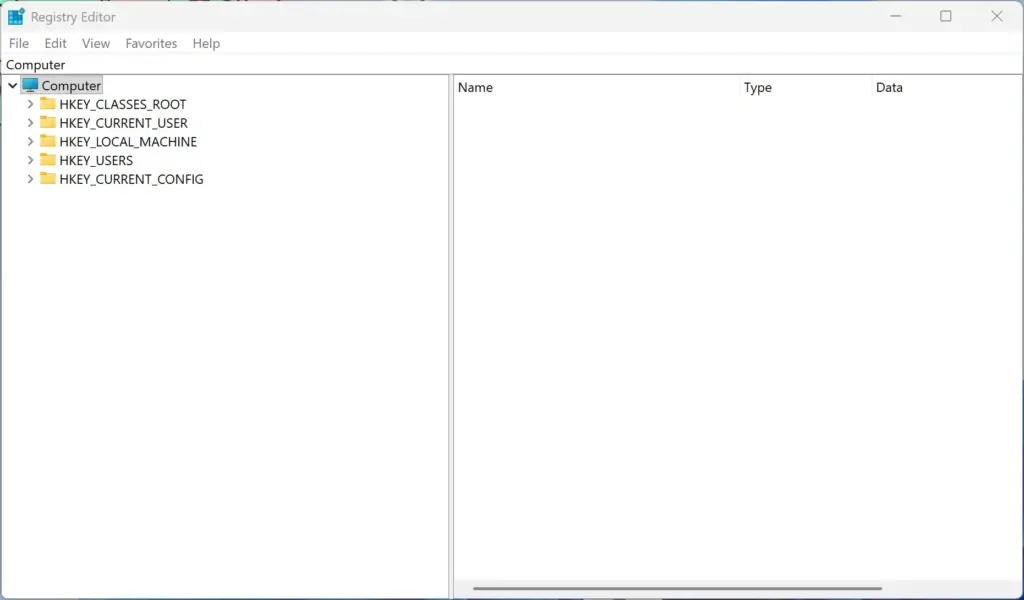
Registry Editor - Use the folders in the left pane to go to this location:
HKEY_LOCAL_MACHINE\SOFTWARE\Policies\Microsoft\Windows\LocationAndSensors - If you do not see the
LocationAndSensorsfolder, right-click theWindowsfolder, select New, click Key, and name itLocationAndSensors. The new folder appears in the left pane. - Click the
LocationAndSensorsfolder, then right-click an empty space on the right side, select New, and click DWORD (32-bit) Value. - Name this new value
DisableLocation. - Double-click
DisableLocationand change its value data from0to1, then click OK. The value now shows the new number in the right pane.
Restart the computer so the change takes effect. To undo it, change the value data back to 0, or right-click the value and choose Delete, then restart. If something goes wrong, you can also double-click the file you exported earlier to restore the registry.
Summary
Turning off the Windows 11 location service globally stops your computer from working out where you are, which protects your privacy. It also disables useful tools such as the Weather app, Maps, Find My Device, and automatic time zone updates. If that is too much, you can leave the service on and block individual apps instead. Either way, you can reverse the change at any time.
Have a question about this guide?
Answered by AI from this guide. Good questions may be added to this page — please don't include personal details.
Did this guide fix your problem?

About the Author
Richard
Tech Writer, IT Professional
Richard is a writer at Geek Rewind who turns complex IT tasks into clear, step-by-step guides. He draws on years of hands-on experience in system administration and enterprise IT operations, focusing on Windows, Linux and WordPress: the problems people actually run into, and the fixes that work. His server and WordPress guides come from systems he runs himself. Richard builds and maintains the platform behind Geek Rewind, from its Ubuntu servers and Nginx configuration to its custom WordPress plugins. Many new tutorials start with readers' questions, and he's always glad to answer them in the comments.
No comments yet — be the first to share your thoughts!