What Breaks When You Disable Windows Location Services System-Wide

Disabling Windows location services system-wide turns off the master switch that lets Windows 11 and Windows 10 work out where you are. Most desktops and laptops have no built-in GPS chip. Windows instead estimates your position from nearby Wi-Fi network names, your IP address and, where present, other sensors. That estimate is what apps and built-in tools read when they ask for your location.
Turning the switch off breaks several tools you may use every day. The Weather app and taskbar widget lose your local forecast, the time zone may stop following you when you travel, and map apps cannot pinpoint your current spot. The sections below cover each of these, and the later steps show how to turn the setting off or back on.
Disabling Windows Location Services system-wide breaks the Weather app and taskbar widget, which lose your local forecast; Maps apps can no longer pinpoint your location or show a blue dot; Find My Device stops working; Cortana loses local search capability; and web browsers cannot share your location with websites, forcing you to enter your city manually.
What Features and Apps Break When You Turn It Off
With location services off, you will notice changes in everyday apps, in security tools and in how websites behave. Nothing crashes. The features simply have no position to work with, so they show an empty result, ask you to enter a place by hand, or tell you that location is turned off.
1Weather Apps and Widgets
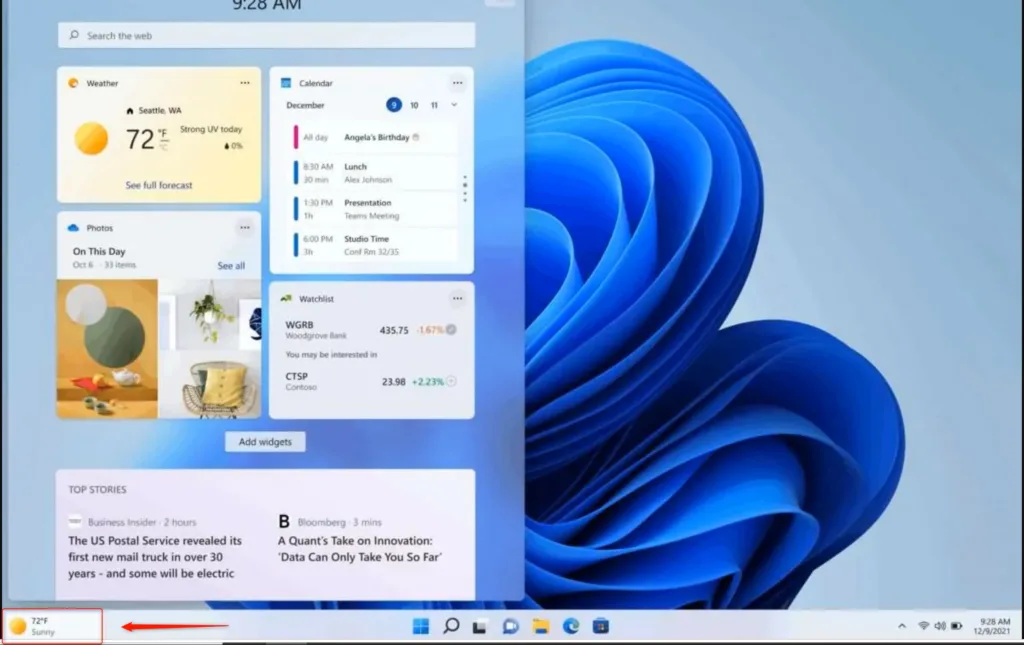
Weather apps and widgets can no longer detect your town or city once system-wide location is off. The weather widget on the taskbar and third-party weather programs will show a blank screen, an error, or a prompt to choose a city by hand.
The usual workaround is to add your city manually inside the weather app. That works fine for a desktop that never leaves home. On a laptop you will have to change the city yourself whenever you travel.
2Maps and Navigation Tools
Mapping software such as the built-in Windows Maps app depends on your current position. With location off, you get no blue dot showing where you are, and the map does not centre on you automatically. You must type your starting point every time you ask for directions.
Searching for an address or a business by name still works, because that does not need your position. What you lose is “near me” searching and one-click routes from where you are.
3Security and Find My Device
This security feature depends on geographic coordinates to track a lost or stolen laptop and save its last known location to your Microsoft account.
Once the device is gone, you cannot turn the setting back on remotely, so the tracking information will not be there when you need it. Desktop PCs that never leave your home lose much less, since you already know where they are.
4Cortana and Digital Assistants
Digital assistants and voice search tools lose most of their local usefulness when location is off. They need your position to answer questions such as nearby restaurants, traffic on your route, or reminders tied to a place. General questions that do not depend on where you are still work normally.
5Web Browsers and Local Search
Web browsers such as Microsoft Edge cannot share your location with websites when Windows location services are off. Store finders, restaurant sites and local news pages will not know where you are. You will have to type your city or zip code each time.
Even if you click Allow on a site’s location prompt, the browser has nothing to pass along. The Windows setting overrides the browser’s own permission.
How to Enable or Disable Location Services in Windows
Managing location services takes a few clicks in the Settings app. The steps below are for Windows 11. Windows 10 uses nearly the same path, but the wording and layout differ slightly.
Using the Windows Settings App

- Press Win+I on your keyboard. The Settings app opens.

- Click Privacy & security in the left-hand menu. The privacy options appear on the right.
- Scroll down to the App permissions section and click Location.
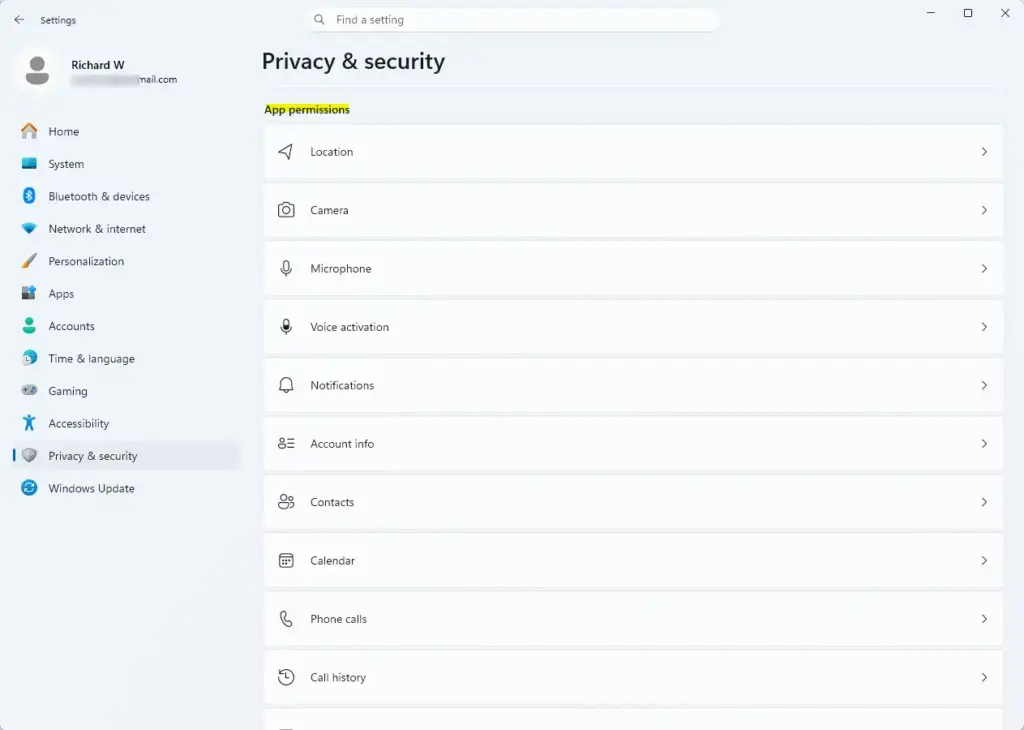
Settings › Privacy & security › App permissions - Find the main switch labeled Location service.
- Set this switch to Off to disable location system-wide, or to On to turn it back on. When it is off, the other location options on the page are greyed out or hidden.
This is the whole process. You open Settings , go to the privacy options and flip the master switch. That switch controls whether any app or built-in tool can read where you are. To undo the change, return to the same page and set Location service back to On.
If the switch is greyed out or will not change, you are probably signed in with a standard account. Turning location off for the whole device needs an administrator account. Work accounts may also have location locked by a policy from your organization. In that case, contact your IT department.
Configuring Location Settings via the Settings App Menus
Changing these privacy options needs an administrator account on your PC. If you are not an administrator, Windows may ask for an administrator password or leave the master switch unavailable. Standard users can still manage which apps use location for their own account, but not the device-wide switch.
If you would rather click through the Settings menus than use the master switch directly, the walkthrough below gives the same result by the longer route.
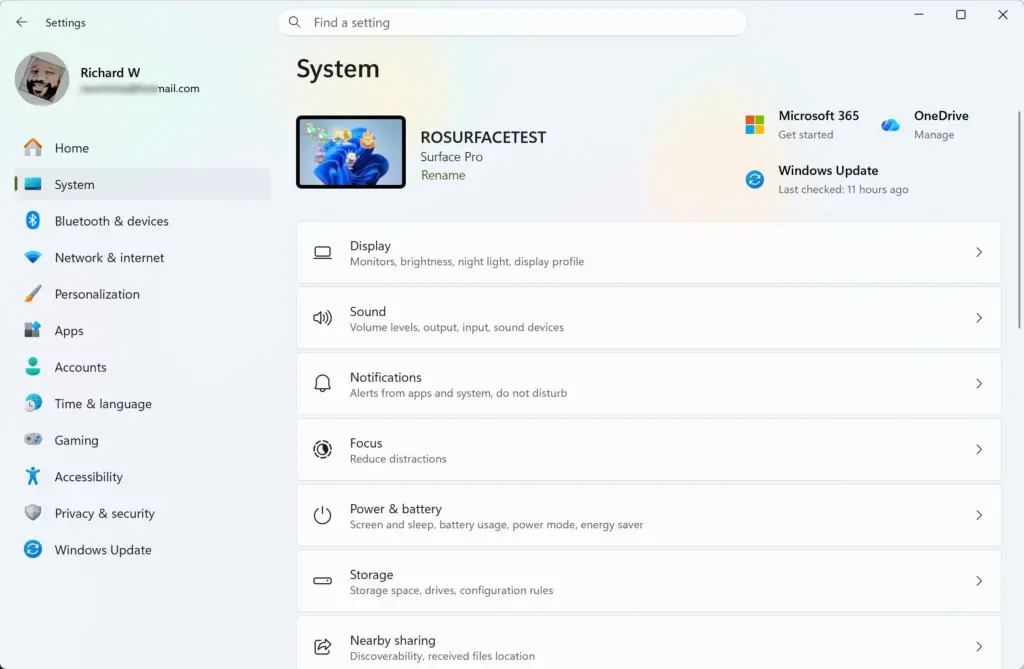
Follow these steps in order:
- Click the Start button and open Settings. The main Settings window appears.

- Open the Privacy & security page, then select Location to reach the location permissions page.
- Find the master toggle switch for location access at the top of the page.
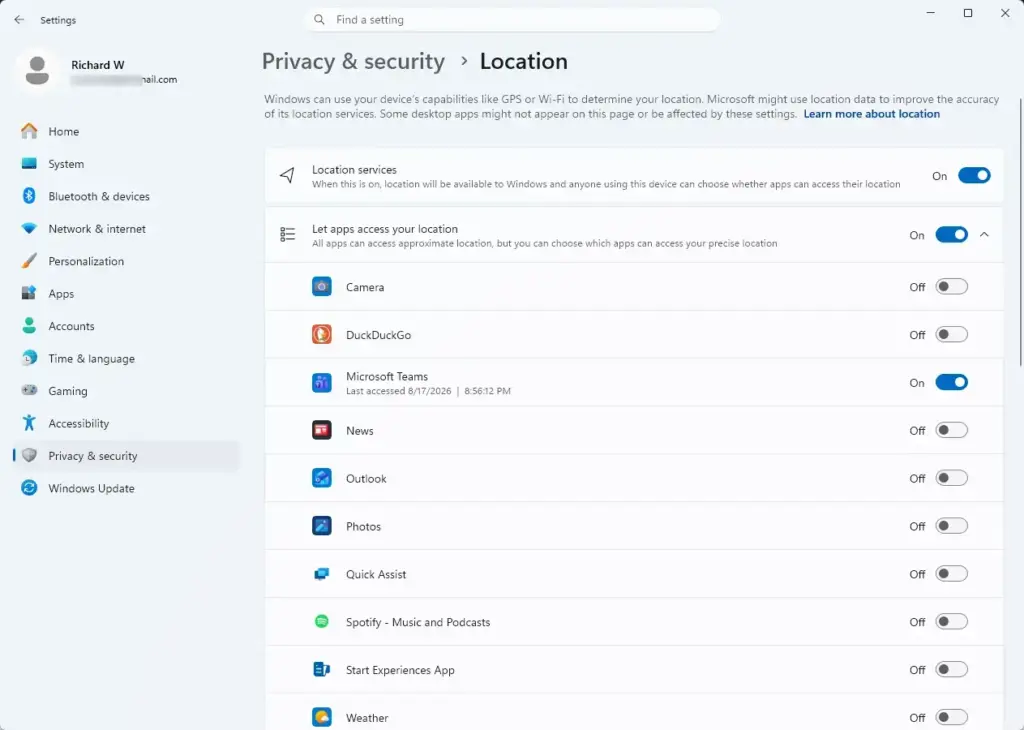
Settings › Privacy › Location - Click the switch to turn location access Off or On, depending on what you want.
- Close the Settings window when you are finished. Most apps pick up the change straight away. If a weather app, map or browser still behaves as if the old setting applies, restart your computer so the change takes full effect.
If you only want to stop certain apps from seeing your position, leave the master switch On and switch off individual apps in the list further down the same page. That keeps tools like Find My Device working while limiting everything else.
Summary
Turning off Windows location services system-wide keeps your computer from sharing your physical location with apps and built-in tools, which is a gain for privacy. The cost is that weather widgets, map navigation, local web searches and the Find My Device tracking tool stop working properly. Weigh that before you flip the switch. If you change your mind, the same Location service toggle in Privacy & security turns everything back on.
Have a question about this guide?
Answered by AI from this guide. Good questions may be added to this page — please don't include personal details.
Did this guide fix your problem?

About the Author
Richard
Tech Writer, IT Professional
Richard is a writer at Geek Rewind who turns complex IT tasks into clear, step-by-step guides. He draws on years of hands-on experience in system administration and enterprise IT operations, focusing on Windows, Linux and WordPress: the problems people actually run into, and the fixes that work. His server and WordPress guides come from systems he runs himself. Richard builds and maintains the platform behind Geek Rewind, from its Ubuntu servers and Nginx configuration to its custom WordPress plugins. Many new tutorials start with readers' questions, and he's always glad to answer them in the comments.
No comments yet — be the first to share your thoughts!