What Breaks When You Disable Windows 11 Widgets

- 21 steps
- Needs administrator rights
- Group Policy needs Windows 11 Pro, Enterprise or Education
- Includes a restart or sign-out
Disabling the Windows 11 widgets panel removes the weather icon, news feed, and calendar shortcuts from the left side of your taskbar. It does not harm the core operating system. The panel runs on the Windows Web Experience Pack and updates live content on your desktop. Turning it off only stops those feeds.
Your PC keeps all its core functions, search tools, and internet access when you hide the panel. You lose quick-glance weather and personalized news. This guide covers three ways to turn widgets off: the taskbar settings, the Settings app, and Group Policy. They work on Windows 11 Home or Pro, build 22000 or higher, apart from Group Policy, which needs Pro or higher.
Disabling Windows 11 widgets breaks almost nothing important on your computer, meaning your core operating system, web browser, and essential apps will continue working normally. You will only lose live taskbar weather updates, personalized news feeds, and quick access to mini utility cards pinned inside the sliding panel.
What Are 🪟 Windows 11 Widgets?
Windows 11 widgets are small interactive cards on a dedicated panel that show live information at a glance. They display local weather, sports scores, stock prices, traffic conditions, and news headlines from various web sources. You do not have to open a browser to see any of it.
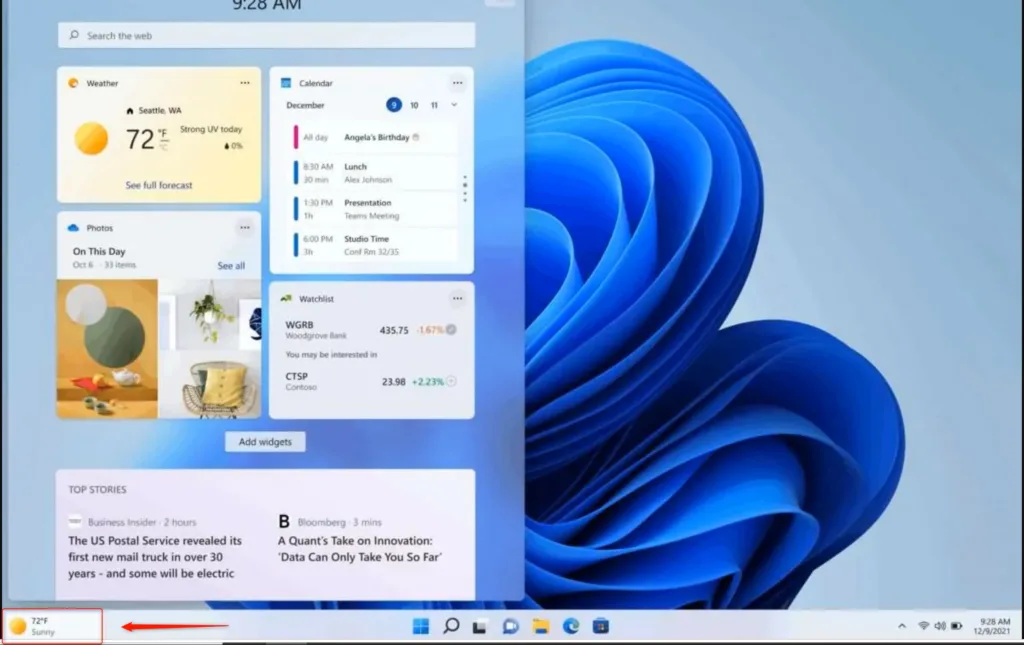
The widget button usually sits on the left side of your taskbar. Click it, or press the Win plus W, and a large panel slides out from the left edge of the screen. In that panel you can read your personalized feeds, add utility cards, and rearrange the layout.
Some people find the panel useful. Many others find it cluttered and distracting, and they do not like a feed running in the background that they never asked for.
What Breaks When You Disable 🪟 Windows 11 Widgets?
Nothing important breaks when you disable widgets. The feature is a web-based news and information feed, and the rest of the system does not depend on it. Your web browser, system performance, and everyday desktop applications are not affected. You only lose the following:
- Quick Weather GlancesYou will no longer see live weather on your taskbar button. You will need to check a weather website or open a dedicated weather app instead.
- Personalized News FeedsThe sliding panel with news headlines, sports updates, and financial tickers will no longer be available.
- Quick Access to Utility CardsAny mini-apps or cards you added to the widget board, such as a calculator or a to-do list widget, will disappear from that panel.
Turning off widgets does not affect your internet connection or your ability to run programs. It does not slow the computer down either. Many users notice a small performance gain, because the PC no longer fetches news stories and weather data in the background. On a modern machine the difference is small. On an older one you are more likely to notice it.
How to Hide the Widget Button Using Taskbar Settings
The quickest way to get rid of the weather icon is to hide the widget button from the taskbar settings. It takes a few clicks and does not touch any deep system files, so it is the safest choice for everyday users. You can undo it at any time by flipping the same switch back on.

- Right-click any empty space on your taskbar at the bottom of the screen. A small menu appears.
- Click Taskbar settings. The Settings app opens on the taskbar page.
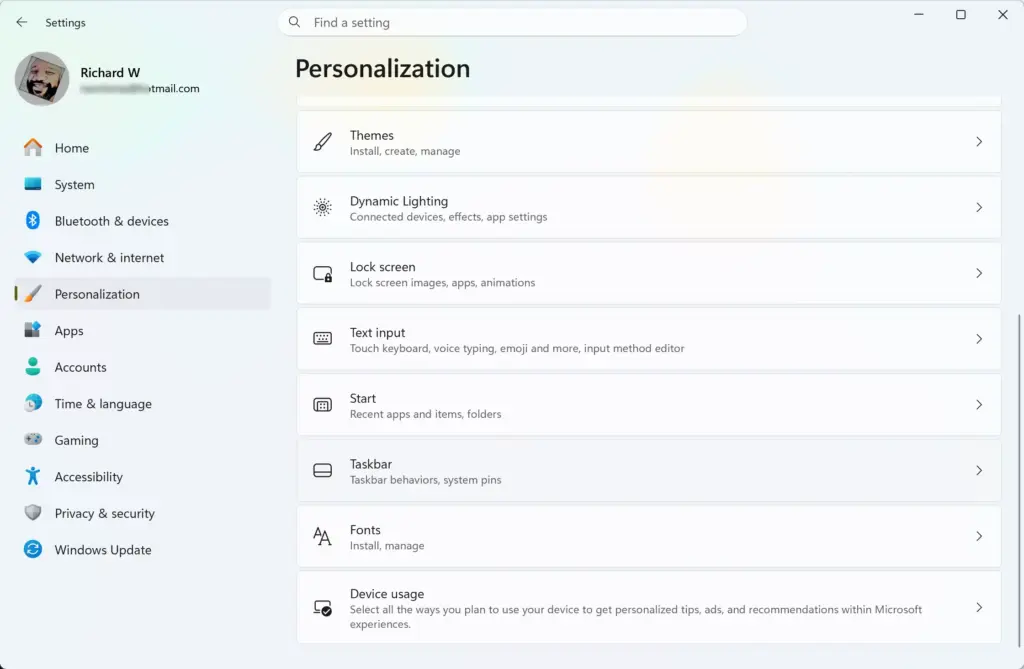
Settings › Personalization › Taskbar - Find the section labeled Taskbar items. If it is collapsed, click it to expand it.
- Find the toggle switch next to Widgets.
- Click the toggle to set it to Off.
The widget icon disappears from your taskbar right away, with no restart needed. Depending on your build, pressing the Win plus W may still open the panel. If it does, the panel is hidden but not fully disabled. The Group Policy method below blocks it completely. To bring the icon back, return to the same page and set Widgets to On.
How to Turn Off Widgets Completely Using the Windows Settings App

You can also reach the same switch through the Settings app. This is the route to use if the right-click menu does not work for you or you want to check the setting from the start. Turning the switch off stops the widget button and its feeds from running on your account while leaving the rest of the system intact.
- Click the Start button on your taskbar and open Settings (the gear icon).
- Click Personalization in the left-hand menu.

Settings › Personalization - Click Taskbar on the right side of the screen. The taskbar options appear.
- Expand Taskbar items if it is collapsed, and locate the Widgets toggle.
- Set the toggle to Off. The widget button vanishes from the taskbar.
If the toggle is greyed out or missing, a policy on your device may be controlling it. This is common on work or school PCs. Check with whoever manages the machine, or see the Group Policy section below.
How to Remove Widgets Using the Windows Registry Editor
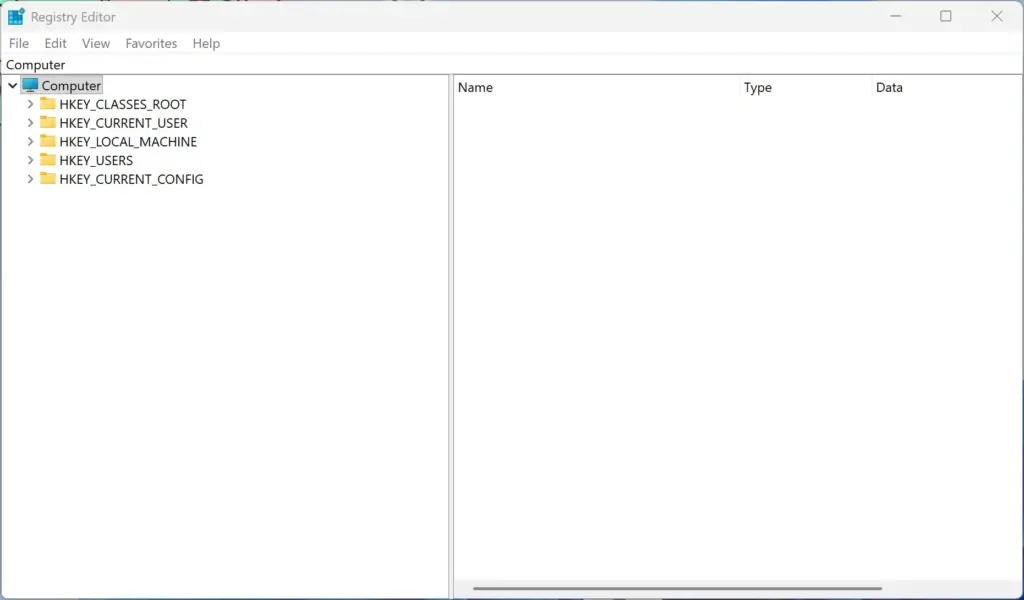
Some guides suggest the Windows Registry Editor to remove widgets system-wide. That is an advanced route because it means editing system settings directly, and a wrong change can cause problems. You do not need it. The built-in graphical settings cover the same job for most people, and Group Policy covers it for managed PCs. The steps below use the interface built into Windows 11 version 23H2 and do not touch the registry.
If you want to go beyond hiding the button, you can check whether the widget components show up as an installed app.
- Click the Start button, type Settings, then press Enter.
- Go to Apps and click Installed apps. A list of installed apps appears.
- Scroll through the list to find the web experience pack or any widget components. On many systems they are not listed, because Windows treats them as part of the system.
- If you do not see them, use the Taskbar settings method described earlier to disable the feature instead.
Do not worry if nothing is listed. Hiding the widget button through Taskbar settings, or blocking the feature with Group Policy, achieves the same result.
How to Remove 🪟 Windows 11 Widgets with Group Policy
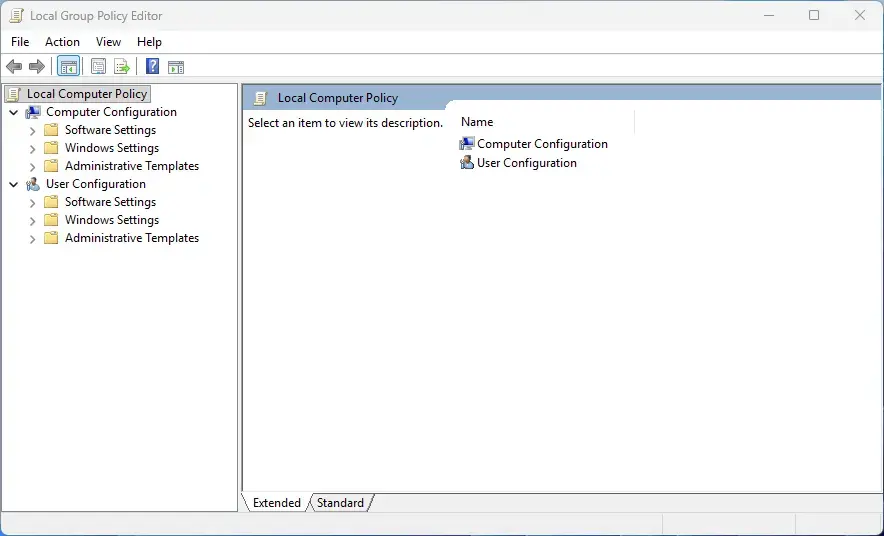
Group Policy lets you disable widgets for all users on a PC in one step. System administrators in an office or school can use the Local Group Policy Editor to enforce the change and block widgets on each machine. This tool is included in Windows 11 Pro, Enterprise, and Education. It is not available in Home, so Home users should stick with the taskbar toggle.
- Press the Win plus R to open the Run dialog box.
- Type gpedit.msc into the box and press Enter. You need administrator privileges for this. The Local Group Policy Editor opens.
- In the left-hand pane, expand Computer Configuration Administrative Templates Windows Components.
- Click Widgets in the folder list. The available settings appear on the right.
- Double-click the setting named Allow widgets.
- Select Disabled in the window that opens.
- Click Apply, then click OK.
Once the policy applies, widgets are turned off across the system. The weather, news, and stock feeds stop running in the background, which frees some memory and avoids unnecessary data use. If the change does not show up right away, restart the PC or sign out and back in. To undo it, set Allow widgets back to Not Configured or Enabled.
Hidden Impact: What Happens to Background Processes?
Disabling widgets stops the Windows Web Experience Pack background process. That helps battery life and saves some memory. While widgets are enabled, the process regularly connects to the internet to download updates, even if you never open the panel.
Once you disable the feature or hide the taskbar icon, the process stops fetching data you do not use. On a laptop, you may see a minor improvement in battery life over a day. On an older or slower desktop, freeing those resources helps the system run a little smoother and cuts unwanted data use. Do not expect dramatic results on a fast, modern PC.
Alternative Ways to Get Weather and News
You can still get weather and news without widgets, using apps and browsers that do not take up space on your taskbar. If you turned widgets off to reduce clutter but still want local updates, there are a few simple options.
- Use Your Web BrowserSet your favorite news site as your browser homepage, or open a new tab to see your favorite content.
- Dedicated AppsOpen the built-in Weather app or News app from the Start menu only when you want them.
- Desktop ShortcutsCreate a desktop shortcut to your favorite weather or news site for one-click access.
Summary
Disabling Windows 11 widgets is a safe, easy way to clean up your taskbar and remove distractions. Nothing important breaks when you turn them off. You only lose quick access to the live weather icon and personalized news feeds, and you can switch them back on whenever you like.
Have a question about this guide?
Answered by AI from this guide. Good questions may be added to this page — please don't include personal details.
Did this guide fix your problem?

About the Author
Richard
Tech Writer, IT Professional
Richard is a writer at Geek Rewind who turns complex IT tasks into clear, step-by-step guides. He draws on years of hands-on experience in system administration and enterprise IT operations, focusing on Windows, Linux and WordPress: the problems people actually run into, and the fixes that work. His server and WordPress guides come from systems he runs himself. Richard builds and maintains the platform behind Geek Rewind, from its Ubuntu servers and Nginx configuration to its custom WordPress plugins. Many new tutorials start with readers' questions, and he's always glad to answer them in the comments.
No comments yet — be the first to share your thoughts!