Why Widgets Now Loads Only When You Open It in Windows 11

- 9 steps
- Needs administrator rights
Widgets now loads only when you open it on Windows 11 PCs with 8 GB of memory or less. Microsoft made the change to cut the memory Windows sets aside for Widgets (memory commitment) by roughly 200 MB while Widgets is closed, which leaves that memory free for your apps.
Memory commitment is the amount of memory Windows sets aside for a program so it can run. This post explains why Widgets now loads only when you open it in Windows 11, which PCs get the change, and what you can check on your own machine.
Widgets now loads only when you open it on Windows 11 PCs with 8 GB of memory or less, because Microsoft cut the roughly 200 MB that Windows held for Widgets while the panel was closed. To check whether your PC qualifies, open Settings, go to System About, and read Installed RAM under Device specifications.
Why Widgets now loads only when you open it
Widgets is the panel you open from the taskbar to see weather, news and other small cards. Before this change, Windows kept it loaded in the background even when the panel was closed. That background copy used memory whether or not you ever looked at the panel.
On a PC with plenty of memory, that cost is minor. On a PC with 8 GB or less, 200 MB is a noticeable share of what the system has to work with. Microsoft’s answer is to load Widgets on demand. Windows loads nothing for Widgets until you open it.
Microsoft announced the change as part of a wider effort to improve Windows 11 on 8 GB PCs. It appears in the “What’s new in Windows 11” post of October 15, 2026, where it was listed as rolling out. The November 3, 2026 post about 8 GB PCs lists it as available now.
The Windows 11 release notes describe the memory saving as roughly 200 MB while Widgets is closed. Treat that as an approximate figure. The exact amount on your PC depends on what else is running.
Which PCs get the change
The change applies to PCs with 8 GB of memory or less. Microsoft’s announcements do not describe a change for PCs with more than 8 GB. Assume those PCs behave as before unless Microsoft says otherwise.
Check how much memory your PC has
This step tells you whether your PC falls in the 8 GB or less group. It does not need administrator rights.
- Open Settings.
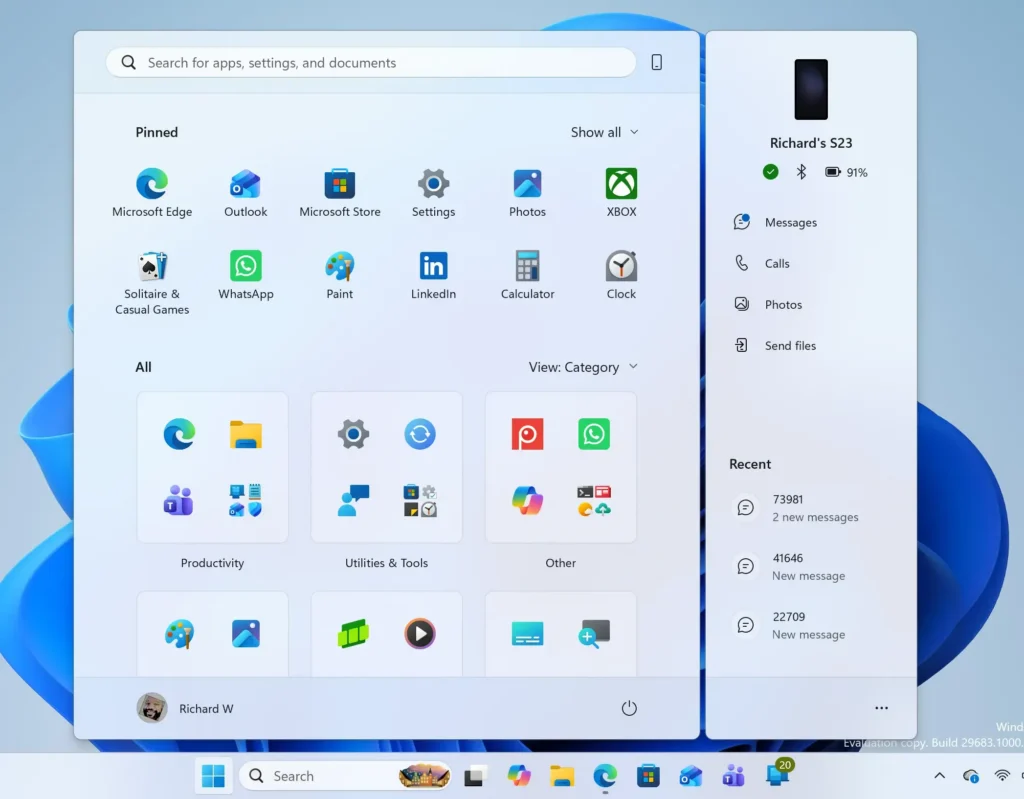
Start Menu - Go to System About.
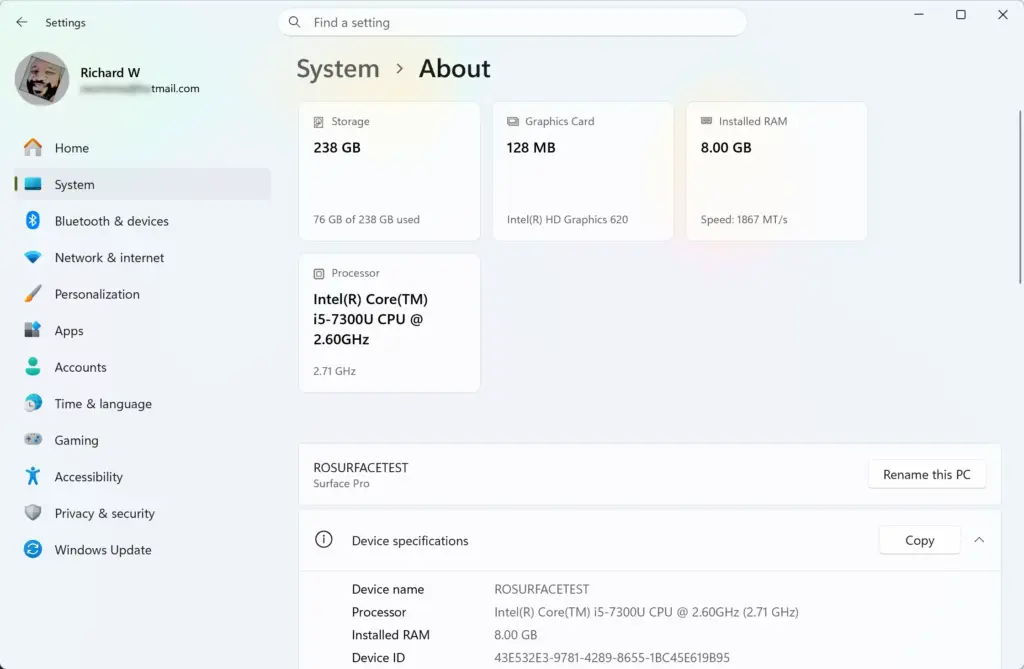
Settings › System › About - Find Installed RAM under Device specifications.
You should see a figure such as 8.00 GB. Windows can also show a smaller usable figure in brackets. Some memory is reserved for hardware, so the usable amount is lower than the installed amount. A PC that lists 8 GB installed counts as an 8 GB PC.
If the figure is above 8 GB, expect Widgets to behave as it did before.
What “loads only when you open it” means in practice
Widgets still works the way it did. You open it, you see your cards, and you close it. The difference is in what happens while it is closed.
Loading on demand means Windows starts Widgets only when you open it, not earlier in the session. Microsoft has not published figures for how long that takes. It has also not described any delay when you first open the panel.
Press Win+W to open Widgets from the keyboard, or use the Widgets button on the taskbar. If you open Widgets by moving the pointer over the taskbar button, that behavior is a separate setting. Our guide on how to enable or disable open Widgets board on hover explains it. Microsoft has not said how hover opening interacts with load-on-open, so this post does not guess.
Widgets also got other changes in the same announcement. Microsoft says it made Widgets cleaner and quieter, so you have more control over what gets your attention. The announcement does not give menu names for that, so this post does not either.
Check the change in Task Manager
You can look for the effect yourself in Task Manager, the built-in tool that shows what your PC is using. Watch the memory figure before and after you open Widgets. This is a rough check, not a measurement. Microsoft’s figure is approximate, and other apps and background tasks change memory readings from minute to minute. No administrator rights are needed.
- Press Ctrl+Shift+Esc to open Task Manager.
- Select More details if Task Manager opens as a small window with only a list of apps.
- Select the Performance tab.
- Select Memory in the left pane. The right pane shows a memory graph and a set of readings, including In use and Committed.
- Note the Committed reading while Widgets is closed.
- Press Win+W to open Widgets, wait a few seconds, and read Committed again.
On a PC that has the change, memory use in Task Manager should rise after Widgets opens, because Windows now loads it at that point. The rise may be small enough to disappear into normal fluctuation. If you see no difference, that does not prove you lack the change. A smaller figure, other activity on the PC, or a rollout that has not reached you yet can all explain it.
Do not read high memory use as a problem
Task Manager on an 8 GB PC may show most of your memory as in use even when nothing is wrong. Microsoft explains that Windows uses spare memory to keep useful apps and data ready, then reclaims it as other programs need it. A high In use percentage (the share of memory that apps and Windows are using right now) is not a fault on its own.
The better test is whether the PC stays responsive. If apps open, switch and scroll normally, the reading is not a concern. A reading near 100 percent together with real slowdowns is a different situation, and it is worth looking at what is running.
What Microsoft has not said
The announcements are short, so several questions have no published answer yet. Check this list before you go looking for them in Settings.
- A setting to switch it off. Microsoft does not describe a toggle that makes Widgets load in the background again.
- A build number. The announcements give dates and rollout status, not the Windows 11 version that first includes the change.
- PCs above 8 GB. The change is described only for PCs with 8 GB of memory or less.
- Load time. No figure is given for how long Widgets takes to appear after you open it.
When Microsoft documents any of these, this post will need updating. Until then, treat the 8 GB threshold and the roughly 200 MB figure as the confirmed facts.
How this fits with the other 8 GB changes
Load-on-open is one of several memory changes Microsoft lists for 8 GB PCs. Another one affects how Windows treats the memory you have. Microsoft says Windows can keep up to 2 GB more active data in memory. Apps and browser tabs you left open are less likely to reload when you return to them.
In Microsoft’s own lab test, the workflow finished up to 40% faster than on the January 2026 builds. The test used 20 Edge tabs, a 4K video, Word, PowerPoint and Excel files, Outlook and File Explorer, all open at once. That is a Microsoft test on specific hardware. Your results will vary with your apps and your PC.
These changes work together with Widgets loading on demand. Freeing 200 MB while Widgets is closed matters more when the whole system has little memory to spare.
What this does not change
Loading on demand does not remove Widgets or alter its content. The same panel opens with the same kinds of cards. Everything you set up before the change should still be there.
Account and content tasks are the same as before:
- To use a Microsoft account in the panel, see how to sign in and out of Widgets.
- To change what the panel shows, see how to find and add new widgets.
If Widgets seems empty or stuck on its first open after an update, that is a separate problem from load-on-open. Signing out and back in is a reasonable first thing to try. The guide on how to sign in and out of Widgets explains how. Microsoft has not linked such symptoms to this change.
If you want Widgets gone, not just quieter
Loading on demand reduces what Widgets costs while closed. It does not remove it. If you never use the panel, you may prefer to turn it off, and that decision has trade-offs. Read the guide on should you turn off Widgets in Windows 11 before you decide, so you can weigh the trade-offs.
If Widgets stops opening at all, reinstalling it can help. The guide on how to uninstall and reinstall Widgets in Windows 11 covers that.
What to do next
Check Installed RAM under Settings System About to confirm whether your PC is in the 8 GB group. If it is, the change should reach you as Windows 11 updates roll out, with no setting to change. If you decide the panel is not worth any memory, read the guide on whether to turn off Widgets before you disable anything.
Have a question about this guide?
Answered by AI from this guide. Good questions may be added to this page — please don't include personal details.
Did this guide fix your problem?

About the Author
Richard
Tech Writer, IT Professional
Richard is a writer at Geek Rewind who turns complex IT tasks into clear, step-by-step guides. He draws on years of hands-on experience in system administration and enterprise IT operations, focusing on Windows, Linux and WordPress: the problems people actually run into, and the fixes that work. His server and WordPress guides come from systems he runs himself. Richard builds and maintains the platform behind Geek Rewind, from its Ubuntu servers and Nginx configuration to its custom WordPress plugins. Many new tutorials start with readers' questions, and he's always glad to answer them in the comments.
No comments yet — be the first to share your thoughts!