How to Find and Add New Widgets in Windows 11

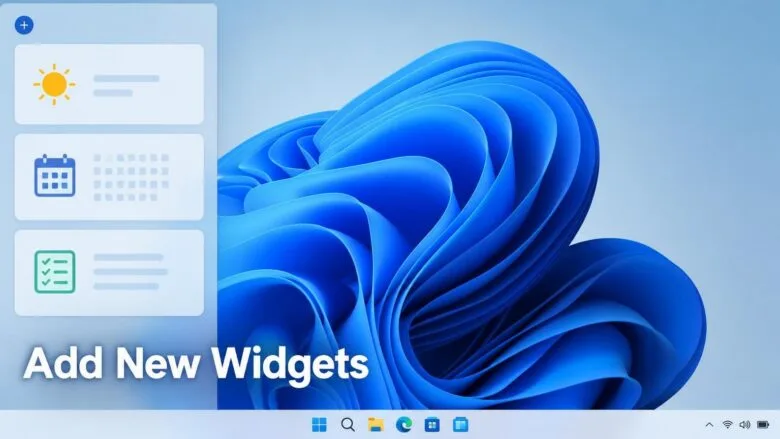
- 16 steps
- Needs administrator rights
To add a widget, open the Widgets Board, select the add (+) button, and pin the widget you want. The board holds small panels such as weather, calendar, and to-do lists. Open the board with Win+W.
The Widgets Board is the panel that slides in from the left side of the screen. Some apps add widgets to it when you install them. A preview version of Windows 11 can alert you when that happens. The example used here is Experimental Build 26340.9616, released October 7, 2026.
Press Win+W to open the Widgets Board, select the add button (+) labeled Add widgets, scroll to the app’s widget, and select Pin next to it. The widget appears on the board straight away. Install the app first, because widgets from apps only show up after installation.
Where new widgets come from
Widgets come from two places. Microsoft supplies the built-in ones, such as weather and calendar. Other widgets belong to apps you install, and an app only adds a widget if its developer built one.
Most missing widgets come from this, so the app check matters. If an app has no widget, no search of the board will find one. Check that the app is installed and up to date before you look for its widget.
A few examples are covered in separate posts. Phone Link has its own widget for the Widgets Board, and Dev Home can add resource widgets that show system usage, which means how hard your PC’s processor and memory are working.
Before you start
Check three things first. Each one can stop the board from opening or from listing widgets.
- Widgets must be turned on. If the Widgets icon is missing from the taskbar and Win+W does nothing, the Widgets setting is off. Go to Settings Personalization Taskbar and check the Widgets toggle under Taskbar items. The post on adding or removing widgets on the Windows 11 taskbar covers this in detail.
- Sign in if the board asks. Some content and widgets need a signed-in account. If the board shows a sign-in prompt, follow the steps in how to sign in and out of Widgets on Windows 11.
- Install the app first. Widgets from an app appear only after you install the app on your PC.
None of these steps need administrator rights. They change only your own widget layout.
How to find and add new widgets in 🪟 Windows 11
These steps show you how to find and add new widgets in Windows 11 from the Widgets Board. Button positions and labels can differ slightly between versions of Windows 11, so follow the descriptions if your screen looks different.
- Install the app you want a widget for. If the app is already on your PC, skip to the next step. Apps from the Microsoft Store are the most likely to offer widgets.
- Press Win+W to open the Widgets Board. The board slides in from the left. You can also select the Widgets icon on the taskbar, or hover over it.
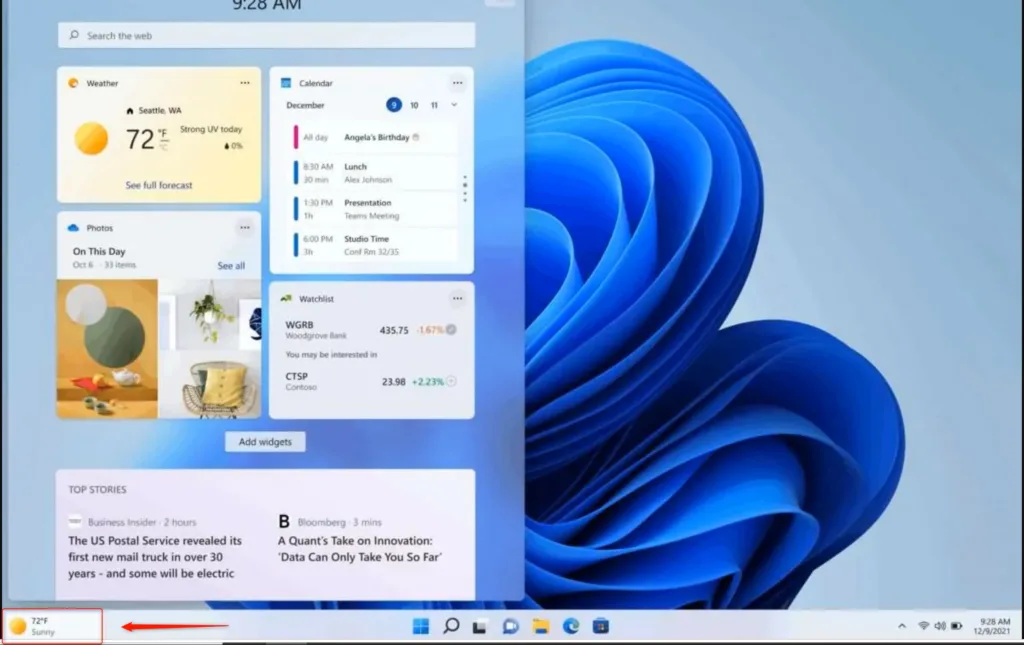
Widgets - Select the add button (+) in the board. The button is labeled Add widgets and sits near the top of the widget area. A panel opens that lists the widgets you can add.
- Scroll the list to find the widget you want. Widgets are grouped by the app that provides them. If you recently installed an app, look for its name in the list.
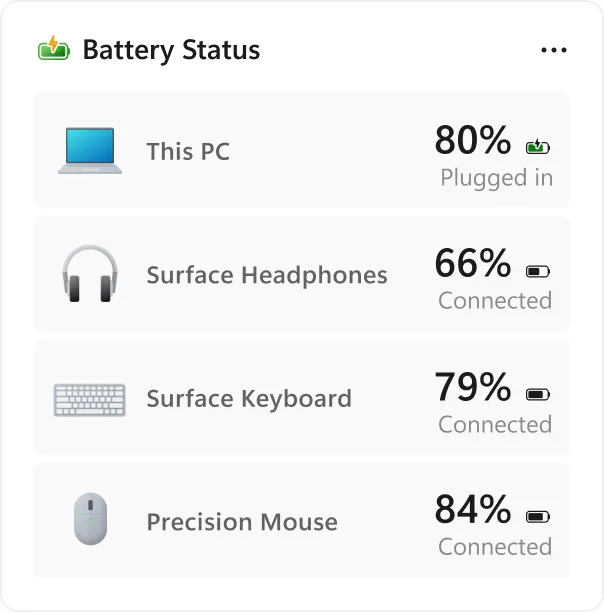
Widgets - Select Pin next to the widget. The widget appears on the board straight away. Repeat for any other widgets you want.
- Close the add panel. You should see the new widget on the Widgets Board, alongside the ones you already had.
- Drag the widget to a new position if needed. Other widgets move aside to make room.
- Select the three dots (More options) in the widget’s top-right corner to change its size. Choose from the sizes offered, such as Small, Medium, or Large. Not every widget offers all three.
If a widget you expect is not in the list, the app may not provide one, or the app may need an update. Open the Microsoft Store, check for updates, and reopen the add panel.
Get an alert when a new widget becomes available
It first appears in Experimental Build 26340.9616 and may change before it reaches the release version of Windows 11. If you run a standard Windows 11 install, you will not see it yet, and you should use the manual steps above.
In a build that includes it, Windows can notify you when a new widget becomes available after you install an app. Selecting the alert opens the Widgets Board. New widgets are highlighted there, and you can add them quickly.
In a supported preview build, the alert works like this:
- Install an app that includes a widget. Windows detects the new widget after the install finishes.
- Watch for the notification. It tells you a new widget is available.
- Select the notification. The Widgets Board opens.
- Find the highlighted widget on the board. The highlight marks widgets that are new since you last looked.
- Add the widget. Use the add option shown next to the highlighted widget.
If no alert appears, the app may not offer a widget, or your build may not include the feature. In both cases, the manual steps in the previous section still work. No setting for these alerts is documented yet, so this article does not describe one.
Why a new widget does not show up
Work through this list in order. The causes are listed from most to least common.
- The app has no widget. Many apps do not provide one. Check the app’s Microsoft Store page or its settings for any mention of widgets.
- The app is out of date. A newer version may add the widget. Update the app from the Microsoft Store.
- The Widgets Board is not signed in. Sign in from the board, then reopen the add panel.
- Widgets are turned off. Turn the Widgets toggle back on in Settings Personalization Taskbar.
- The widget is already on the board. Scroll through the board. A widget you already pinned does not need adding again.
- Your Windows build lacks the notification feature. The new-widget alert is in preview builds only. Add the widget manually instead.
- A system update can also change which widgets are offered. After a major update, reopen the add panel to check what is listed.
- How to remove or rearrange a widget
- You can undo any of this at any time. Removing a widget does not uninstall the app that provides it.
- Press Win+W to open the Widgets Board.
- Select the three dots in the widget’s top-right corner. A menu opens.
- Choose Unpin widget. The widget disappears from the board.
- To add it back, repeat the steps in the earlier section. The widget returns to the add panel as soon as you open it.
- To keep widgets off your lock screen, or to control which ones appear there, see how to add or remove lock screen widgets on Windows 11. Lock screen widgets are managed separately from the board.
- What turning Widgets off affects
- If you plan to disable Widgets entirely rather than manage individual ones, read what breaks when you disable Windows 11 Widgets first. Disabling the feature also removes the board that new-widget alerts open.
- For the Insider feature itself, Microsoft documents it in the release notes for Experimental Build 26340.9616. Check that page for any changes before the feature reaches general release.
- What to do next
- Once your new widget is pinned, resize it and drag it to the position you want on the board. If the widget you wanted never appeared, update the app and check the board again after your next Windows update. To see the new-widget alerts before general release, join the Windows Insider Program and install a build that includes them, keeping in mind that preview builds can change or remove features.
Frequently asked questions
How to add multiple monitors to your 🪟 Windows 11 PC site:Microsoft.com?
Connect the second monitor with a cable such as HDMI, DisplayPort, or USB-C. Press Win+P and choose Extend to use it as extra workspace. For more control, open Settings System Display, pick Extend these displays under Multiple displays, and drag the monitor boxes to match where the screens sit on your desk.
How to add multiple monitors to your 🪟 Windows 11 laptop?
Plug the external monitor into your laptop's HDMI, USB-C, or docking station port. Press Win+P and select Extend. To set the layout, open Settings System Display and drag the screen boxes into their real positions. Choose your main screen there too.
What are widgets in 🪟 Windows 11?
Widgets in Windows 11 are small panels that show information at a glance, such as weather, calendar events, and to-do lists. You see them on the Widgets Board, which slides in from the left side of the screen when you press Win+W. Some apps add their own widgets too.
What is widgets in 🪟 Windows 11?
Windows 11 widgets are compact, live tiles that display quick updates without opening an app. Microsoft includes built-in ones such as weather and calendar, and apps can add their own. You find them on the Widgets Board, opened with Win+W, where you can add or remove them.
Still have a question?
Answered by AI from this guide. Good questions may be added to this page — please don't include personal details.
Did this guide fix your problem?

About the Author
Richard
Tech Writer, IT Professional
Richard is a writer at Geek Rewind who turns complex IT tasks into clear, step-by-step guides. He draws on years of hands-on experience in system administration and enterprise IT operations, focusing on Windows, Linux and WordPress: the problems people actually run into, and the fixes that work. His server and WordPress guides come from systems he runs himself. Richard builds and maintains the platform behind Geek Rewind, from its Ubuntu servers and Nginx configuration to its custom WordPress plugins. Many new tutorials start with readers' questions, and he's always glad to answer them in the comments.
No comments yet — be the first to share your thoughts!