How to Add Phone Link to Windows 11 Widgets Board


The Phone Link widget puts your phone updates directly on your Windows 11 desktop. You can check texts, missed calls and battery level without picking up your device. It works through the built-in Phone Link app, which connects your Android phone or iPhone to your PC. The app comes preinstalled on Windows 11 version 22H2 and newer.
Pinning the widget takes just a few clicks in the Widgets panel. It then sits next to your calendar and news feeds and gives you a quick view of your phone activity. This guide covers pairing your phone, adding the widget, and fixing the usual problems. It also shows how to remove the widget again.
Open the Widgets board with Win+W, click the Add widgets (+) icon, and select Phone Link from the list. The tile appears on the board straight away and shows your texts, missed calls and battery level. You need the Phone Link app paired with your phone first, and Windows 11 version 22H2 or newer.
System Requirements and Setup
The widget draws its data from the paired phone, so without that pairing it has nothing to show.
Before you start, check a few more things. Your PC should be fully updated, since Phone Link and the Widgets board both get fixes through Windows Update . Your phone needs an internet connection, and Bluetooth should be switched on for calls. Android phones need Android 7.0 or later. If you use an iPhone, expect fewer features than on Android (see the iPhone question further down).
Initial QR Code Pairing Guide
Pair your phone first. The steps below use an Android phone. Keep the phone next to you, because you will need to scan a code with it.
- Open the Phone Link app on your Windows 11 PC. Search for Phone Link in the Start menu if you can’t find it. You should see a welcome screen that asks you to choose your phone type.
- Select your device type (Android). The app then asks you to sign in with your Microsoft account if you haven’t already.
- Wait for a QR code to appear on your screen. If it doesn’t show up, close the app and open it again.
- Open the Link to Windows app on your phone and scan the code. Some Samsung phones already have this app. On other Android phones, install it from the Google Play Store first. Once the scan works, your phone shows a pairing confirmation.
- Follow the on-screen prompts to grant the necessary permissions on both the phone and the PC. These cover contacts, messages, call logs and notifications. If you skip one, the matching data won’t appear in the widget. When you finish, Phone Link on your PC shows your phone’s messages and battery level.
Pinning Phone Link to Your Widgets Board
Once your phone is paired, you can see recent messages, battery level and missed calls on your desktop by pinning the feature to your Widgets board. Open the Widgets panel with your keyboard, choose the option to add new items, and select Phone Link from the list.
If Phone Link is not in the list, the usual causes are that the pairing above isn't finished, or that Windows needs updating. Finish the pairing and check Windows Update. The widget list reads from the installed apps, so a missing app means a missing widget.
- Open Widgets by pressing Windows key + W. The Widgets board slides in from the left side of the screen.
- Click the Add widgets (+) icon near your user profile.
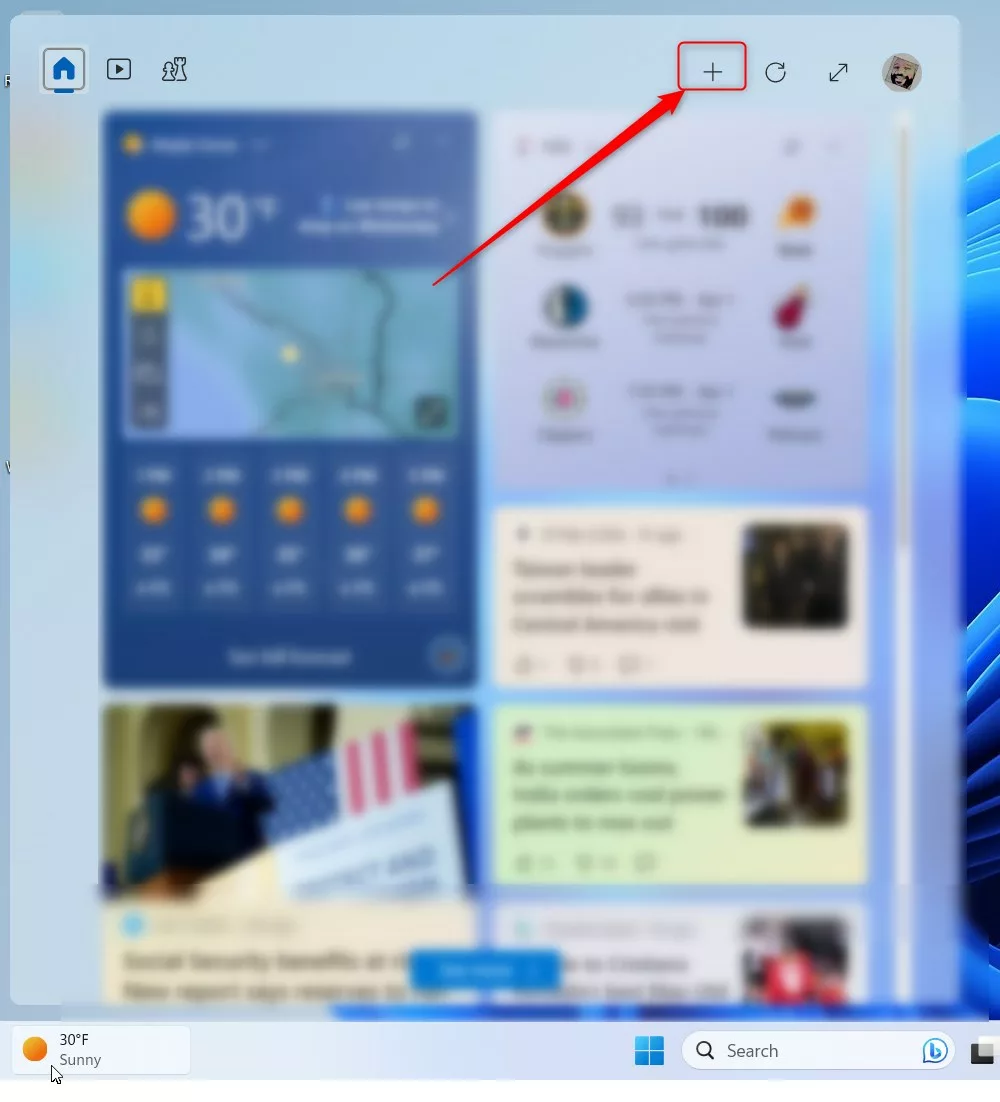
The Widgets board open in Windows 11 - Find Phone Link in the list and click it to add it to your board. The widget tile should now appear on the board.
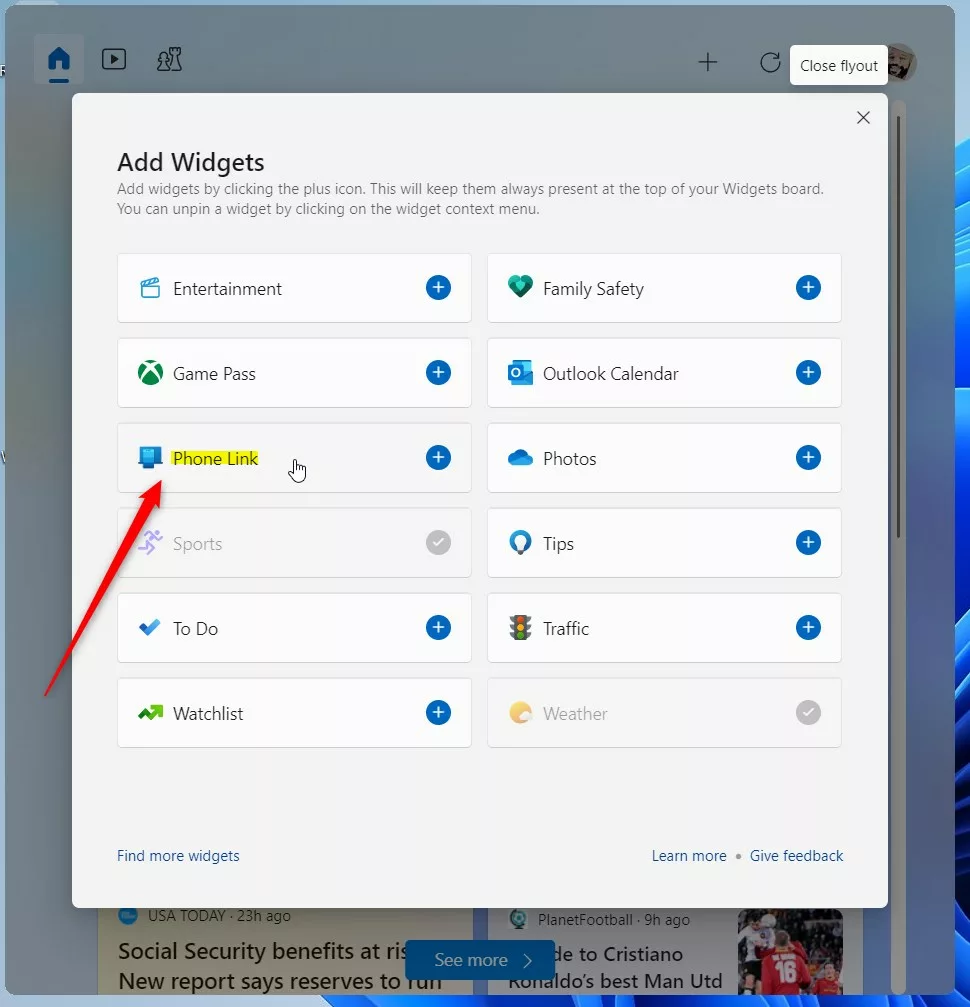
Adding Phone Link to Windows 11 Widgets board
After you add it, the widget appears on your board. You can click and drag the tile to move it. Place the tile near the top if you want your phone updates to be the first thing you see when you open the board.
Changes to the board are saved automatically, so you don't need to confirm anything or restart Windows.
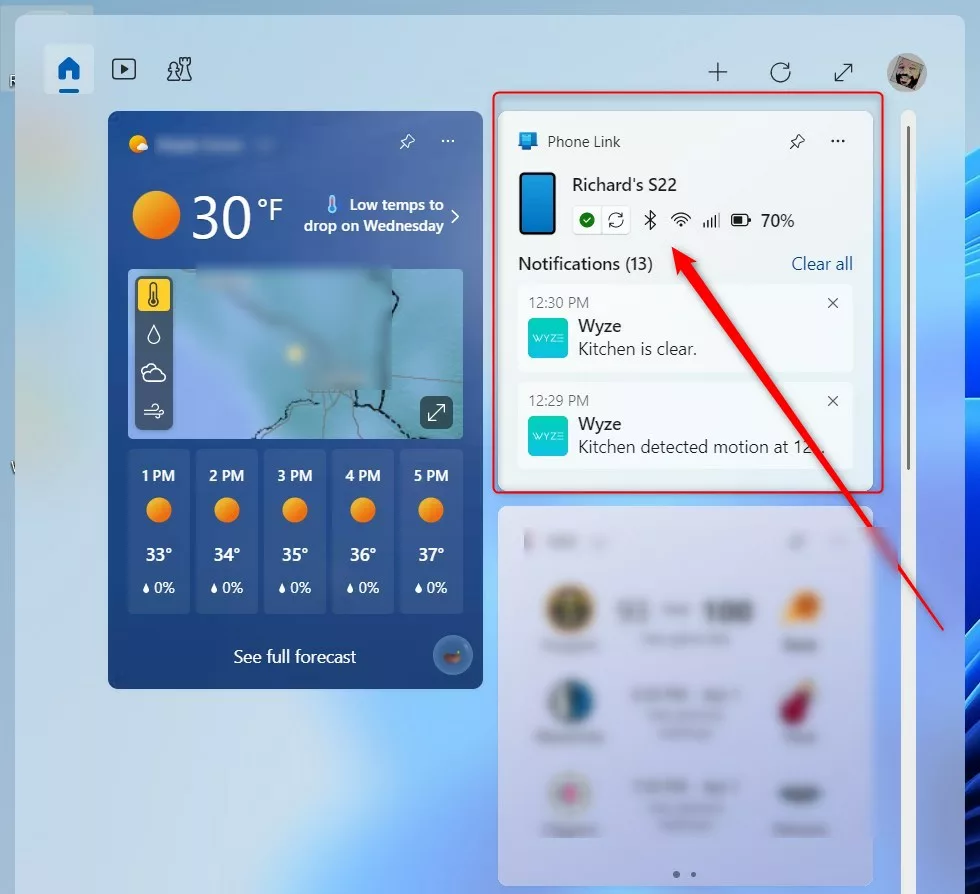
You can arrange the board to suit how you work. Drag the Phone Link tile above or below your other widgets to change the order. The More options (...) button on the tile shows the choices available for it. If the tile looks empty or out of date, open the Phone Link app once so it can sync with your phone, then check the board again.
Managing Permissions and Troubleshooting
If you face issues, check your notification permissions on the PC first.
- Open Settings Apps Installed apps and find Phone Link in the list.
- Open its menu and choose Advanced options, then check that its app permissions are turned on.
The exact layout can differ a little between Windows 11 builds. Note: Some advanced settings may require admin privileges to modify system-level notification access. If a switch is greyed out, sign in with an administrator account, or ask the person who manages the PC.
Why can't I see my notifications in Phone Link?
If the widget shows nothing, work through these checks in order:
- Make sure your phone and PC are on the same Wi-Fi network.
- Check that Focus Assist or Do Not Disturb is not blocking alerts on the PC. Do Not Disturb on the phone can also hold back notifications.
- Verify that you have granted Notification Access in the Link to Windows app settings on your mobile device. Without it, notifications can't sync to the PC.
If it still doesn't sync, open the Phone Link app on the PC and look for a "not connected" message. Fix the connection there first, and then look at the widget again.
Does Phone Link work with iPhone on 🪟 Windows 11?
Yes, Phone Link supports basic integration for iPhone, including calls, messages and contacts. It connects over Bluetooth, so the phone needs to stay near the PC. Advanced features like app streaming and photo gallery access are currently optimized primarily for Android devices, specifically those with deep Samsung Galaxy integration. If you use an iPhone, some of the widget's information may be more limited than on Android.
Removing the Phone Link Widget
If you no longer want the widget, you can remove it from the board. This only removes the tile. Your phone stays paired and the Phone Link app keeps working. To add it back later, repeat the steps above.
- Open your Widgets board with Windows key + W.
- Click the More options (...) button on the Phone Link tile. A small menu opens.
- Select Unpin widget to remove it. The tile disappears from the board right away.
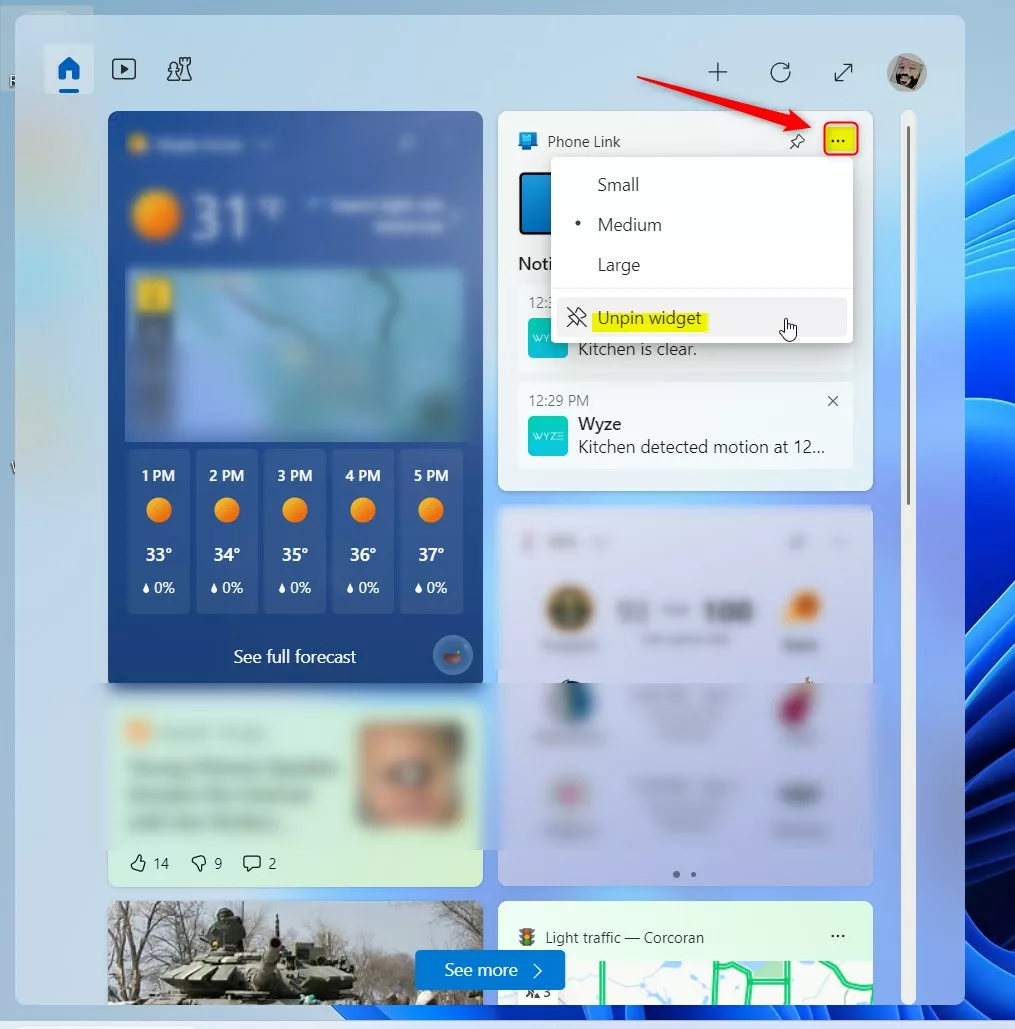
Unpinning Phone Link from Windows 11 Widgets board
Summary
The Phone Link widget keeps your phone's texts, missed calls and battery level a keypress away. To set it up, pair your phone, press Windows key + W, and add the widget from the Add widgets (+) list. If it stops working, check the pairing, the permissions and the Wi-Fi connection first. For further technical details, visit the official Microsoft support page.
Was this guide helpful?

About the Author
Richard
Tech Writer, IT Professional
Richard is a writer at Geek Rewind who turns complex IT tasks into clear, step-by-step guides. He draws on years of hands-on experience in system administration and enterprise IT operations, focusing on Windows, Linux and WordPress: the problems people actually run into, and the fixes that work. His server and WordPress guides come from systems he runs himself. Richard builds and maintains the platform behind Geek Rewind, from its Ubuntu servers and Nginx configuration to its custom WordPress plugins. Many new tutorials start with readers' questions, and he's always glad to answer them in the comments.
[…] the Widgets board, you can add or remove Phone Link, enable or disable the open Widgets board on hover, sign in or out of the Widgets board, reinstall […]
[…] or disable auto startup for the phone link app, send and receive text messages from the app, add or remove Phone Link on the widgets board, turn dark mode on or off, open your phone screen in the app, turn show notifications for all my […]
[…] disable auto startup for the phone link app, send and receive text messages from the app, add or remove Phone Link on the widgets board, turn dark mode on or off, open your phone screen in the app, turn show […]
[…] disable auto startup for the phone link app, send and receive text messages from the app, add or remove Phone Link on the widgets board, turn dark mode on or off, open your phone screen in the app, turn show […]
[…] or disable auto startup for the phone link app, send and receive text messages from the app, add or remove Phone Link on the widgets board, turn dark mode on or off, open your phone screen in the app, turn show notifications for all my […]