How to Turn On or off Widgets on the Windows 11 Lock Screen

Widgets on the Windows 11 lock screen show quick information, such as weather and calendar updates, without you needing to sign in. Microsoft added this feature in Windows 11, version 22H2, so you can see useful facts at a glance.
You can turn these lock screen widgets on or off at any time in the Settings app . If the option isn’t there yet on your PC, this guide also covers two other ways to switch it on or off.
Open Settings Personalization Lock screen, scroll down to Widgets on Lock screen, and toggle it On or Off. If the option doesn’t appear, use ViVeTool or Registry Editor to enable the feature first, then restart your PC.
Who Can Use This?
Right now, this feature is mainly available to Windows 11 users in certain European countries. Microsoft says it will be available everywhere soon. Until it reaches your region, you may not see the option in Settings, and the toggle may not appear or do anything. That is the main reason people use the methods below.
How to Turn On or Off Lock Screen Widgets
You can turn Widgets on the Lock screen on or off using one of two methods:
Method 1Use ViVeTool to Enable Widgets
You can use ViVeTool to turn on Windows 11 lock screen widgets by running a specific command in a terminal window. ViVeTool enables hidden operating system features that Microsoft hasn’t turned on by default. Once the feature is on, you can see weather updates and news headlines on your lock screen before you sign in.
This method works on both Windows 11 Home and Pro. You need an administrator account, and you must restart the PC for the change to take effect.
- First, learn how to download and use ViVeTool. Come back to these steps once ViVeTool is ready to use.
- Open Command Prompt or Windows Terminal as an administrator. If a User Account Control prompt appears, click Yes. You should now see a terminal window with a prompt. ⚠️ Admin privileges required
- Type this command and press Enter:
vivetool /enable /id:50179255,53672489
The terminal should print a message confirming the feature was set. If you see an error instead, check that the terminal is running as administrator and that you are in the folder where ViVeTool is located. - After running the command, restart your computer. The change does not apply until you restart.
- Once your PC restarts, open the Settings app:
- Click the Start menu and then the Settings gear icon, or
- Press
Windows key + Ion your keyboard.
- In Settings, click Bluetooth & devices in the left menu. If you can't find a Lock screen page there, look under Personalization Lock screen instead, because Microsoft has moved some settings between builds.
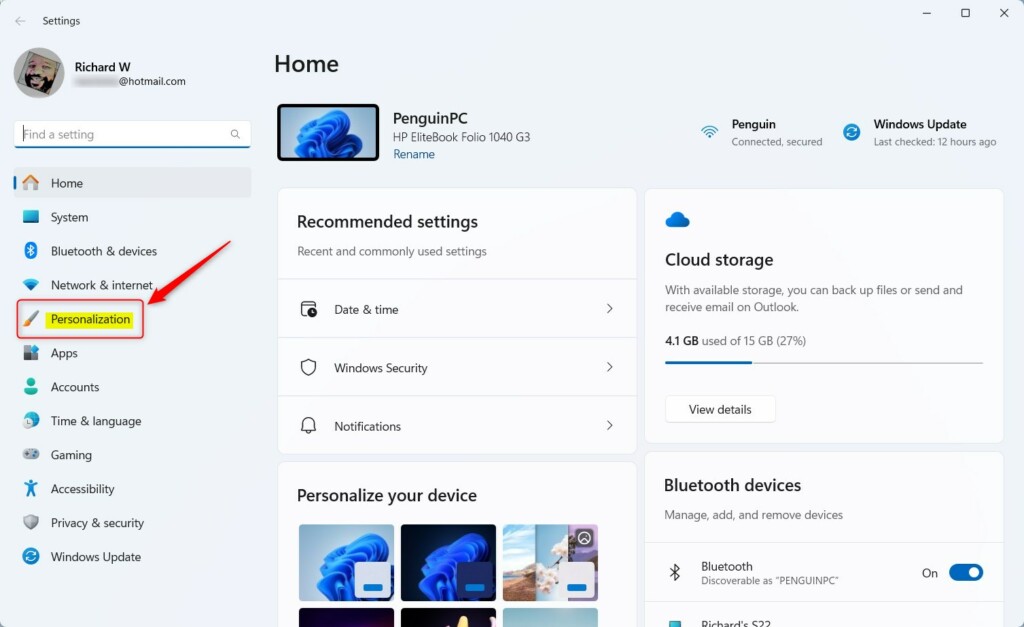
Windows 11 Settings menu with Personalization highlighted. - Next, click Lock screen on the right side. The lock screen settings page should open.
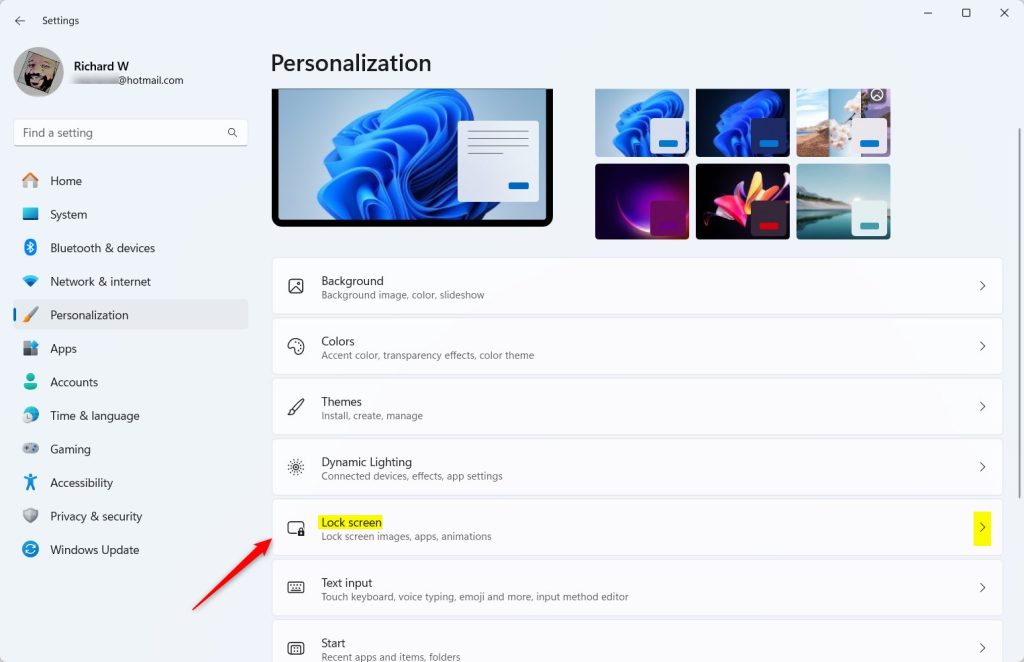
Windows 11 Personalization settings showing Lock screen options. - Scroll down to find the Widgets on Lock screen option and switch the toggle On or Off. If the option is missing after the restart, the feature may not be available on your Windows build yet. Make sure Windows is fully updated and try again.
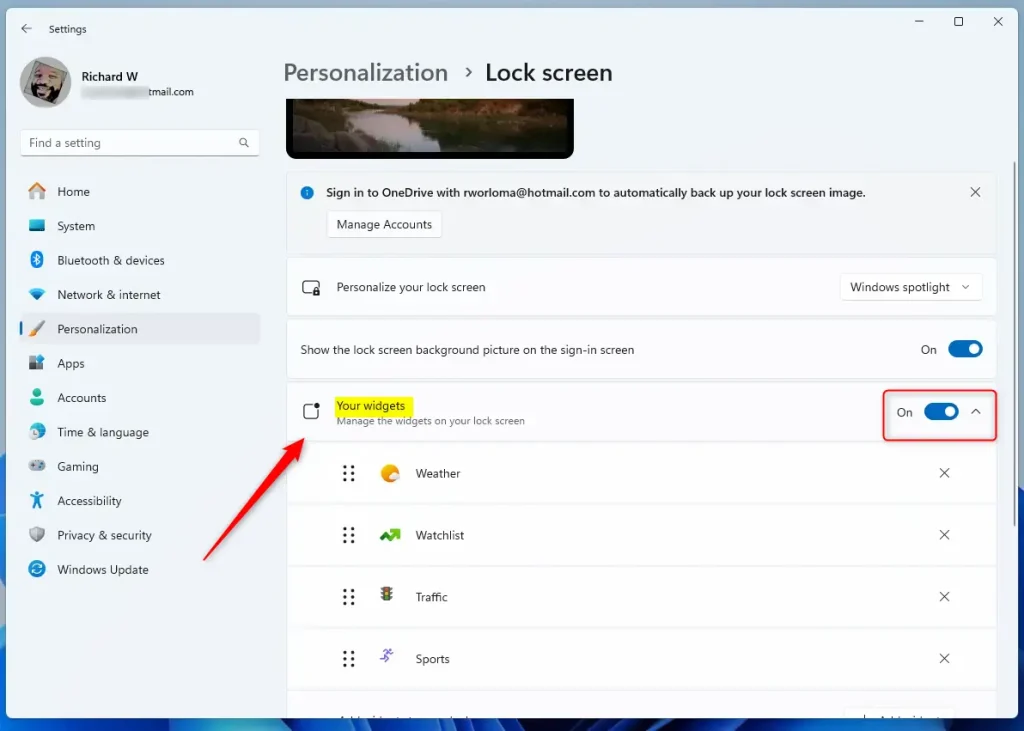
Toggle Widgets on Lock screen button - Close the Settings app when done. To check the result, press Windows key + L to lock your PC and look at the lock screen.
Method 2Use Registry Editor (For Advanced Users)
This method lets you control the feature manually without downloading third-party software. Follow the steps carefully, because a wrong change in the registry can affect how Windows behaves.
Registry Editor is included in both Windows 11 Home and Pro, so this method works on either edition.
This helps protect your computer if something goes wrong, and gives you an easy way back.
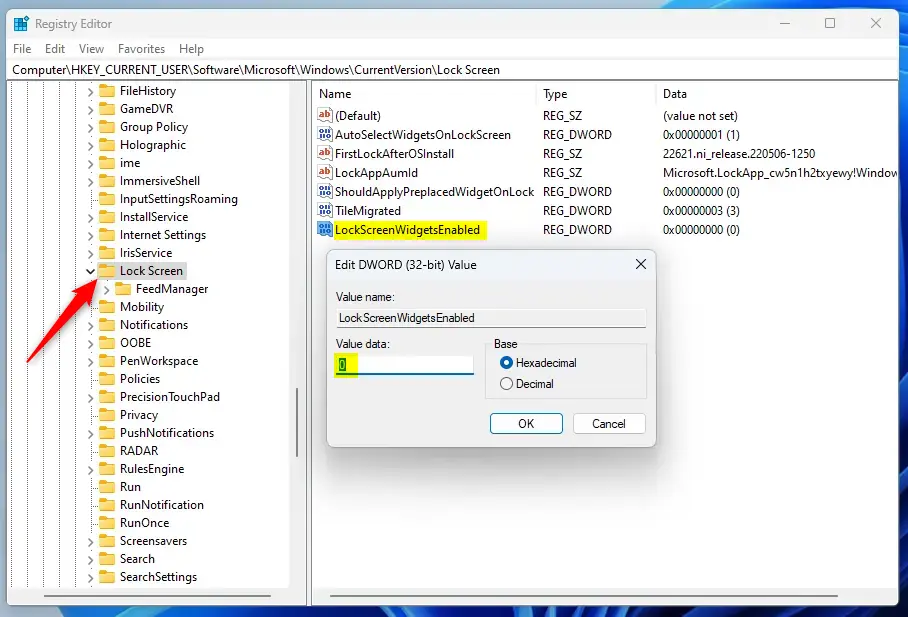
- Open the Registry Editor: Press
Windows key + R, typeregedit, and press Enter. Click Yes if User Account Control asks for permission. The Registry Editor window should open. ⚠️ Admin privileges required - Navigate to this folder:
HKEY_CURRENT_USER\Software\Microsoft\Windows\CurrentVersion\Lock Screen. You can expand the keys in the left pane or paste the path into the address bar at the top of the window. The right pane shows the values stored in that key. - Right-click Lock Screen > select New DWORD (32-bit) Value. A new value appears in the right pane with its name highlighted for editing.
- Name the new DWORD:
LockScreenWidgetsEnabled. Type the name exactly as shown and press Enter. If a value with this name already exists, skip the creation step and double-click the existing one instead. - Double-click the new DWORD and enter one of these numbers in the Value data box:
1to turn ON Widgets0to turn OFF Widgets
- Click OK and close Registry Editor. The value should now show the number you entered in the right pane.
- Restart your computer to apply the changes. Then press Windows key + L to lock the PC and check the lock screen. To undo the change later, open the same value again and switch it to the other number, or restore the backup you made at the start.
Summary
Turning Windows 11 lock screen widgets on or off is simple. ViVeTool is the quicker method, and the Registry Editor gives you more control if you are comfortable making system changes.
Was this guide helpful?

About the Author
Richard
Tech Writer, IT Professional
Richard is a writer at Geek Rewind who turns complex IT tasks into clear, step-by-step guides. He draws on years of hands-on experience in system administration and enterprise IT operations, focusing on Windows, Linux and WordPress: the problems people actually run into, and the fixes that work. His server and WordPress guides come from systems he runs himself. Richard builds and maintains the platform behind Geek Rewind, from its Ubuntu servers and Nginx configuration to its custom WordPress plugins. Many new tutorials start with readers' questions, and he's always glad to answer them in the comments.


No comments yet — be the first to share your thoughts!