Windows 11 Taskbar: What Is the Widgets Feature

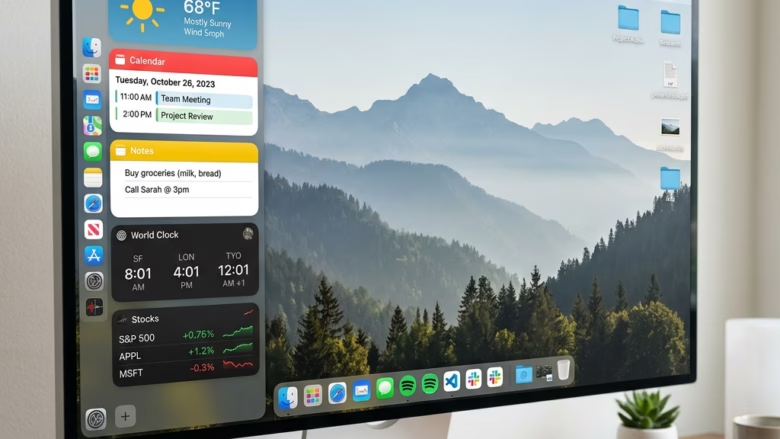
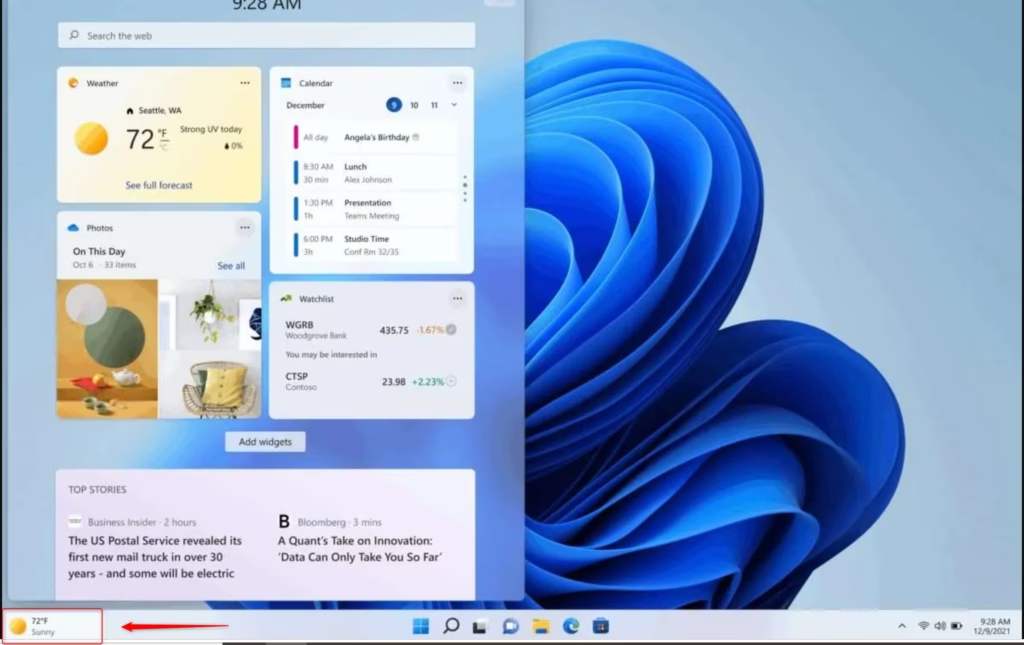
The Windows 11 Widgets feature is a pop-up board on your taskbar that shows live updates like weather, news, and sports scores. Microsoft introduced this panel in Windows 11 build 22000, so you can check daily information without opening a web browser or separate apps.
You can open the board in two quick ways:
- Click the weather button at the left end of the taskbar.
- Press Win+W on your keyboard.
You cannot pin regular desktop apps to the board. What you can do is add or remove cards, follow or drop news topics, and change how much space each card takes up. To resize a card, click the three dots on it and pick Small, Medium, or Large. Not every card offers all three sizes.
Windows 11 Widgets is a pop-up panel on your taskbar that displays live information like weather, news, and sports scores. Open it by clicking the weather icon at the left end of the taskbar or pressing Win+W. You can customize which cards appear and resize them to Small, Medium, or Large from the three-dot menu.
What Are Widgets?
Widgets are small interactive cards that show live information directly on your screen. That includes weather forecasts, news headlines, stock prices, and calendar events. You can open the board at any time to check updates at a glance, without opening a full app or a browser window.
Depending on what you add, the board can show:
- News headlines you pick
- Current weather and forecasts
- Stock market updates
- Your calendar events
- To-do lists
- And more, depending on what you add
Some cards, such as the calendar and to-do list, work best when you are signed in with a Microsoft account. If a card looks empty, check that you are signed in.

The goal is to keep you informed and organized by bringing updates to your taskbar. Instead of opening several apps, you get a quick summary of what is happening in one spot.
How to Open Your Widgets
You can open the Widgets board in three ways: the taskbar icon, a touch swipe, or a keyboard shortcut. Use whichever suits you.
Hover or Click the Widgets Icon
- Find the Widgets icon on your taskbar. It sits at the left end. It may look like a weather icon, such as a sun or clouds with the current temperature, or like a square with smaller squares inside.
- Move your mouse over the icon. The Widgets board slides open from the left side of the screen.
- Click the icon if you would rather not rely on hovering. The board opens the same way.
To close the board, click anywhere outside it or press Esc.
Swipe from the Side (if Centered)
If your taskbar icons are in the middle (the default in Windows 11), you can open the board with a swipe. This only works on a touchscreen.
- Place your finger on the left edge of the screen.
- Swipe to the right. The Widgets board slides in over your desktop.
This feels natural if you use a tablet or a 2-in-1 device. On a PC without a touchscreen, use the icon or the keyboard shortcut instead.
Use a Keyboard Shortcut
You can open the board from almost anywhere by pressing Win+W. The board opens immediately, so you can check your personalized feeds without reaching for the mouse. Press the same keys again, or press Esc, to close it.
Turning the Widgets Icon On or Off
You can hide or show the Widgets icon from the taskbar settings. This is useful if you want a cleaner taskbar or a little more room for other icons. These steps apply to Windows 11 Home and Pro.
- Right-click an empty spot on your taskbar. A small menu appears.
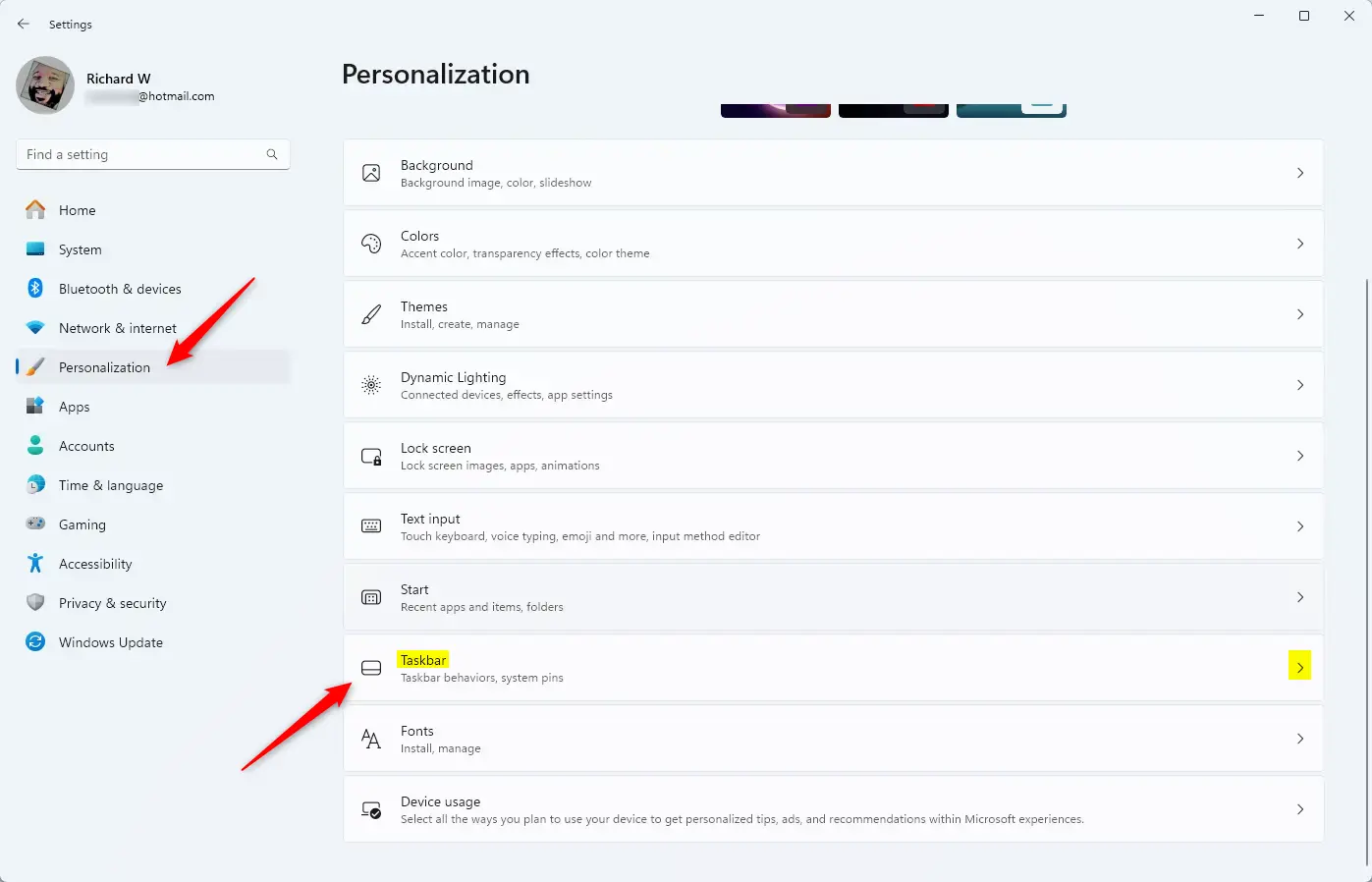
- Select Taskbar settings. The Settings app opens on the Personalization Taskbar page.
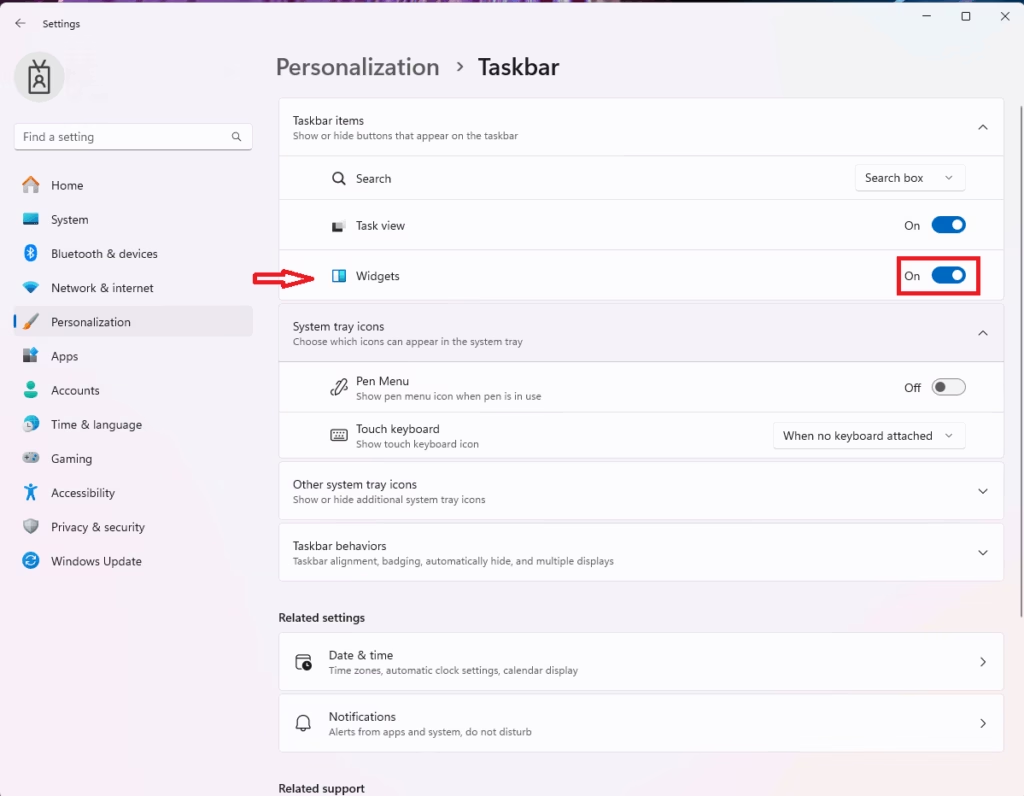
- Find the Taskbar items section. It lists icons like Search, Task view, and Widgets.
- Click the Widgets switch to set it to On and show the icon, or to Off to hide it. The icon appears or disappears right away. You do not need to restart.
If the Widgets switch is greyed out, or the section is missing, your PC is probably managed by an organization that has disabled widgets with a policy. On a work or school PC, ask your IT administrator. On a personal PC, make sure Windows is up to date, since older builds can lay out this page differently.
Make sure you are okay with that before you turn the icon off. On some builds, turning the switch off also stops the shortcut from working. If Win+W does nothing, go back to Taskbar settings and turn Widgets back On.
Changing What’s in Your Widgets
Widgets work best when they show what you want to see. The feed is not meant to be random. You choose the cards and topics, and the board is built around them.
Add and Remove Widgets
You can add cards from Microsoft or from other apps that support widgets. You can also delete any card you no longer use, which keeps the board tidy.
To add a widget:
- Open the Widgets board.
- Click the plus sign (+) button. A list of available widgets appears. The exact position of the button depends on your Windows build.
- Choose a widget from the list. It is added to your board.
To remove a widget you don’t need anymore:
- Open the Widgets board and find the widget you want to remove.
- Click the three dots (…) in the top-right corner of that widget.
- Select Remove widget. On some builds, this option is labeled Unpin widget. The card disappears from the board.
Removing a widget does not delete any data. You can add it back at any time from the plus sign menu.
Move Your Widgets Around
The order of your widgets can make them more useful. Put the ones you check most near the top.
- Open the Widgets board.
- Click and hold the widget card you want to move.
- Drag it to its new spot and release. Move it up, down, or sideways to build a layout that works for you. The other cards shift to make room.
Change Settings for Each Widget
Each card has its own options. For example, you can change the location for the weather card or follow specific topics in the news feed.
- Open the Widgets board.
- Click the three dots on the card you want to adjust.
- Pick the option you need. Depending on the card, you may see choices such as Customize widget or the size options Small, Medium, and Large.
If a change doesn’t seem to take effect, close the board and open it again.
Manage What You’re Interested In
The news feed learns your preferences over time. It tracks which articles and topics you like or dislike. You can also steer it yourself through the main widget settings. Open them with the gear icon, or with your profile picture at the top of the board on some builds. There you can manage your interests and news sources, so the feed shows better content.
Practical Tip: Don’t be afraid to try things out. Add a few widgets you’re curious about and see how they work for a day or two. Then remove or move them as needed. You can always add them back later.
Summary
Widgets give you a quick view of personalized news, weather, and schedule updates without needing to open separate apps. Take a few minutes to set up your board and keep only the cards you actually use. That makes it a useful part of your daily routine instead of clutter.
Frequently asked questions
What are widgets on 🪟 Windows 11?
Widgets on Windows 11 are small interactive cards that display live information like weather, news, stock prices, and calendar events. You open them through a panel accessible from your taskbar by clicking the weather icon or pressing Win+W. You can customize which cards appear and resize them to your preference.
What is the primary purpose of the 🪟 Windows 11 taskbar?
The Windows 11 taskbar is the horizontal bar at the bottom of your screen that holds your app icons, the Start menu, and system tray. It gives you quick access to open programs and shows the time and volume controls. You can also open the Widgets panel from here.
What are widgets?
Widgets are small interactive cards showing live information without opening full apps. On Windows 11, they display weather forecasts, news headlines, stock updates, and calendar events. You access them through a panel in your taskbar, letting you check information at a glance anytime you need it.
Do I need window widgets?
You don't need Windows widgets—they're optional. If you don't use the Widgets panel, nothing changes about your computer. They're just a convenience if you want quick access to weather, news, or other live information without opening separate apps or websites.
Still have a question?
Answered by AI from this guide. Good questions may be added to this page — please don't include personal details.
Did this guide fix your problem?

About the Author
Richard
Tech Writer, IT Professional
Richard is a writer at Geek Rewind who turns complex IT tasks into clear, step-by-step guides. He draws on years of hands-on experience in system administration and enterprise IT operations, focusing on Windows, Linux and WordPress: the problems people actually run into, and the fixes that work. His server and WordPress guides come from systems he runs himself. Richard builds and maintains the platform behind Geek Rewind, from its Ubuntu servers and Nginx configuration to its custom WordPress plugins. Many new tutorials start with readers' questions, and he's always glad to answer them in the comments.
No comments yet — be the first to share your thoughts!