How to Uninstall and Reinstall Widgets in Windows 11

Uninstalling and reinstalling Widgets in Windows 11 fixes a frozen board, missing news, or a slow PC by replacing broken app files. Widgets are small info panels that open on your screen and show weather, sports, and news feeds.
Most glitches go away when you reinstall the Windows Web Experience Pack. This is the core system app that runs the feature. Reinstalling it clears out corrupted data and gets the board working again. The whole job takes a few steps and one restart.
Open Windows Terminal as an administrator, type winget uninstall “windows web experience pack” and press Enter, then restart your computer. The Widgets feature removes completely. To reinstall, visit the Windows Web Experience Pack page in Microsoft Store and click Get.
Method 1Hiding Widgets (Non-Destructive)
If you only want Widgets off your taskbar, hide them. Nothing gets deleted, so you can bring them back at any time. Try this first if the board isn’t broken and is just in your way.
- Right-click an empty space on your Taskbar.
- Select Taskbar settings. The Taskbar page of the Settings app opens.
- Find the Widgets switch under the taskbar items and set it to Off. The Widgets button disappears from the taskbar right away.
To undo this, open the same page and switch Widgets back to On. If the switch is missing or greyed out, Widgets may be turned off by a policy or a registry setting. See the Pro section further down.
Method 2Uninstalling via PowerShell (Admin Required)
This requires admin privileges. A standard command window will fail, so make sure you open it as an administrator. Save any open work first, because the last step is a restart.
- Open the Windows Terminal as an administrator as an administrator. If a User Account Control prompt appears, click Yes.
- Type the following command and press Enter:
winget uninstall "windows web experience pack"
Wait for the command to finish and return you to the prompt. If you see an error, check that the window really is running as administrator and that you typed the command exactly as shown. - Restart your computer. The restart finishes the removal, so don’t skip it.
Method 3Registry and Group Policy (Advanced)
Windows 11 Pro users can turn off Widgets with either Group Policy or the Registry. These options are meant for turning the feature off on purpose, for example on a work PC. Windows 11 Home doesn’t include the Local Group Policy Editor, so Home users should stick with the taskbar toggle or the removal command above.
A policy change may only take effect after you sign out or restart. To reverse it, set the policy back to its default, or delete the value you added.
Reinstalling Widgets
If you decide you want Widgets back, or you removed them to fix a problem and now need a clean copy, reinstall the Windows Web Experience Pack from the Microsoft Store. You need an internet connection. Follow these steps:
- Visit the Windows Web Experience Pack page.
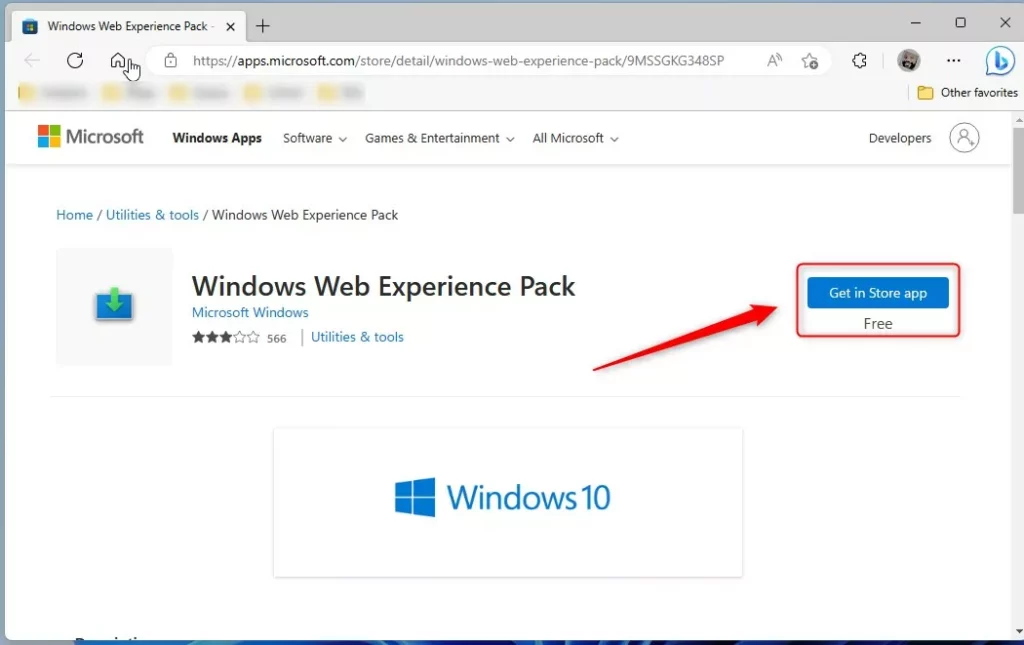
Microsoft Store page for downloading the Windows Web Experience Pack - Click Get to open the Microsoft Store and install it. Let the download finish before you move on. If the Store doesn't open or the install stalls, make sure you're signed in to the Store and that Windows Update isn't stuck.
- Restart your computer. After you sign back in, open Widgets from the taskbar. If the button is missing, check that the Widgets switch in the taskbar settings is On.
Summary
If Widgets in Windows 11 aren't working right, uninstalling and reinstalling them can often fix display or performance problems. Start with the simplest fix, hiding the button if it only gets in your way. Move on to the removal command and a Store reinstall only if the board stays frozen or empty.
Have a question about this guide?
Answered by AI from this guide. Good questions may be added to this page — please don't include personal details.
Did this guide fix your problem?

About the Author
Richard
Tech Writer, IT Professional
Richard is a writer at Geek Rewind who turns complex IT tasks into clear, step-by-step guides. He draws on years of hands-on experience in system administration and enterprise IT operations, focusing on Windows, Linux and WordPress: the problems people actually run into, and the fixes that work. His server and WordPress guides come from systems he runs himself. Richard builds and maintains the platform behind Geek Rewind, from its Ubuntu servers and Nginx configuration to its custom WordPress plugins. Many new tutorials start with readers' questions, and he's always glad to answer them in the comments.
[…] Taskbar in Windows displays the Start menu, Widgets, Windows Search box, Microsoft Teams Chat, File Explorer, Windows Store app, and a few other […]
[…] Taskbar in Windows displays the Start menu, Widgets, Windows Search box, Microsoft Teams Chat, File Explorer, Windows Store app, and a few other […]
[…] Phone Link, enable or disable the open Widgets board on hover, sign in or out of the Widgets board, reinstall Widgets features, completely uninstall Widgets, and show or hide feed on the Widgets […]