What Breaks When You Disable Automatic Time Zone Detection in Windows 11 Date and Time Settings

- 9 steps
- Needs administrator rights
Time zone auto-detection in Windows 11 is the Set time zone automatically switch under Settings Time & language Date & time. Turning it off means your PC no longer changes its time zone when you travel or when your location changes.
Your PC runs on two clocks. The hardware clock sits on the motherboard and keeps running on a small battery when the PC is off. The software clock is managed by Windows while it runs. Windows keeps its internal time in UTC (Coordinated Universal Time) and applies your time zone on top.
Set time automatically controls whether the clock syncs with an internet time server. Set time zone automatically controls only the zone. A wrong zone mostly shifts the time on screen, but a wrong clock breaks secure websites, updates, sign-ins and calendars.
Disabling Set time zone automatically in Settings Time & language Date & time stops your PC from changing its zone when you travel, so the clock shows the wrong local hour. The bigger risk is a wrong clock: if you also turn off Set time automatically, browsers flag secure sites, Microsoft Store and Windows Update downloads fail, and email and calendar times go wrong.
Core Features That Break When Automatic Time Zone Detection Fails
When the clock or time zone does not match reality, several core Windows features and everyday applications stop working correctly. Modern software relies on precise timestamps for security and for sorting data. Even a small gap can cause failures, and the symptoms often look unrelated to time. The sections below cover the most common ones.
Secure Web Browsing and SSL Certificates
Secure web browsing and SSL certificates break because a mismatched system clock makes valid security certificates look invalid. Every certificate has a start date and an expiry date. Your browser checks both against your PC’s clock to verify the server’s identity.
If your clock is far enough off, a good certificate looks expired or not yet valid. The browser then blocks the page and shows a security warning, often with an error about the certificate or the date and time.
If you see these warnings on many different sites at once, check the clock before anything else. Compare it with a phone or a trusted time website.
Microsoft Store and Windows Updates
The Microsoft Store and Windows Update can fail to download when the clock is wrong, because Microsoft’s servers use secure connections that depend on accurate time. If your clock is off, your PC may not be able to establish that connection.
Security patches and app updates then fail to install, often with a generic error code that gives no hint about the real cause. Fix the time first, then retry the update.
Email Synchronization and Calendar App Failures
Email and calendar apps (such as the new Outlook for Windows) run into trouble because mail servers sort messages by timestamp. If your PC stamps messages with the wrong time, they can appear out of order. Some servers may refuse them or flag them.
Calendar invites can also land on the wrong day or at the wrong hour. A meeting you set for 9:00 can show up at a different time for everyone else. This is most visible when you travel, or when you work with people in other time zones.
Hidden Impacts on Third-Party Applications and Games
Third-party software also suffers when the time zone or clock is wrong. Many desktop programs and games depend on accurate timing for licensing, logins, scheduling and data handling. A licence check that fails or a scheduled task that runs at the wrong hour is often the first sign.
Multiplayer Online Games and Anti-Cheat Software
Multiplayer games and anti-cheat software can block your connection when your clock is wrong, because they compare your PC’s clock with the game server’s. Anti-cheat tools may read a time difference as an attempt to tamper with game speed.
The result can be sudden disconnections, login errors, or in the worst case an unfair ban. If a game starts rejecting you right after you travel or change time settings, correct the clock before you contact support.
Cloud Storage and File Synchronization Services
Cloud storage and file sync services rely on file modification dates to work out which copy of a file is newest. If your clock is wrong, edited files get incorrect timestamps.
The sync service may then create unwanted duplicate files, or treat an older version as the newer one and overwrite your recent work. If you suspect this has happened, check the version history in your cloud service before you make more edits.
Unique Angle: The Ripple Effect on Local Network Authentication
Local network authentication is where a wrong clock can lock you out completely. Workplace security protocols such as Kerberos are very sensitive to time differences. They reject login attempts if your PC’s clock differs from the server’s by even a few minutes. That can cut you off from shared office files and work servers.
Kerberos in Windows 11 rejects a request if your clock differs from the domain controller’s by more than five minutes, which is the default tolerance. Suppose a time zone was never changed and someone then “fixed” the display by editing the hour. The clock can end up that far out.
You can then lose access to shared network folders, network printers and company servers. Access usually returns once the time is corrected. If your PC is joined to a work domain, it normally gets its time from the domain, and your organization may lock the time settings. In that case, ask your IT department rather than changing things yourself.
How to Manage Date and Time Settings in 🪟 Windows 11 Safely
If you keep automatic detection turned off, you need to check and adjust the settings yourself. Open the Settings app and make sure the time zone matches where you physically are. These steps apply to current versions of Windows 11, and the layout can differ slightly between builds.
- Click the Start button and select Settings (the gear icon), or press the Win+I. The Settings window opens.
- Click Time & language in the left-hand menu.

- Click Date & time on the right side of the screen. You should now see the time switches, the time zone drop-down and the date and time options.
- To let Windows handle everything, turn on Set time automatically and Set time zone automatically.
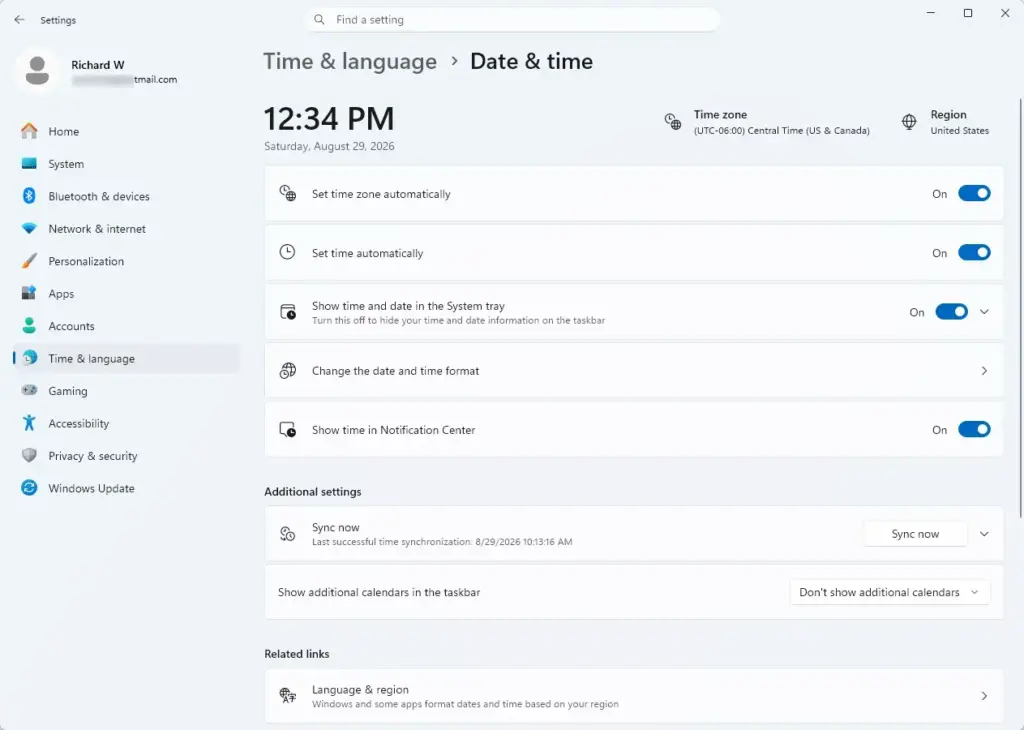
The time zone shown should then update to match your location. When Windows 11 changes the zone for you, it also shows a notification, so you know it happened.
If Set time zone automatically is greyed out or will not stay on, location services are probably turned off. That switch depends on them. Turn them on under Settings Privacy & security Location, then return here. On a work PC, a policy may also be controlling this setting.
- If you prefer to keep Set time zone automatically turned off, open the Time zone drop-down and select your correct local zone. Check that the displayed time matches your actual local time.
- Whenever you travel to a different time zone, come back to this screen and change Time zone yourself. Change the zone, not the hour. That way the underlying clock stays accurate. If you often work with people elsewhere, add a second clock for their zone under Additional clocks instead of changing your own.
- If your clock drifts even though the zone is correct, make sure Set time automatically is on. Then scroll to the Additional settings section and click Sync now. Windows contacts an internet time server and updates the clock straight away. The last successful sync time shown should update.
- If Sync now fails, first check that you are online. If it still fails, open an elevated prompt (Command Prompt or Windows Terminal run as administrator) and run w32tm /resync. This also helps when Settings is locked down or the Windows Time service is stopped.
- To undo your changes, turn the two automatic switches back on. This returns the PC to the default behavior, and no restart is needed.
That’s it. Your time zone and clock now match where you are, and you know how to resync the clock or switch back to automatic detection at any time.
If you are signed in with a standard user account, Windows may ask for an administrator password before it applies the change. On Windows 11 Home and Pro the Settings screens look the same. PCs managed by an organization may have these options locked.
Summary
Disabling automatic time zone detection in Windows 11 puts you in charge of keeping your clock in step with real-world servers. If the time zone or the clock goes wrong, you can see broken secure websites, failed Windows and Store updates, mixed-up email and calendars, game disconnections, cloud sync conflicts, and lost access to work networks.
Keep the automatic switches turned on unless you have a reason not to. If you turn them off, check the time zone each time you travel and after each daylight saving change.
Have a question about this guide?
Answered by AI from this guide. Good questions may be added to this page — please don't include personal details.
Did this guide fix your problem?

About the Author
Richard
Tech Writer, IT Professional
Richard is a writer at Geek Rewind who turns complex IT tasks into clear, step-by-step guides. He draws on years of hands-on experience in system administration and enterprise IT operations, focusing on Windows, Linux and WordPress: the problems people actually run into, and the fixes that work. His server and WordPress guides come from systems he runs himself. Richard builds and maintains the platform behind Geek Rewind, from its Ubuntu servers and Nginx configuration to its custom WordPress plugins. Many new tutorials start with readers' questions, and he's always glad to answer them in the comments.
No comments yet — be the first to share your thoughts!