What Breaks When You Remove a Family Member Account in Windows 11 Accounts Family Settings

Removing someone from a Microsoft family group and deleting their user profile from a PC are two separate actions, and mixing them up is what causes most of the damage. Removing a family member takes them out of the Microsoft Family group. That ends the parental controls, such as screen time limits, web filtering, activity reports and purchase approvals, that the adult organizers set up for them. It works the same way on Windows 11 Home and Pro.
Deleting the user account from the PC is what erases the profile and the files saved in that user’s folder. If you do both and skip the backup, those files are gone. This tutorial covers what stops working at each step and how to avoid losing data.
Removing a family member from Microsoft Family group immediately stops screen time limits, content filters, app blocking, activity reports, and location tracking. Shared subscriptions like Xbox Game Pass may also stop working. Local files remain safe unless you separately delete their user profile from the PC.
What Breaks Immediately When You Remove a Family Member Account?
The changes take effect as soon as the removal goes through. Understanding them in advance helps you avoid data loss or unexpected access problems.
In short, these are the areas affected:
- Screen time limits and schedules.
- Content filters and app blocking.
- Activity reports and location tracking.
- Shared subscriptions and perks paid for by an organizer.
- Local files, which are affected only if you also delete the user profile from the PC.
If you removed someone by mistake, you can invite them to the group again from the organizer account. They have to accept the invitation, and you may need to set up their limits and filters again.
Screen Time Limits and Schedules Stop Working
All screen time limits and daily schedules stop working as soon as the member is removed. The PC will no longer lock at bedtime, the daily time allowances disappear, and the user can stay on the computer as long as they want. Nothing stops them.
If you removed the member on purpose, for example because they are now an adult and should manage their own time, this is the result you want. If you removed them by accident, they now have unlimited computer time until you add them back and set the limits again.
If you want to keep some limits, add the person back to the family group before you change anything else, rather than trying to recreate the schedule on the PC.
Content Filters and Web Blockers Disappear
All content filters and web blockers set through Microsoft Family Safety stop applying right away. Adult websites, apps and mature games that were blocked are no longer blocked, and the user sees no warnings or restrictions.
The removed member can also download and run apps that were previously blocked by the family organizer. Safe search settings in their web browser might reset to default values as well. Check the browser settings afterwards if you rely on them.
If the person is still a child, think about whether the PC is ready to be used without these protections before you go further.
Activity Reporting and Location Tracking Stop
Activity reporting and location tracking for that person stop immediately. This affects you as an organizer in two ways:
- You no longer get weekly email summaries showing the removed person's app and game usage.
- You can no longer check the Microsoft Family app to see where their device is.
Once the person is out of the group, the reports are no longer available to you.
Shared Subscriptions and Game Passes May Stop
Shared subscriptions and game passes may stop working for the removed member. An adult organizer usually pays for perks such as Microsoft 365 or Xbox Game Pass, and those perks are shared with the group. Once the person leaves the group, they lose access to the shared benefits right away unless they have their own paid plan.
Before you remove someone, check which subscriptions they use. If they depend on a shared plan, they will need to buy their own, or you will need to arrange another way to keep it going.
What Happens to Files, Emails, and Apps?
Personal files, emails and installed apps stay on the computer when you remove someone from the online family group. Removing a person from the group on the Microsoft website does not delete their user account from your Windows 11 computer. Their documents, pictures and saved games stay on the hard drive, in their profile folder.
The risk comes from the second step. If you also delete the user account from the PC, all files saved in that profile are erased.
Before you delete a user account from a PC, do the following:
- Sign in to the account you plan to delete, or ask the person to do it.
- Copy their important files, such as documents, pictures and saved games, to a cloud drive or a thumb drive.
- Open the backup and check that the files are really there.
- Only then delete the user account from the PC.
Deleting a user account cannot be undone. If the files were not backed up, they cannot be recovered through normal means.
How to Remove a Family Member Safely
To remove a family member safely, you must use an adult organizer account that also has administrator privileges on the computer. You can do the removal either on the official Microsoft website or from the system settings on your PC.
You need this level of access because standard member accounts do not have the permissions to delete user profiles or change family group settings across the system. If an option is missing or greyed out, the account you are signed in with is probably not an organizer, an administrator, or both.
Before you start, go through this checklist:
- Sign in with an organizer account that is also an administrator on the PC.
- Back up any files you want to keep from the member's profile.
- Check which subscriptions the person uses through the family group.
- Save any activity reports you need.
- Decide whether you only want to remove them from the family group or also delete their profile from the PC.
Then follow the steps below.
Step-by-Step: Removing a Member Online
When you remove a family member account in Windows 11 Accounts Family settings online, you must use the official Microsoft Family safety website with an adult organizer account. Sign in with your organizer credentials, find the person you want to take off the list, click the manage menu next to their name, and choose the option to remove them from the family group.- Open your web browser and go to the official Microsoft Family safety website.
- Sign in using your adult organizer account credentials (such as organizer@example.com).
- Find the name of the person you want to remove from your family list.
- Click the three dots or the manage menu next to their name.
- Select Remove from family group.
- Confirm your choice when the warning prompt appears on the screen.
Step-by-Step: Removing the User Profile from 🪟 Windows 11
When you finish the online steps to remove a family member account in Windows 11 Accounts Family settings, you also need to remove the user profile from Windows 11 itself. Open your system settings, find their specific account name under other users, and choose to delete the profile from your physical PC to free up space.
- Click the Windows Start button and open the Settings app.
- Select Accounts from the left-hand menu.
- Click on Other users or Family & other users.
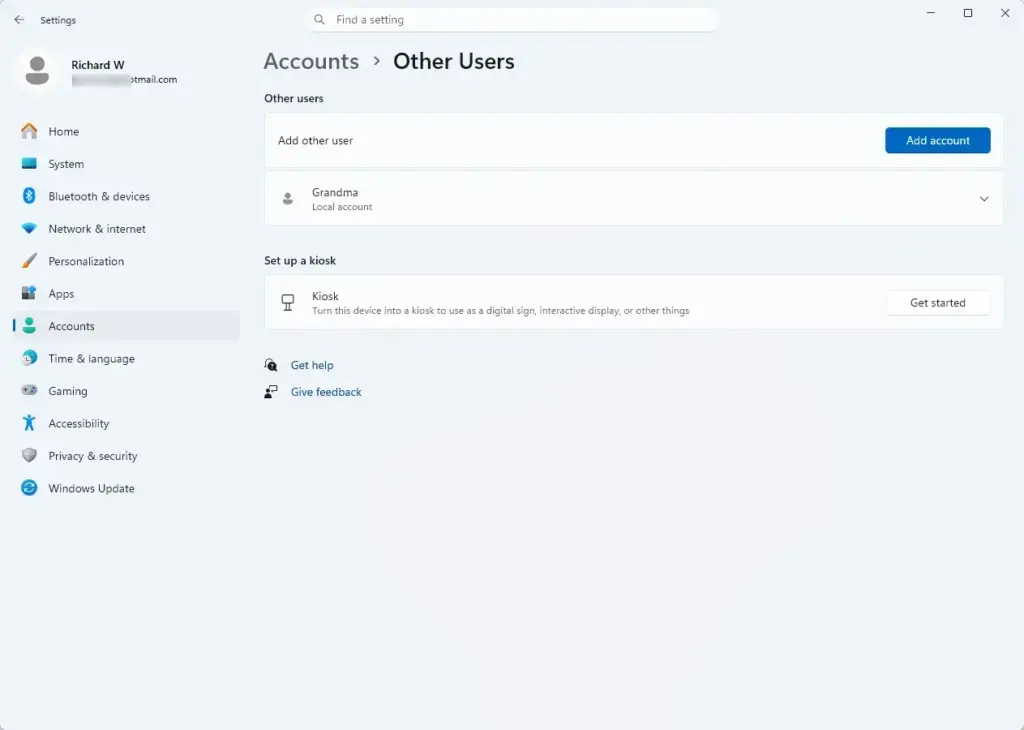
Settings › Accounts › Other users - Find the name of the account you want to delete from the computer.
- Click on the account name to expand the options.
- Click the Remove button.
- Read the warning about deleting account data, then confirm by clicking Delete account and data.
Removing a family member from your Windows 11 family settings sometimes fails due to server sync errors or cached profile data. To fix removal errors, you should restart your computer, connect to a stable internet network, and sign into the Microsoft account website directly at account.microsoft.com/family to complete the removal process online. Removing the member on the website bypasses local system bugs that often block account changes in Windows 11 version 23H2 and newer builds.
The Computer Still Enforces Time Limits
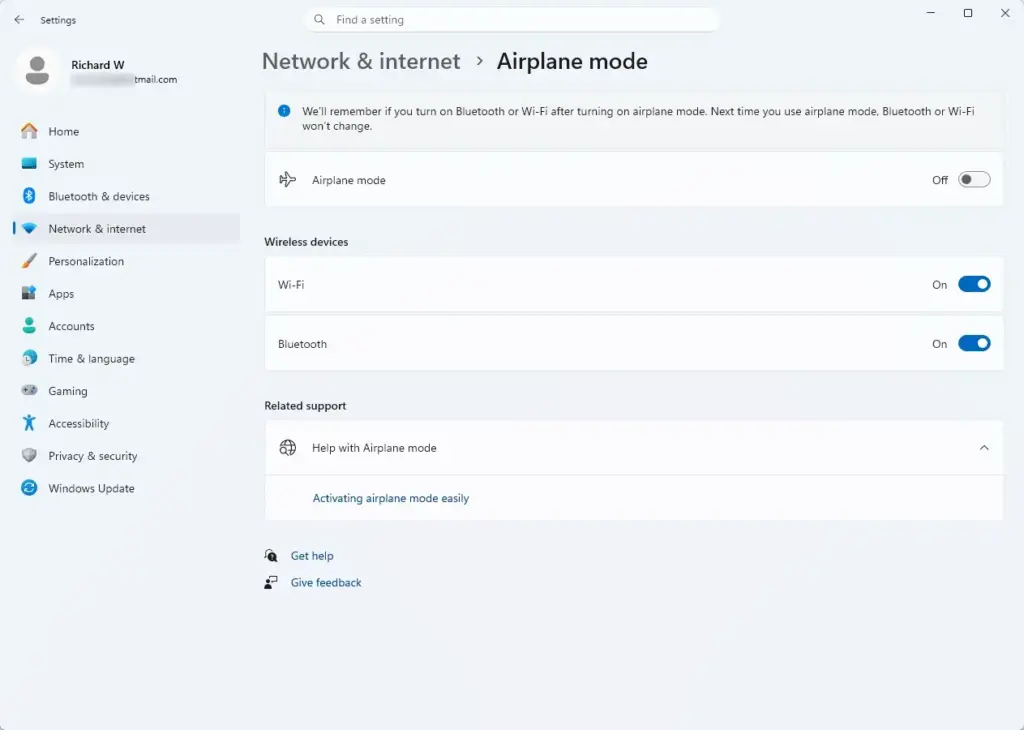
When you remove a family member account in Windows 11 Accounts Family settings, the computer may still enforce time limits if it has not yet synced with the internet. If your PC keeps locking the user out after you removed them online, you must connect the computer to an active network, force a Microsoft account sync in settings, and restart the device.
- Make sure your Windows 11 PC connects to an active Wi-Fi or Ethernet network.
Settings › Network & internet › Airplane mode - Open the Windows Settings app.

Settings - Go to Accounts and click on your email profile to force a sync with your Microsoft account.
- Restart the computer completely.
Cannot Remove the Member Due to Organizer Restrictions
When you remove a family member account in Windows 11 Accounts Family settings, organizer restrictions may prevent you from making changes if you are not the primary person who created the group. If an error message blocks the removal, you will need the original primary organizer to make the change or get approval from another adult organizer.
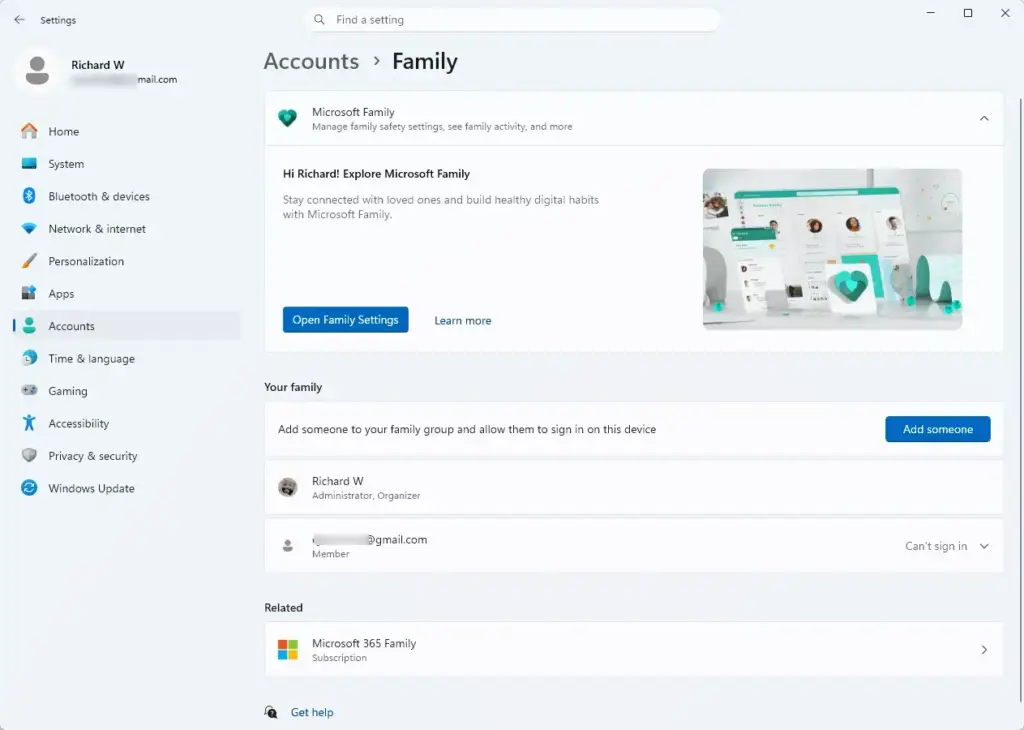
Before you make any changes, talk with the family member, back up important files, and make sure you have administrator access. Once you feel ready, use the Microsoft Family website to adjust your group and give everyone the right level of digital independence.
Summary
When you remove a family member account in Windows 11 Accounts Family settings, all screen time rules, web blockers, location tracking, and shared subscriptions stop right away. Your personal files stay safe on your computer until you delete the user profile itself, and you can easily manage everything through the Microsoft Family website and your system settings.
Have a question about this guide?
Answered by AI from this guide. Good questions may be added to this page — please don't include personal details.
Did this guide fix your problem?

About the Author
Richard
Tech Writer, IT Professional
Richard is a writer at Geek Rewind who turns complex IT tasks into clear, step-by-step guides. He draws on years of hands-on experience in system administration and enterprise IT operations, focusing on Windows, Linux and WordPress: the problems people actually run into, and the fixes that work. His server and WordPress guides come from systems he runs himself. Richard builds and maintains the platform behind Geek Rewind, from its Ubuntu servers and Nginx configuration to its custom WordPress plugins. Many new tutorials start with readers' questions, and he's always glad to answer them in the comments.
No comments yet — be the first to share your thoughts!