Family Safety Controls vs Standard User Accounts in Windows 11

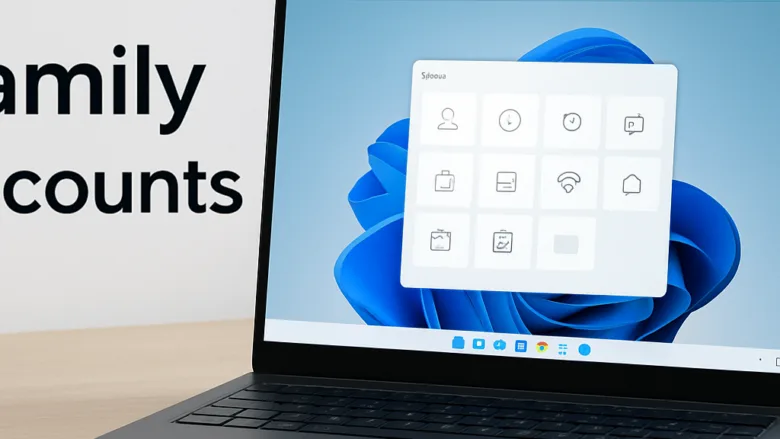
Family safety controls and standard user accounts in Windows 11 are two built-in ways to protect your computer and manage what other people can do on it. Family safety features let you set screen time limits, block adult websites, and track activity. Standard user accounts stop people from changing system settings or installing apps.
Both tools are available on Home and Pro editions, so you can share your PC safely with kids or guests. The right setup depends on who uses your computer and how much control you need over their daily screen time. In most homes with children, you end up using both.
Family Safety controls and standard user accounts serve different purposes in Windows 11. Standard user accounts prevent users from changing system settings or installing apps. Family Safety adds screen time limits, content filters, activity reports, and app blocking for child accounts linked to your Microsoft family group. Most homes with children use both together for complete protection.
Understanding User Accounts in 🪟 Windows 11
Windows 11 user accounts let several people share one computer. Each person’s files stay private, and nobody can change system settings by accident. Every person using your PC should have their own login. Windows uses standard accounts for everyday use and administrator accounts for full system control.
Windows 11 mainly uses two types of accounts for everyday users:
- Administrator Account: This account has full control over the computer. An administrator can install new apps, change system settings, add or remove other accounts, and see all files on the device. The first account you create when you set up the PC is an administrator.
- Standard User Account: This account is built for everyday use with safety limits. A standard user can run apps that are already installed and save their own files. They cannot install most new apps, change system settings, or change security features without an administrator’s password. When they try, Windows shows a prompt asking for administrator credentials.
A standard user account is your first line of defense. It stops a user from accidentally breaking the computer or installing harmful software. On its own, though, it will not block websites, limit screen time, or track online activity. That is where Microsoft Family Safety comes in.
It limits the damage if you click something bad.
What Are Microsoft Family Safety Controls?
Microsoft Family Safety is a free set of tools that helps you manage how and when family members use their devices. The settings attach to individual Microsoft accounts, so you can set screen time limits, block inappropriate websites, and monitor activity for each child in your home. The controls are aimed mainly at child accounts.
When you add someone to your Microsoft family group, you become the organizer and they become a member. You can manage their settings online through a web browser or from your own Windows 11 computer. Family Safety gives you these tools:
- Screen Time Limits: Set the hours when a user can use the computer. You can also set a total number of hours they can use the device each day.
- Content Filters: Block inappropriate websites, adult content, and mature games. You can also block specific apps you do not want your children to open. Web filtering works through Microsoft Edge, so Family Safety blocks other browsers on a child's account when filtering is on.
- Activity Reporting: Receive weekly email reports showing how much time your child spends on the computer, which websites they visit, and which apps they use.
- Spending Limits: If your children want to buy games or apps from the Microsoft Store, you can require your approval before any purchase goes through.
- Location Sharing: If your family members use phones with the Microsoft Family Safety app, you can see where they are on a map.
Family Safety Controls vs. Standard User Accounts: The Key Differences
Standard user accounts and Microsoft Family Safety do different jobs. Standard accounts stop regular users from changing system settings or installing apps. Family Safety adds web filters, screen time limits, and activity monitoring for children using the same PC.
Here is how they compare:
- Who it is for: Standard user accounts are for anyone you want to stop from changing system settings. Microsoft Family Safety is for children, teenagers, or other family members who need digital guardrails.
- App Installation: Standard accounts block most installs unless you provide an administrator password. Family Safety lets you block specific apps and games, and you can require approval for Microsoft Store purchases and for apps above an age rating.
- Screen Time Limits: Standard accounts do not have this feature, so the user can use the computer all day. Family Safety lets you set daily limits and allowed hours.
- Web Filtering: Standard accounts do not include web filtering, so browsers work normally. Family Safety blocks adult websites and unsafe search results in Microsoft Edge.
- Activity Reports: Standard accounts do not provide reports. Family Safety can send you weekly emails on app and web usage.
- Online Management: Standard accounts are managed locally on the computer. Family Safety accounts are managed remotely through the Microsoft Family website.
A standard user account is a lock on the front door of your computer's settings. Microsoft Family Safety is a guide that watches what your children do once they are inside. Family Safety also needs a Microsoft account, while a standard account can be a local account.
How to Set Up a Standard User Account in 🪟 Windows 11
A standard user account lets other people use your computer without giving them administrative power. You create it in the Settings app under Accounts by adding a new user. You need to be signed in as an administrator to do this.
- Click the Start button and open the Settings app.
- Select Accounts from the left-hand menu.
- Click Other users. You should see a list of existing accounts and an Add other user section.
- Next to Add other user, click the Add account button. A Microsoft sign-in window opens.
- If the person has a Microsoft account, enter their email address and follow the prompts. If you are setting up a local account for a child or guest without an email, click I don't have this person's sign-in information at the bottom.
- Click Add a user without a Microsoft account. Microsoft hides or removes this option in some builds, especially when the PC is signed in to a work or school account. If you do not see it, use a Microsoft account for the new user instead.
- Type a name for the user, create a password, and answer the security questions. Click Next. The new account now appears under Other users.
- Check the account type. By default, Windows creates the new account as a standard user. To confirm, click the account under Other users and look at Account options. The Change account type button there should show Standard User.
To undo this, return to Other users, select the account, and click Remove. This also deletes the person's files, so back up anything they want to keep first.
How to Set Up Microsoft Family Safety in 🪟 Windows 11
Setting up Microsoft Family Safety in Windows 11 means linking a family member's Microsoft account to a Microsoft family group through the Settings app. Once you add a child or adult by email address, you can manage their safety features and online restrictions from your own device. Sign in with your own Microsoft account first, because you will be the organizer.
- Open the Settings app and select Accounts.

Settings - Click Family. You should see your current family group, or an option to start one.
- Click the Add family member button. On some builds it reads Add someone.
- Choose whether you are adding a Child or an Adult, then enter their email address. If your child does not have an email address yet, click the link to create a new one for them.
- Follow the on-screen instructions to finish sending the invite.
- Have the family member accept the invite from their email, or sign in to the PC with their new account. Once they do, their account links to your family group.
- To manage their settings, visit the Microsoft Family Safety website or open the Family Safety app on your phone. From there you can turn on web filtering, set screen time limits, and view activity reports.
Screen time and filters only apply on this PC when your child signs in with their own Microsoft account. If they sign in some other way, the rules do not apply. To undo this, open the Family Safety website, select the member, and remove them from the family group.
Unique Expert Tips: Managing Multiple Users and Guest Access
Most guides stop at basic account creation. Real households run into more problems when they share a computer. Here are two practical approaches that go beyond the standard steps and help keep your Windows 11 PC secure.
Handling Shared Homework Computers
Shared homework computers work best when each child has their own standard user account and their own Family Safety profile. A separate login keeps each child's school files and settings apart. It also lets you track screen time and web habits for each child accurately.
Create a separate Microsoft account for each child and link each one to your organizer profile. This lets you set different screen time limits by age. For example, you can give an older teenager more evening computer time than a younger sibling, while keeping both away from inappropriate websites.
Keep your own account as the only administrator on the PC. If a child needs software installed, they ask you and you enter the administrator password.
Managing Temporary Guests Safely
For temporary guests, set up a temporary local standard account and delete it right after use. Windows 11 does not include a Guest account you can switch on, so a throwaway standard account is the practical option. It keeps your personal files private and stops visitors from changing administrator settings or installing software. You need administrator privileges to do this.
To set up a quick temporary account:
- Open Settings, go to Accounts, and click Other users.
- Click Add account and choose to add a user without a Microsoft account, as in the standard account steps above.
- Name the user "Guest" and give it a simple temporary password. If Windows rejects the name Guest, use something like "Visitor".
- When the guest finishes, return to Other users, click the guest account, and click Remove. Confirm the deletion. This deletes the account and all files stored in it.
Change the password on any new temporary account if you reuse it, so earlier guests cannot sign back in.
Troubleshooting Common Family Safety Issues
Troubleshooting Family Safety on Windows 11 usually means checking account links, internet connections, and permissions. If screen time limits or web filters stop working, the most common cause is that your child is not signed in to their linked Microsoft account.
- Screen time limits not working: Make sure your child is signed in to the correct Microsoft account on their Windows 11 device. If they use a local account instead of their linked Microsoft account, Family Safety cannot track their time. Also check that the PC is online and restart it, since the device needs to sync with your settings.
- Web filters blocking safe sites: Sometimes the content filter blocks an educational website by mistake. Go to your Microsoft Family online dashboard, select your child's profile, go to Content restrictions, and add the website address to the Always allowed list. Changes can take a few minutes to reach the PC.
- Time zone mismatches: If screen time cuts off at the wrong hour, check the time zone settings on both your parent account and your child's Windows 11 computer to make sure they match.
Summary
Standard user accounts and Microsoft Family Safety work together to secure your Windows 11 computer for several people. Standard accounts block system changes, while Family Safety adds screen time limits and web filtering. Used together, they give you solid control over how family members use your PC.
Have a question about this guide?
Answered by AI from this guide. Good questions may be added to this page — please don't include personal details.
Did this guide fix your problem?

About the Author
Richard
Tech Writer, IT Professional
Richard is a writer at Geek Rewind who turns complex IT tasks into clear, step-by-step guides. He draws on years of hands-on experience in system administration and enterprise IT operations, focusing on Windows, Linux and WordPress: the problems people actually run into, and the fixes that work. His server and WordPress guides come from systems he runs himself. Richard builds and maintains the platform behind Geek Rewind, from its Ubuntu servers and Nginx configuration to its custom WordPress plugins. Many new tutorials start with readers' questions, and he's always glad to answer them in the comments.
No comments yet — be the first to share your thoughts!