Enable or Disable New User Profiles in Chrome

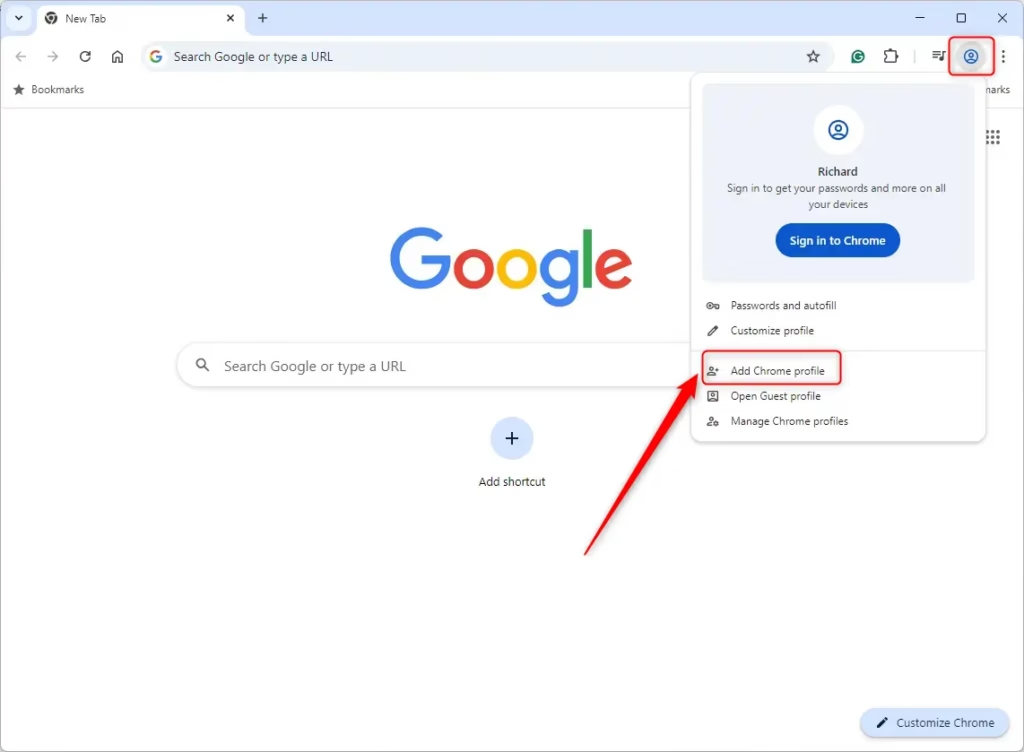
The BrowserAddPersonEnabled policy in Google Chrome controls whether you can add new browser profiles on your computer. When you turn it off, Chrome hides the “Add profile” button and stops anyone from creating extra profiles.
You can manage this restriction through the Windows Registry, which helps keep shared PCs neat and organized. The setting applies to Chrome on Windows 10 and Windows 11.
Chrome user profiles are controlled by the BrowserAddPersonEnabled policy. To disable new profile creation on Windows Pro or Enterprise, use Group Policy Editor to navigate to Computer Configuration Administrative Templates Google Google Chrome, find Enable adding and removing profiles, and set it to Disabled.
Introduction
Chrome user profiles separate browsing data. Each one keeps its own bookmarks, history, saved passwords, extensions and settings, so a profile works like an individual account inside the browser.
People use profiles to split work from personal browsing, or to let several people share one Windows account without mixing their data. On a shared PC, unchecked profile creation can leave a lot of unused profiles behind. Blocking it keeps things tidy.
Disallow adding a new person profile in Chrome
You can control this feature with the Windows Registry or the Group Policy Editor. Which one to use depends mostly on your Windows edition. Group Policy is available in Pro and Enterprise. Windows Home doesn’t include it, so Home users need the Registry Editor.
If your changes keep disappearing, a central policy is probably setting the value, and you’ll need to change it there instead.
Using Group Policy (Recommended for 2026)
Managing Chrome user profiles across a network works best with the Group Policy Editor in Windows Pro and Enterprise editions. This method lets system administrators block profile creation for all users on a computer. You import Google's official template files into the system folders and then apply the policy rules.
The editor can't show Chrome's settings until the templates are installed. If the Google folder is missing in step 4, the templates weren't copied correctly.
- Download the Google Chrome ADMX templates from the official Google website, and extract the ZIP file.
- Copy the policy template files (the .admx file) into your C:\Windows\PolicyDefinitions folder. Copy the matching language file (.adml) into the language subfolder there, such as en-US. You need administrator rights to do this.
- Open the Group Policy Editor (gpedit.msc). Press Win + R, type the name, and press Enter.
- Go to Computer Configuration Administrative Templates Google Google Chrome. If you can't see the Google folder, close and reopen the editor so it reloads the templates.
- Find the setting Enable adding and removing profiles. In some template versions, the same policy appears as "Enable add person in user manager". Double-click it to open its settings.
- Set it to Disabled to stop new profiles, or Enabled to allow them. Click OK.
Close and reopen Chrome to pick up the change. If the "Add profile" button is still there, restart the computer. Choosing Not Configured removes the rule and returns Chrome to its default behavior.
Using the Registry Editor
Controlling Chrome user profiles on individual Windows Home computers requires changes inside the Registry Editor. This approach lets you block profile creation for either the currently logged-in user or every user account on the machine. You do it by adding a value to the Windows registry database.
A wrong edit in the registry can cause problems that are hard to trace.
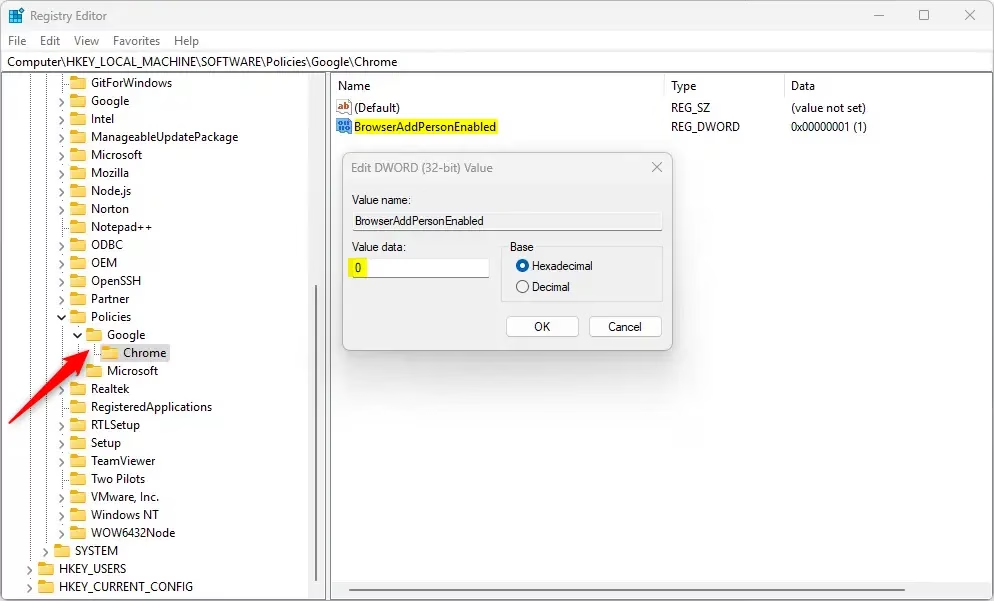
Open the Registry Editor and navigate to one of the following paths, depending on the scope of the change. To open the editor, press Win + R, type regedit, and press Enter. Approve the User Account Control prompt if it appears.
- For all users: HKEY_LOCAL_MACHINE\SOFTWARE\Policies\Google\Chrome (needs administrator rights)
- For one user: HKEY_CURRENT_USER\SOFTWARE\Policies\Google\Chrome (applies only to the account you're signed in with)
On most PCs, the Google and Chrome keys don't exist until someone creates them. If part of the path is missing, create it one level at a time:
- Right-click the last folder that exists in the path, for example Policies.
- Select New Key.
- Name it Google, then repeat inside it to create a key named Chrome.
You should now see the full path in the left pane, with the empty Chrome key selected.
- Right-click an empty area in the right pane of the Chrome key.
- Select New DWORD (32-bit) Value.
- Name it BrowserAddPersonEnabled. The name must match exactly.
- Double-click it. Set the Value data to 1 to allow new profiles or 0 to block them, and click OK.
The new entry should appear in the list with your chosen number next to it. Close Chrome completely and reopen it. With the value set to 0, the "Add profile" button should be gone.
To revert the change, return to the same registry key and delete the BrowserAddPersonEnabled entry. Right-click it, choose Delete, and confirm. Chrome then goes back to its default behavior, which allows new profiles.
Restart Chrome after the change. If it still behaves the same way, restart the computer to apply the modifications. If you set the value in both HKEY_LOCAL_MACHINE and HKEY_CURRENT_USER, remove it from both places.
System administrators can consult the Chrome Enterprise Policy documentation for further configuration options. It lists every supported policy, its registry value type, and the Chrome versions it applies to.
Reference: Chrome Enterprise Policy
Conclusion
Controlling Chrome profiles is manageable with the Registry Editor or Group Policy. Use Group Policy on Pro and Enterprise, and the Registry Editor on Home. Make a system backup before making modifications, so you can undo a mistake quickly. The Chrome Enterprise Policy details further advanced settings.
Have a question about this guide?
Answered by AI from this guide. Good questions may be added to this page — please don't include personal details.
Did this guide fix your problem?

About the Author
Richard
Tech Writer, IT Professional
Richard is a writer at Geek Rewind who turns complex IT tasks into clear, step-by-step guides. He draws on years of hands-on experience in system administration and enterprise IT operations, focusing on Windows, Linux and WordPress: the problems people actually run into, and the fixes that work. His server and WordPress guides come from systems he runs himself. Richard builds and maintains the platform behind Geek Rewind, from its Ubuntu servers and Nginx configuration to its custom WordPress plugins. Many new tutorials start with readers' questions, and he's always glad to answer them in the comments.
No comments yet — be the first to share your thoughts!