How to Enforce Google Safe Search in Chrome


Google Safe Search in Chrome is an automatic filter that blocks adult content and explicit images in search results . It is useful on shared computers at home, school, or work. If your users sign in with managed accounts, you can lock the feature through the Google Workspace Admin console so nobody on your network can turn it off. This tutorial covers the two ways to do it on a single Windows PC: Group Policy and the Registry.
Enforcing the setting by policy is better than asking each user to switch it on. The filter then applies every time Chrome runs, and you don’t have to check each device by hand.
Open Registry Editor, navigate to Computer\🗝️HKEY_LOCAL_MACHINE\
Force Safe Search in Chrome using Group Policy
You can force Safe Search in Chrome with Group Policy by installing the official administrative templates from Google. The setting then appears in the Local Group Policy Editor. Once it is enabled, standard users cannot turn Safe Search off, which makes this a good fit for home PCs and shared school devices.
On Windows 11 Home, gpedit.msc will not open, so use the Registry method further down instead.
This method has limits you should know about before you start:
- It applies only to the computer you configure. Other PCs on the network are not affected.
- A user with administrator rights on that device can change or remove the policy and override Safe Search.
- It targets Google Chrome only. Anyone can still install or open another browser and bypass the filter.
Sign in with an administrator account and follow these steps:
- Download the official Google Chrome policy templates from the Google website. They come as a compressed (ZIP) file, so extract it first.
- Copy the Chrome .admx template file, and the matching language folder, into the Windows policy definitions folder. Without this step, the Google folder will not show up in the editor.
- Press the Windows key, type "gpedit.msc" into the search bar, and press Enter. The Local Group Policy Editor opens. If Windows says it cannot find the file, you are on Home edition. Use the Registry method instead.
- Go to Computer Configuration Administrative Templates Google Google Chrome If there is no Google folder, the templates were not copied correctly. Repeat step 2.
- In the right-hand pane, find the setting named Force Google SafeSearch and double-click it. A settings window opens.
- Select Enabled and click OK. The setting's state in the list now reads Enabled.
- Close all Chrome windows and reopen the browser. If the policy has not taken effect, restart the computer.
To check that it worked, search for something in Chrome. The Safe Search filter should be on and the option to turn it off should be missing or locked. You can also open chrome://policy in the address bar to confirm that the policy is listed. To undo the change, set Force Google SafeSearch to Not Configured or Disabled.
Force Safe Search in Chrome using the Registry
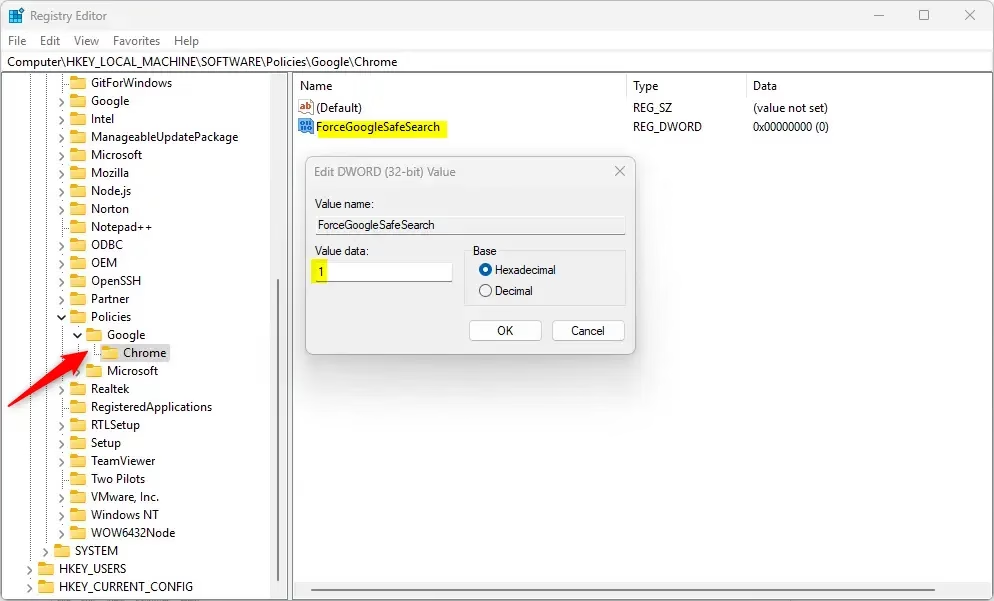
To force Safe Search in Chrome through the Registry, you open the Registry Editor and add a policy value that tells Chrome to lock search filtering on. This works on any edition of Windows 11, including Home, where the Group Policy Editor is missing. Explicit results stay filtered for every user on that computer.
You need administrator rights to edit this part of the Registry. Accept the User Account Control prompt when it appears.
- Open the Windows Registry by typing "regedit" into your search bar and pressing Enter. Click Yes if Windows asks whether to allow the app to make changes.
- Click the path bar at the top of the window. Copy and paste this string into it and press Enter:
Computer\HKEY_LOCAL_MACHINE\SOFTWARE\Policies\Google\Chrome - If the Registry Editor says the path can't be found, the Google or Chrome folders don't exist yet. Right-click the "Policies" folder, select New Key, and name it "Google". Then right-click the new Google key, select New Key again, and name it "Chrome".
- Select the Chrome folder. Right-click the empty white space in the right-hand pane and select New DWORD (32-bit) Value. A new entry appears with its name highlighted for editing.
- Name this new value ForceGoogleSafeSearch and press Enter.
- Double-click the new value and set Value data to 1. Leave the base as Hexadecimal and click OK. The value now shows 0x00000001 (1) in the list.
- Close the Registry Editor and restart Chrome. Restart the computer if the filter is not applied.
A wrong edit in the Registry can cause problems, so take a safety net first. back up your registry before making changes, or create a System Restore point as a precaution.
To turn enforcement off, go back to the Chrome key and either set the ForceGoogleSafeSearch value to 0 or delete the value entirely. Restart the computer to apply the change. If you also enabled the policy through Group Policy, set it back to Not Configured there, because the two settings point at the same policy.
Reference:
Conclusion
Enforcing Safe Search helps keep a shared browsing environment clean. Group Policy is the standard approach on Pro, Enterprise, and Education editions. The Registry method is the practical choice for Home edition and for individual machines.
Neither method is bulletproof. A local setting can be bypassed by a determined user with administrator rights, or by using a different browser. For stronger control, combine the policy with standard (non-admin) user accounts and restrictions on installing other browsers, or manage the setting centrally through the Google Workspace Admin console.
Have a question about this guide?
Answered by AI from this guide. Good questions may be added to this page — please don't include personal details.
Did this guide fix your problem?

About the Author
Richard
Tech Writer, IT Professional
Richard is a writer at Geek Rewind who turns complex IT tasks into clear, step-by-step guides. He draws on years of hands-on experience in system administration and enterprise IT operations, focusing on Windows, Linux and WordPress: the problems people actually run into, and the fixes that work. His server and WordPress guides come from systems he runs himself. Richard builds and maintains the platform behind Geek Rewind, from its Ubuntu servers and Nginx configuration to its custom WordPress plugins. Many new tutorials start with readers' questions, and he's always glad to answer them in the comments.
No comments yet — be the first to share your thoughts!