How to Delete Browsing Data in Google Chrome

Clearing browsing data in Google Chrome removes stored search history, cookies, and temporary files that take up disk space and track your online activity. Browsing data is the collection of website files Chrome saves on your PC. It includes the cache (temporary files that help pages load faster), cookies, and saved passwords that log you into websites automatically.
Deleting this information protects your privacy and can fix slow or broken web pages. Press Ctrl+Shift+Del while Chrome is open to jump straight to the Delete browsing data dialog. You can also open the three-dot menu in the top-right corner and work through Settings to choose exactly which items to remove.
Clearing data only affects the Chrome profile you are using. If you are signed in to Chrome with a Google account and sync is on, deleted history can also disappear from your other synced devices.
Open Chrome settings, navigate to Privacy and security, then select Delete browsing data. Choose a time range and the data types you wish to remove, like history or cookies, and click Del data.
Delete browser data in Chrome
Chrome lets you delete browsing data to keep your online activity private and free up space on your computer. You can clear your browsing history, download history, cookies, and cached images in a few clicks. The main route is through the Settings menu: open Chrome, click the three vertical dots in the top right corner, open Settings, click Privacy and security, and then click Del browsing data.
The next sections walk through each of those steps. If you prefer the keyboard, skip ahead to the shortcut section.
- Open the Google Chrome browser. A browser window appears with your usual start page or tabs.
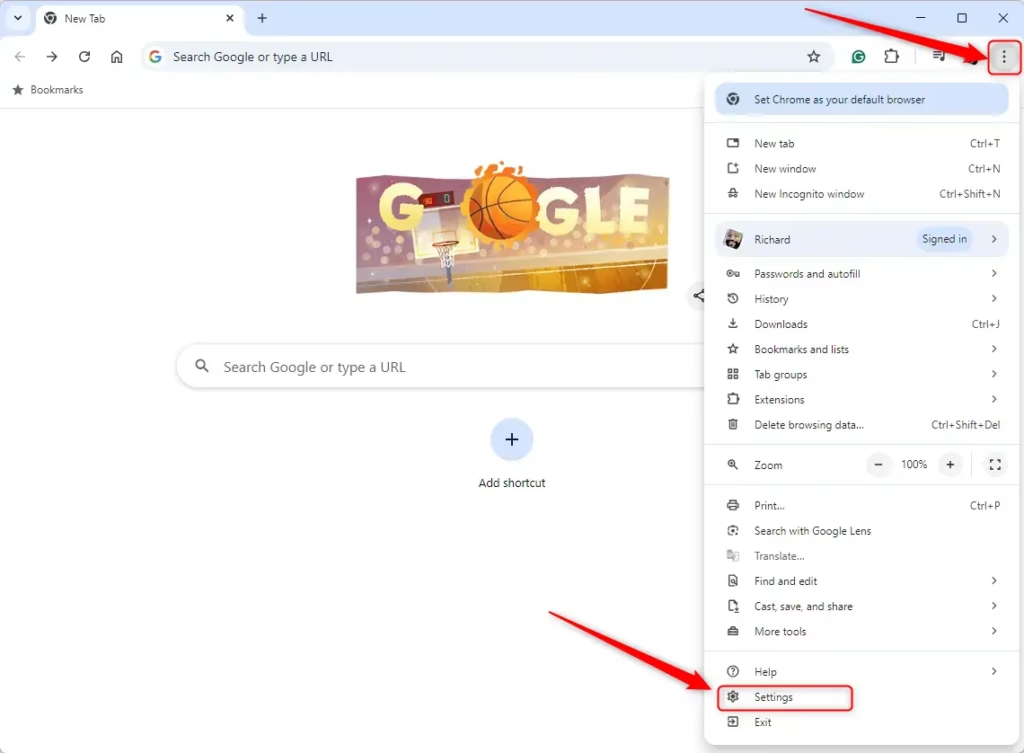
- Click the Customize and Control button (three vertical dots) in the top right corner. A drop-down menu opens.
- Select Settings. Chrome opens the Settings page in a new tab.
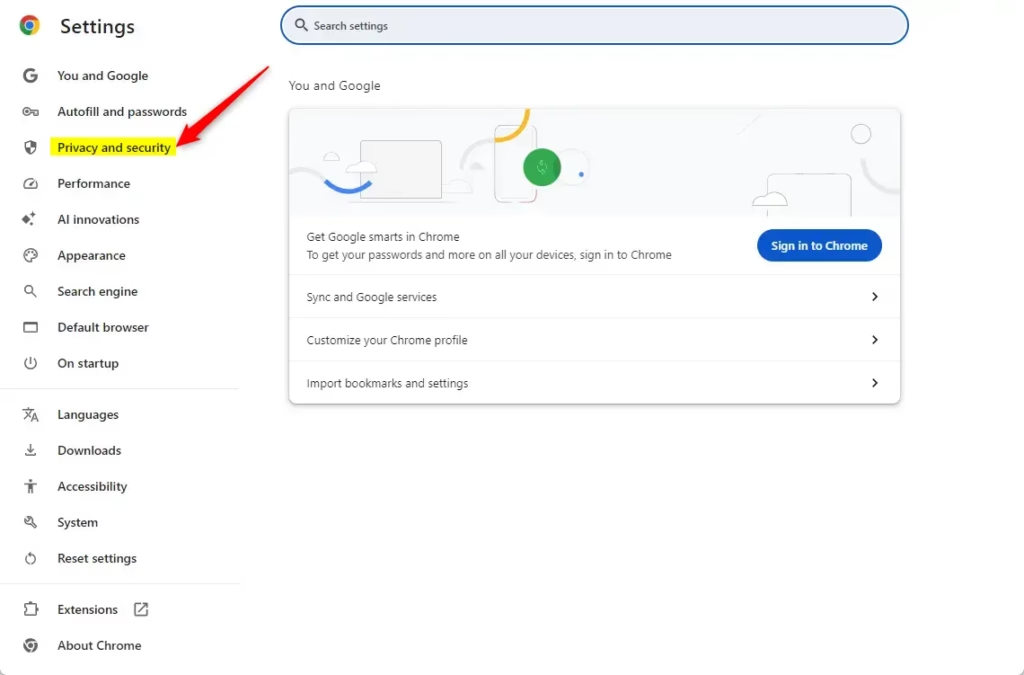
- Look at the menu on the left side of the Settings page.
- Click Privacy and security. The privacy options appear on the right.
If you cannot see the left menu, your Chrome window may be too narrow. Widen the window, or click the three-line menu icon at the top left of the Settings page to show it.
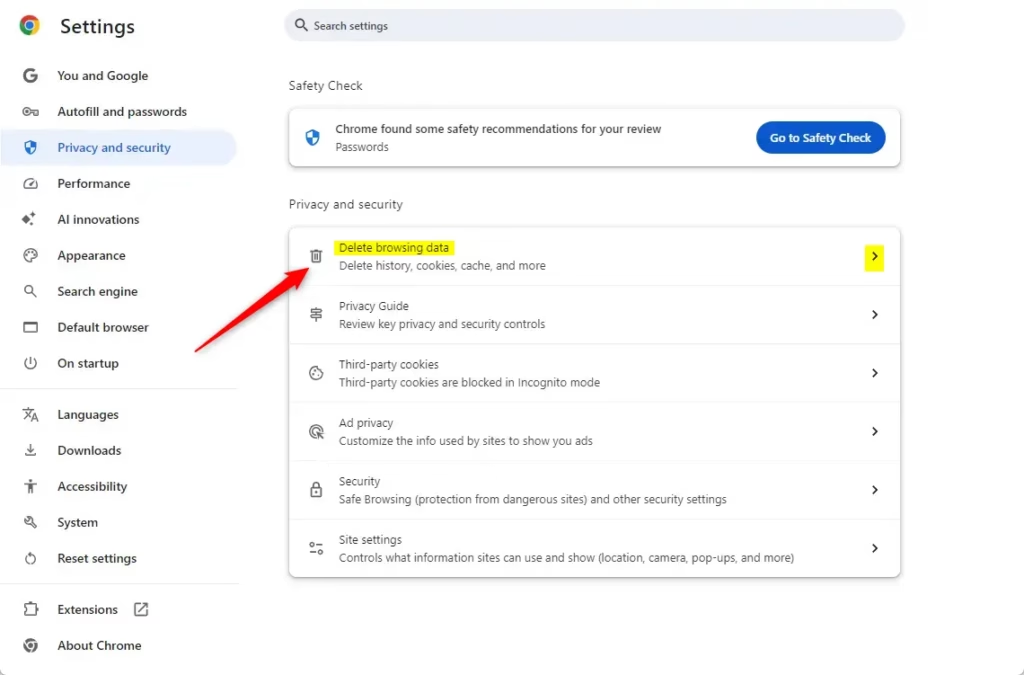
- In the Privacy and security section, click Delete browsing data.
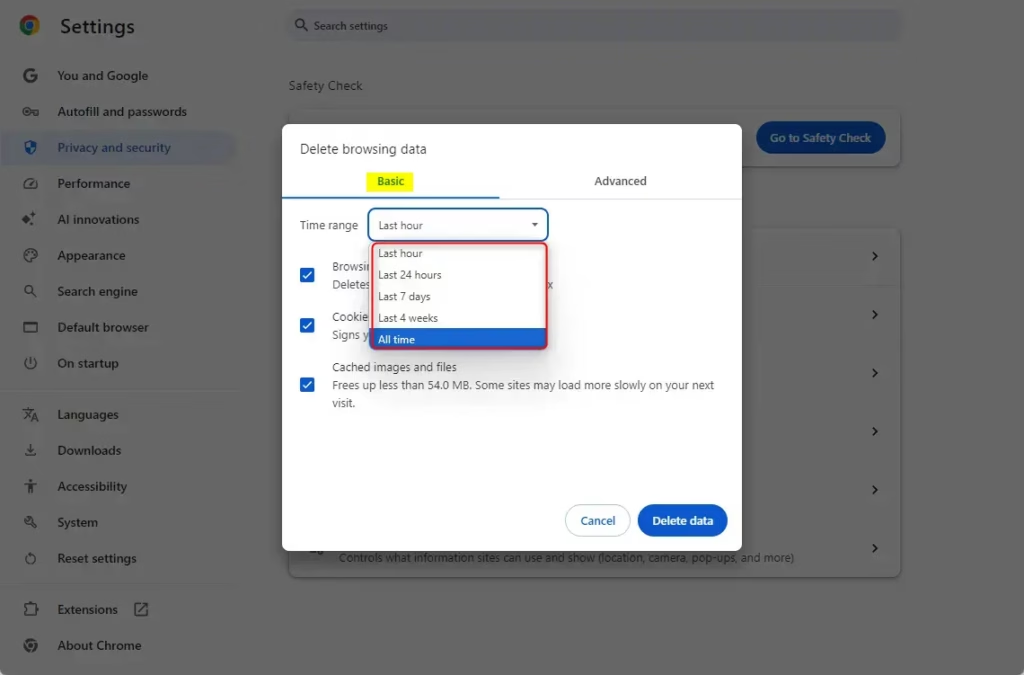
- Wait for the dialog box to appear on your screen. It shows a Basic tab and an Advanced tab, plus a time range drop-down menu.
You can also reach this dialog from the three-dot menu in Chrome by choosing Delete browsing data, without opening Settings first.
This section covers the quickest way to reach the same dialog. You do not need to open the menu or Settings at all. The shortcut works from any open Chrome window or tab, and it opens the same Delete browsing data box described above.
The Shortcut
- Make sure a Chrome window is active.
- Press Ctrl + Shift + Delete on Windows, or Command + Shift + Delete on a Mac. The deletion box opens instantly.
If nothing happens, click inside the Chrome window first so it has focus. On some laptops you may need to hold the Fn key if the Delete key shares a function with another key.
Choosing what to delete
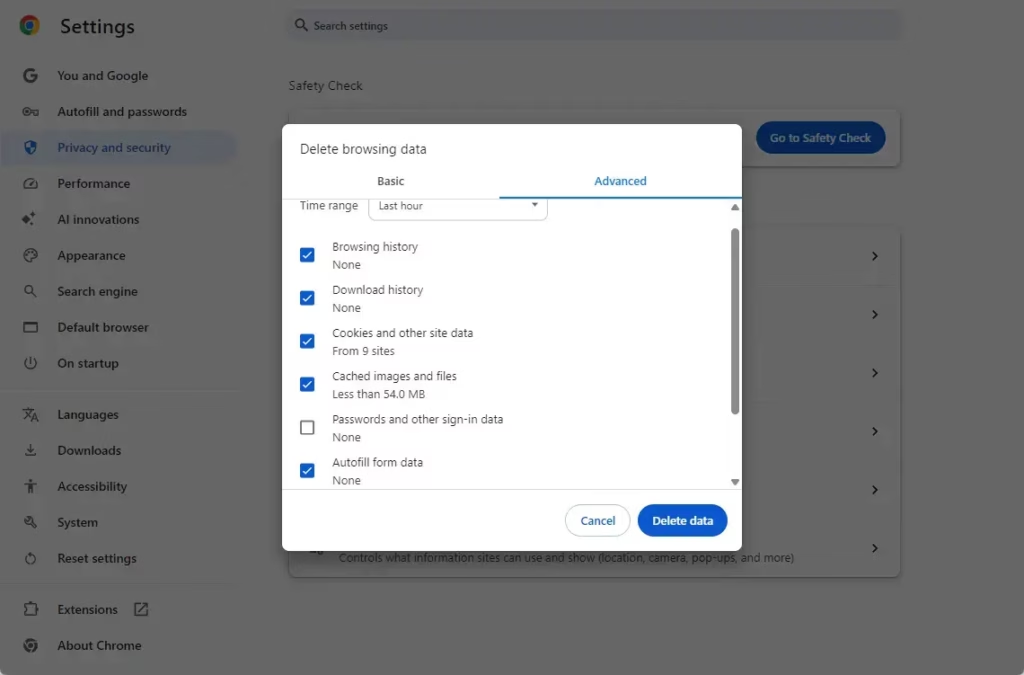
Chrome lets you pick exact types of information to clear and choose a time range, from the last hour up to all time. The Basic tab handles your browsing history, cookies, and cache. The Advanced tab adds items such as download history, saved passwords, autofill form data, and site settings.
- Open the Time range drop-down menu at the top of the dialog.
- Choose how far back to delete. The options run from Last hour through Last 24 hours, Last 7 days, and Last 4 weeks to All time.
- Check the boxes next to the items you want to remove, and clear any you want to keep.
Be careful with cookies. Deleting Cookies and other site data signs you out of most websites. If you only want to free up space or fix a page that loads badly, clearing Cached images and files is usually enough and does not sign you out.
- Click the Advanced tab at the top of the dialog. More checkboxes appear.
- Check the specific items you want to clear, such as your password list or autofill form data.
Think before you tick the password box. Once deleted, saved passwords cannot be recovered from this PC unless they are stored in your Google account or another password manager. Clearing Autofill form data removes saved addresses and similar entries, so you will have to type them again.
- Check your time range and ticked boxes one last time.
- Click the Delete data button to finish. The dialog closes and Chrome removes the selected items.
Chrome does not ask you to restart. Deleting a large cache can make the first visit to each site a little slower, because the pages have to download their files again. There is no undo, so only click the button once you are sure of your choices.
Advanced Privacy and Control
- Ad Privacy: For a more thorough cleanup, visit the Ad Privacy section within your Privacy and security settings. Depending on your Chrome version, it may be labeled Ads privacy. Here, you can manage how Chrome helps websites show you personalized ads.
- Granular Control: If you only want to clear data for one specific website, go to Site Settings. Select View permissions and data stored across sites. This lets you delete data for individual websites without clearing everything at once.
Chrome gives you extra privacy controls to manage targeted ads and to clear stored data for one website instead of everything. To wipe data for a single site without losing your history elsewhere, go to Site Settings, select View permissions and data stored across sites, and delete the entries you do not want. You can also visit the Ad Privacy section to control how websites show you personalized ads based on your browsing habits.
Both options are in Settings Privacy and security. Changes there are saved as you make them, and you can switch ad settings back at any time.
Conclusion
Clearing your browser data regularly keeps your computer tidy and your information private. Use the full Delete browsing data dialog for a general cleanup, and use Site Settings when only one website is the problem. Together they keep you in control of your digital footprint.
Have a question about this guide?
Answered by AI from this guide. Good questions may be added to this page — please don't include personal details.
Did this guide fix your problem?

About the Author
Richard
Tech Writer, IT Professional
Richard is a writer at Geek Rewind who turns complex IT tasks into clear, step-by-step guides. He draws on years of hands-on experience in system administration and enterprise IT operations, focusing on Windows, Linux and WordPress: the problems people actually run into, and the fixes that work. His server and WordPress guides come from systems he runs himself. Richard builds and maintains the platform behind Geek Rewind, from its Ubuntu servers and Nginx configuration to its custom WordPress plugins. Many new tutorials start with readers' questions, and he's always glad to answer them in the comments.
No comments yet — be the first to share your thoughts!