How to Delete Copilot Memory

Open the Copilot app on Windows 11, sign in to your Microsoft account, click the Account button and choose Settings, then go to Privacy and click Del Memory to remove all saved memories. To delete specific memories instead, click Manage memory and use the trash icon next to each entry.
What is Copilot Memory?
Copilot memory saves details from your past chats so it can give you more tailored answers. It can reference up to 30 previous conversations to keep track of your preferences, such as how you like answers formatted or topics you’ve mentioned before.
That history helps Copilot respond faster and with more relevant detail. The saved details stay in place across sessions, so they shape future chats until you remove them.
Deleting this data makes Copilot forget what it has stored. People usually do it for privacy reasons, or to start over with a clean set of preferences. You can delete everything at once or remove single entries. This guide covers three places to do it: the Copilot app, Microsoft Edge, and the Copilot website.
How to Delete Copilot Memory
Option 1Using the Copilot App on 🪟 Windows 11
The exact labels can shift a little as Microsoft updates the app, so if something is named slightly differently on your screen, look for the closest match.
- Open the Copilot app on your Windows 11 PC.
- Sign in with your Microsoft account if the app asks you to. Memory is tied to your account, so you need to be signed in to see or change it.
- Make sure Copilot is in full view, not a small or collapsed window. The sidebar with your account button should now be visible.
- Click the Account button on the sidebar, then choose Settings. The Settings page opens.
- Click Privacy. You should see the privacy options, including the memory controls.
- To delete all memories:
- Click Delete Memory at the bottom of the page.
- Click Delete Memory again to confirm. This wipes everything Copilot has saved about you, so only confirm if you’re sure.
- To delete specific memories:
- Click Manage memory. A list of saved memories appears.
- Find the memory you want to remove and click the trash can icon next to it.
- Click Delete to confirm. The entry disappears from the list.
- Close the settings when you’re done.
If you don’t see the memory options, check that you’re signed in and that your Copilot app is up to date. Memory options may also be unavailable in some regions or account types.
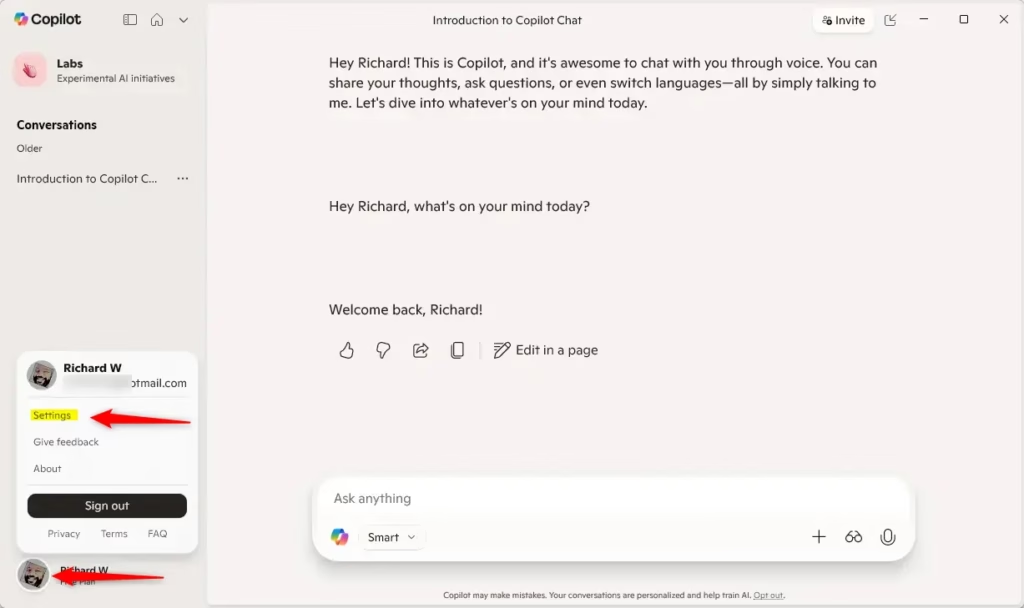
In short: open the app, sign in, and go to Settings Privacy to clear everything out. From there you can delete all memories or open Manage memory to remove individual ones.
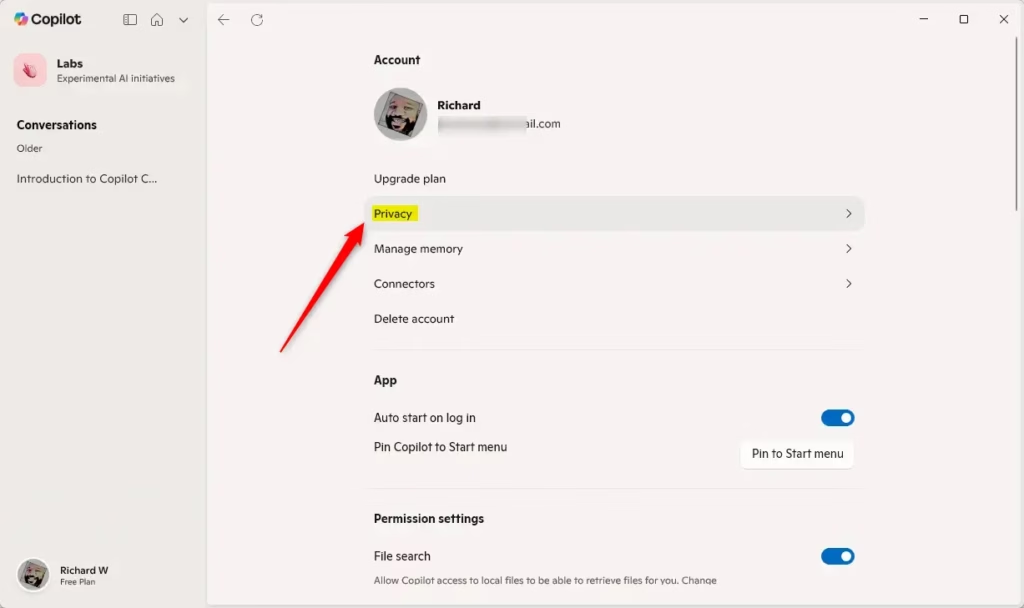
In short: open the app, sign in, and go to Settings Privacy to clear everything out. From there you can delete all memories or open Manage memory to remove individual ones.
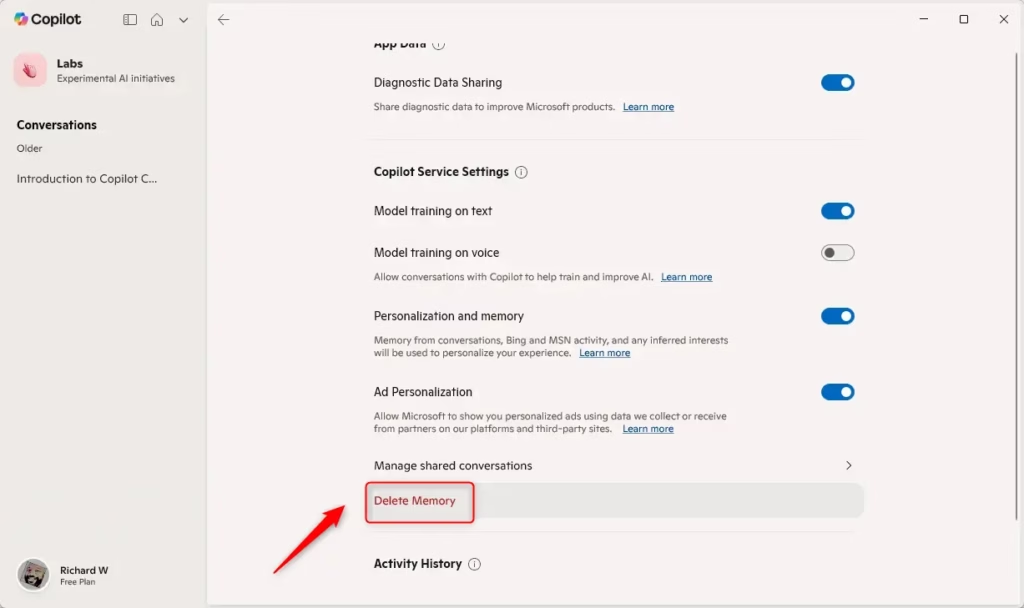
In short: open the app, sign in, and go to Settings Privacy to clear everything out. From there you can delete all memories or open Manage memory to remove individual ones.
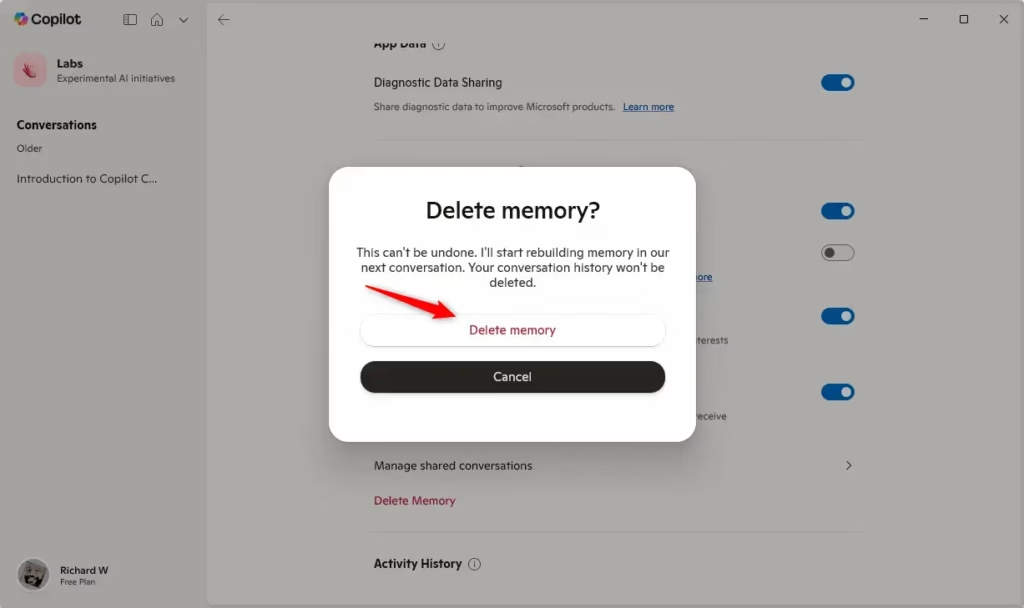
In short: open the app, sign in, and go to Settings Privacy to clear everything out. From there you can delete all memories or open Manage memory to remove individual ones.
Option 2Using Microsoft Edge Browser
Use this method if you work with Copilot inside the Edge browser. The memory data is the same account-level data, so deleting it here affects Copilot everywhere you sign in with that account.
- Open Microsoft Edge on your computer.
- Sign in to Edge with your Microsoft account if you haven't already. You need the same account that Copilot has been using.
- Click the Copilot icon on the toolbar. The Copilot pane opens.
- Click the More options button (the three dots), then select Settings.
- Go to the Privacy section.
- Click Manage personalization and memory. The memory controls appear.
- To delete all memories:
- Click Delete all memory.
- Click it again to confirm.
- To delete specific memories:
- Click Edit next to "Facts you've shared." A list of saved facts appears.
- Click the trash can icon for the memory you want to remove.
- Click Delete to confirm.
- Close settings when finished.
If you can't find the Copilot icon, Edge may be out of date, or the icon may be hidden in your toolbar settings. Update Edge and check again.
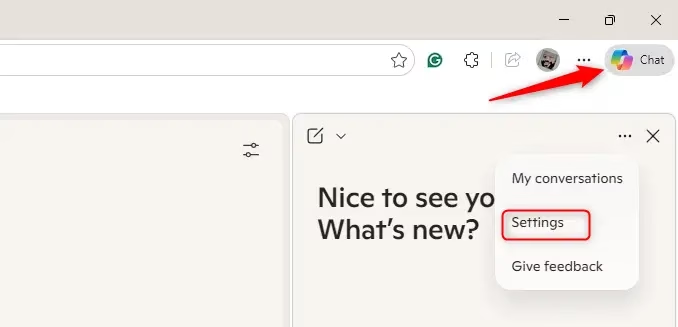
Edge handles this cleanup inside the browser. Launch Edge, click the Copilot icon, and go to Settings Privacy to manage stored preferences.
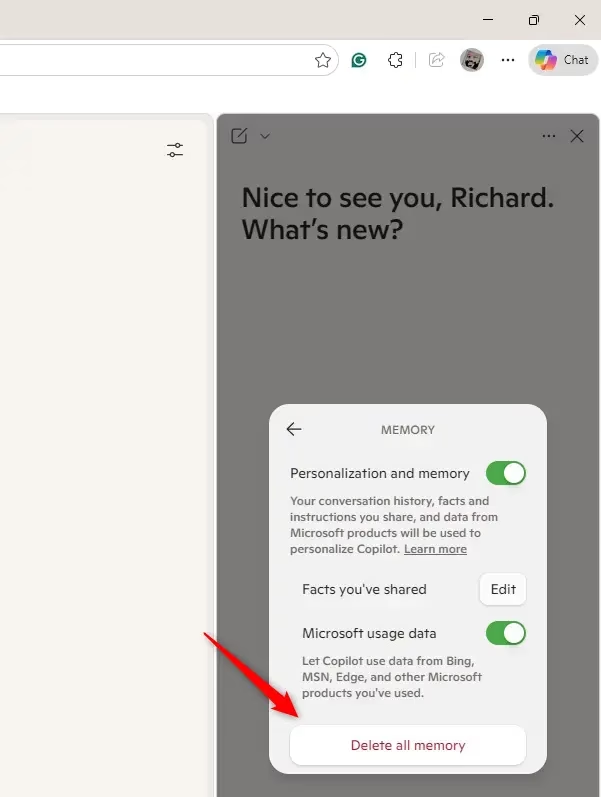
Edge handles this cleanup inside the browser. Launch Edge, click the Copilot icon, and go to Settings Privacy to manage stored preferences.
Option 3Using the Copilot Website
The website works from any browser, so it's handy if you don't have the app or you're on another device.
- Go to the Copilot website.
- Sign in with your Microsoft account if needed.
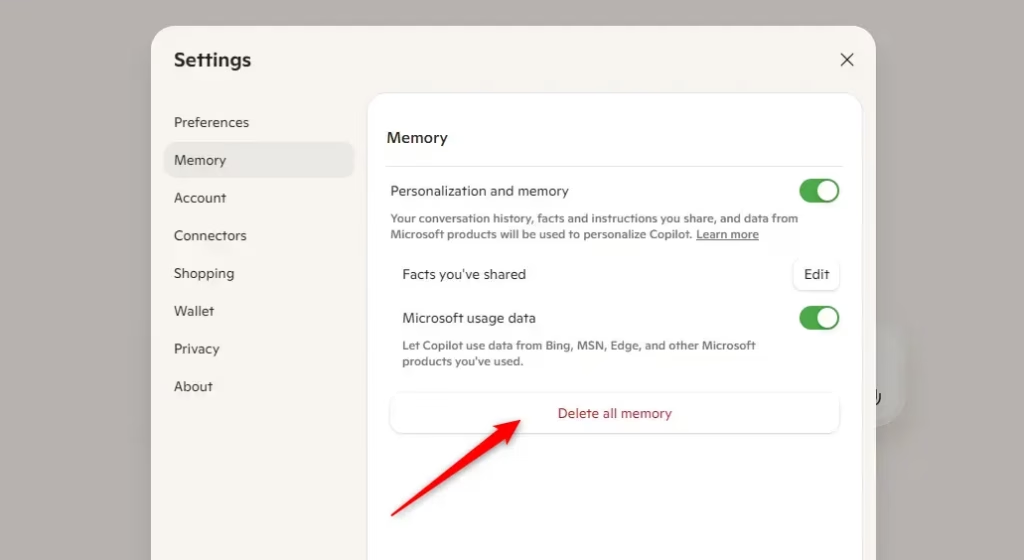
- Click the Account button (your profile picture) on the sidebar, then select Memory. Your saved memory settings open.
- To delete all memories:
- Click Delete all memory.
- Click it again to confirm.
- To delete specific memories:
- Click Edit next to "Facts you've shared." A list of saved facts appears.
- Click the trash can icon next to the memory you want to delete.
- Click Delete to confirm.
- Close settings when done.
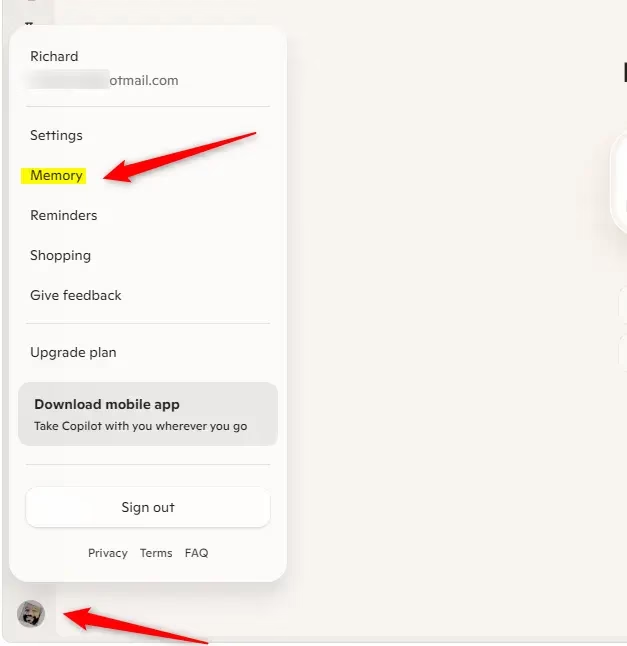
The Copilot website gives you a direct place to manage stored memories. Sign in, open the Memory section from your account menu, and then delete everything or edit the specific facts you've shared.
The Copilot website gives you a direct place to manage stored memories. Sign in, open the Memory section from your account menu, and then delete everything or edit the specific facts you've shared.
Clearing records from your recent chats removes the history that shapes future responses. Doing this from time to time keeps your account tidier and your data more private.
Learn More About Copilot
Want to know more? Check out these resources from Microsoft:
Summary
Managing this data puts you back in control of your own privacy. Whether you use the app, the browser, or the website, you decide what Copilot keeps.
- Personalized Help: Copilot uses your saved memories to give better, faster assistance.
- Easy Management: You can delete all or some memories anytime. Use the app, Edge browser, or website.
- You're in Control: Choose what Copilot remembers. Keep your experience exactly how you like it.
- Privacy Matters: Clearing memories regularly keeps your info safe.
- Stay Updated: Check for new Copilot features to keep using it effectively.
Flushing stored records shrinks your digital footprint and reduces how much information is kept about you.
Have a question about this guide?
Answered by AI from this guide. Good questions may be added to this page — please don't include personal details.
Did this guide fix your problem?

About the Author
Richard
Tech Writer, IT Professional
Richard is a writer at Geek Rewind who turns complex IT tasks into clear, step-by-step guides. He draws on years of hands-on experience in system administration and enterprise IT operations, focusing on Windows, Linux and WordPress: the problems people actually run into, and the fixes that work. His server and WordPress guides come from systems he runs himself. Richard builds and maintains the platform behind Geek Rewind, from its Ubuntu servers and Nginx configuration to its custom WordPress plugins. Many new tutorials start with readers' questions, and he's always glad to answer them in the comments.
No comments yet — be the first to share your thoughts!