How to Disable Personalization and Memory in Microsoft Copilot

Disabling personalization and memory in Microsoft Copilot stops the AI assistant from saving your past chats, habits, and preferences across sessions. Copilot uses these features to shape future answers based on older talks. The trade-off is that Microsoft keeps a running record of what you type on its servers.
You can turn off these memory settings in your Microsoft account at any time. Each new chat then starts fresh, and your private thoughts stay off remote servers. The steps are written for the current Copilot website, app, and Edge side panel. Microsoft changes the Copilot interface often, so a label or icon may sit in a slightly different place on your version. I point that out where it is likely.
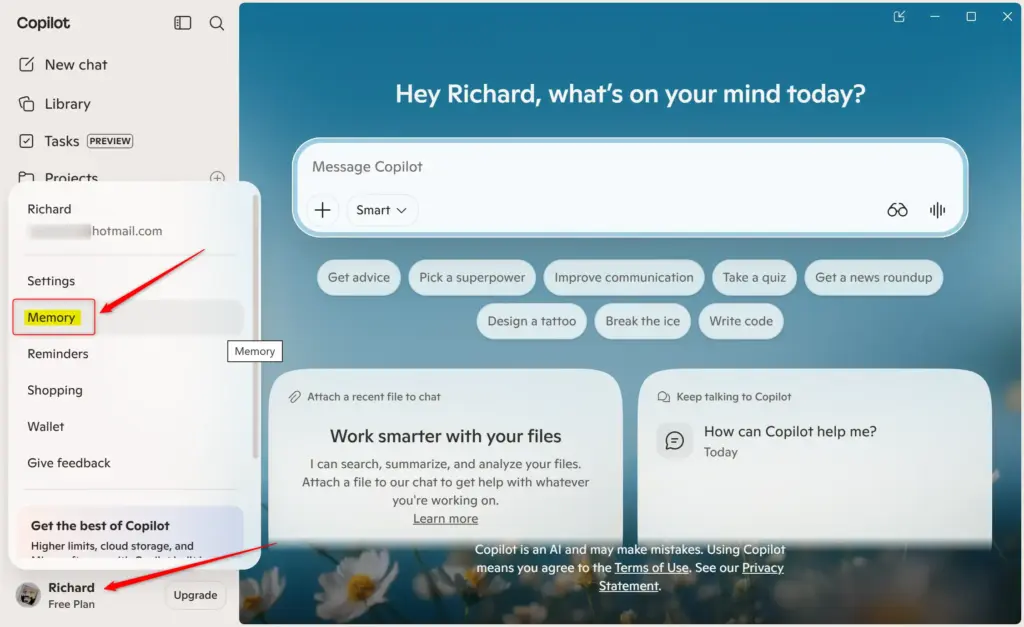
Open copilot.com or the Copilot app, click your profile picture in the top right, select your profile name, go to Memory, then toggle off the Personalization and memory switch. The setting takes effect immediately and stops Copilot from saving your chats and preferences to your Microsoft account.
How to Turn Off Copilot’s Memory and Personalization
The steps vary slightly across platforms, so use the set that matches where you run Copilot. Make sure you are signed in with your Microsoft account first. Without a signed-in account, the memory options may not appear at all.
Turning Off Memory on copilot.com, Copilot for Windows, or macOS
You can disable Copilot memory on copilot.com and in the Copilot app for Windows and macOS. This stops the AI from saving details from your past chats. In short, you open Copilot, go to your profile menu, find the memory settings, and turn the feature off so future conversations are not saved. Here are the full steps:
- Open copilot.com or the Copilot app, then look for your profile picture or icon. It is usually in the top right corner.
- Click your profile picture. A menu should open.
- Choose your profile name from the menu. Your account settings page should now appear.
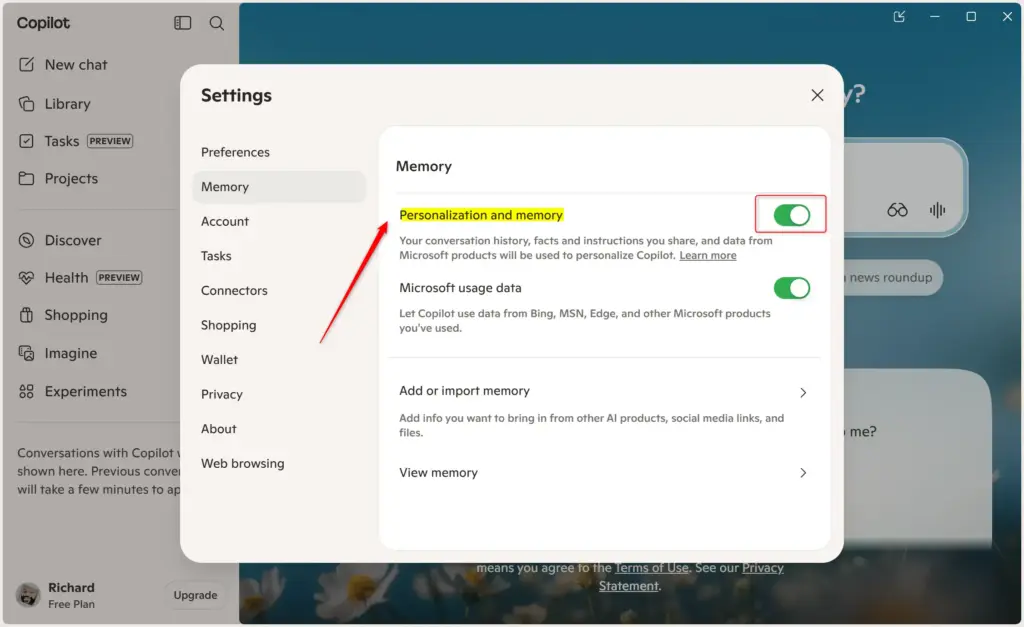
- Find and click Memory.
- Click Personalization and memory. You should see a switch here. Turn it off. The switch should now show as off.
You do not need to restart anything. If the switch does not seem to stick, refresh the page or close and reopen the app, then check it again. To undo the change later, come back to the same page and turn the switch back on.
Turning Off Memory in the Copilot Mobile App
On your mobile device, follow these steps:
- Open the app’s menu. Look for an icon with three lines, usually at the top.
- Tap your profile picture.
- Select Memory.
- Choose Personalization and memory. Turn the switch off.
The switch should now show as off. The app menu can look a little different between iPhone, iPad, and Android, and between app versions. If you do not see the three-line icon, tap your profile picture or initials directly.
Turning Off Memory in the Edge Sidebar
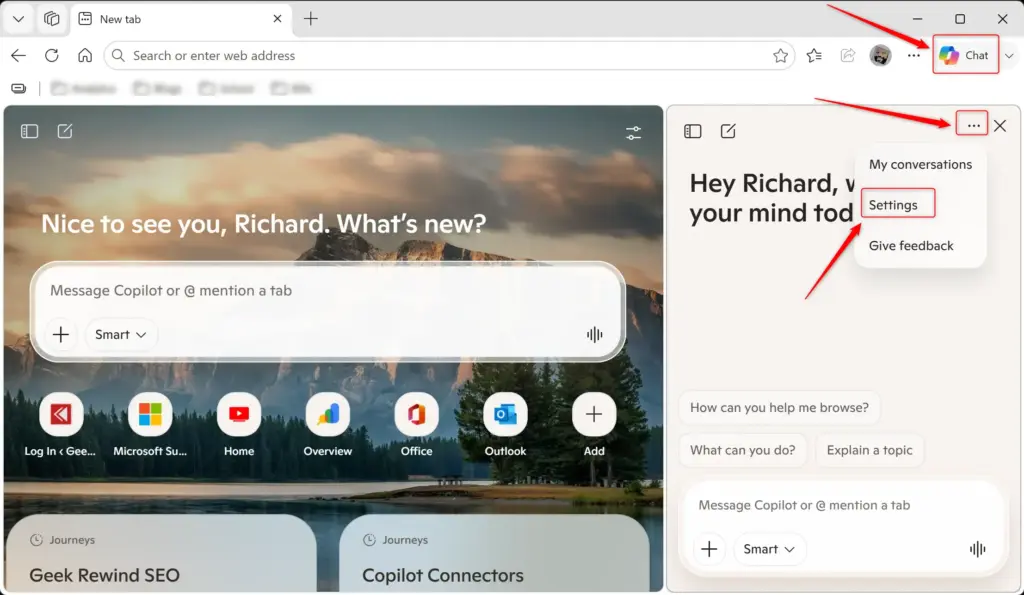
If you use Copilot in the Microsoft Edge side panel, complete these actions:
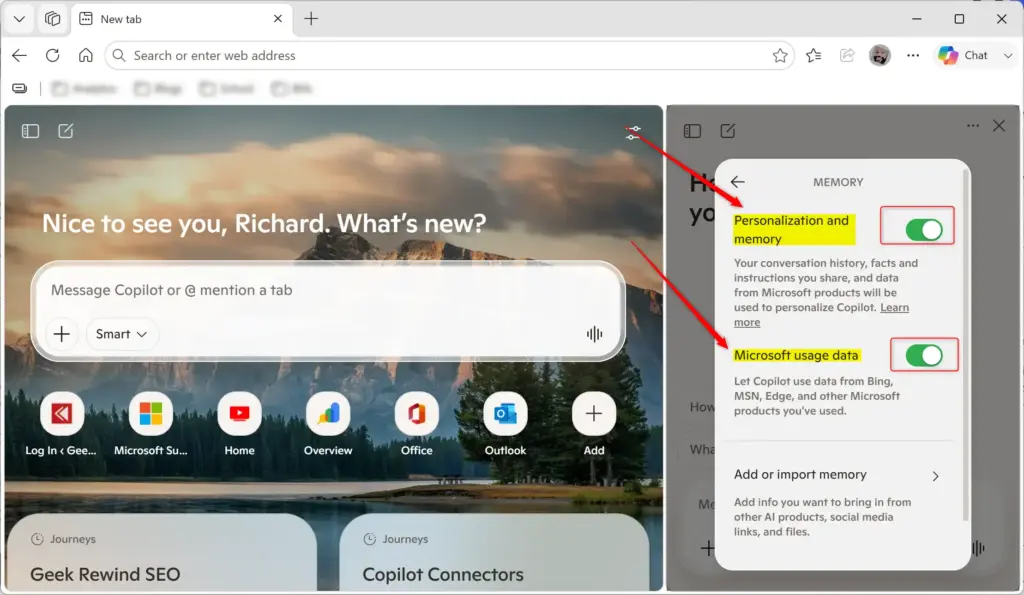
- Open the sidebar. Look for the Copilot icon or a … (three dots) menu in the sidebar.
- Click Settings.
- Select Memory.
- Find Personalization and memory and turn the switch off.
Edge changes often, so the Copilot icon or the three-dots menu may be in a different spot on your build. The setting is tied to your Microsoft account, so it should match what you see on the website and in the apps.
Controlling Microsoft Usage Data
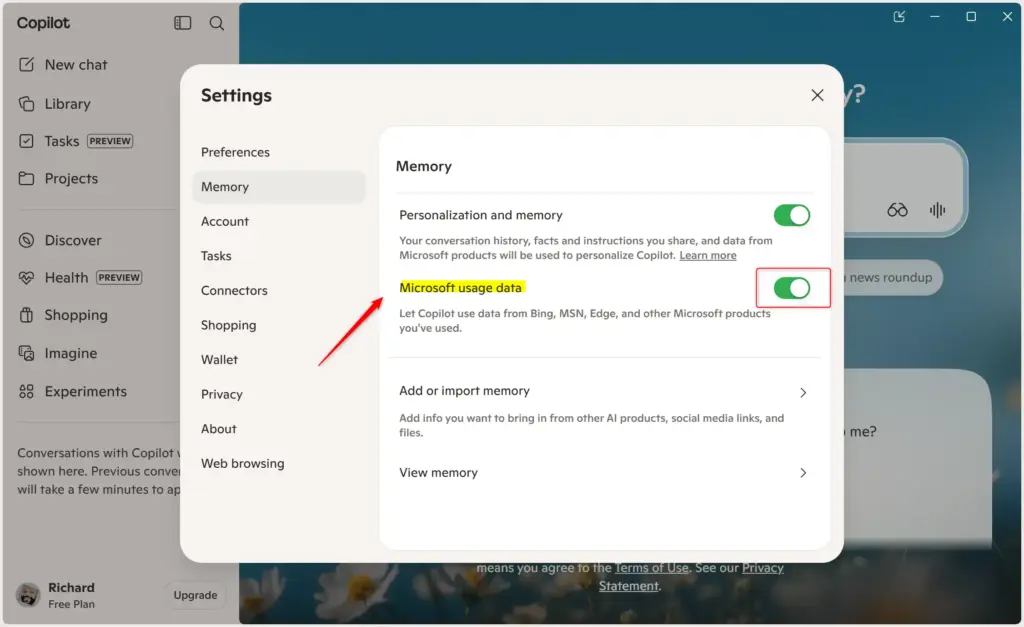
This setting lets Copilot use your activity from other services, like Bing and Edge, to personalize your chats. In short, you open your profile settings in Copilot, find the memory and data options, and turn off the usage data setting. That blocks Microsoft from using your cross-service activity for personalization, which is better for privacy. This is a separate switch from Personalization and memory, so turning off one does not turn off the other.
Turning Off Microsoft Usage Data on copilot.com, Copilot for Windows, or macOS
On the website or the desktop app:
- Click your profile icon in the top right corner.
- Choose your profile name from the menu.
- Go to Memory.
- Find Microsoft usage data and turn the switch off. The switch should now show as off.
Turning Off Microsoft Usage Data in the Copilot Mobile App
On the mobile app:
- Open the menu and tap your profile icon.
- Select Memory.
- Choose Microsoft usage data and turn the switch off.
Turning Off Microsoft Usage Data in the Edge Sidebar
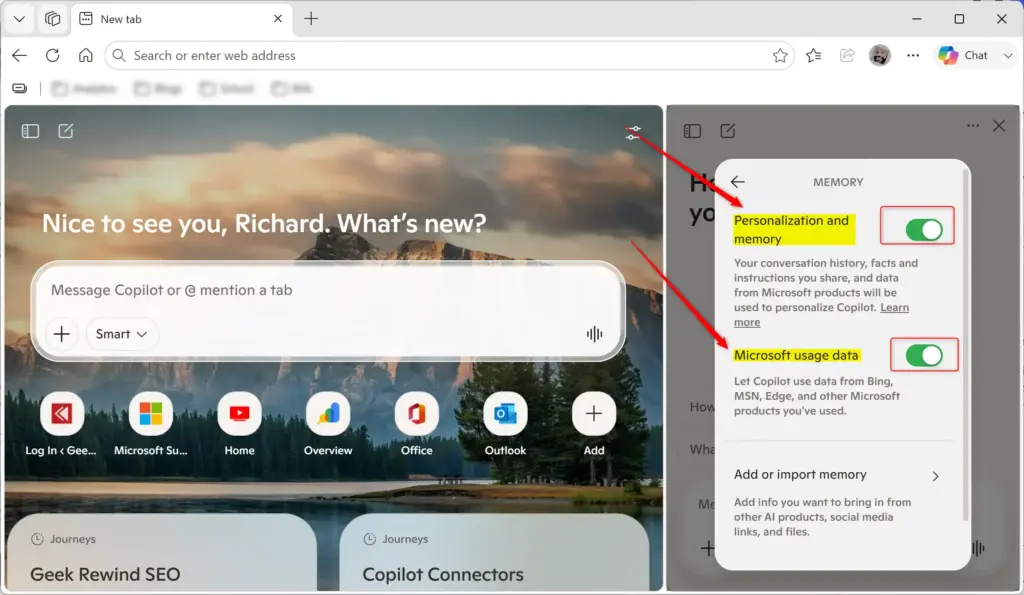
In the Edge side panel:
- Open the sidebar menu (look for the … icon or the Copilot icon).
- Click Settings.
- Select Memory.
- Choose Microsoft usage data and turn the switch off.
As with the other setting, you can turn this back on from the same screen at any time.
References:
https://support.microsoft.com/en-us/microsoft-copilot/microsoft-copilot-privacy-controls
Summary
Disabling Copilot memory and personalization comes down to these actions:
- Go to your profile settings.
- Find the Memory section.
- Turn off Personalization and memory.
- To stop Copilot from using data from other Microsoft services, also turn off Microsoft usage data in the same Memory settings.
If you cannot find an option, check that you are signed in and that the app or browser is up to date. Menu names can shift when Microsoft updates Copilot.
Have a question about this guide?
Answered by AI from this guide. Good questions may be added to this page — please don't include personal details.
Did this guide fix your problem?

About the Author
Richard
Tech Writer, IT Professional
Richard is a writer at Geek Rewind who turns complex IT tasks into clear, step-by-step guides. He draws on years of hands-on experience in system administration and enterprise IT operations, focusing on Windows, Linux and WordPress: the problems people actually run into, and the fixes that work. His server and WordPress guides come from systems he runs himself. Richard builds and maintains the platform behind Geek Rewind, from its Ubuntu servers and Nginx configuration to its custom WordPress plugins. Many new tutorials start with readers' questions, and he's always glad to answer them in the comments.
No comments yet — be the first to share your thoughts!