How to Clear Chrome Browsing Data on Exit

- 11 steps
- Needs administrator rights
- Group Policy needs Windows 11 Pro, Enterprise or Education
Clearing Chrome browsing data on exit removes data such as cookies and site data when you close the browser, so you don’t have to clear it by hand. This built-in privacy feature is useful on shared computers, where the next person shouldn’t inherit your sessions.
Google includes this option in Chrome version 114 and later under the main privacy settings. Turn the setting on and Chrome wipes the chosen site data every time you finish browsing. Menu labels shift a little between Chrome releases, so if yours reads slightly differently from the steps below, look for the closest match.
Open Chrome, go to Settings Privacy and security. Under “Site settings” or “Clear browsing data,” find and enable the “On exit” feature to choose what data clears automatically when you close the browser.
Delete browsing data on exit in Chrome
You no longer need to edit the registry to manage your data. The safest way is to use Chrome’s built-in settings. They are easy to reverse, and Chrome validates them for you. A typo in a registry value can silently break the setting.
Use the settings page first. Move on to Group Policy only if you manage several accounts or computers and need the behavior enforced.
The Native Chrome Method
Chrome includes a built-in setting that clears your browsing data automatically when you close the browser windows. It needs no extra extensions or tools. The setting works on the whole browser profile, not on a single window.
Two things to know before you turn it on. First, Chrome only counts as “exited” when all of its windows are closed. If another window is still open, or Chrome keeps running in the background, nothing is cleared yet. Second, once cookies are wiped you will be signed out of most websites each time. That is the point of the feature, but expect to log in again more often.
- Open Chrome and click the three-dot menu in the top right. A drop-down menu appears.
- Select Settings. The Settings page opens in a new tab.
- Go to Privacy and security in the left-hand list. The privacy options appear on the right.
- Click on Site settings or Clear browsing data, depending on which one your version of Chrome offers for this feature. Clear browsing data is the manual cleanup tool. The automatic option is in the cookie and site data settings.
- Look for the On exit feature to select which data types to wipe automatically. In many Chrome versions this appears as a toggle worded like “Clear cookies and site data when you close all windows”. Switch it on.
- Close all Chrome windows, then reopen Chrome and visit a site you were signed in to. If the setting works, you will have to sign in again.
If you can’t find the option, or the toggle is greyed out, your organization probably manages Chrome through policy. Type chrome://policy in the address bar to see what is applied. Chrome normally shows a “Managed by your organization” note in the menu in that case. To undo the change, return to the same page and switch the toggle off. No restart is needed either way.
Using Group Policy (Advanced)
Group Policy lets network administrators force Chrome to clear browsing data on exit across multiple user accounts on a shared or work computer. This advanced method locks in the privacy settings so regular users cannot turn off the automatic data cleanup. It is also the method to use when you need to control which data types are cleared, not just cookies.
The Local Group Policy Editor is not available in Windows 11 Home. You need Pro, Enterprise or Education. The Google Chrome folder only appears in the editor after the Chrome policy templates have been added to the computer. If you don’t see it, import them first.
- Press Win+R, type gpedit.msc, and press Enter. The Local Group Policy Editor opens.
- Navigate to Computer Configuration Administrative Templates Google Google Chrome. The list of Chrome policies appears on the right.
- Find the ClearBrowsingDataOnExitList policy and double-click it. This is where you manage which data types Chrome clears on exit.
- Choose Enabled, set the data types you want cleared in the options pane, and click OK.
- Restart Chrome, then check chrome://policy to confirm the policy is listed and its status is OK.
To undo the change, set the policy back to Not Configured and restart Chrome.
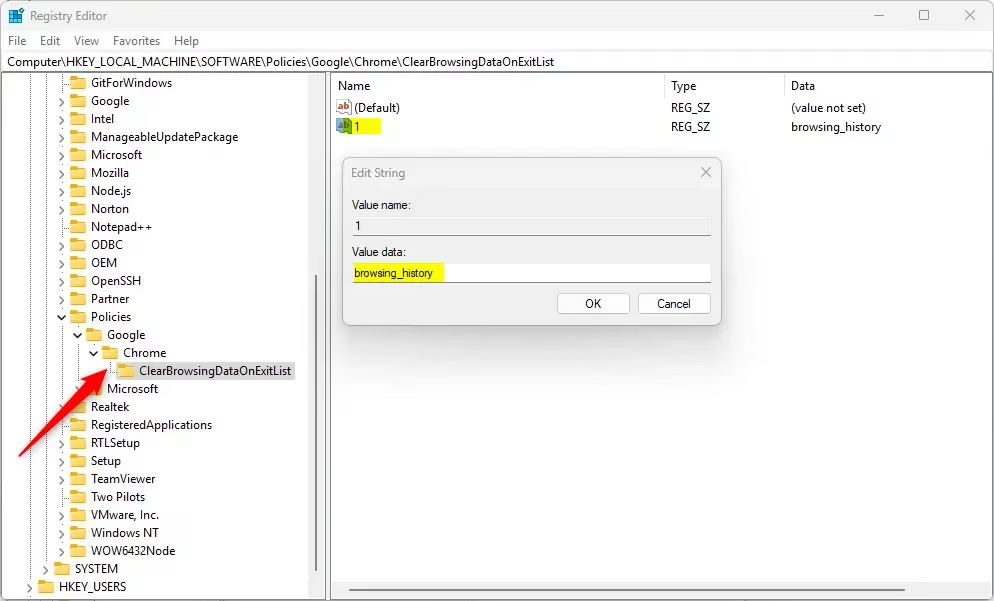
Note on Registry Paths: While we recommend using the interface, if you need to use Registry Editor (the Windows database for system and app settings), the policy paths are located in one of two places: 🗝️HKEY_LOCAL_MACHINE\
Be careful: registry edits can cause system issues if done incorrectly. Always back up your data first. In Registry Editor you can back up a branch by selecting it and choosing File Export. Keep that file so you can restore the old values if something goes wrong. Creating a restore point before you start is also a good habit.
Reference:
Conclusion:
Setting up Chrome to clear your data automatically is a good way to protect your privacy, especially on a shared PC. By using the native settings menu, you keep your browser stable and supported. Use Group Policy only when you need to enforce the behavior or choose exactly which data types are cleared. Remember that the setting only takes effect once every Chrome window is closed. Always check whether a company policy is already managing these settings before you try to change them yourself.
Have a question about this guide?
Answered by AI from this guide. Good questions may be added to this page — please don't include personal details.
Did this guide fix your problem?

About the Author
Richard
Tech Writer, IT Professional
Richard is a writer at Geek Rewind who turns complex IT tasks into clear, step-by-step guides. He draws on years of hands-on experience in system administration and enterprise IT operations, focusing on Windows, Linux and WordPress: the problems people actually run into, and the fixes that work. His server and WordPress guides come from systems he runs himself. Richard builds and maintains the platform behind Geek Rewind, from its Ubuntu servers and Nginx configuration to its custom WordPress plugins. Many new tutorials start with readers' questions, and he's always glad to answer them in the comments.
No comments yet — be the first to share your thoughts!