

Your bookmarks, browsing history, extensions and settings all live in Microsoft Edge’s profile data, and it only takes a few minutes to copy them somewhere safe. This guide walks through backing up and restoring Microsoft Edge on Windows 10 or Windows 11, so a failed drive or a new PC doesn’t cost you your setup.
To back up Microsoft Edge, close the browser, copy the User Data folder from 📁C:\
Why Back Up Microsoft Edge?
Edge keeps your bookmarks, saved settings and extensions in one place. If your computer breaks, a Windows reinstall goes wrong, or you move to a new PC, a backup means you don’t have to rebuild that setup by hand. It saves time and protects you from data loss.
Cloud Sync vs. Manual Backup
Edge has a cloud sync feature. It ties your browser to your Microsoft account and keeps your data updated across devices. A manual backup is different. It is an offline snapshot of your browser data stored on a drive you control, so it still works if sync is off, if you can’t sign in, or if sync has already copied a mistake to every device.
The two work well together. Sync covers day-to-day changes, and the manual copy is your fallback.
What Gets Backed Up?
Your manual backup includes:
- All browser settings
- Favorites and bookmarks
- User profiles
- Installed extensions
Passwords are not included in the local backup folder. They are encrypted and tied to your account, so a copied folder won’t carry them over reliably. To move them, either turn on sync and sign in to the same account on the new PC, or export them separately from Edge’s password settings (Settings Profiles Passwords). An exported password file is not encrypted, so keep it somewhere safe and delete it once you have imported it.
Step-by-Step: How to Back Up Microsoft Edge
Step 1Close Microsoft Edge Completely
- Close Microsoft Edge and all of its tabs and windows.
If Edge is still running, it locks its files and the backup will fail or come out incomplete. Once Edge is fully closed, the files can be copied. Edge sometimes keeps running in the background after you close the window. Open Task Manager, find any Microsoft Edge entries and select End task for each one before you continue.
Step 2Find Your Edge Folder
- Open File Explorer.
- Click the address bar and paste this path, then press Enter:
C:\Users\YourUsername\AppData\Local\Microsoft\Edge\User Data
File Explorer should now open the Edge data location and show a list of folders.
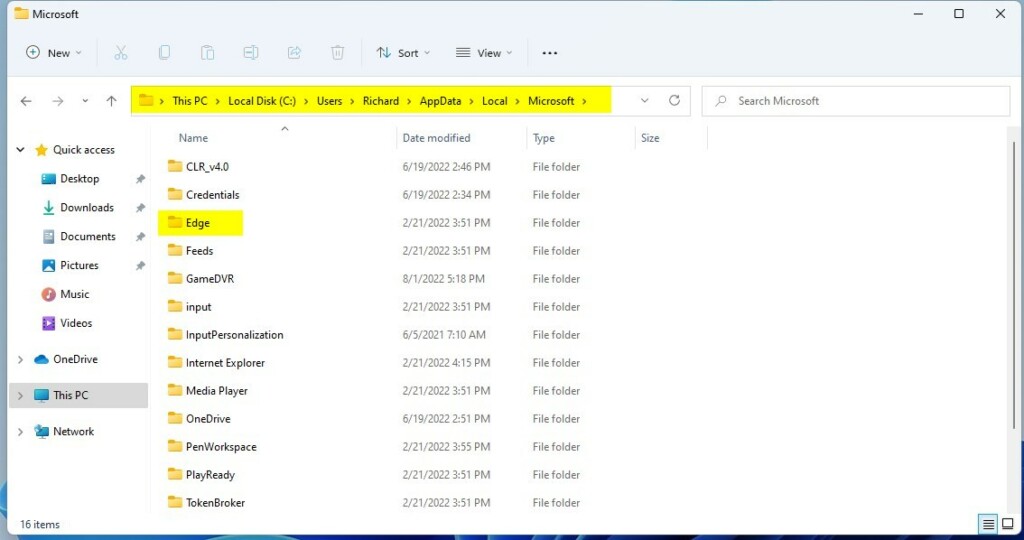
If the path doesn't open, check that you pasted it exactly as shown and that you are signed in to the Windows account whose Edge data you want to back up. Each Windows user has their own Edge data.
Step 3Copy Your Edge Folder
- Right-click the User Data folder and select Copy. On Windows 11 this is the copy icon at the top of the context menu.
- Open your USB drive or cloud storage folder, right-click an empty space and select Paste.
This folder holds your browser's core data. It can be large, so give the copy time to finish. Wait until the progress window closes before you unplug the drive.
Step 4Export Your Registry Settings
- Open Registry Editor as an administrator. Search for it in the Start menu, right-click the result and select Run as administrator.
- Click Yes if User Account Control asks for permission.
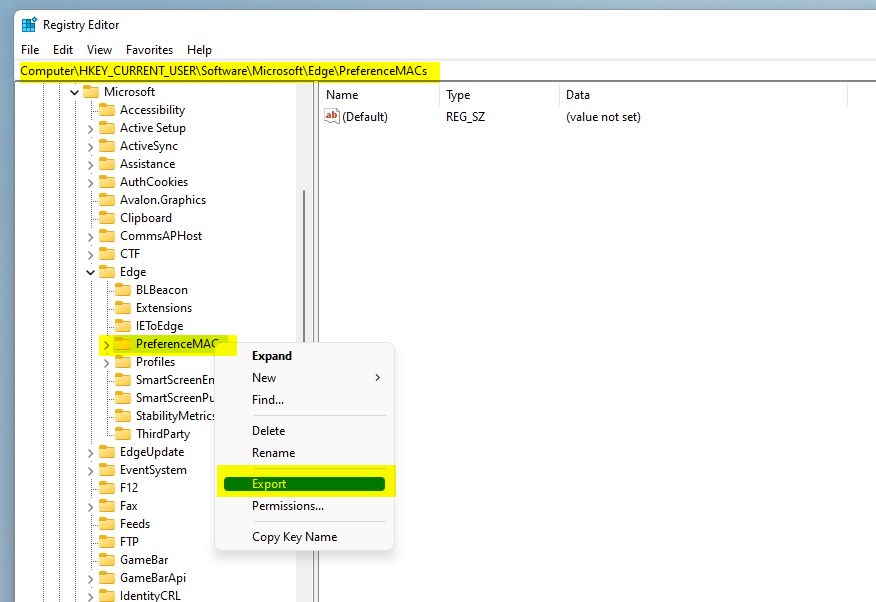
- Locate the Microsoft Edge folder (key) in the registry tree.
- Right-click that folder and choose Export.
- Pick a location, name the file, and save it as a .reg file.
This snapshot preserves your Edge registry preferences. It supplements the User Data copy and doesn't replace it, so keep both files together.
HKEY_CURRENT_USER\SOFTWARE\Microsoft\Edge
How to Restore Microsoft Edge
Step 1Restore the User Data Folder
- On your new PC, make sure Edge is closed, including any background processes in Task Manager.
- Open File Explorer and go to the same path you used in Step 2.
- Paste your backed-up User Data folder here.
- Choose to overwrite the existing files if Windows asks.
Before you overwrite anything, rename the current User Data folder, for example to User Data old. That gives you an easy way to undo the restore if something goes wrong. Start Edge afterward and check that your bookmarks and extensions are back.
Step 2Restore Registry Settings
- Double-click your saved .reg file.
- Click Yes when User Account Control and the Registry Editor warning ask you to confirm.
Windows should show a message saying the keys and values were successfully added to the registry. This imports the entries in the .reg file and restores your previous preferences, such as homepage settings, to the current Edge version. Restart Edge so it picks up the changes. If you don't want the imported entries, you can restore the old settings from a registry export you made on the new PC before importing.
Troubleshooting
If a backup or restore doesn't work, check these first:
- Passwords are often stored in Windows Credential Manager, not just the browser folder, so they may not appear after a restore. Use sync or a password export for those.
- Make sure Edge is completely closed in Task Manager before you copy files. A running Edge process is the most common cause of errors.
- Confirm that the folder structure is the same between Windows 10 and 11. If the path from Step 2 opens on both, you can restore across versions.
Summary
Copying the User Data folder and exporting the registry key gives you a complete snapshot of your browser. With both saved, and your passwords handled through sync or an export, you can move to a new computer and have Edge look and work as it did before.
Have a question about this guide?
Answered by AI from this guide. Good questions may be added to this page — please don't include personal details.
Did this guide fix your problem?

About the Author
Richard
Tech Writer, IT Professional
Richard is a writer at Geek Rewind who turns complex IT tasks into clear, step-by-step guides. He draws on years of hands-on experience in system administration and enterprise IT operations, focusing on Windows, Linux and WordPress: the problems people actually run into, and the fixes that work. His server and WordPress guides come from systems he runs himself. Richard builds and maintains the platform behind Geek Rewind, from its Ubuntu servers and Nginx configuration to its custom WordPress plugins. Many new tutorials start with readers' questions, and he's always glad to answer them in the comments.
No comments yet — be the first to share your thoughts!