How to Delete a User Account in Windows 11

Deleting a user account in Windows 11 clears out old profiles, frees up drive space and keeps the PC tidy. You manage accounts in the Settings app, and you need an administrator account to remove anyone else’s profile.
Back up anything important first. Deleting an account erases the personal data saved to that profile, and there is no Recycle Bin for it. Also make sure the person you are removing is fully signed out. If they are only switched away from, use Start > the account picture > Sign out on their session, or restart the PC. You cannot delete the account you are currently signed in to, so sign in with a different administrator account if you need to remove it.
Open Settings , go to Accounts Family & other users, click the account you want to remove, select Remove, then click Del account and data to confirm. The profile and all its files are permanently deleted.
Learn More
For official information, see Manage User Accounts in Windows – Microsoft Support.
Method 1Delete User Account Using Settings
This is the quickest method and the one most people should use. The exact page name depends on your Windows 11 build, so the steps cover both versions.
- Press Win + I to open Settings. The Settings window opens.
- Click Accounts in the left menu.
- Select Family & other users. On newer builds this page is called Other Users. You should now see a list of accounts on the PC.
- Find the account you want to delete under Other users and click it. The entry expands and shows a Remove button. Click Remove.
- Read the warning, then click Delete account and data to confirm. Windows warns that all of the account’s files will be deleted.
- Check that the account no longer appears under Other users, then close Settings.
Sign out and sign in with an administrator account, then try again. No restart is needed.
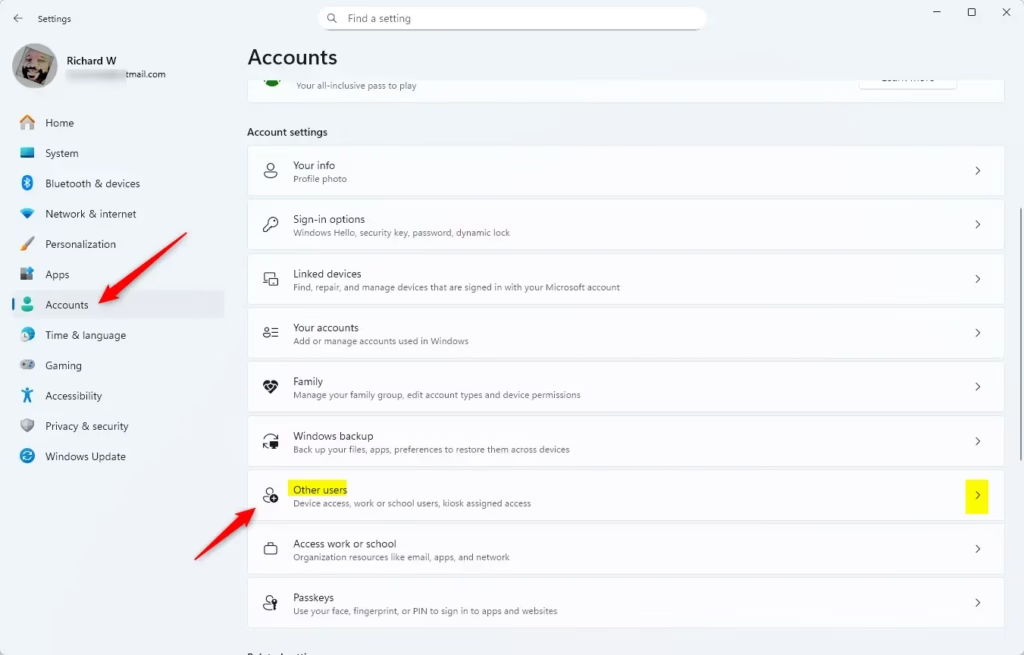
Deleting a user account with the Settings app is the easiest and most direct way to remove an unwanted profile. You open the main system settings, find the profile under your other users, and remove it along with all its saved data.
This works for both local accounts and Microsoft accounts. Removing a Microsoft account from the PC only deletes the local profile. It does not delete the account itself, so the person can still sign in on other devices.
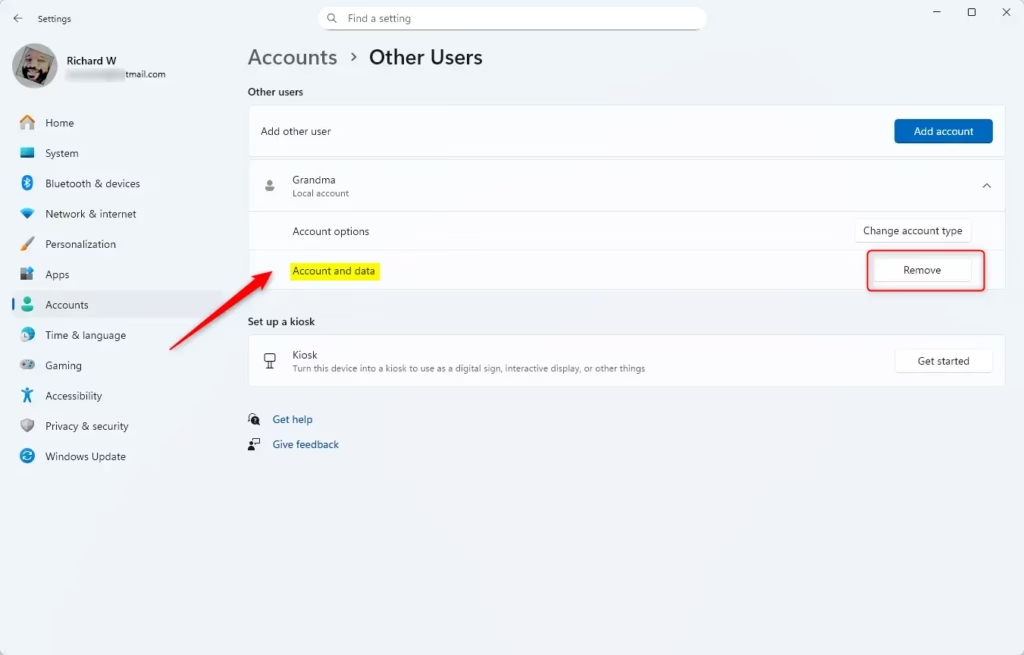
If you removed the wrong account, you can add the person again under Settings Accounts Other users, but Windows creates a brand-new profile. The old files only come back if you restored them from a backup.
Method 2Delete User Account Using Control Panel
The classic Control Panel is still in Windows 11. Its main advantage is that it asks whether you want to keep the user's files before it deletes the account.
- Open the Control Panel. To do this, type
Control Panelin the search box and click the result. - Set View by (the dropdown at the top right) to Small icons or Large icons. All the Control Panel items are now listed.
- Click User Accounts.
- Click Manage another account. If a User Account Control prompt appears, click Yes.
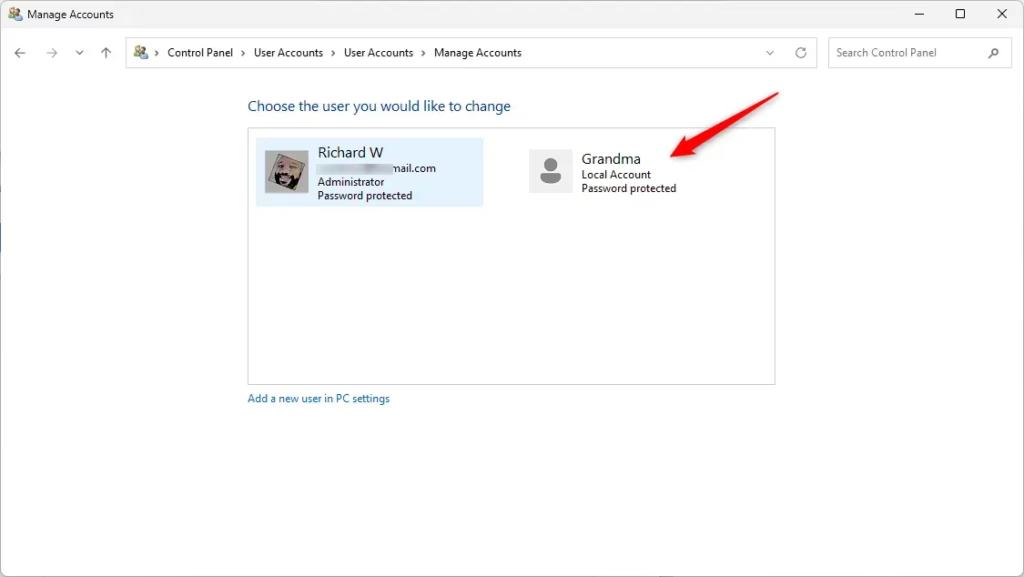
- Choose the account you want to delete.
- Click Delete the account.
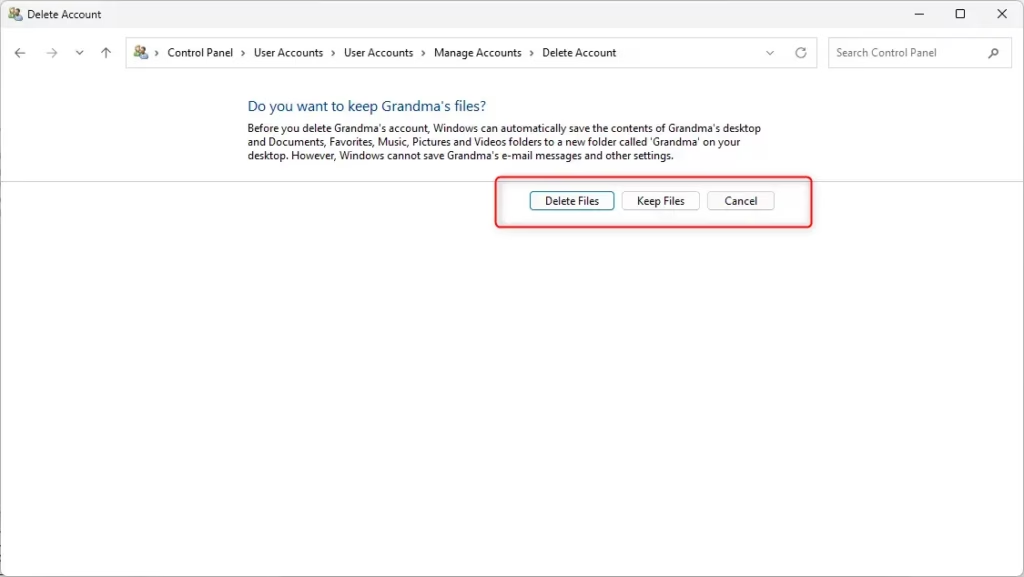
- Choose Delete Files or Keep Files. Keep Files copies the contents of the user's Desktop and Documents folders into a new folder on your Desktop, named after the user. Other data, such as email and app settings, is not kept.
- Click Delete Account to confirm. The account disappears from the list of accounts.
- Close Control Panel when you are done.
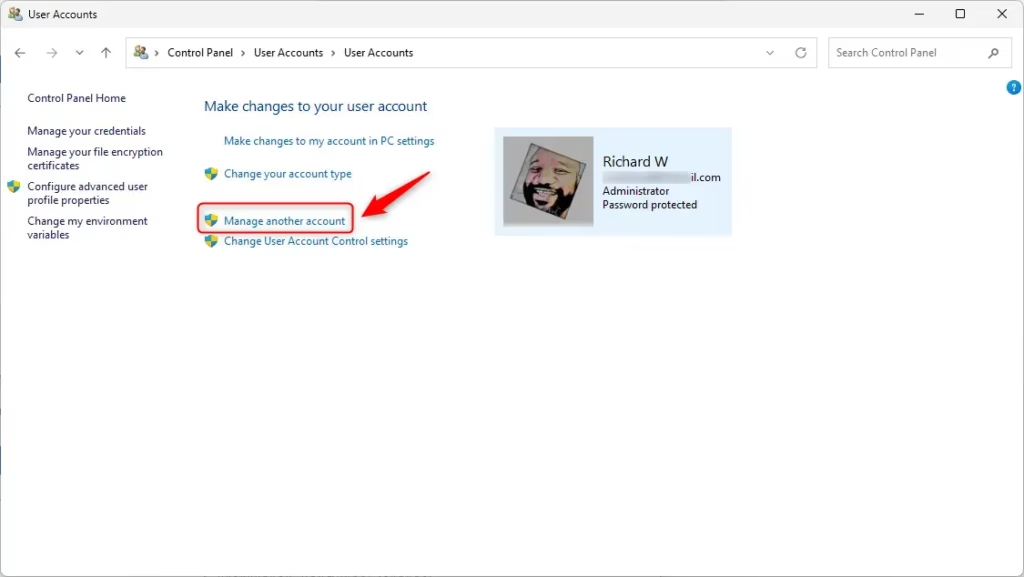
Deleting an account through the classic Control Panel lets you choose whether to keep or delete the user's personal files before the profile is removed. This works well if you prefer the older interface over the Settings app, or if you want a quick copy of the user's documents saved first.
If you choose Keep Files, check the new folder on your Desktop before you hand the files over or delete anything else. The copy can take a while if the user had a lot of data on the Desktop or in Documents.
As with Settings, you cannot undo this. Deleting an account removes its sign-in, so the files you kept are the only part you can recover.
Method 3Delete User Account Using Command Prompt
Tips Before Deleting a User Account
Reviewing a few important precautions before you delete a user account in Windows 11 helps you avoid losing important personal files or running into permission blocks. Taking a moment to check your admin status and back up necessary data ensures a smooth and error-free removal process.- Make sure the account you want to delete is no longer needed.
- Backup any important files from that user before deleting.
- You must be signed in as an administrator account to delete users.
- Don't delete an account that is currently signed in.
- Choose the deletion method you feel most comfortable with.
Summary
Deleting a user account in Windows 11 is easy and helps keep your PC organized. You have many ways to do this: through Settings, Control Panel, or advanced tools like Command Prompt and PowerShell. Always be careful to backup data you want to keep before deleting an account.
The command-line methods suit administrators who work remotely or script their tasks. You must open the terminal as administrator, otherwise the delete command fails with an access error.
- Right-click the Start button and select Windows Terminal (Admin). Click Yes if a User Account Control prompt appears.
- Switch to the PowerShell tab if it is not already open.
- Type
Get-LocalUserand press Enter to see all user accounts. The accounts on the PC are listed. - Note the exact name of the account you want to delete.
- Type the delete command for this method and press Enter, replacing
UserNamewith the actual name. PowerShell usually prints nothing when the command works. An error message means the name was wrong or the window is not elevated. - Run the list command again to confirm the account is gone.
PowerShell lets you list the accounts and remove the unwanted one with a single command. Deleting an account this way may leave the user's profile folder on the drive. If you want that space back, delete the leftover folder afterwards in File Explorer.
- Right-click the Start button and select Windows Terminal (Admin). Click Yes if a User Account Control prompt appears.
- Make sure you are in the Command Prompt tab. You can switch from the dropdown arrow at the top of the window.
- Type
net userand press Enter to see a list of user accounts on your PC. - Find the exact name of the account you want to delete. If the name contains spaces, copy it exactly as it appears.
- Type the delete command for this method and press Enter, replacing
UserNamewith the real user name. Command Prompt normally prints a success message. - Run the list command again to check that the account no longer appears.
Command Prompt gives you a fast, text-based way to remove a profile with administrator tools. The account is removed immediately, and as with PowerShell, the profile folder may remain on the drive until you delete it yourself.
Method 4: Delete User Account Using PowerShell
- Right-click the Start button and select Windows Terminal (Admin). Accept the User Account Control prompt.
- Switch to the PowerShell tab.
- Type
Get-LocalUserand press Enter to see all user accounts. - Note the exact name of the account you want to delete.
- Type the delete command for this method and press Enter, replacing
UserNamewith the actual name. If PowerShell returns no error, the account was removed.
PowerShell lets advanced users clear out old profiles with built-in cmdlets. List the accounts, then remove the unwanted one with a single command.
Tips Before Deleting a User Account
A few checks beforehand help you avoid losing files or hitting permission errors.
- Make sure the account you want to delete is no longer needed.
- Back up any important files from that user before deleting. Copy them to an external drive or cloud storage, not to the same profile.
- You must be signed in as an administrator to delete users. Standard accounts cannot do it.
- Don't delete an account that is currently signed in. Sign it out first.
- Choose the deletion method you feel most comfortable with. Settings is the simplest, and Control Panel is the only one that offers to keep the files.
Summary
Deleting a user account in Windows 11 is easy and helps keep your PC organized. You can do it through Settings, Control Panel, or the command-line tools Command Prompt and PowerShell. Always back up the data you want to keep before deleting an account.
Have a question about this guide?
Answered by AI from this guide. Good questions may be added to this page — please don't include personal details.
Did this guide fix your problem?

About the Author
Richard
Tech Writer, IT Professional
Richard is a writer at Geek Rewind who turns complex IT tasks into clear, step-by-step guides. He draws on years of hands-on experience in system administration and enterprise IT operations, focusing on Windows, Linux and WordPress: the problems people actually run into, and the fixes that work. His server and WordPress guides come from systems he runs himself. Richard builds and maintains the platform behind Geek Rewind, from its Ubuntu servers and Nginx configuration to its custom WordPress plugins. Many new tutorials start with readers' questions, and he's always glad to answer them in the comments.
No comments yet — be the first to share your thoughts!