How to Enable or Disable Passkey Autofill in Windows 11

Some apps and websites pop up sign-in prompts without being asked. Windows 11 lets you control whether they can offer your saved passkeys automatically. The setting is a single switch in the Settings app, and you can flip it back at any time.
Open Settings , go to Privacy & security, find the Passkey section, and toggle the Passkey autofill access option on or off. This setting controls whether apps can automatically fill in your passkeys.
What Are Passkeys?
A passkey replaces a password with a cryptographic credential tied to your device. Windows Hello stores these keys locally. When a supported app or website asks you to sign in, Windows Hello offers the matching passkey and asks you to confirm it.
You confirm with a fingerprint, a facial scan, or your PIN. That is the whole sign-in, so there are no long character strings to remember or type. Windows Hello needs to be set up on the PC first, because it is what checks that it is really you.
How to Enable or Disable Passkey Autofill in 🪟 Windows 11
Use the steps below to turn passkey autofill on or off for apps. You do not need to sign out or restart afterwards.
Step 1Open Settings
- Open the Start menu from your taskbar and select Settings. You can also press
Windows key + Ion your keyboard to get there faster.
The Settings window should now be open, with a list of categories down the left side.
Step 2Go to Privacy & Security
- In the Settings window, click Privacy & security in the left-hand menu.
The privacy options for Windows now fill the right side of the window.
Step 3Find Passkey Settings
- On the right, find the Passkey section and click it.
The section expands or opens a page with more options for managing passkeys. If you cannot find it, open Windows Update and install any pending updates. Passkey options have been added to Windows 11 in stages, so older builds may not have them.
Step 4Turn Passkey Autofill On or Off
- Find Passkey autofill access and click the switch to turn it on or off.
This switch decides whether third-party software can supply your credentials automatically when you sign in. On means apps can offer your passkeys. Off means you handle sign-ins yourself. The change applies straight away, so you can test it by opening an app that uses passkeys.
If the switch is greyed out, your PC is probably managed by an organization that controls this setting. In that case, ask your administrator. To undo the change on a personal PC, come back to this page and click the switch again.
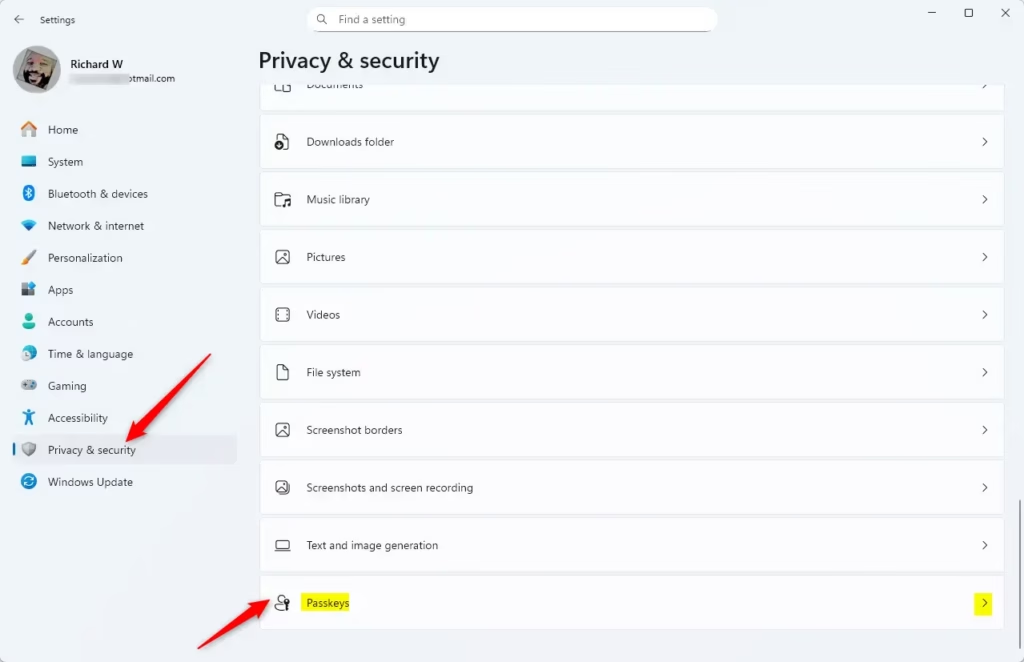
Passkeys section in Windows 11 Privacy & Security Settings

Toggle Passkey autofill access on or off
You now have direct control over passkey autofill for apps on Windows 11. The setting decides whether software offers your stored credentials on its own when you reach an online service. Changing it alters how your accounts behave on the next sign-in.
Why Manage Passkey Autofill?
Which setting to choose comes down to convenience against control. With autofill on, sign-ins are quicker and you make fewer typing mistakes. With it off, nothing is offered until you ask, so you decide each time. Either way, a hardware-backed passkey is safer than a traditional password.
- Passkeys make signing in easier and more secure by using your face, fingerprint, or PIN instead of passwords.
- You can turn autofill on or off quickly, so pick the setting that suits your comfort level and security needs.
- Allowing autofill saves time during login and helps you avoid typing errors.
- Check the setting now and then, especially after big Windows updates, to make sure it still matches what you want.
- Keep Windows updated to get new security features and improvements.
Learn More
Passkey autofill works together with Windows Hello, the built-in biometric sign-in system in Windows 11, to add another layer of protection to your logins. Microsoft publishes detailed documentation for administrators and users who want to understand the cryptography underneath. The official pages below are the best place to check how these features work.
Summary
Passkeys give you a password-free way to sign in using your face, fingerprint, or PIN. To turn passkey autofill on or off, go to Settings Privacy & security, open the Passkey section, and use the Passkey autofill access switch.
Have a question about this guide?
Answered by AI from this guide. Good questions may be added to this page — please don't include personal details.
Did this guide fix your problem?

About the Author
Richard
Tech Writer, IT Professional
Richard is a writer at Geek Rewind who turns complex IT tasks into clear, step-by-step guides. He draws on years of hands-on experience in system administration and enterprise IT operations, focusing on Windows, Linux and WordPress: the problems people actually run into, and the fixes that work. His server and WordPress guides come from systems he runs himself. Richard builds and maintains the platform behind Geek Rewind, from its Ubuntu servers and Nginx configuration to its custom WordPress plugins. Many new tutorials start with readers' questions, and he's always glad to answer them in the comments.
No comments yet — be the first to share your thoughts!