How to Enable or Disable Automatic Sign-in After Windows 11 Update

Automatic sign-in after a Windows 11 update finishes setting up your PC and opens your desktop without asking for a password or PIN. It applies only to the final setup screens that appear after major system updates, such as version 23H2. Your normal daily sign-in settings stay as they are.
You can turn this on so your computer goes straight to your workspace after an update, or turn it off so it waits for your login details. When it is on, Windows uses your saved sign-in info one time to get past the post-update lock screen. Pick the method that matches what you want. The Settings toggle covers updates only. The netplwiz and registry methods below can skip the sign-in screen at every startup.
Enable automatic sign-in for post-update setup in Settings Accounts Sign-in options by toggling “Use my sign-in info to automatically finish setting up after an update” to On. Disable it by toggling the same option to Off.
Security Risks of Automatic Login
Automatic login stores your sign-in details on the PC, where someone with physical access may be able to find them. It also bypasses your lock screen, so anyone who powers on or restarts the device can reach your desktop without a password.
That puts your personal files, email and apps at risk if the device is lost, stolen or simply left on a desk. The registry method is the worst for this because it keeps the password as plain text. Think hard before using automatic sign-in on a laptop, or on any PC in a shared or public space.
When you enable automatic login, your password is saved in the registry in plain text. This means anyone who can physically access your computer can log in without needing a password. It bypasses Windows security entirely and puts your personal data at risk. Use this feature only on your own, secure devices.
Method 1Using the Settings App
The Settings app lets you manage this preference without installing anything extra. The control sits in your account options. This is the safest method because it only affects the sign-in after an update. Microsoft sometimes moves or renames these toggles between releases, so your screen may look slightly different from the steps below.
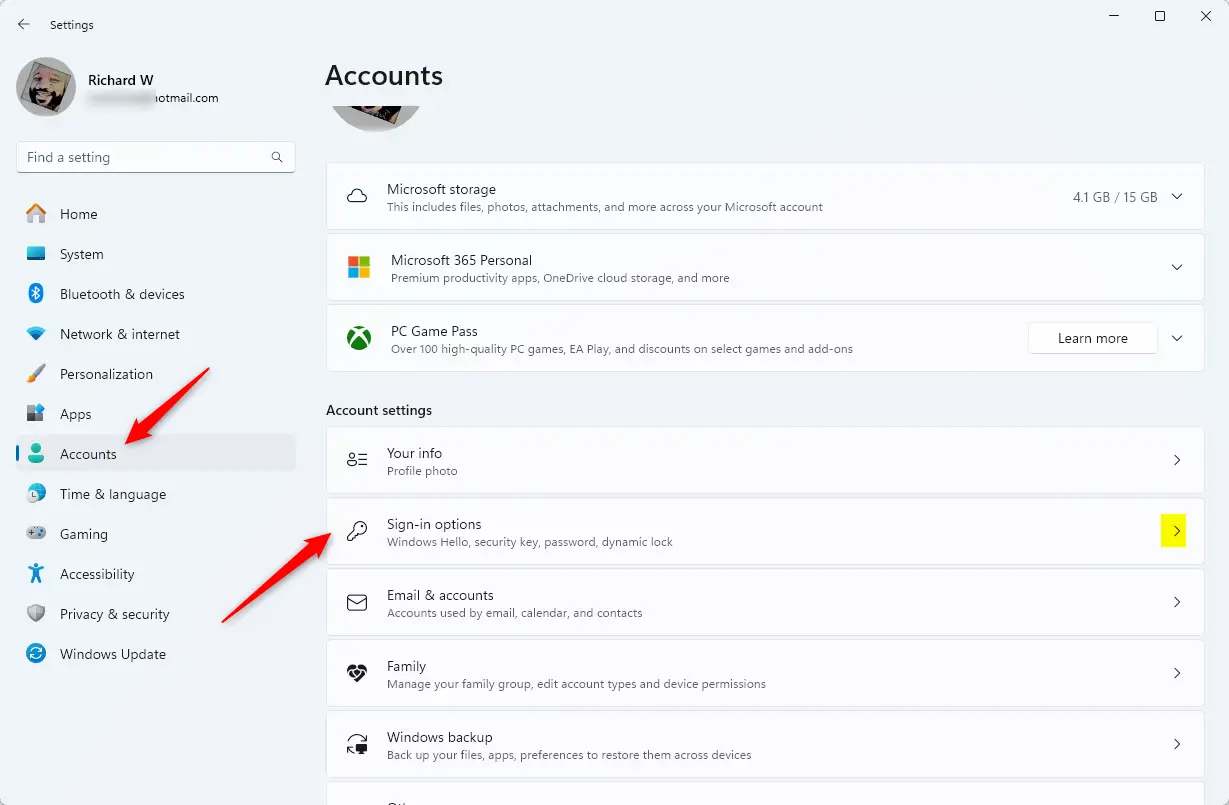
- Open the Settings app. Press Win+I, or click Start and select the Settings icon. The Settings window should open with a list of categories on the left.

- Click Accounts in the left-hand menu.
- Select the Sign-in options tile on the right side of the screen. A list of ways to sign in, such as Face, Fingerprint, PIN and Password, should appear.
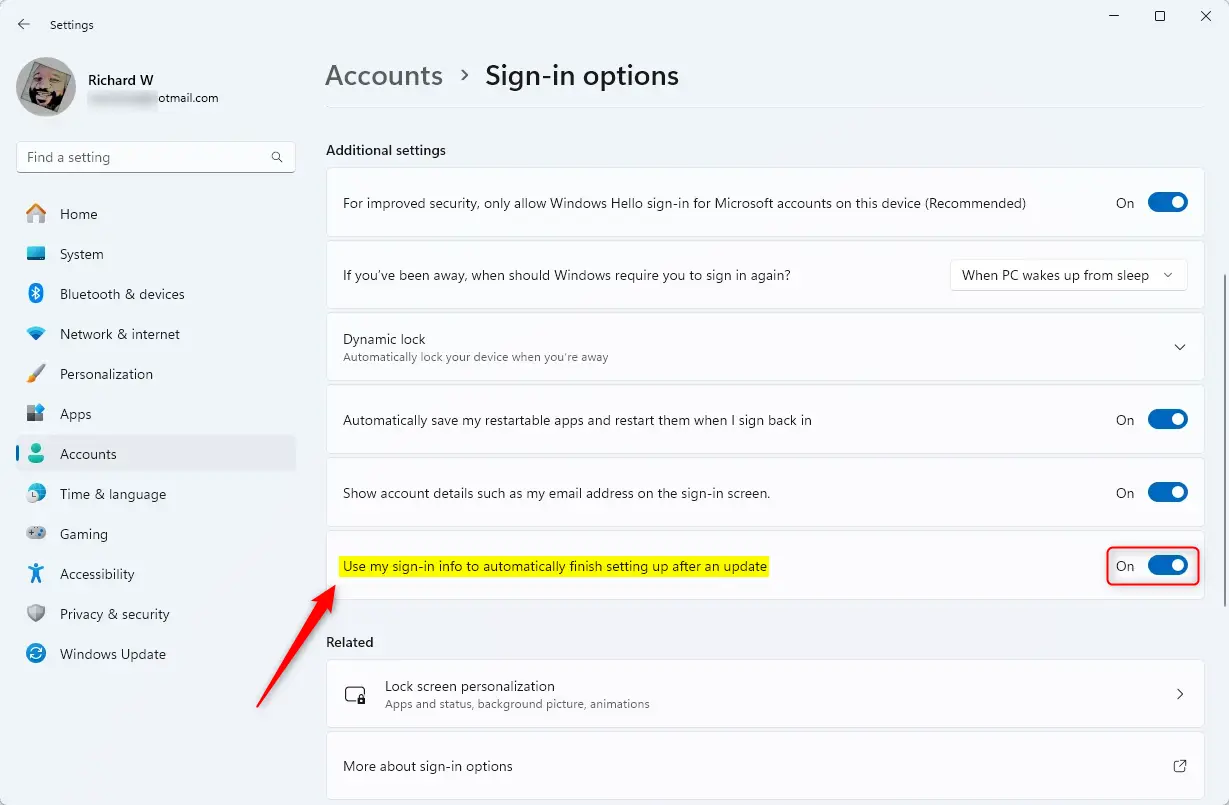
- Scroll down to the section labeled Additional settings.
- Find the option “Use my sign-in info to automatically finish setting up after an update”.
- Set the switch to On to enable it, or Off to disable it. The switch should change position straight away. You do not need to restart, because the setting is used the next time an update installs.
If you cannot find this option, check a few things. Another setting in the same section, which only allows Windows Hello sign-in for Microsoft accounts on the device, can hide it. Turn that setting off and look again. A work or school PC managed by an organization may also hide it through policy. In that case only your administrator can change it.
Method 2Using netplwiz for Automatic Logon
The netplwiz command is a quick way to set up automatic sign-in when the Settings menu does not show the option. This hidden User Accounts tool has one checkbox that makes Windows skip the sign-in screen. Unlike the Settings toggle, it removes the password prompt at every startup, not just after updates. You need an administrator account to use it.
- Press Windows key + R to open the Run box.
- Type netplwiz and press Enter. The User Accounts window should open.
- Select your user account from the list.
- Uncheck the box that says "Users must enter a user name and password to use this computer". If the box is missing, the Windows Hello-only setting described above is probably turned on. Turn it off in Settings, then reopen netplwiz.
- Click Apply. A dialog should ask for your account details, so enter your current password twice to confirm. Then click OK.
The change takes effect the next time you restart. To undo it, open netplwiz again and tick the box back on.
Method 3Using Sysinternals Autologon
For a more reliable method, use the official Microsoft Sysinternals Autologon tool. It encrypts your login information, which makes it safer than manual registry edits.
Method 4Registry Editor (Advanced)
Registry Editor (a database that stores low-level settings for Windows and apps) lets you force automatic sign-in when other methods fail. You add specific values to a registry key so Windows signs in without asking for a password. This is an advanced fix. A wrong edit can cause system errors, so type carefully. Before you start, you can back up the key by selecting it and using File Export
- Press Windows key + R, type regedit, and press Enter. Click Yes if User Account Control asks for permission.
- Navigate to: HKEY_LOCAL_MACHINE\SOFTWARE\Microsoft\Windows NT\CurrentVersion\Winlogon
- Locate AutoAdminLogon in the right-hand pane, double-click it and set the value to 1.
- Make sure DefaultUserName and DefaultPassword are set correctly. If an entry does not exist, create it as a new String Value with that exact name. DefaultPassword is stored as readable text, so anyone who can open the registry can see it.
Restart the PC to test it. To undo the change, set AutoAdminLogon back to 0 and delete the DefaultPassword value.
Troubleshooting and Tips
If you need to bypass automatic login temporarily, hold the Shift key during the boot process. This forces Windows to show the login screen for that session, so you can sign in as a different user. Automatic sign-in stays configured for the next restart.
Summary
Automatic sign-in can speed up your day, but it comes with real security trade-offs. Weigh the convenience of a faster login against the risk of someone else getting into your PC. For the best balance, use the official Sysinternals tool or stick to the built-in update-only setting. Avoid the registry method unless nothing else works, and keep it to a PC that stays in a secure place.
Frequently asked questions
How do I enable autologin on 🪟 Windows 11?
Autologin skips the sign-in screen at every startup, so anyone with physical access can reach your desktop. To turn it on, press Windows key + R, type netplwiz, press Enter, clear the box labeled "Users must enter a user name and password to use this computer," click OK, and enter your password.
How to get rid of automatic Microsoft login?
Switch to a local account to stop signing in with a Microsoft account. Open Settings, select Accounts, click Your info, then choose Sign in with a local account instead. Confirm with your current password or PIN and create a local user name and password. Your files stay on the PC.
How do I start 🪟 Windows 11 without signing in?
Windows 11 always needs a user account before the desktop loads, so you cannot skip sign-in. You can have it sign in for you instead. Press Windows key + R, type netplwiz, clear the box labeled "Users must enter a user name and password to use this computer," click OK, and enter your password.
How to enable sign-in option in 🪟 Windows 11?
Open Settings, select Accounts, then click Sign-in options. Choose a method such as PIN (Windows Hello) or Password and follow the prompts to set it up. If an option is greyed out, your PC may lack the hardware it needs, such as a fingerprint reader or camera.
Still have a question?
Answered by AI from this guide. Good questions may be added to this page — please don't include personal details.
Did this guide fix your problem?

About the Author
Richard
Tech Writer, IT Professional
Richard is a writer at Geek Rewind who turns complex IT tasks into clear, step-by-step guides. He draws on years of hands-on experience in system administration and enterprise IT operations, focusing on Windows, Linux and WordPress: the problems people actually run into, and the fixes that work. His server and WordPress guides come from systems he runs himself. Richard builds and maintains the platform behind Geek Rewind, from its Ubuntu servers and Nginx configuration to its custom WordPress plugins. Many new tutorials start with readers' questions, and he's always glad to answer them in the comments.
No comments yet — be the first to share your thoughts!