How to View Windows Hello Sign-In Events in Event Viewer on Windows 11

- 23 steps
- Needs administrator rights
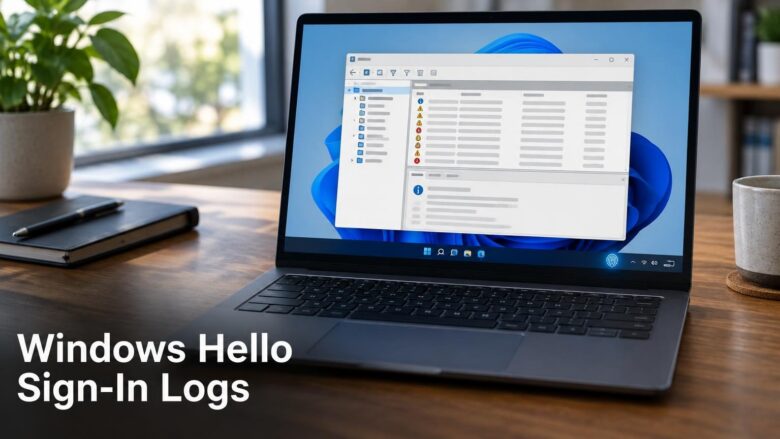
Windows Hello sign-in events in Event Viewer show how a Windows 11 device was unlocked (Face, Fingerprint or PIN) and record failed sign-in attempts. Microsoft lists the log at HelloForBusiness/Operational in Event Viewer, the built-in Windows tool that displays system and app logs. The Operational part is a folder for ongoing event records, which you open first.
The logs only appear in Windows Insider preview builds. Microsoft says they are available in the Windows 11 Insider Experimental Preview channel, and they may change before they reach release builds. If your PC runs a normal release, you will probably not find them yet.
Open Event Viewer, expand Applications and Services Logs, then go to Microsoft Windows HelloForBusiness Operational to see Windows Hello sign-in events. The log only appears on Windows 11 Insider preview builds in the Experimental Preview channel, so check Settings Windows Update Windows Insider Program first.
What the Windows Hello event logs record
Microsoft describes the new logs in two parts. First, they record whether a device was unlocked with Face, Fingerprint or PIN. Second, they provide information about unsuccessful sign-in attempts.
That gives an administrator, or anyone who shares a PC, a record of which sign-in method was used and when a sign-in failed. Until now, that record has been harder to collect.
Microsoft’s announcement does not list individual event IDs (the numbers that label each type of event), field names or message text. This article therefore does not name any. Read the General tab of each event on your own build to see what it reports.
Before you start
Check three things before you open Event Viewer. They explain most cases where the log does not appear.
- Your build must be an Insider preview. Microsoft says the logs are available in the Windows 11 Insider Experimental Preview channel. Release builds of a currently supported Windows 11 version (25H2 or 26H2) are not confirmed to include them.
- Windows Hello must be set up. The log can only record sign-ins that use Face, Fingerprint or PIN, so set up at least one method under Settings Accounts Sign-in options.
- Use a test PC if you are not already on the Insider program. Preview builds are less stable than release builds, and moving a PC back to a release build can take more than a setting change.
Microsoft has not said whether the new logs depend on the edition, such as Home or Pro. Event Viewer itself is present on Home and Pro editions of a currently supported Windows 11 version (25H2 or 26H2). Whether the new Windows Hello logs appear on both has not been confirmed.
Check that your PC is on the Insider Experimental Preview channel
This section confirms your PC receives Insider builds. Skip it if you already know the channel.
- Open Settings. Press the Win and I together.
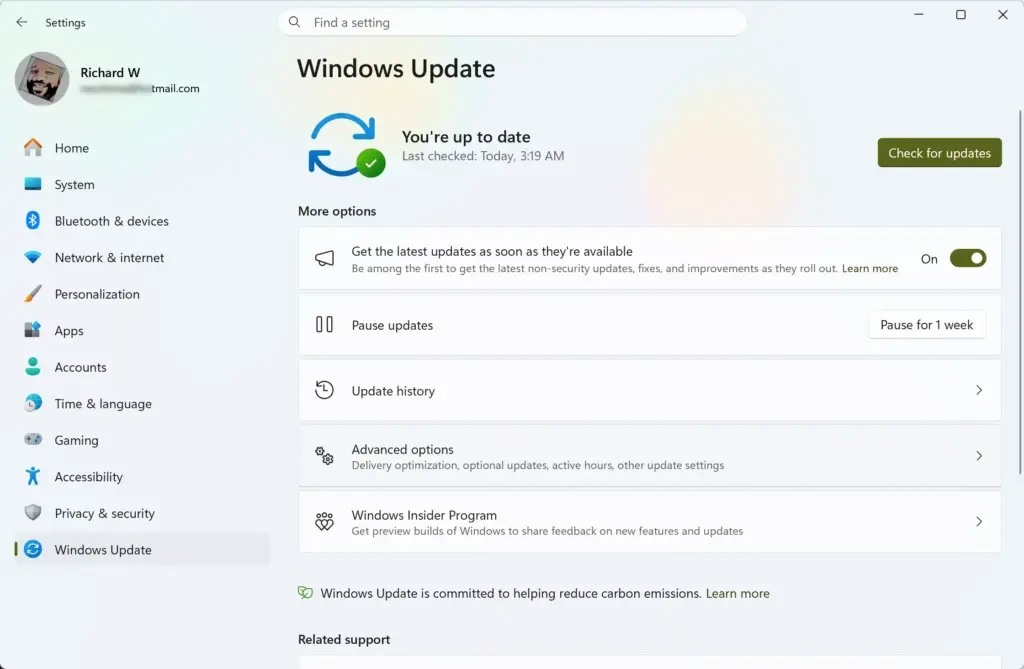
Windows 11 Start menu search panel for opening OpenSSH Client settings - Select Windows Update in the left pane. The update status page opens.
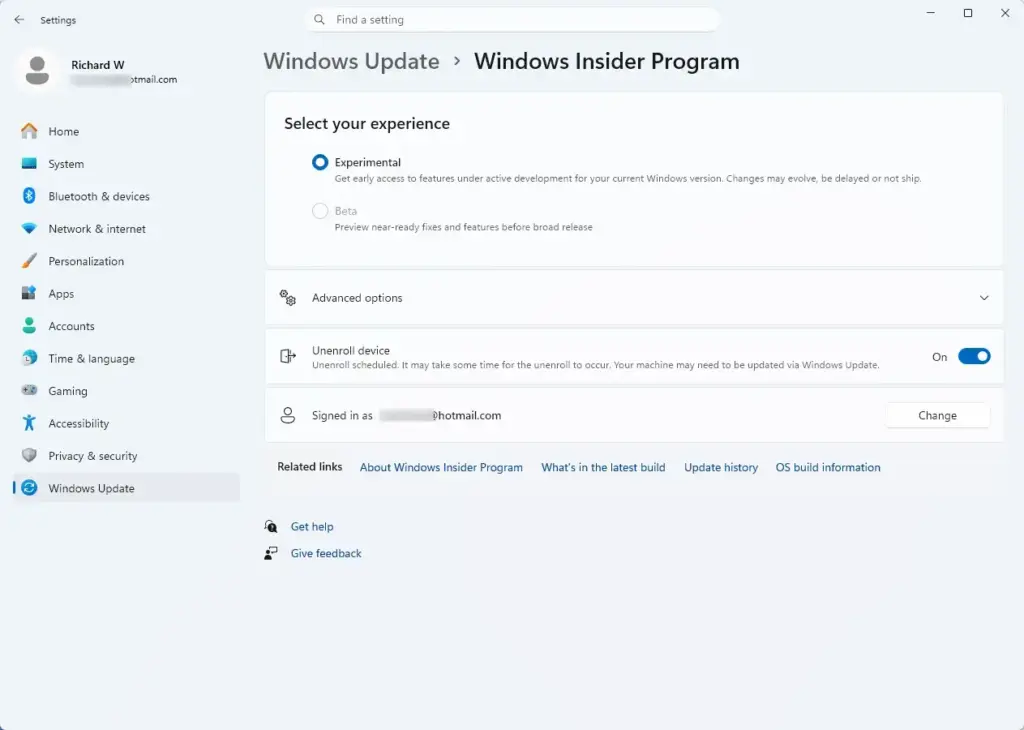
Settings › Windows Update - Select Windows Insider Program. The page shows whether the device is enrolled and which channel it uses.
Settings › Windows Update › Windows Insider Program
If the Windows Insider Program page shows no enrolment, your PC is on a release build, and the log is not expected. Joining the program installs preview builds, and some features in them are unfinished. Microsoft’s announcement of the Windows Hello event logs is the reference for which channel carries them.
How to view Windows Hello sign-in events in Event Viewer
These steps open the Windows Hello sign-in event viewer log at HelloForBusiness/Operational and show its events. Microsoft’s notes give only the log’s name and location. The folders above it in the Event Viewer tree are not spelled out, so step 4 tells you what to do if it is not where you expect.
Administrator note: Microsoft does not say whether reading this log needs administrator rights. If Event Viewer reports that access is denied, close it and reopen it as an administrator, as described in the troubleshooting section below.
- Open the Start menu. Click the Start button or press the Win.
- Type Event Viewer and select it. The Event Viewer window opens with a tree of logs on the left, a list of events in the middle and an Actions pane on the right.
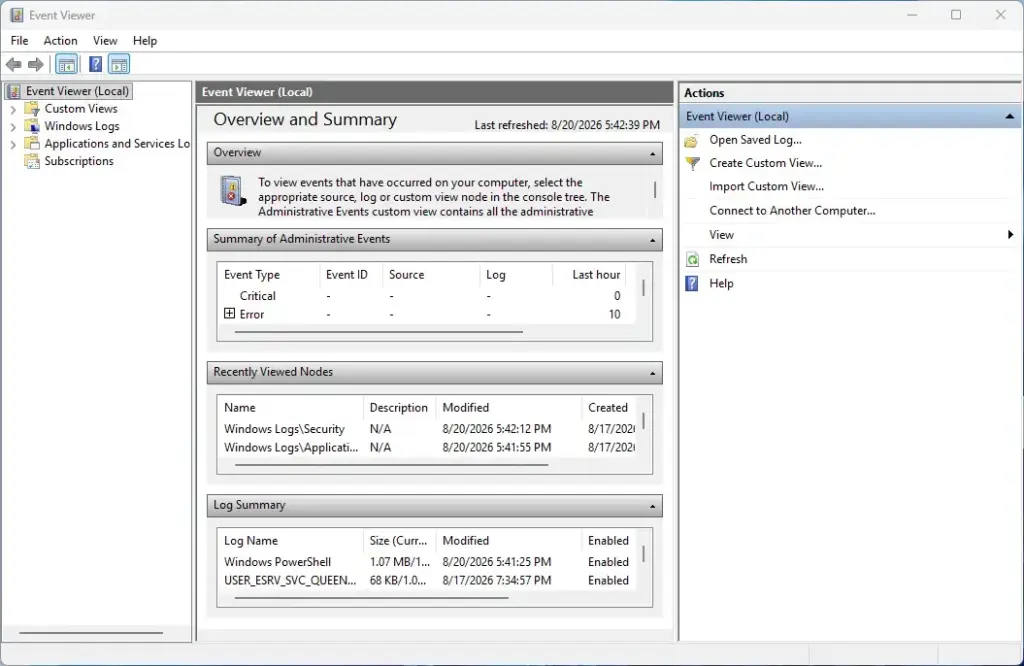
Event Viewer - Expand Applications and Services Logs in the left pane. Click the arrow beside it. Windows keeps feature-specific logs here, separate from the main Windows Logs.
- Find the HelloForBusiness folder. It may sit inside other folders under Applications and Services Logs, so expand them as needed. Do not guess a different location: Microsoft names this log as HelloForBusiness/Operational.
- Expand HelloForBusiness. Click its arrow. An Operational log should appear beneath it.
- Select Operational. The middle pane lists recent events, newest first by default, with a Level, Date and Time, Source, Event ID and Task Category column for each.
- Select an event in the list. The pane below shows its details on the General tab. Look for the sign-in method (Face, Fingerprint or PIN) or the reason a sign-in failed.
- Select the Details tab for the same event if you need the structured data. Choose Friendly View for a readable layout or XML View for the raw record.
If the Operational log opens and lists events, the log is working on your build. If it is empty, the next section creates a fresh event to test with.
Generate a test sign-in event
A new sign-in produces a new event, which confirms the log works and shows you what a normal entry looks like. Test with a method you have already set up.
- Lock the PC. Press the Win and L together.
- Sign in with Windows Hello. Use your face, a fingerprint or your PIN. Windows Hello Face and PIN sign-in are available at the Windows sign-in screen.
- Return to Event Viewer and select the Operational log.
- Choose Action Refresh. Event Viewer does not update its list automatically, so refresh after every test. A new entry should appear at the top.
Microsoft says the logs provide information about unsuccessful sign-in attempts. Use a test account or a PC that is not in daily use. Repeated wrong PINs can lock the sign-in option. How many attempts trigger this depends on your device’s settings, so use a test account.
Filter the log to find specific sign-ins
On a PC that has been in use for weeks, the Operational log can hold a lot of entries. Filtering narrows it to the time window you care about.
- Select the Operational log in the left pane.
- Choose Action Filter Current Log. A dialog opens.
- Open the Logged drop-down. Pick a range such as Last 24 hours, or choose Custom range to set exact dates.
- Select an event level if you want only warnings or errors, then select OK. The list now shows only matching events.
To remove the filter, choose Action Clear Filter. If you also need to look for a specific word in the event text, such as a method name, use Action Find. The same filtering approach works for other logs, as the guide to finding NTLMv1 audit events in Event Viewer on Windows 11 shows.
Save the events for later
- Select the Operational log.
- Choose Action Save All Events As. A save dialog opens.
- Pick a folder and file name. Leave the type as Event Files (*.evtx) to keep the full detail, or choose a text or CSV type to open the list in a spreadsheet.
- Select Save. If Windows asks about display information, accept the default.
An .evtx file (the standard Event Viewer log file type) opens in Event Viewer on any Windows PC, so you can send it to a colleague for review. Windows Security keeps its own history separately, with its own retention rules. The guide on changing Windows 11 security event retention covers that side.
If the HelloForBusiness log is missing or empty
The log is new and in preview, so most problems come from the build or from the lack of events. Work through these in order.
- You cannot find HelloForBusiness. Your build probably does not include the new logs. Check the channel under Settings Windows Update Windows Insider Program. Microsoft says the logs are in the Insider Experimental Preview channel only, so release builds are not expected to have them.
- The folder exists but Operational is empty. No events have been written yet. Lock the PC, sign in with Face, Fingerprint or PIN, then refresh the log (Action Refresh).
- You see an access denied message. Close Event Viewer. Search for it on the Start menu, right-click the result and choose Run as administrator. Approve the User Account Control prompt. This is the only step in the article that may require administrator privileges.
- The events differ from what you expected. Preview features change, and Microsoft says the logs may change before release. Event wording, categories and the log location can differ from one build to the next.
- Fingerprint or face sign-in does not show up. Confirm the method is set up in Settings Accounts Sign-in options and that it works at the lock screen. The log can only record what Windows Hello actually handled.
What is confirmed and what is not
The log’s name and location, the sign-in methods it covers (Face, Fingerprint and PIN) and the fact that it reports unsuccessful attempts all come from Microsoft’s announcement. You can rely on these points.
The announcement does not say when the logs reach release builds, which events they contain, or whether they depend on the edition. It does not say how long events are kept or whether the log is enabled by default on every device. Until Microsoft publishes more, treat anything beyond the log name and location as unverified and check it on your own build.
Windows Hello itself is also changing. Microsoft says face and fingerprint sign-in are faster and more reliable in Windows 11 25H2. It also says Windows Hello improvements make sign-in without a password (passwordless sign-in) more consistent. These changes do not alter where the log lives, but they can alter how often events appear.
Compare with other Windows logs
Event Viewer is one of several places Windows records what happens on a PC. The Windows Hello log covers sign-in method and failures. Network activity sits in a different file, which the guide on how to read the Windows Firewall log file in Windows 11 explains. Keep the two in mind when you look into a problem, because a failed sign-in and a blocked connection can be related.
What to do next
Check the log again after your next Insider build installs, because Microsoft says the location and content may change before release. If HelloForBusiness/Operational moves or disappears, repeat the steps above and look under Applications and Services Logs. To see what other data your PC sends to Microsoft, read the guide to the Diagnostic Data Viewer in Windows 11.
Have a question about this guide?
Answered by AI from this guide. Good questions may be added to this page — please don't include personal details.
Did this guide fix your problem?

About the Author
Richard
Tech Writer, IT Professional
Richard is a writer at Geek Rewind who turns complex IT tasks into clear, step-by-step guides. He draws on years of hands-on experience in system administration and enterprise IT operations, focusing on Windows, Linux and WordPress: the problems people actually run into, and the fixes that work. His server and WordPress guides come from systems he runs himself. Richard builds and maintains the platform behind Geek Rewind, from its Ubuntu servers and Nginx configuration to its custom WordPress plugins. Many new tutorials start with readers' questions, and he's always glad to answer them in the comments.
No comments yet — be the first to share your thoughts!