How to Find NTLMv1 Audit Events in Event Viewer on Windows 11

- 29 steps
- Needs administrator rights
NTLMv1 audit events in Windows 11 are recorded in Event Viewer, in the Microsoft-Windows-NTLM/Operational log, as Event ID 4024 (warning) and Event ID 4025 (error). An Event ID is a number that labels each type of event. NTLMv1 is the older, weaker version of NTLM, a sign-in check where Windows sends a challenge and checks the response to it.
The fastest route is to open Event Viewer, go to Applications and Services Logs Microsoft Windows NTLM Operational, and filter the log for Event IDs 4024 and 4025. The steps below cover that filter, saving it as a custom view, and what to check if the log is empty.
Open Event Viewer as administrator, then go to Applications and Services Logs Microsoft Windows NTLM Operational and select Filter Current Log. Type 4024,4025 in the Event IDs box and select OK. Event ID 4024 is a warning from Audit mode, and Event ID 4025 is an error from Enforce mode, where a request was blocked.
What Event ID 4024 and 4025 mean
The short answer for anyone searching for NTLM event ID 4024 or 4025 in Event Viewer on Windows 11: both events live in the Microsoft-Windows-NTLM/Operational log. Event ID 4024 is a warning and Event ID 4025 is an error. Microsoft lists them as new NTLMv1 auditing events in the release notes for KB5066470.
Both events relate to NTLMv1-derived credentials used for Single Sign-On. Single Sign-On lets Windows reuse your sign-in to reach other resources without asking for credentials again. Which event you see depends on the mode Windows is running in.
- Event ID 4024 (Warning)Windows is in Audit mode, the setting that logs NTLMv1 use but still allows it. It logs this warning when NTLMv1-derived credentials are used for Single Sign-On, and it still allows the request.
- Event ID 4025 (Error)Windows is in Enforce mode. It logs this error when a request using such credentials is blocked.
Both events appear in the same place: the Microsoft-Windows-NTLM/Operational log. Filter for 4024 to see what would break if you move to Enforce mode. Searching for 4025 tells you what has already been blocked.
Before you start
Reading this log is a read-only task, so nothing on the PC changes. Opening Event Viewer as an administrator is the safest choice, because some logs refuse to open for standard accounts. Step 1 below includes that option.
Both event IDs come from the update described in KB5066470, so that update decides whether they appear in your log. If the NTLM log has no entries at all, check that the update is installed. The troubleshooting section covers this.
How to find NTLMv1 audit events in Event Viewer
These steps show how to find NTLMv1 audit events in Event Viewer on Windows 11 by opening the NTLM Operational log and filtering for Event IDs 4024 and 4025.
- Open Event Viewer as administrator. Select Start, type Event Viewer, then select Run as administrator in the results. This step needs administrator privileges. If User Account Control (the Windows prompt that asks for permission) appears, select Yes. The Event Viewer window opens with a folder tree on the left.
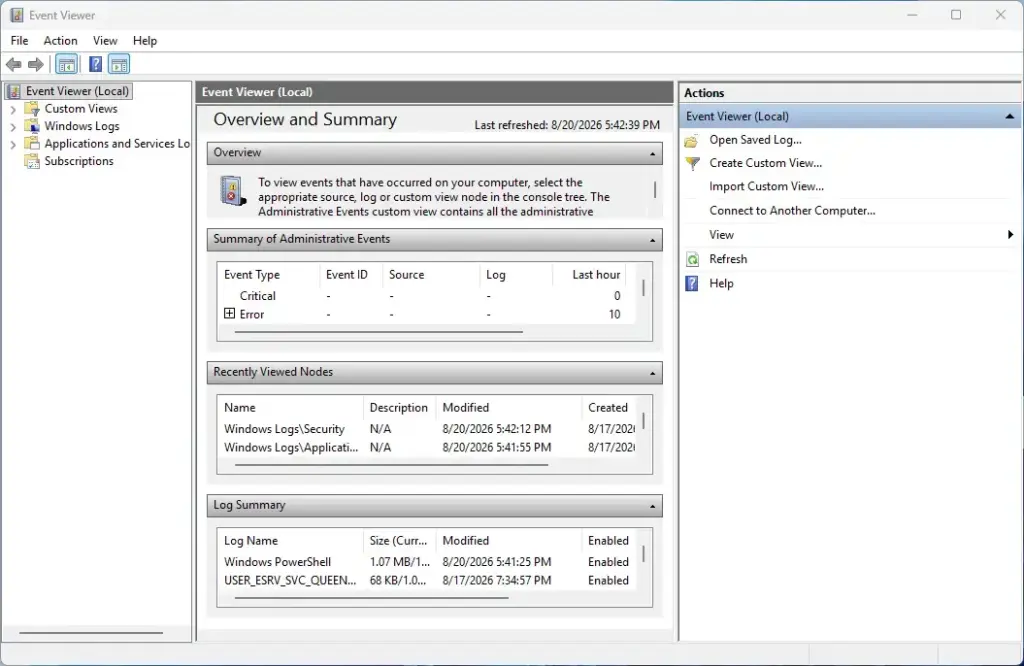
- Expand Applications and Services Logs. Select the arrow next to Applications and Services Logs in the left pane. A long list of folders appears.
- Expand Microsoft. Select the arrow next to Microsoft. This folder holds dozens of subfolders, so it takes a moment to load.
- Expand Windows. Select the arrow next to Windows inside the Microsoft folder. Another long, alphabetical list appears.
- Expand NTLM. Scroll down to NTLM and select its arrow. A single log named Operational sits underneath.
- Select Operational. The centre pane lists every event in the Microsoft-Windows-NTLM/Operational log, newest first. Columns show Level, Date and Time, Source, Event ID and Task Category.
- Select Filter Current Log. Find it in the Actions pane on the right. A Filter Current Log window opens on the Filter tab.
- Click the Event IDs box. It shows the placeholder text <All Event IDs>.
- Type 4024,4025 in the box. Separate the two numbers with a comma and no spaces. To see only one event type, enter a single ID instead.
- Select OK. The centre pane now shows only Event ID 4024 and 4025 entries. A bar at the top of the list confirms that a filter is active.
- Select an event in the list. The lower pane shows its details on the General tab, including the description text Windows recorded.
- Select the Details tab if you need the raw data. Choose Friendly View or XML View to see the same record in a different layout.
- Double-click an event to read it in its own window. Use the up and down arrows in that window to step through the other filtered events.
That’s it. The NTLM Operational log is now filtered to show only NTLMv1 audit events, and you can read each one in detail.
The Level column tells you at a glance which mode produced the entry. Warning means Event ID 4024 and the request was allowed. Error means Event ID 4025 and the request was blocked.
Clear the filter
The filter only changes what Event Viewer displays. It does not delete anything. To see the whole log again, select Clear Filter in the Actions pane while the Operational log is selected.
Save the filter as a custom view
A custom view is a saved filter that sits in the left pane under Custom Views. It saves you from expanding five folders every time you check for NTLMv1 events. Open Event Viewer first, ideally as administrator.
- Select Custom Views at the top of the left pane.
- Select Create Custom View. Find it in the Actions pane. The Create Custom View window opens.
- Choose By log. Leave this option selected on the Filter tab.
- Open the Event logs list. Select the drop-down arrow next to the Event logs box. A tree of logs appears.
- Tick the Operational log under NTLM. Go to Applications and Services Logs Microsoft Windows NTLM, then tick Operational. Select an empty area of the window to close the list.
- Type 4024,4025 in the Event IDs box. The box sits below the Event logs list.
- Select OK. The Save Filter to Custom View window opens.
- Type a name, such as NTLMv1 audit events. Add a description if other administrators share the PC.
- Select OK. The new view appears under Custom Views and opens showing the matching events.
That’s it. You now have a saved view that shows Event ID 4024 and 4025 entries in one click, with no need to expand the folder tree again.
To remove the view later, right-click it under Custom Views and select Delete. This removes only the saved filter. The events stay in the log.
Find the events with PowerShell instead
- Right-click Start, select Terminal (Admin), and select Yes at the User Account Control prompt. A terminal window opens.
- Run the command shown next in that window.
Get-WinEvent -FilterHashtable @{LogName='Microsoft-Windows-NTLM/Operational'; Id=4024,4025}That’s it. PowerShell lists each matching event with its time, ID and message. If no events match, it prints an error saying that no events were found. That means the log has no 4024 or 4025 entries, not that the command failed.
If no events appear
An empty result is common, and it can mean several things. Work through these checks in order.
Nothing has triggered the events
Windows logs Event ID 4024 and 4025 only when NTLMv1-derived credentials are used for Single Sign-On. If nothing on the PC or network does that, the log has no matching entries. For a PC that never uses NTLMv1, that is the result you want.
The update is missing
The event IDs were added with KB5066470, so the PC needs that update or a later one that includes it. Check it this way:
- Open Settings Windows Update Update history.
- Look for KB5066470, or a later update that includes it, in the list.
- If it is not listed, go back to the Windows Update page and select Check for updates. Restart when prompted, because an update may not finish installing until the PC restarts.
You should now know whether the update is on the PC. Without it, the log has no 4024 or 4025 entries to show.
You can also confirm installation dates in Event Viewer. The post on checking Windows Update history in Event Viewer shows how.
The NTLM log is disabled
Operational logs can be switched off. Check the log’s state like this:
- In Event Viewer, right-click Operational under NTLM. A menu opens.
- If the menu shows Enable Log, select it. If it shows Disable Log, the log is already running, so leave it alone.
That’s it. You now know whether logging is on for this log. This guide does not confirm the default setting, so check it rather than assume.
The log was cleared
The guide to clearing Windows 11 Event Viewer logs automatically explains how that works and how to turn it off.
Event Viewer shows an access error
If Event Viewer reports that you cannot open the log, close it and reopen it with Run as administrator, as described in step 1 of the steps above. Standard accounts cannot read some logs, and this is the usual cause.
Read the results
Start by sorting. Click the Date and Time column header to flip between newest-first and oldest-first. Click the Event ID header to group the 4024 entries together and the 4025 entries together.
Look at when the events cluster. Repeated 4024 warnings at the same time each day often point to a scheduled task, a service account (a background account a program runs under) or a mapped drive (a network folder connected as a drive letter) that still relies on NTLMv1-derived credentials.
Each warning is a request that Windows allowed in Audit mode. Each 4025 error is a request that Windows blocked in Enforce mode, so it is more likely to match a user complaint about something no longer working.
To tie an event to a person or a sign-in, compare timestamps with the Security log. The article on viewing login history in Windows 11 with Event Viewer covers that log. Matching the time of a 4024 or 4025 entry against a sign-in entry helps narrow down who or what triggered it.
Save the results
To keep a record, filter the log first. Then select Save Filtered Log File As in the Actions pane. Choose a location and a file name.
Keep the default .evtx format (the file type Event Viewer uses for logs) if you plan to reopen the file in Event Viewer later. If you work from a custom view, select Save All Events in Custom View As instead.
What to do next
If you see 4025 errors, or you are preparing to move from Audit mode to Enforce mode, read how to check NTLMv1 Enforce mode changes in Windows 11. Check the NTLM Operational log again after any mode change or major update. After you switch to Enforce mode, 4025 errors replace 4024 warnings only for requests that now get blocked.
Have a question about this guide?
Answered by AI from this guide. Good questions may be added to this page — please don't include personal details.
Did this guide fix your problem?

About the Author
Richard
Tech Writer, IT Professional
Richard is a writer at Geek Rewind who turns complex IT tasks into clear, step-by-step guides. He draws on years of hands-on experience in system administration and enterprise IT operations, focusing on Windows, Linux and WordPress: the problems people actually run into, and the fixes that work. His server and WordPress guides come from systems he runs himself. Richard builds and maintains the platform behind Geek Rewind, from its Ubuntu servers and Nginx configuration to its custom WordPress plugins. Many new tutorials start with readers' questions, and he's always glad to answer them in the comments.
No comments yet — be the first to share your thoughts!