How to Turn On Automatic Brightness for Windows Hello Face Sign-In in Windows 11

- 11 steps
- Needs administrator rights
Automatic brightness for Windows Hello face sign-in lets Windows 11 brighten the display briefly in low light, so the camera can see your face and finish the sign-in. Microsoft lists the option as “Automatically adjust screen brightness for Windows Hello face sign-in”, and it lives at Settings Accounts Sign-in options.
The option is only in Windows Insider preview builds so far. Windows Insider is Microsoft’s testing program, where volunteers get new features before everyone else. Microsoft says it is coming soon in the November 2026 non-security preview update, and details may change before it reaches everyone. This guide covers where to find it, how to turn it on, and what to check if it is missing.
Open Settings Accounts Sign-in options and look for “Automatically adjust screen brightness for Windows Hello face sign-in”. This option is only in Windows Insider preview builds so far, including the Experimental Preview channel, and Microsoft says it is coming in the November 2026 non-security preview update. Your camera and enrolled Windows Hello face must already work.
What automatic brightness does for face sign-in
Windows Hello face sign-in (the feature that signs you in by recognizing your face with the camera) needs enough light to work. In a dim room, the camera may not get a clear view of you, and sign-in fails or falls back to your PIN.
When this option is on, Windows raises the display brightness for a moment in low light. The screen acts as a light source, the camera sees you, and sign-in completes. Microsoft describes the brightening as brief, so it is not a permanent change to your brightness level.
Microsoft has also said it is improving Windows Hello face and fingerprint recognition more broadly, and that Windows Hello Face and PIN sign-in are available at the Windows sign-in screen. This option is one part of that work.
Before you start
Three things decide whether you can turn this on today: your Windows build, your camera and your Windows Hello setup.
Where the option is available
Microsoft’s release notes say the option is available in the Windows 11 Insider Experimental Preview channel (a testing channel where Microsoft ships features to volunteers before general release). The same notes say it is coming soon in the November 2026 non-security preview update.
The option also appears in the release notes for KB5132057 (November 13, 2026) and Experimental Build 26340.9750 (October 16, 2026). If your PC runs a build with those changes, you are most likely to see the option.
Microsoft now offers non-security preview updates (optional monthly updates that carry new features before they reach everyone) only for Windows 11 versions 25H2 and 26H2, starting with the October 2026 release. Microsoft does not list supported versions for this specific option. Expect it on 25H2 and 26H2 first. To check your version, press Win+R, type winver, and select OK.
Windows Hello face must already work
If you turned off Windows Hello biometrics (sign-in methods that use your face or fingerprint) earlier, turn them back on before continuing. How to Enable or Disable Windows Hello Biometrics explains how.
A note on preview builds
How to turn on automatic brightness for Windows Hello face sign-in
Microsoft has not yet documented the exact toggle. Open Settings Accounts Sign-in options and look for the option named Automatically adjust screen brightness for Windows Hello face sign-in. Microsoft’s notes don’t say whether this needs administrator rights. If Windows asks for approval, sign in with an administrator account to confirm it.
- Open Settings. Press Win+I, or right-click Start and select Settings. The Settings window opens.
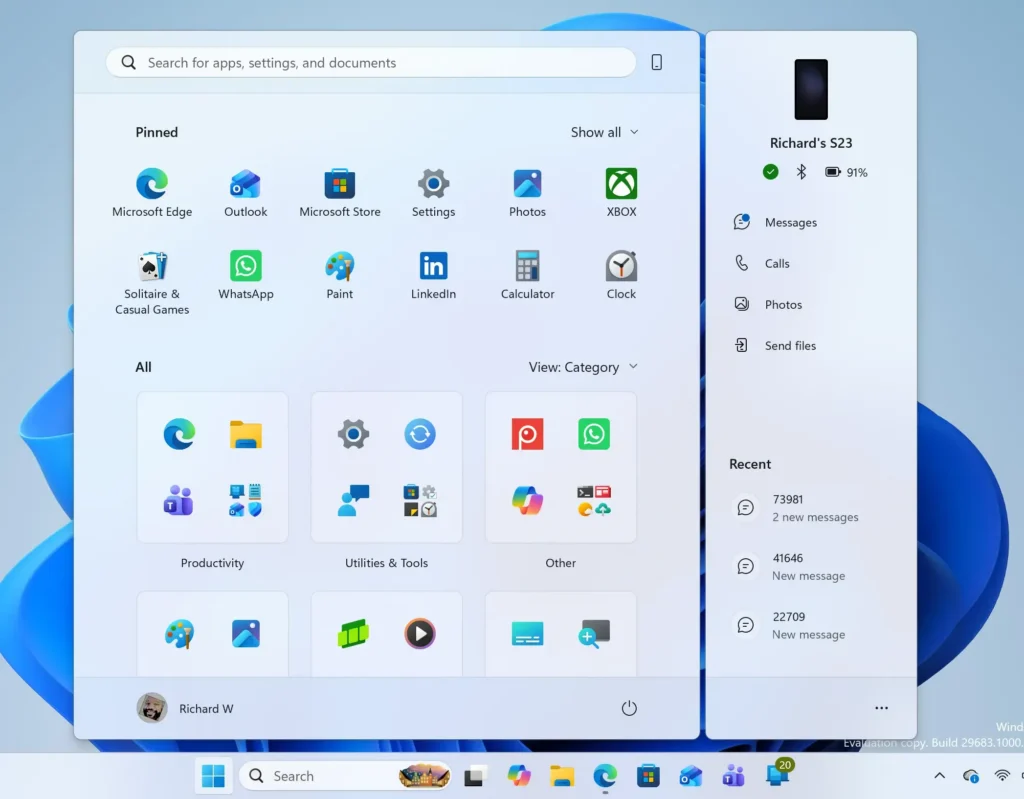
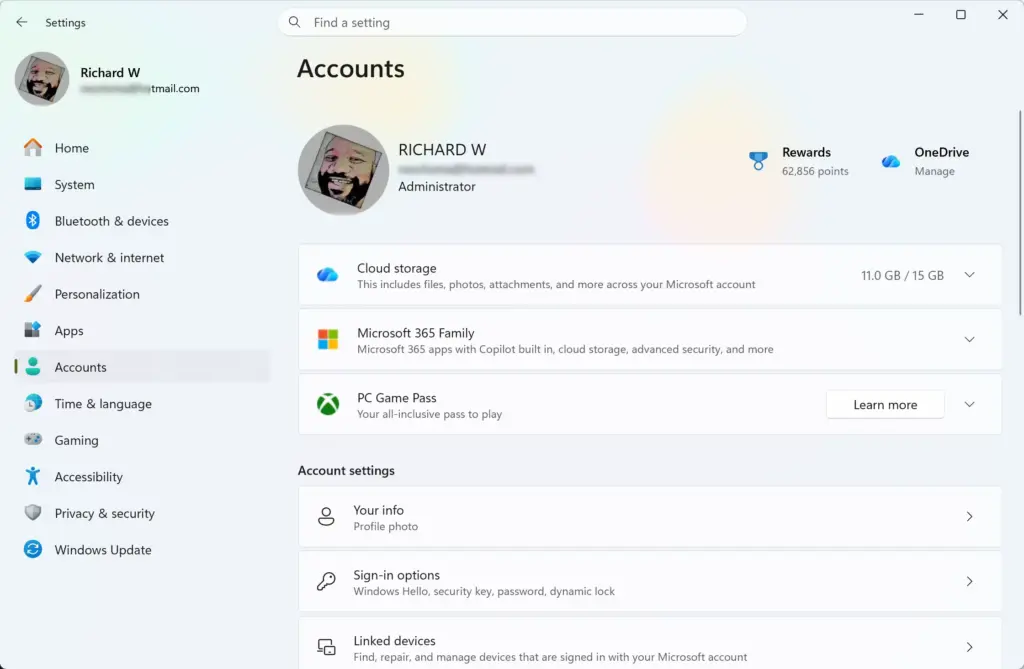
Windows 11 Start menu search panel for opening OpenSSH Client settings - Select Accounts in the left pane. The Accounts page lists your account details and related options.
Settings › Accounts - Select Sign-in options. This page lists every way you can sign in, including face, fingerprint, PIN and security key, depending on your hardware.
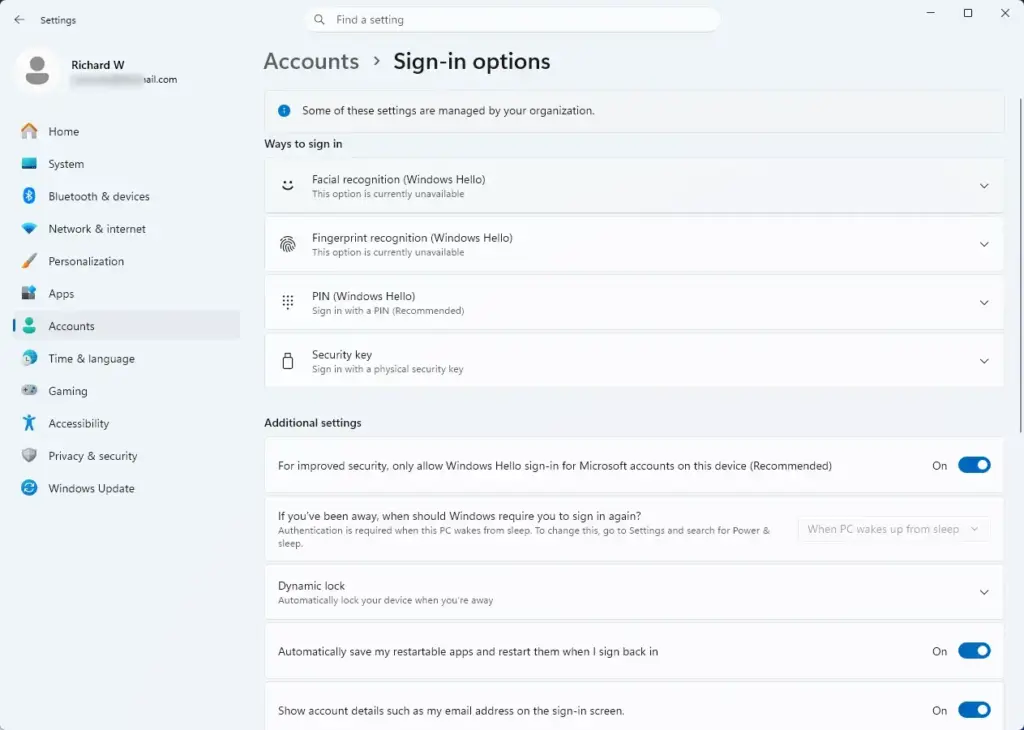
Settings › Accounts › Sign-in options - Find the option named Automatically adjust screen brightness for Windows Hello face sign-in. Microsoft has not said which section of the page holds it. If you do not see it at first, expand the Face recognition (Windows Hello) entry and look there. The on-screen wording may differ slightly from Microsoft’s release notes.
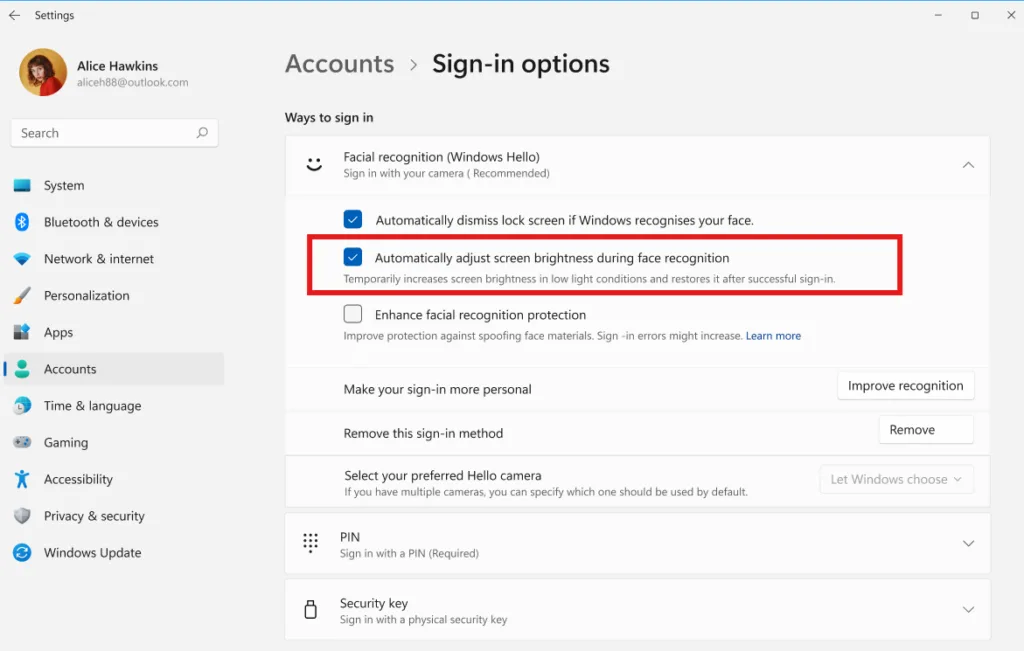
Settings > Accounts > Sign-in options - Turn the option on. Windows now brightens the display briefly in low light during face sign-in.
- Lock your PC. Press Win+L to return to the lock screen, so you can test the change.
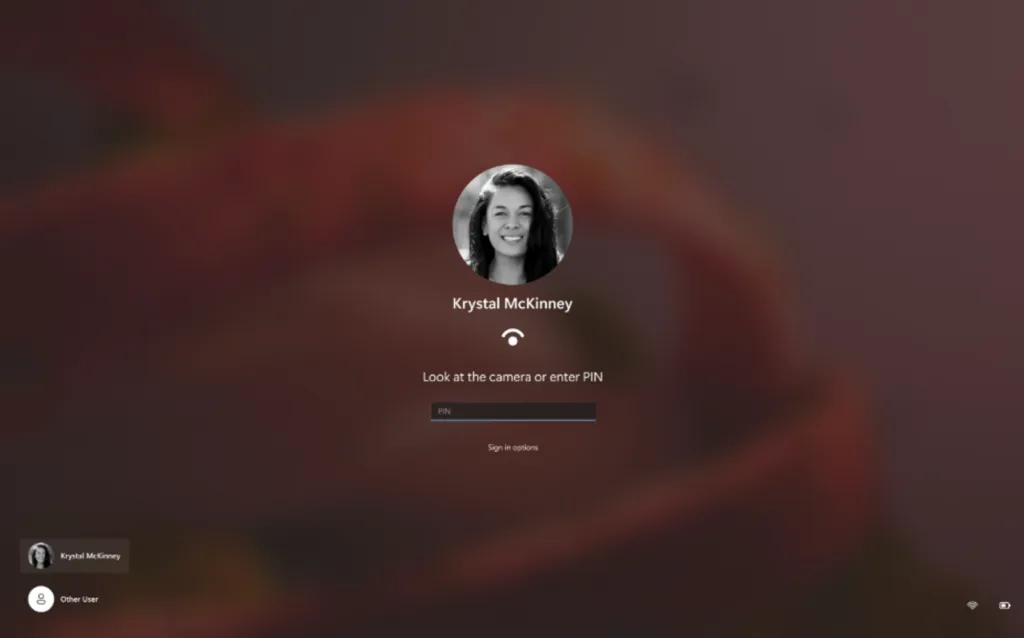
Settings > Accounts > Sign-in options - Test the sign-in in a dim room. Dim the room lights, wake the screen, and look at the camera. The display should brighten for a moment, and Windows should sign you in.
You do not need to restart. Microsoft’s notes do not mention a restart, and a toggle in Settings normally takes effect straight away. If face sign-in still fails in low light after you turn the option on, sign in with your PIN and read the next section.
If you do not see the option
A missing option is the most likely problem right now, because the feature is rolling out in stages. Work through these checks in order.
Check that your PC is on a build that has it
Microsoft says the option is in the Windows 11 Insider Experimental Preview channel, and that the November 2026 non-security preview update is coming. A standard release build installed before that update will not show it. Open Settings Windows Update Update history to see which updates your PC has installed. Look for KB5132057, which lists the option in its release notes.
Microsoft’s guidance for getting new features early is to turn on Get the latest updates as soon as they’re available under Settings Windows Update. This is how Microsoft says you can be among the first to get version 26H2, which carries the newest features. Microsoft’s notes don’t confirm that this switch brings this option. Treat it as a way to get newer builds sooner, not a guarantee.
Check the Insider Program page
If you want the preview build, Insider settings are at Settings Windows Update Windows Insider Program. The option is listed for the Experimental Preview channel. Joining a channel is a bigger step than changing a setting, so read the warning above before you do it.
Check that Windows Hello face is set up
If the Face recognition entry is missing on the Sign-in options page, Windows does not detect a compatible camera, or face sign-in is not available on your PC. The brightness option relates to face sign-in, so it will not help on a PC without it. The same page may show a message that the feature is not available. Open Device Manager (the Windows tool that lists your hardware) and check your camera, then install any pending driver updates (updates for the software that runs your hardware).
Check whether a work or school policy applies
If your PC belongs to an organization, an administrator may control sign-in options. A greyed-out or missing setting on a managed PC points to this. Microsoft’s notes do not name a policy for this option, so ask your IT team instead of looking for one.
How to turn off automatic brightness for face sign-in
You can turn the option off at any time if the brightening bothers you, for example if you sign in at night in a shared space. Microsoft’s notes don’t describe how to turn the option off, so the steps here are the same switch used to turn it on. Your face data isn’t affected by this setting, according to what Microsoft has published so far.
- Open Settings. Press Win+I.
- Select Accounts, then select Sign-in options.
- Find Automatically adjust screen brightness for Windows Hello face sign-in. Expand Face recognition (Windows Hello) if it is not visible.
- Turn the option off. Face sign-in keeps working, but Windows no longer brightens the display in low light.
With the option off, face sign-in in a dark room may fail more often. Your PIN remains available at the sign-in screen as a fallback.
What is known so far
This feature is new, and Microsoft has published only a short description. Here is what the release notes confirm, and what they leave open.
- Confirmedthe option is called “Automatically adjust screen brightness for Windows Hello face sign-in”.
- Confirmedwhen on, Windows briefly brightens the display in low light so the camera can see you and complete face sign-in.
- Confirmedit is in the Windows 11 Insider Experimental Preview channel and coming soon in the November 2026 non-security preview update.
- Confirmedthe current location is Settings Accounts Sign-in options.
- Not statedwhether the option is on or off by default, how bright the display gets, how long the brightening lasts, and which camera types benefit.
- Not statedthe exact section of Sign-in options that holds the option, and any registry or policy setting that controls it. Nothing here should be configured through the registry, because no verified path exists.
Because the feature is in preview builds, its name, location and behavior can change before general release. If a label on your screen differs from the one in this guide, trust the screen and look for the same wording about brightness and face sign-in.
Related sign-in settings worth knowing
Face sign-in works best when the whole Windows Hello setup is in good shape. These guides cover the settings around it.
- How to Turn On Windows Hello Anti-Spoofing in Windows 11 adds enhanced protection against someone fooling the camera with a photo.
- Turn On Passwordless Sign-In with Windows Hello in Windows 11 explains how to sign in with Windows Hello only.
- How to Turn On Automatic Screen Brightness for Windows Hello Face Recognition in Windows 11 and How to Turn On Screen Brightening for Windows Hello Face Sign-In in Windows 11 are earlier guides on this feature, which Microsoft may have named differently during testing.
If you use a PIN as your fallback, there is a related guide. How to Turn On or off Reset PIN at Sign-in in Windows 11 shows how to let people reset a forgotten PIN from the sign-in screen.
What to do next
After the November 2026 non-security preview update reaches your PC, return to Settings Accounts Sign-in options and check whether the option has appeared. Names and locations can shift while the feature rolls out, so look for wording about brightness and Windows Hello face sign-in. If face sign-in still struggles in the dark, keep your PIN set up as a fallback. Review Windows Hello anti-spoofing (a setting that makes it harder for a photo to fool the camera), which also affects how strictly the camera checks your face.
Have a question about this guide?
Answered by AI from this guide. Good questions may be added to this page — please don't include personal details.
Did this guide fix your problem?

About the Author
Richard
Tech Writer, IT Professional
Richard is a writer at Geek Rewind who turns complex IT tasks into clear, step-by-step guides. He draws on years of hands-on experience in system administration and enterprise IT operations, focusing on Windows, Linux and WordPress: the problems people actually run into, and the fixes that work. His server and WordPress guides come from systems he runs himself. Richard builds and maintains the platform behind Geek Rewind, from its Ubuntu servers and Nginx configuration to its custom WordPress plugins. Many new tutorials start with readers' questions, and he's always glad to answer them in the comments.
No comments yet — be the first to share your thoughts!