What Is Windows Hello and How Does It Work in Windows 11

Windows Hello in Windows 11 is the sign-in feature that lets you open your PC with your face, your fingerprint, or a PIN instead of a password. To see which of these your PC supports, go to Settings Accounts Sign-in options.
Each method is tied to the device you set it up on, so none of them works as a password someone can reuse on another computer. This page explains how Windows Hello works and what your PC needs for each method.
It covers Windows 11 only. Windows 10 reached end of support on October 14, 2025.
Windows Hello is the sign-in feature in Windows 11 that lets you open your PC with your face, fingerprint, or a PIN instead of typing your password. Each method is tied to the device you set it up on, so it cannot be reused on another computer. Check which methods your PC supports in Settings Accounts Sign-in options.
What Windows Hello Does
What is Windows Hello? It is the part of Windows 11 that replaces the step where you type your account password at the sign-in screen. It also covers some prompts inside apps and websites that ask you to confirm it is really you.
It offers three methods, and you can set up more than one:
- Facial recognition (Windows Hello): the PC looks at your face through a compatible camera.
- Fingerprint recognition (Windows Hello): you touch a fingerprint reader.
- PIN (Windows Hello): you type a short code of numbers, or numbers and characters if you allow them.
Face and fingerprint are biometrics, meaning they identify you by a physical trait. The PIN needs no special hardware, so every Windows 11 PC can use it.
Windows Hello works with Microsoft accounts, local accounts, and work or school accounts. It is available in both Windows 11 Home and Windows 11 Pro. Organisations can deploy a managed version called Windows Hello for Business, which their administrators control with policies (rules set by the IT team).
How Windows Hello Works
Windows Hello does not send a secret to a server the way a password does. Instead, it relies on a pair of cryptographic keys (a matched pair of secret codes) created on your device when you set it up.
The key pair behind your sign-in
One key is private and stays on your PC. The other is public and is registered with your account. When you sign in, the service sends your device a question to answer.
Your device answers by signing that question with the private key, and the service checks the answer against the public key. Your face, fingerprint, or PIN never travels across the network during this exchange.
On most modern PCs, the private key sits in the TPM (Trusted Platform Module, a security chip built into the computer or the processor). The TPM also limits how many wrong guesses it accepts, which slows down anyone trying to guess a PIN.
What happens when you use a face or fingerprint
Your face or fingerprint unlocks the private key. Windows compares what the camera or reader sees with a stored template. Only if they match does Windows use the key to sign the question from the service.
The template is a mathematical representation of your face or fingerprint, not a photo. According to Microsoft’s documentation, this biometric data stays on your device and is not sent to Microsoft.
If you lose the PC, the template is useless on its own because it only works with that device’s hardware and keys.
Why a PIN differs from a password
A password works anywhere. If someone steals it through a phishing page (a fake site that tricks you into typing your password) or a data breach (a leak of stored passwords), they can use it from any computer.
A Windows Hello PIN works only on the device where you created it. Someone who learns your PIN still needs physical access to that exact PC.
For the setup steps, see how to set up a Windows Hello PIN in Windows 11.
What Hardware Windows Hello Needs
Face recognition
Facial recognition needs a camera that Windows Hello supports. This usually means an infrared (IR) camera, which sees your face using light your eyes cannot see. A standard webcam cannot do it.
Many laptops sold as Windows Hello compatible include an IR camera next to the normal one.
Fingerprint recognition
Fingerprint sign-in needs a fingerprint reader. Many laptops include one in the power button or beside the keyboard. If your PC has none, you can add a USB reader. The guide on setting up an external fingerprint reader for Windows Hello covers that case.
PIN
The PIN needs nothing extra. A TPM adds protection for it, but the PIN is available either way.
Windows Hello as the Default Sign-In Method
Microsoft’s notes for the optional preview update (a test update you choose to install) KB5089573 describe a change for Windows 11 24H2 and 25H2. With that update or later, Windows Hello face or fingerprint becomes the default sign-in method whenever it is set up and available. This applies every time you sign in, even if you used a different method last time.
Windows 11 24H2 Home and Pro reached end of updates on October 13, 2026. The supported versions are 25H2 and 26H2, so update to one of them if you are still on 24H2.
There is one exception to the default. If you use your PIN three times in a row, Windows stays with PIN until you switch methods. To switch, select Sign-in options on the sign-in screen and choose the method you want.
The PIN also matters for face and fingerprint sign-in. Those methods are set up alongside it, and the PIN works as your backup if they do not recognise you.
Removing your PIN can also remove face and fingerprint sign-in, because Windows Hello biometrics are set up alongside the PIN and use it as a backup. Keep the PIN in place unless you plan to set the biometrics up again afterwards.
Where Windows Hello Works Beyond the Sign-In Screen
Windows Hello also approves sign-ins in apps and on websites that support it. The most common case is a passkey. A passkey is a login credential stored on your device that replaces a password for a specific website or app.
When a site asks for the passkey, Windows asks you to confirm with your face, fingerprint, or PIN. Because the passkey lives on your device, a fake website cannot trick you into typing it in. To try this, read how to save a passkey with Windows Hello in Windows 11.
How Secure Windows Hello Is
Windows Hello removes the weakest part of a typical sign-in: a password that can be guessed, reused, or stolen. Because the credentials are tied to the device and protected by the TPM, an attacker needs the physical PC as well as your face, fingerprint, or PIN.
The common worry is that someone could fool the camera with a photo. Cameras that support Windows Hello use infrared depth information, which a flat photo does not provide.
Windows 11 also has an optional anti-spoofing setting (a check that stops a photo or mask from fooling the camera) for supported hardware. Read how to turn on Windows Hello anti-spoofing in Windows 11 if you want it.
Microsoft’s 2026 release notes for Windows 11 25H2 also list improvements to both face and fingerprint recognition. They describe sign-in as faster and more reliable. Microsoft says this is rolling out, so you may not see it on every PC yet.
How to Check What Your PC Supports
This check shows which Windows Hello methods your PC offers, and it changes nothing. Do it before you plan a setup.
- Press Win+I to open Settings.
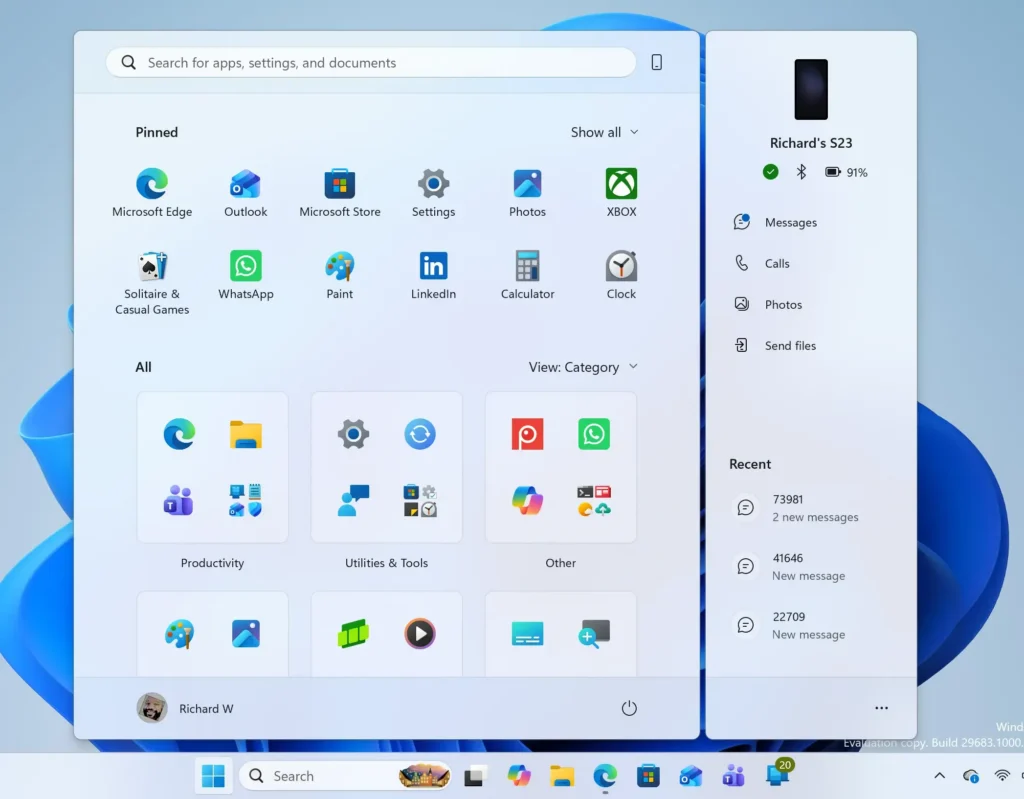
- Select Accounts in the left pane.
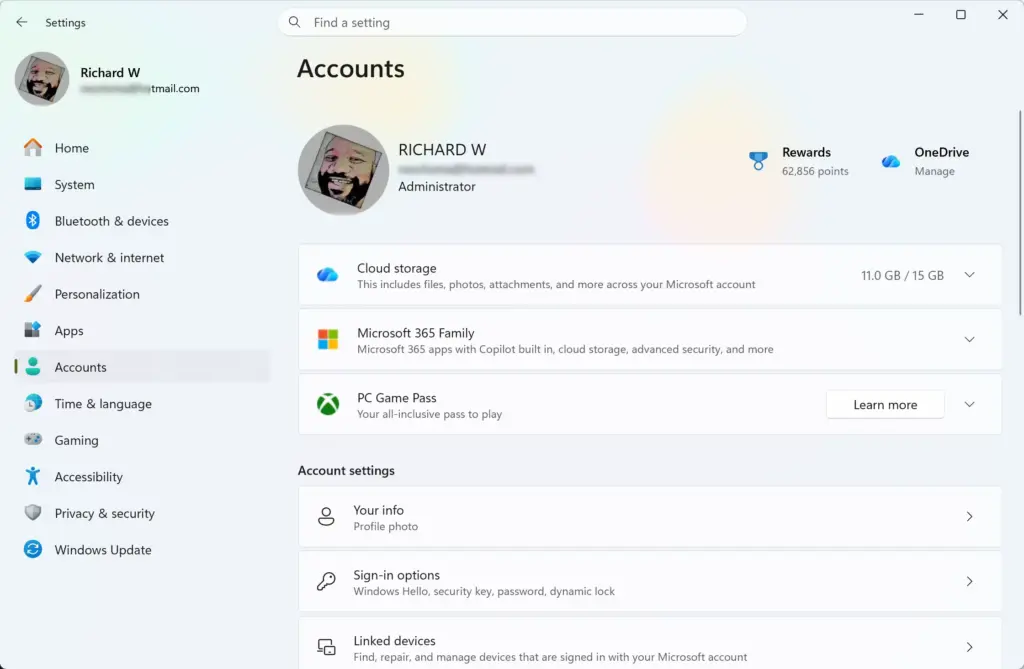
- Select Sign-in options. A list of sign-in methods appears under Ways to sign in.
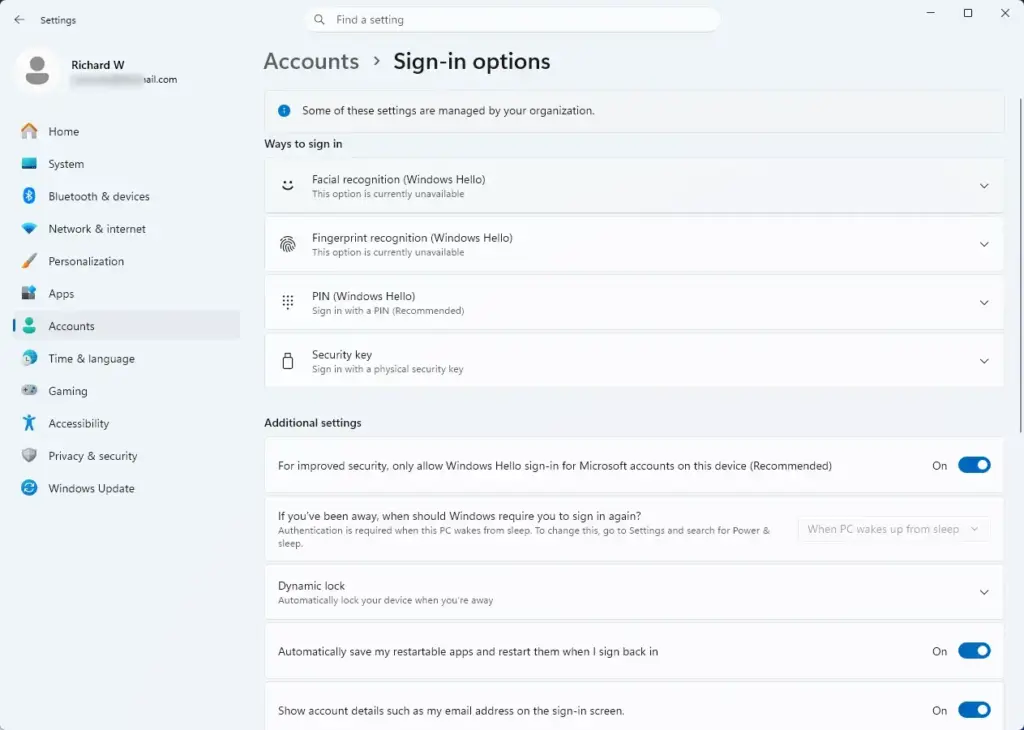
- Look for Facial recognition (Windows Hello), Fingerprint recognition (Windows Hello), and PIN (Windows Hello). Methods your hardware supports are available. Methods it does not support are greyed out or missing.
- Select a method to expand it. A Set up button appears if you have not configured that method yet.
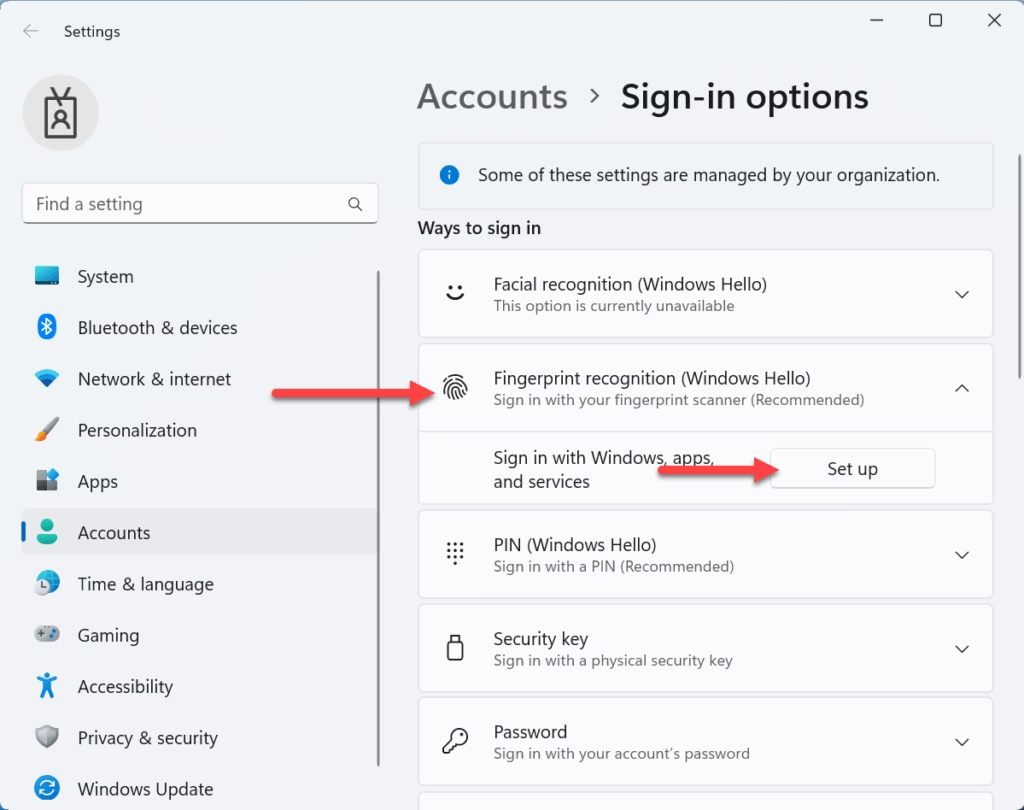
That’s it. You now know which Windows Hello methods your PC supports and which ones you still need to set up.
The same screen also lists Security key and Password. These are other sign-in options, not Windows Hello methods.
If an option is greyed out or missing
If a method is greyed out or missing, check these causes in order:
- No compatible hardware. A standard webcam does not support facial recognition. A PC without a fingerprint reader does not show fingerprint sign-in.
- Missing or outdated drivers. A camera or fingerprint reader that Windows does not recognise cannot offer its method. Check Device Manager for the device, and install the driver from your PC maker if it shows a warning.
- A managed device. A work or school PC can have policies from its organisation that block certain methods. Ask your IT administrator (the person who manages work or school devices) if the options are grey and you cannot change them.
- A biometrics setting turned off. The guide on enabling or disabling Windows Hello biometrics covers that case.
How to Remove a Windows Hello Sign-In Method
You can remove a method at any time. This deletes the stored template or PIN from your device, and you can set it up again later.
Removing your PIN can also remove face and fingerprint sign-in. Keep the PIN unless you plan to set the biometrics up again.
- Open Settings and go to Accounts Sign-in options.
- Select the method you want to remove, such as Fingerprint recognition (Windows Hello), to expand it.
- Select Remove. The method disappears from your sign-in options. Windows may ask you to confirm with your PIN or password first.
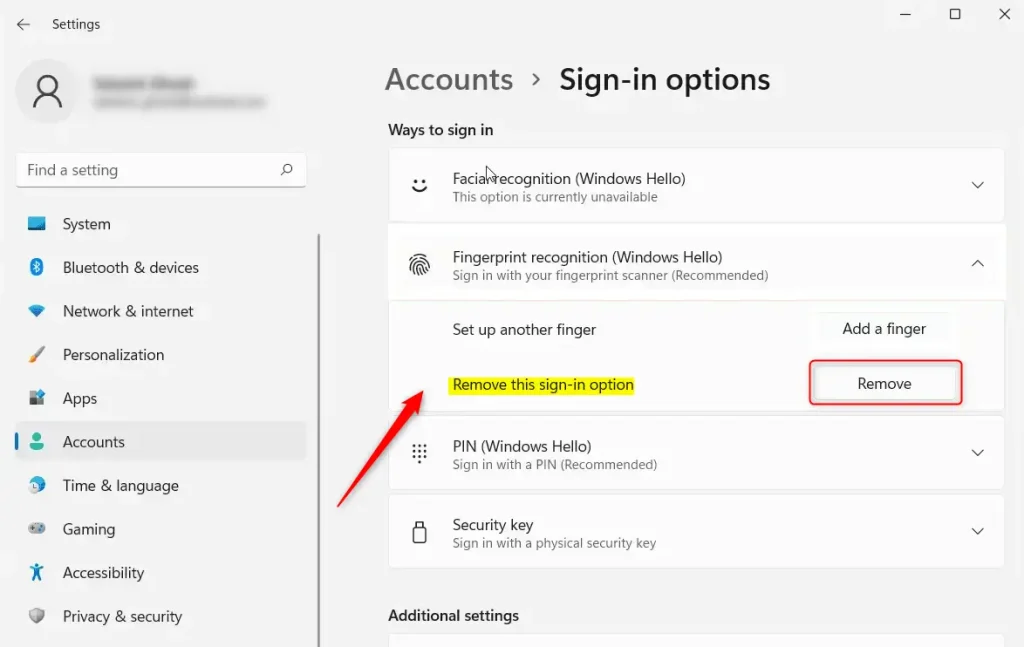
That’s it. The method is gone from your device, and you can add it back later from the same screen.
If the Remove button is missing or does not respond, the device may be managed by an organisation. Windows may also need you to confirm your identity with another method before it allows the change.
If a Method Stops Working
Fingerprint sign-in occasionally fails right after a cold boot, meaning a start from a full shutdown rather than a restart. Microsoft fixed this on some devices in update KB5127648, which its notes list for Windows 11 24H2 and 25H2.
If it happens on your PC, open Windows Update in Settings and install any pending updates. Because 24H2 Home and Pro reached end of updates on October 13, 2026, move to 25H2 or 26H2 if you are still on 24H2.
What to Do Next
Set up the PIN first, because face and fingerprint are configured alongside it and use it as their backup. Then add face or fingerprint if your PC supports them. If you want to stop typing your account password, follow the guide to turn on passwordless sign-in with Windows Hello in Windows 11.
Have a question about this guide?
Answered by AI from this guide. Good questions may be added to this page — please don't include personal details.
Did this guide fix your problem?

About the Author
Richard
Tech Writer, IT Professional
Richard is a writer at Geek Rewind who turns complex IT tasks into clear, step-by-step guides. He draws on years of hands-on experience in system administration and enterprise IT operations, focusing on Windows, Linux and WordPress: the problems people actually run into, and the fixes that work. His server and WordPress guides come from systems he runs himself. Richard builds and maintains the platform behind Geek Rewind, from its Ubuntu servers and Nginx configuration to its custom WordPress plugins. Many new tutorials start with readers' questions, and he's always glad to answer them in the comments.
No comments yet — be the first to share your thoughts!