Read the Windows Firewall Log File in Windows 11

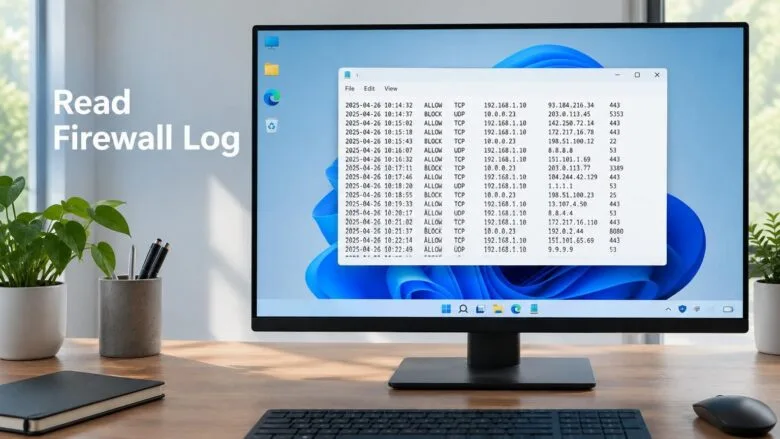
- 20 steps
- Needs administrator rights
The Windows Firewall log file is a plain text file named pfirewall.log that records which network connections Windows Defender Firewall allowed or blocked. It does not exist until you turn logging on in Windows Defender Firewall with Advanced Security. Reading it takes two stages: enable logging, then open the file in Notepad as administrator.
On Windows 11, the log is stored in 📁C:\
The Windows Firewall log file is pfirewall.log, stored by default in 📁C:\
Where Is the Windows Firewall Log File Stored?
The default location is 📁C:\
%SystemRoot%\System32\LogFiles\Firewall\pfirewall.log
Before You Start
Check these points first, because each one can leave you with an empty log or a greyed-out option.
- Administrator rights. Changing the logging settings and opening the log file both require an administrator account. Windows asks for approval at the User Account Control prompt, or for an administrator password if you use a standard account.
- The firewall must be on. A firewall that is turned off writes nothing. Read how to check whether Windows Firewall is on from Command Prompt to confirm. To switch it back on, follow the steps in how to turn on or off Microsoft Defender Firewall in Windows 11.
- Each network profile has its own log settings. Windows keeps separate settings for the Domain, Private and Public profiles (a profile is a set of firewall rules matched to the type of network you are on). Home and café Wi-Fi networks are usually Private or Public. Configure the profile that is active, or all three if you are not sure.
- Windows 11 Home and Pro. The Windows Defender Firewall with Advanced Security console is available in both editions, so the steps below work on either.
- Third-party security software. If an antivirus suite has taken over firewall duties, Windows Firewall may be inactive and its log stays empty. Check which firewall is active in Windows Security.
How to Read the Windows Firewall Log File in 🪟 Windows 11
These steps turn on logging and then open the log so you can read the Windows Firewall log file in Windows 11. They need administrator rights from the first step through the last.
Logging dropped packets (connections the firewall blocks) is the most useful setting for troubleshooting. Logging successful connections records every allowed connection too, which makes the file grow quickly. Turn that option on only when you need it.
- Press the Win and type Windows Defender Firewall with Advanced Security. Select the matching result in the search list. Approve the User Account Control prompt if it appears (administrator required).
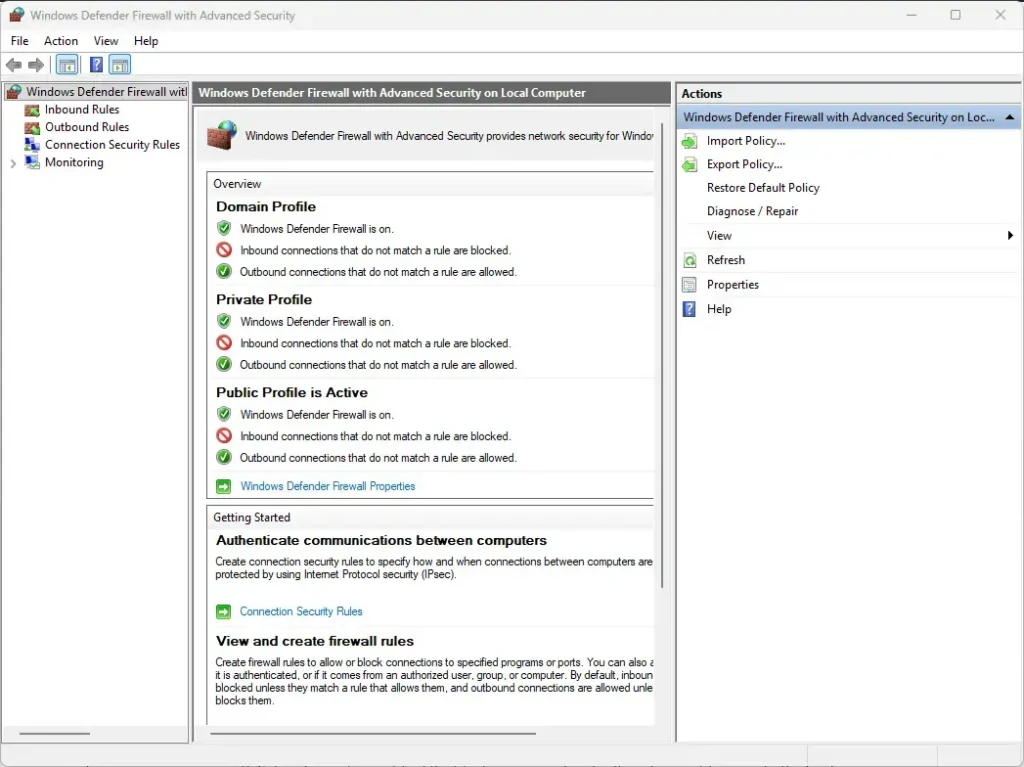
Windows Security - Click Windows Defender Firewall with Advanced Security on Local Computer. This is the top item in the left pane, and it controls the properties of the whole firewall.
- Click Properties in the right pane. You can also open the Action menu and choose Properties. A dialog opens with tabs for each profile.
- Select the tab for your active profile. The tabs are Domain Profile, Private Profile and Public Profile. If you are not sure which is active, the console’s main page marks the active profile.
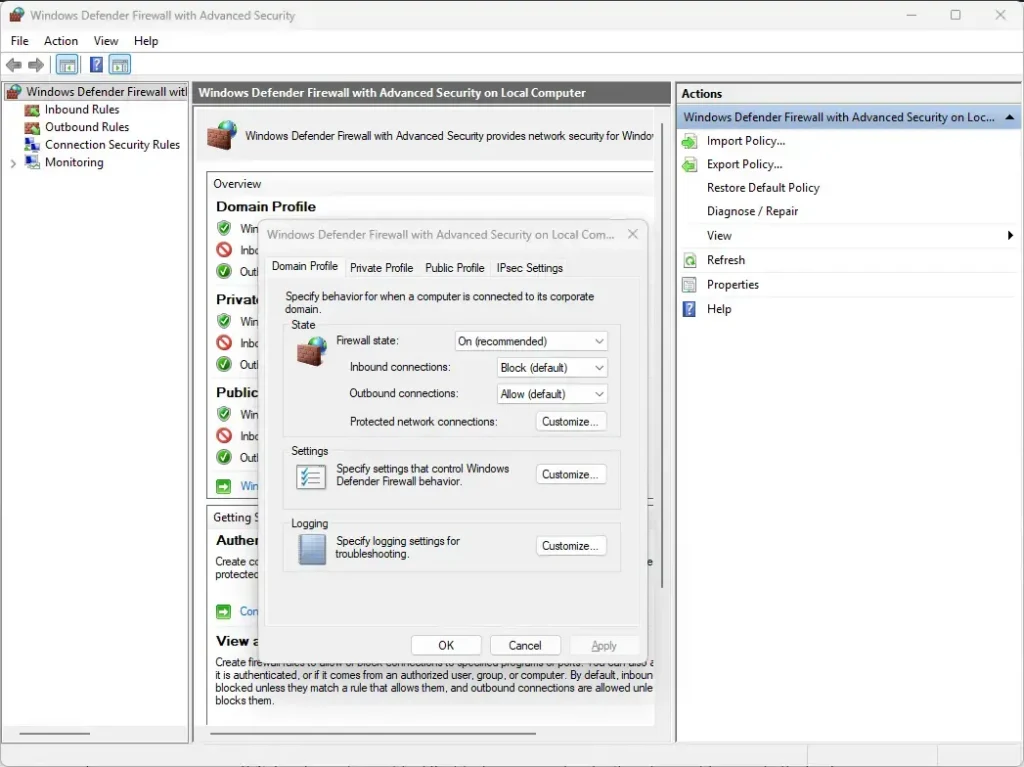
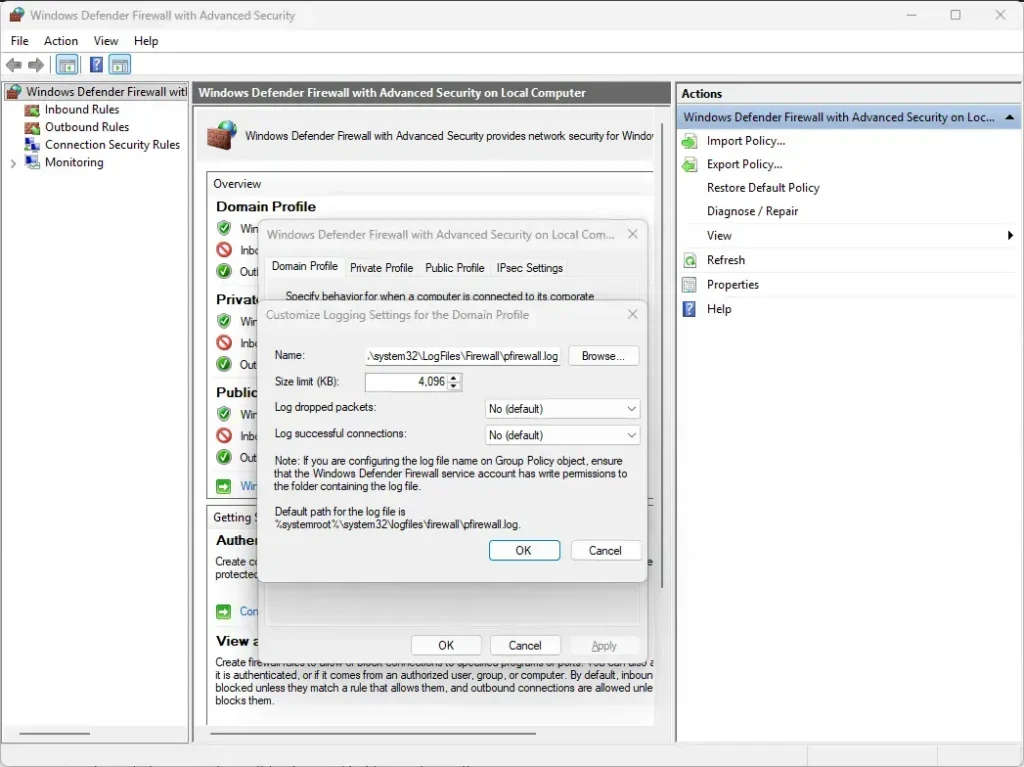
Windows Security - Click Customize under Logging. The Customize Logging Settings dialog opens. It shows the log file name, the size limit and two logging options.
- Set Size limit (KB) to a larger value. The default is 4,096 KB (4 MB), which fills quickly on a busy PC. A value such as 16384 KB gives you more history. Windows accepts values up to 32,767 KB.
- Set Log dropped packets to Yes. Use the drop-down list. This records every connection the firewall blocks, which is what you need when an app cannot connect.
- Set Log successful connections to Yes if needed. Leave it on its current setting when you only care about blocked traffic. Enable it to see which connections Windows allowed.
- Click OK in the Customize Logging Settings dialog. You return to the profile tab, and the Logging section now shows your settings.
Windows Security > Firewall - Click OK in the Properties dialog. The settings apply immediately. You do not need to restart.
- Reproduce the problem or wait for traffic. Open the app that fails, or use the PC for a while. Windows writes entries as connections happen.
- Open Notepad as administrator. Press the Win, type Notepad, right-click Notepad and choose Run as administrator. Approve the prompt (administrator required). Without this, Windows may deny access to the log folder.
- Press Ctrl+O in Notepad. The Open dialog appears.
- Change the file type to All files. Use the drop-down list beside the File name box. Notepad shows only .txt files until you do.
- Type the log file path in the File name box. Type
%SystemRoot%\System32\LogFiles\Firewall\pfirewall.log, then press Enter to open the file. The log opens with header lines at the top, followed by one line per connection.
If you changed the log file name in the Customize Logging Settings dialog, open that path instead. Each profile can write to its own file, so check the name for the profile you configured.
If Notepad Cannot Open the File
Two errors are common. If Notepad says it cannot find the file, logging is not on for the active profile, or no traffic has been logged yet. Go back to the Customize Logging Settings dialog and confirm the options show Yes.
If Windows says access is denied or the file is in use, Notepad was not started as administrator, or the firewall service is writing to the file at that moment. Close Notepad, reopen it as administrator and try again. If the error continues, open File Explorer as administrator, copy pfirewall.log to your Desktop, and open the copy.
Understand the Columns in the Log
The top of the file contains lines that start with #. They name the log version, the software and the time format. The #Fields line lists the column names. The log uses local time, so entries match your PC’s clock.
Here is a sample line, using documentation addresses instead of real ones:
2025-01-15 10:42:17 DROP TCP 192.0.2.50 192.0.2.10 51514 3389 52 S 1234567890 0 8192 - - - RECEIVE
This line says the firewall dropped an incoming TCP connection from 192.0.2.50 to port 3389 on 192.0.2.10. Port 3389 is the port Remote Desktop uses. The columns, in order, are:
- date and timewhen the event happened.
- actionwhat the firewall did. Common values are ALLOW, DROP, OPEN and CLOSE. OPEN and CLOSE mark the start and end of a connection when you log successful connections. INFO-EVENTS-LOST means the log could not keep up and skipped entries.
- protocolTCP (Transmission Control Protocol, used for most apps), UDP (User Datagram Protocol, used for fast, one-way messages), or ICMP (the protocol behind ping).
- src-ip and dst-ipthe source and destination IP addresses.
- src-port and dst-portthe source and destination ports. The destination port usually tells you which service the traffic was aiming for.
- sizethe packet size in bytes.
- tcpflags, tcpsyn, tcpack, tcpwinTCP details, such as the flags and the numbers that track each packet in a connection. Most troubleshooting does not need these.
- icmptype and icmpcodedetails for ICMP traffic. A dash means the field does not apply.
- infoextra information, often a dash.
- paththe direction of the traffic. SEND is outgoing, RECEIVE is incoming, FORWARD is traffic passing through the PC, and UNKNOWN means Windows could not tell.
A dash in any column means that field has no value for that entry.
Match a Blocked Entry to an App
The log records addresses and ports but not the name of the app. To find the app, match the port number to a running process using the Resource Monitor or the command line.
Open Windows Terminal or Command Prompt as administrator (administrator required). Run the command shown here: [Verification Required: command text is missing from the source]. It lists active connections, the ports they use and the process ID (PID) for each one.
netstat -ano
Find the port from the log line in the Local Address column and note the number in the PID column. Then press Ctrl+Shift+Esc to open Task Manager, click the Details tab, and look for that PID. The Name column shows the process that owns the port.
An app that listens on a port only while it runs will not appear if it has closed. Start the app, repeat the failed action, then run the command again.
Once you know which app is blocked, you can allow it through the firewall. Follow what to do when Windows Firewall blocks apps you need for the rule steps.
Filter the Log with PowerShell
A busy log can hold thousands of lines. PowerShell can show only the ones you want. Open Windows Terminal as administrator (administrator required) and run one of these commands.
This command shows the 50 most recent lines:
Get-Content "$env:SystemRoot\System32\LogFiles\Firewall\pfirewall.log" -Tail 50
Run this command to show only the dropped connections: [Verification Required: command text is missing from the source]
Select-String -Path "$env:SystemRoot\System32\LogFiles\Firewall\pfirewall.log" -Pattern " DROP "
To search for one address or port, replace DROP with the value you need, such as 192.0.2.50 or 3389 . The spaces around a port number prevent matches inside longer numbers.
You can also copy the file to your Desktop and open it in Excel. In Excel, choose to open it as text and pick Space as the separator. The columns then line up in a grid you can sort and filter.
Change the Logging Settings from PowerShell
PowerShell can turn logging on for a profile without opening the console. Run this in Windows Terminal as administrator (administrator required). It enables logging of dropped and allowed connections for the Private profile and sets a 16384 KB limit.
Set-NetFirewallProfile -Name Private -LogBlocked True -LogAllowed True -LogMaxSizeKilobytes 16384
Replace Private with Domain or Public to configure the Domain or Public profile instead of Private. [Verification Required: confirm the parameter values in the command] Use -LogBlocked True alone if you only want dropped connections.
When the Log Is Empty or Options Are Greyed Out
- The Customize button or the logging options are greyed out. Your PC is managed by an organization, and policy controls the firewall settings. Ask your IT team to change them. A personal PC that was once joined to a work account can show the same behavior.
- The log has headers but no entries. No traffic matched your settings. If you enabled only Log dropped packets, the file stays empty until the firewall blocks something. Reproduce the problem again.
- The file stops updating. The size limit may have been reached and Windows moved the old data to pfirewall.log.old. Open the new file, or raise the size limit.
- You see INFO-EVENTS-LOST. The log was too busy to record every event. Turn off Log successful connections to cut the volume.
- The log never appears after you set a custom path. The firewall service must be able to write to that folder. Return to the default path to test.
Read Firewall Events in Event Viewer Instead
Windows can also write blocked and allowed connections to the Security log in Event Viewer, but this needs auditing turned on for connection events from the Windows Filtering Platform (the part of Windows that handles firewall decisions). Auditing is configured through Local Security Policy, which is not included in Windows 11 Home. The text log described above works on every edition, so use it unless you need to search events in Event Viewer.
Turn Logging Off and Clean Up
Leave logging on only while you troubleshoot. A large log slows nothing noticeably, but it uses disk space and records network activity that you may not want kept.
- Open Windows Defender Firewall with Advanced Security. Approve the User Account Control prompt (administrator required).
- Click Properties in the right pane. Select the profile tab you changed earlier.
- Click Customize under Logging. The Customize Logging Settings dialog opens.
- Set Log dropped packets and Log successful connections back to No. The log stops growing as soon as you apply the change.
- Click OK twice. This closes both dialogs and saves the change.
Turning logging off does not delete the existing files. Open the Firewall folder as administrator and delete pfirewall.log and pfirewall.log.old if you no longer need them. If the firewall service has a file open, Windows may refuse to delete it. Turn logging off first and try again.
What to Do Next
Once the log shows which port an app uses, create an allow rule for that app, or reset the firewall if your changes have caused new problems. The steps in how to reset default firewall settings in Windows 11 restore the firewall’s default configuration. If you want a pop-up each time the firewall blocks a program, read how to enable or disable firewall notifications in Windows 11.
Have a question about this guide?
Answered by AI from this guide. Good questions may be added to this page — please don't include personal details.
Did this guide fix your problem?

About the Author
Richard
Tech Writer, IT Professional
Richard is a writer at Geek Rewind who turns complex IT tasks into clear, step-by-step guides. He draws on years of hands-on experience in system administration and enterprise IT operations, focusing on Windows, Linux and WordPress: the problems people actually run into, and the fixes that work. His server and WordPress guides come from systems he runs himself. Richard builds and maintains the platform behind Geek Rewind, from its Ubuntu servers and Nginx configuration to its custom WordPress plugins. Many new tutorials start with readers' questions, and he's always glad to answer them in the comments.
No comments yet — be the first to share your thoughts!