Remove the Password from a Local Windows 11 Account

- 2 ways to do it
- Needs administrator rights
Removing the password from a local Windows 11 account lets you sign in without typing anything. The quickest way is Settings Accounts Sign-in options Password Change, then leaving the new password boxes empty.
A local account is a Windows account that exists only on your PC, not one tied to a Microsoft account. This guide covers the Settings method, two methods that need administrator rights, and what to check if the Password option is missing. All of them work on Windows 11 versions 22H2 and later.
To remove the password from a local Windows 11 account, open Settings Accounts Sign-in options Password, click Change, enter your current password, then leave the New password, Reenter password and Password hint boxes empty and click Next. Your files stay in place, and the sign-in screen no longer asks for a password.
What Happens When You Remove the Password
Windows replaces your password with a blank one. The account still exists, and your files and settings stay where they are. The only change is that the sign-in screen no longer asks for a password.
The trade-off is security. Anyone who can reach your PC can open your account, and your files are open to them. This is reasonable for a desktop at home that nobody else uses. It is a poor choice for a laptop you carry around.
The lock screen (the picture and clock you see before sign-in) still appears. You press a key or click once, and Windows takes you straight to your desktop.
Before You Start
Check these three things first. They decide which method works for you.
- Account type. This guide applies to local accounts only. If you sign in with an email address, you have a Microsoft account, and Microsoft manages its password online. To switch first, follow how to change from a Microsoft account to a local account in Windows 11.
- Your current password. The Settings method asks for it. If you have forgotten it, use the Command Prompt or Computer Management method, which an administrator can run without it.
- Windows edition. Computer Management’s Local Users and Groups tool is in Windows 11 Pro, Enterprise and Education. Windows 11 Home does not include it. Home users can use Settings or the Command Prompt.
To see which account you are using, open Settings Accounts Your info. A local account shows Local account under your name. A Microsoft account shows an email address and a link to manage the account online.
How to Remove the Password from a Local 🪟 Windows 11 Account in Settings
These steps remove the password from a local Windows 11 account while you are signed in to it. You do not need administrator rights to remove your own password this way.
- Press Win+I to open Settings. The Settings window opens with a list of categories on the left.
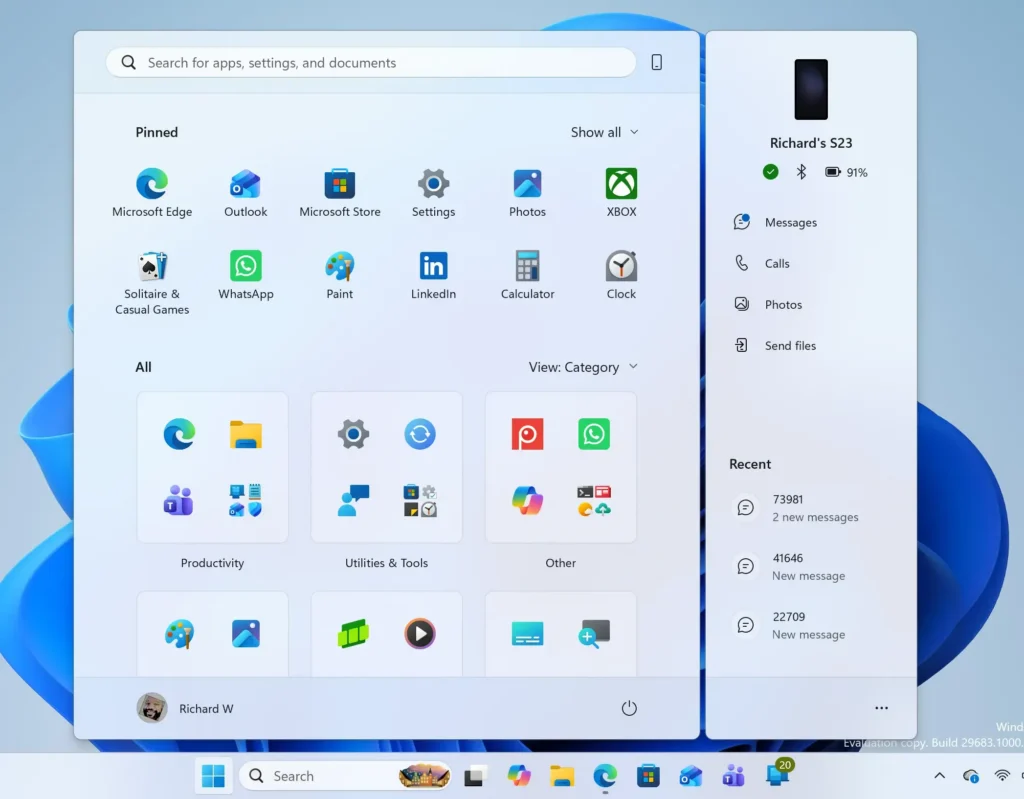
Windows 11 Start menu search panel for opening OpenSSH Client settings - Click Accounts in the left pane. The Accounts page lists your profile and its related settings.
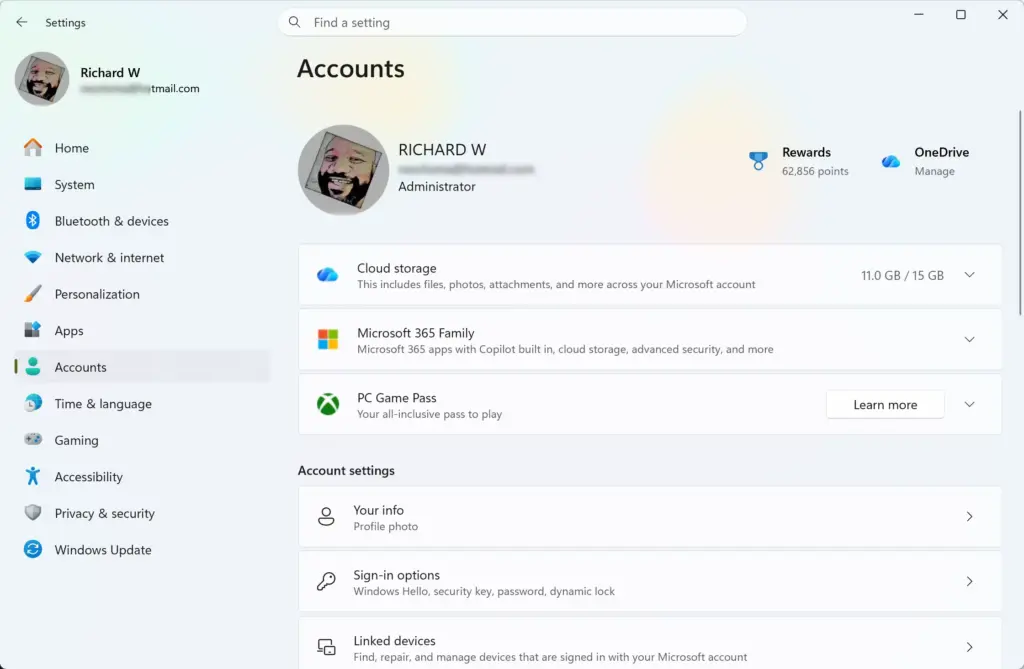
Settings › Accounts - Click Sign-in options. This page lists every way you can sign in, such as PIN, fingerprint and password.
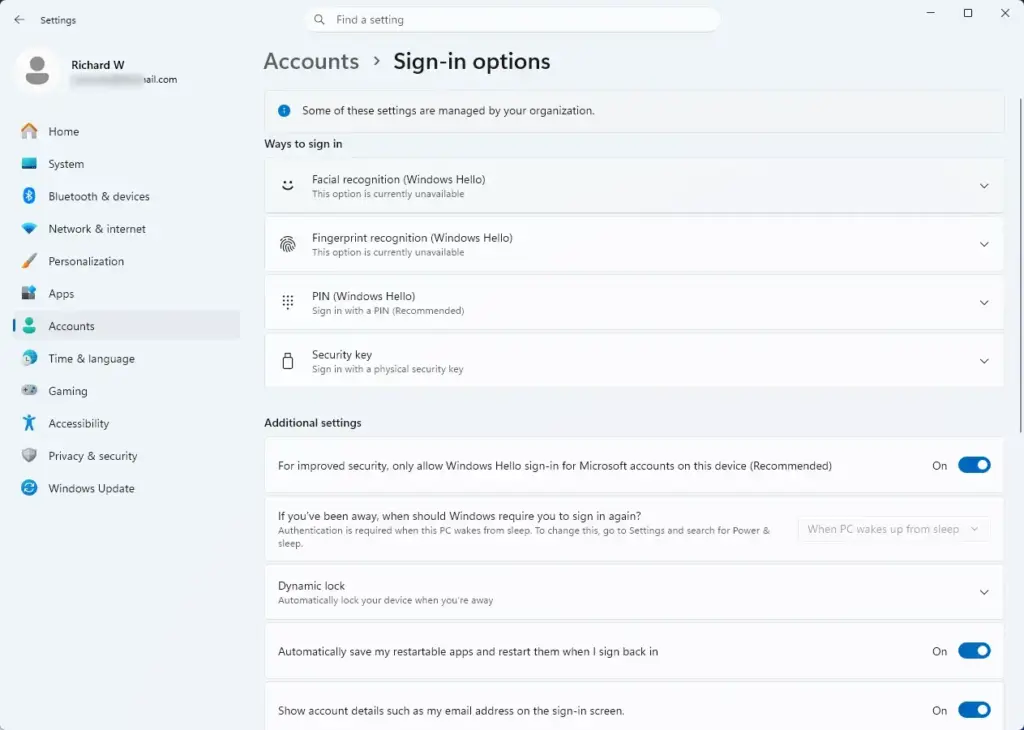
Settings › Accounts › Sign-in options - Click Password to expand it. A Change button appears under the description.
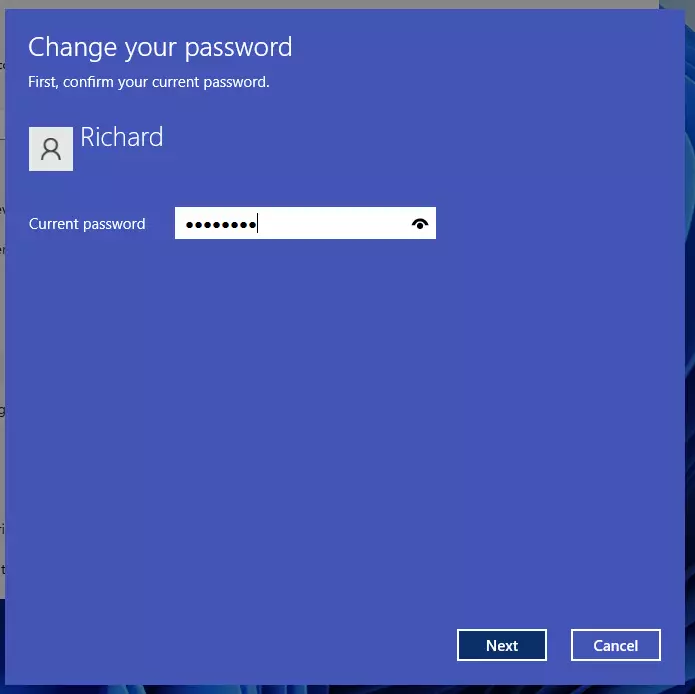
windows 11 password change - Click Change. A dialog titled Change your password opens.
- Type your current password in the Current password box. Windows checks it before it lets you continue.
- Click Next. The dialog now shows boxes for a new password, a confirmation and a hint.
- Leave New password, Reenter password and Password hint empty. A blank entry is what removes the password.
- Click Next. Windows saves the blank password and shows a completion screen.
- Click Finish. The dialog closes and you return to Sign-in options.
- Press Win+L to lock the PC and test the change. Press a key or click the lock screen, and Windows opens your desktop without asking for a password.
No restart is needed. The change takes effect as soon as you click Finish.
If the dialog says your password is incorrect, retype it carefully and check that Caps Lock is off. If Windows rejects the blank entry and says the password does not meet requirements, a password policy on the PC requires a minimum length. This is common on work or school PCs. Only the administrator who set the policy can change it, so ask your IT department.
Other Ways to Remove the Password
Use these methods if you have forgotten the current password, or if you want to clear the password of a different account on the PC. Both require an administrator account. The Settings method above is Method 1, so these are Methods 2 and 3.
Method 2Using Command Prompt
The net user command changes the account’s password from a Command Prompt window. Run it from a Command Prompt window that you opened as administrator. This step requires administrator privileges.
This method resets the password without asking for the old one. It can cause you to lose access to files encrypted with the account’s key, so read the warning under Method 3 first if you use EFS. The risks are covered under Method 3, and they apply here as well. Read that section before you continue if the account has encrypted files.
- Right-click the Start button and select Terminal (Admin). Windows asks for permission to continue.
- Click Yes in the User Account Control prompt. A Terminal window opens. In Windows 11 it uses PowerShell by default, and the command below works there too.
- Type the command below and press Enter. Replace USERNAME with the exact account name. The two quotation marks with nothing between them set an empty password.
net user USERNAME ""- Check for the message The command completed successfully. This means the password is now blank.
- Close the Terminal window.
If you see System error 5 has occurred or an access denied message, the window was not opened as administrator. Close it and repeat step 1. If you see The user name could not be found, the account name is wrong. Run net user without an account name to list every account on the PC, then copy the exact name.
Method 3Using Computer Management
Computer Management has a graphical tool called Local Users and Groups for managing accounts. It is available in Windows 11 Pro, Enterprise and Education only. This step requires administrator privileges.
Read the warning below before you continue. Windows warns you that you may lose access to files encrypted with the account’s key (Encrypting File System, or EFS) and to saved passwords and certificates. If you do not use EFS, you will probably see no effect. If you do, use the Settings method instead, because it keeps your current password’s data intact.
- Right-click the Start button and select Computer Management. The Computer Management window opens.
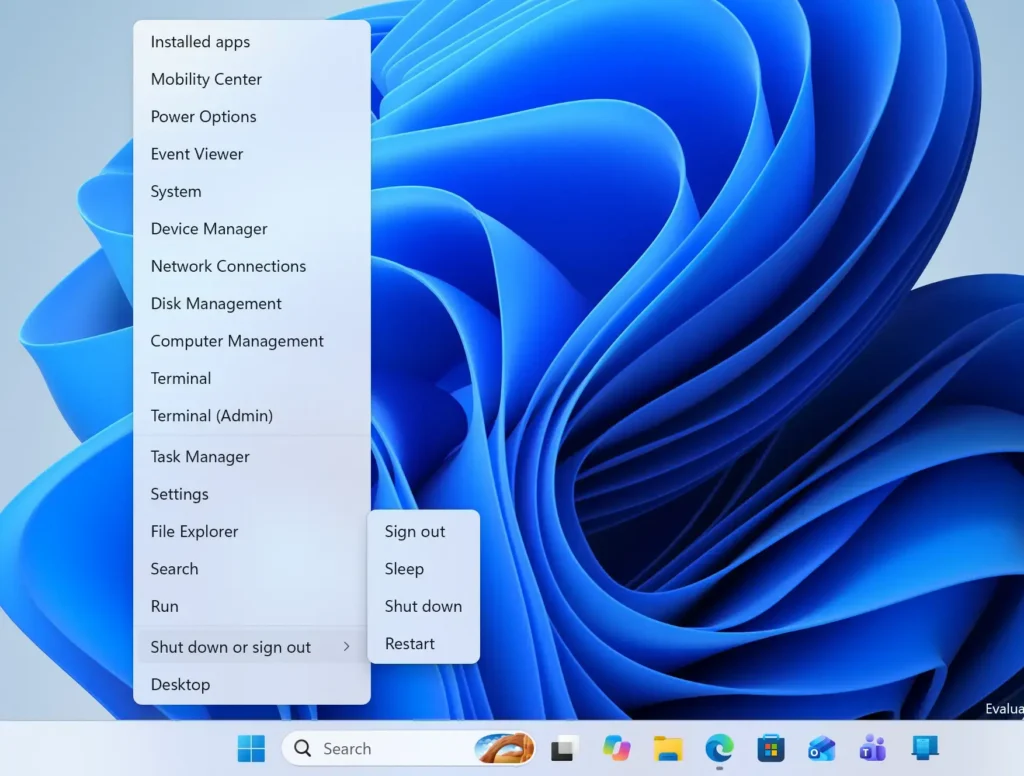
Start Menu - Expand Local Users and Groups in the left pane. It sits under System Tools.
- Click Users. The middle pane lists every local account on the PC.
- Right-click the account and select Set Password. A warning dialog appears.
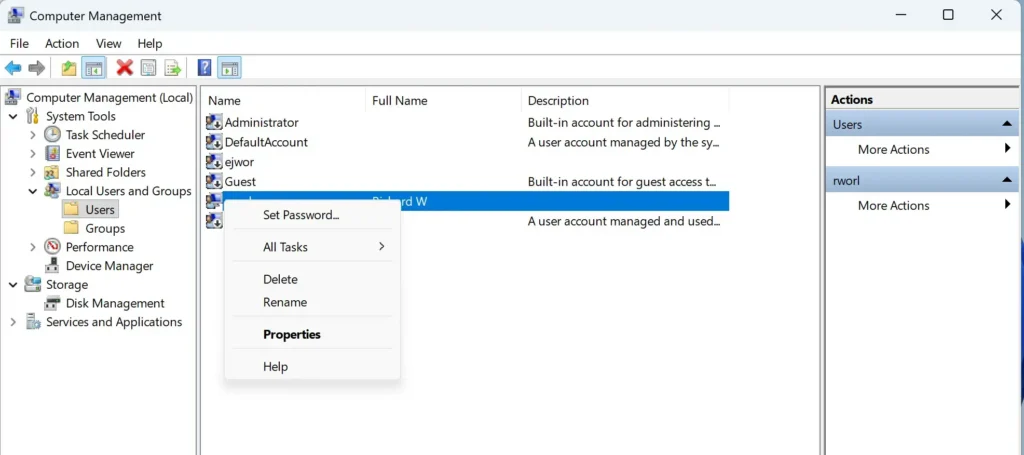
- Click Proceed after reading the warning. A dialog with two password boxes opens.
- Leave both password boxes empty and click OK. Windows confirms that the password has been set.
If you do not see Local Users and Groups in Computer Management, you are on Windows 11 Home. The console may also show a message that this edition does not support the Local Users and Groups tool. Use Method 2 instead.
If the Password Option Is Missing or Does Not Work
Most failures come from one of four causes. Check them in this order.
- You sign in with a Microsoft account. Settings offers different options for these accounts, and the password is managed online. Switch to a local account first with the Microsoft account to local account guide.
- The password button says Add, not Change. The account has no password at all, so there is nothing to remove.
- The Password entry is missing from Sign-in options. On some PCs, the setting labelled For improved security, only allow Windows Hello sign-in for Microsoft accounts on this device changes which sign-in options appear. Turn it off at the top of Sign-in options, sign out, sign back in and look again. This may differ on some Windows 11 builds. If the option stays hidden, use Method 2.
- A PIN or fingerprint still prompts you. Removing the password does not remove Windows Hello sign-in methods (PIN, fingerprint and face). These are separate. See how to remove a PIN from your account in Windows 11. You can also remove fingerprint sign-in in the same way.
Skip the Sign-in Screen Without Removing the Password
If you only want to avoid typing, you can keep the password and let Windows enter it for you. This keeps the account protected for network and Remote Desktop use, which a blank password does not.
Press Win+R, type netplwiz and press Enter. In the User Accounts window, clear the box labelled Users must enter a user name and password to use this computer, then click Apply. Windows asks for the account password once to store it. If the checkbox is missing, the Windows Hello setting in the Password Option Is Missing section is probably on.
The trade-off is the same as with a blank password for anyone at the keyboard. The difference is that the account still has a password for everything else. If you prefer a quicker sign-in that is still protected, read how to remove your password from sign-in with Windows Hello.
How to Add the Password Back
You can undo this change at any time. Go to Settings Accounts Sign-in options and expand Password. Click Add, type a new password twice, enter a password hint (a clue shown on the sign-in screen if you mistype), then click Next and Finish.
The sign-in screen asks for the new password the next time you sign in or lock the PC. Windows does not need a restart for this either.
What to Do Next
If other people use this PC, give each one a separate account instead of sharing one with no password. Add a local user account for each person, and delete any accounts you no longer need. If you change your mind about a local account, you can switch it to a Microsoft account at any time.
Frequently asked questions
How to remove passkey from Microsoft account?
Sign in at account.microsoft.com, then open Security and select Advanced security options. Under Passkeys, choose the passkey you want to delete and confirm the removal. Your Microsoft account keeps working with your password and other sign-in methods, so check you have one of those before you delete a passkey.
How to remove installed language 🪟 Windows 11?
Open Settings, go to Time & language, and select Language & region. Find the language under Language, select the three dots next to it, and choose Remove. Windows won't let you remove the language you are currently using as your display language, so switch to another one first.
How to convert Microsoft account to local?
Open Settings, go to Accounts, and select Your info. Click Sign in with a local account instead, enter your current PIN or password when asked, then create a new local username and password. Windows signs you into the local account, and your files and apps stay where they are.
Still have a question?
Answered by AI from this guide. Good questions may be added to this page — please don't include personal details.
Did this guide fix your problem?

About the Author
Richard
Tech Writer, IT Professional
Richard is a writer at Geek Rewind who turns complex IT tasks into clear, step-by-step guides. He draws on years of hands-on experience in system administration and enterprise IT operations, focusing on Windows, Linux and WordPress: the problems people actually run into, and the fixes that work. His server and WordPress guides come from systems he runs himself. Richard builds and maintains the platform behind Geek Rewind, from its Ubuntu servers and Nginx configuration to its custom WordPress plugins. Many new tutorials start with readers' questions, and he's always glad to answer them in the comments.
No comments yet — be the first to share your thoughts!