How to Enable or Disable Account in Windows 11


This tutorial will show you how to enable or disable an account in Windows 11. It covers three methods: the net user command, PowerShell, and the Local Users and Groups tool.
Open Windows Terminal (Admin), then type Net user “username” /active:no and press Enter to disable the account, or Net user “username” /active:yes to re-enable it. Replace username with the actual account name. The account will no longer appear on the sign-in screen.
Why You Might Want to Do This
Disabling a user account in Windows 11 stops someone from signing in without deleting the account. The profile, files and settings stay exactly where they are. This is useful if you share your computer and need to block access for a while, for example for a former employee, a child’s account, or a profile you are not sure you still need. You can turn the account back on at any time.
Disabling is safer than deleting because deleting can remove the user’s profile data. A disabled account just cannot be used until someone with administrator rights re-enables it. No restart is needed in either direction.
What Happens When You Disable an Account
A disabled account cannot sign in. Its name no longer appears on the sign-in screen or in the account list on the Start menu . When you re-enable it, the name shows up again.
Do not disable the only administrator account on the PC, and do not disable the account you are currently signed in with. Make sure at least one other administrator account stays enabled, or you may lock yourself out.
Which method to use:
- The net user command and PowerShell work on every edition of Windows 11, including Home.
- Local Users and Groups is only available in Windows 11 Pro, Enterprise and Education. It is not included in Home.
Option One
Enable or Disable Account Using the "net user" Command
Use the exact account name from this list in the later commands.
- Right-click the Start button and select Terminal (Admin). Click Yes if the User Account Control prompt appears. A Windows Terminal window opens, usually in Windows PowerShell.
- If you prefer Command Prompt, open the dropdown arrow in the tab bar and select Command Prompt. Either one works for this method.
- Copy and paste the command below into Windows Terminal (Admin) and press Enter.You should now see a list of all accounts and their status (True or False). Note the exact name of the account you want to change.PowerShell
Get-LocalUser
Disable Account
- Open Windows Terminal (Admin) if it is not already open.
- Type one of the commands below and press Enter.
To disable a local account:
CodeNet user "<username>" /active:noOR
To disable a domain account:
CodeNet user "<username>" /active:no /domain - Replace <username> with the actual account name. Keep the quotation marks, because they let the command handle names that contain spaces. For example:You should see a message saying the command completed successfully. The account is now disabled.Code
Net user "User1" /active:no - To check, run the list command from the previous section again. The account should now show as disabled. You can then close Windows Terminal (Admin).
For a domain account, you need permission to change that account on the domain. If you get an access denied or "user name could not be found" error, check the spelling of the name and that you are signed in with the right rights.
Enable Account
Turning an account back on uses the same command with the opposite setting. Use the account name exactly as it appeared in the account list.
- Open Windows Terminal (Admin).
- Type one of the commands below and press Enter.
To enable a local account:
CodeNet user "<username>" /active:yesOR
To enable a domain account:
CodeNet user "<username>" /active:yes /domain - Replace <username> with the actual account name of the account you want to enable. For example:You should see a message saying the command completed successfully. The account will appear on the sign-in screen again.Code
Net user "User1" /active:yes - You can now close Windows Terminal (Admin) if you like.
Option Two
Enable or Disable Account in PowerShell
PowerShell has dedicated commands for local accounts. They are easy to read and work on every edition of Windows 11.
- Right-click the Start button and select Terminal (Admin). Click Yes if the User Account Control prompt appears.
- Make sure the tab says Windows PowerShell. If it opened in Command Prompt, open the dropdown arrow in the tab bar and select Windows PowerShell.
- Copy and paste the command below into PowerShell and press Enter.You should now see a list of all accounts and their status (True or False). Note the exact name of the account you want to change.PowerShell
Get-LocalUser
Disable Account
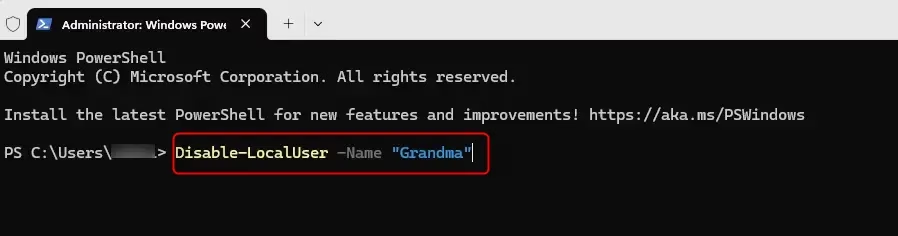
- Type the command below into PowerShell and press Enter.Code
Disable-LocalUser -Name "<username>" - Replace <username> with the actual account name. For example:PowerShell usually prints nothing when this works. No message means no error. Run the list command again to confirm the account is now disabled.Code
Disable-LocalUser -Name "User1"
Enable Account
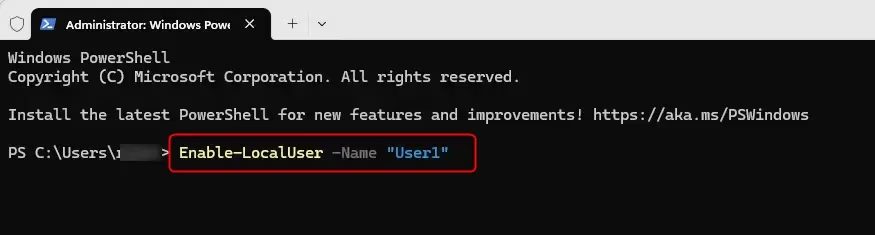
- Type the command below into PowerShell and press Enter.Code
Enable-LocalUser -Name "<username>" - Replace <username> with the actual account name. For example:Again, PowerShell shows nothing if the command worked. The account can now sign in and shows on the sign-in screen.Code
Enable-LocalUser -Name "User1" - You can now close Windows Terminal (Admin) if you like.
Option Three
Enable or Disable Account in Local Users and Groups
You can disable or enable a user account in Windows 11 with the Local Users and Groups tool. It works if you have Windows 11 Pro, Enterprise, or Education. If you have Windows 11 Home, this tool is not available, so use one of the command methods above instead. In short, you open the tool, find the account in the Users folder, and double-click its name.
- Press Win + R, type
lusrmgr.msc, and press Enter. Click Yes if the User Account Control prompt appears. The Local Users and Groups window opens. - Click the Users folder in the left pane. The list of accounts appears in the middle pane.
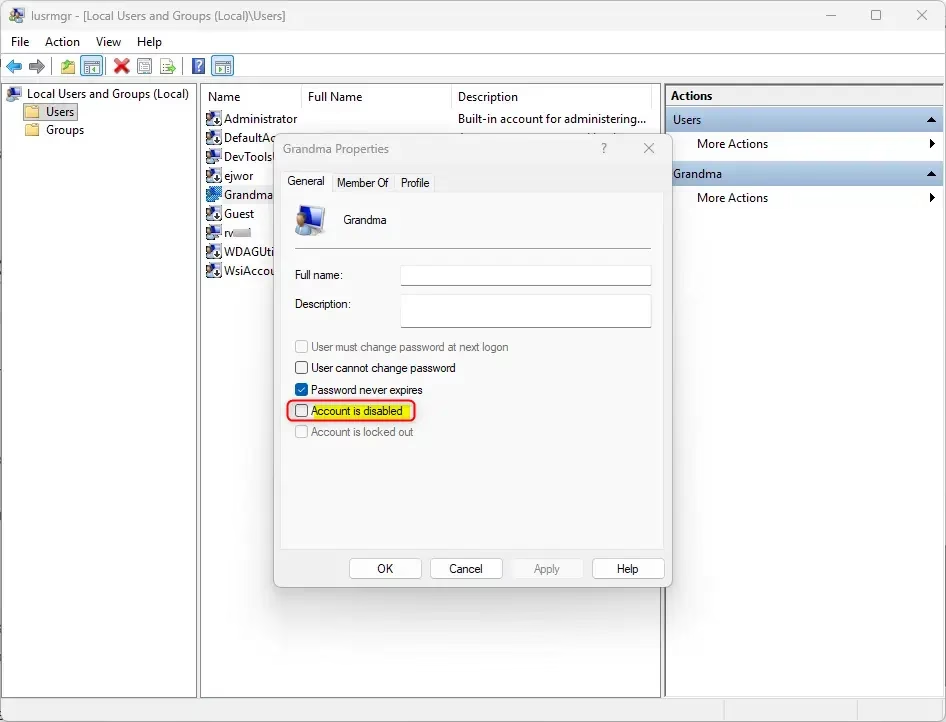
- Double-click the account name (for example: "User1") that you want to enable or disable. Its Properties window opens.
- On the General tab, check the box next to Account is disabled to disable the account. Uncheck the box to enable it.
- Click OK. The change takes effect right away. A disabled account is shown with a small down-arrow icon in the Users list.
- You can now close Local Users and Groups if you like.
Summary
You've learned three straightforward ways to disable an account in Windows 11: using the 'net user' command, PowerShell, or the Local Users and Groups tool. Each method can be reversed, so you can enable the account again whenever you need to.
Did this guide fix your problem?

About the Author
Richard
Tech Writer, IT Professional
Richard is a writer at Geek Rewind who turns complex IT tasks into clear, step-by-step guides. He draws on years of hands-on experience in system administration and enterprise IT operations, focusing on Windows, Linux and WordPress: the problems people actually run into, and the fixes that work. His server and WordPress guides come from systems he runs himself. Richard builds and maintains the platform behind Geek Rewind, from its Ubuntu servers and Nginx configuration to its custom WordPress plugins. Many new tutorials start with readers' questions, and he's always glad to answer them in the comments.
No comments yet — be the first to share your thoughts!