How to Change Minimum PIN Length in Windows 11

- 2 ways to do it
- Needs administrator rights
- Group Policy needs Windows 11 Pro, Enterprise or Education
- Includes a restart or sign-out
The minimum PIN length in Windows 11 sets the lowest number of digits your sign-in PIN can have. Out of the box it is 4 digits. A short PIN is quick to type, but it is also easier for someone standing nearby to guess or watch you enter.
You can raise the limit as high as 127 digits. On Windows 11 Pro, Enterprise and Education you do it with the Local Group Policy Editor, a built-in tool for managing advanced system settings. On Windows 11 Home you do it in the Registry Editor. This guide covers both.
Open the Local Group Policy Editor by pressing Win and typing Edit group policy, then navigate to Computer Configuration Administrative Templates System PIN Complexity. Double-click Minimum PIN length, select Enabled, enter your desired number between 4 and 127 digits, and click OK. On Windows 11 Home, use the Registry Editor instead.
What is a Windows PIN?
A Windows PIN is a short number code you use to sign in to your computer and apps instead of a long password. It is tied to the device you set it up on. Someone who learns your PIN cannot use it to sign in to your account from another computer. That is why it is considered safer than a password for everyday sign-in.
Windows 11 also lets you sign in using other methods like a picture password, fingerprint, or face recognition. Which of these you see depends on your hardware. Most of them still ask you to set up a PIN as a backup, so the PIN length rule matters even if you rarely type your PIN.
Why Change the PIN Length?
Changing your Windows 11 PIN length from the default 4 digits makes your account more secure, because there are far more possible combinations for someone to guess. A 4-digit PIN has only 10,000 combinations. Each extra digit multiplies that by ten.
Each user can do this in Settings Accounts Sign-in options, under the PIN (Windows Hello) section, by choosing Change PIN. Tell other users before you make the change so nobody is surprised.
How to Change the Minimum PIN Length in 🪟 Windows 11
Method 1Using Local Group Policy Editor
The Local Group Policy Editor (a tool for managing advanced system settings) lets you change your Windows 11 PIN length if you use Windows 11 Pro, Enterprise, or Education. It is not included in Windows 11 Home, so Home users should skip to the Registry Editor method further down. You can open the tool by pressing the Win, typing ‘Edit group policy’, and pressing Enter. Once it opens, you navigate to the PIN complexity settings to set your new limits.
You need to be signed in with an administrator account. If you see a User Account Control prompt, click Yes.
- Click the Start button and type
Edit group policy, then open the Local Group Policy Editor. A window titled Local Group Policy Editor opens, with a folder tree on the left. [Requires admin privileges] - In the left sidebar, go to:
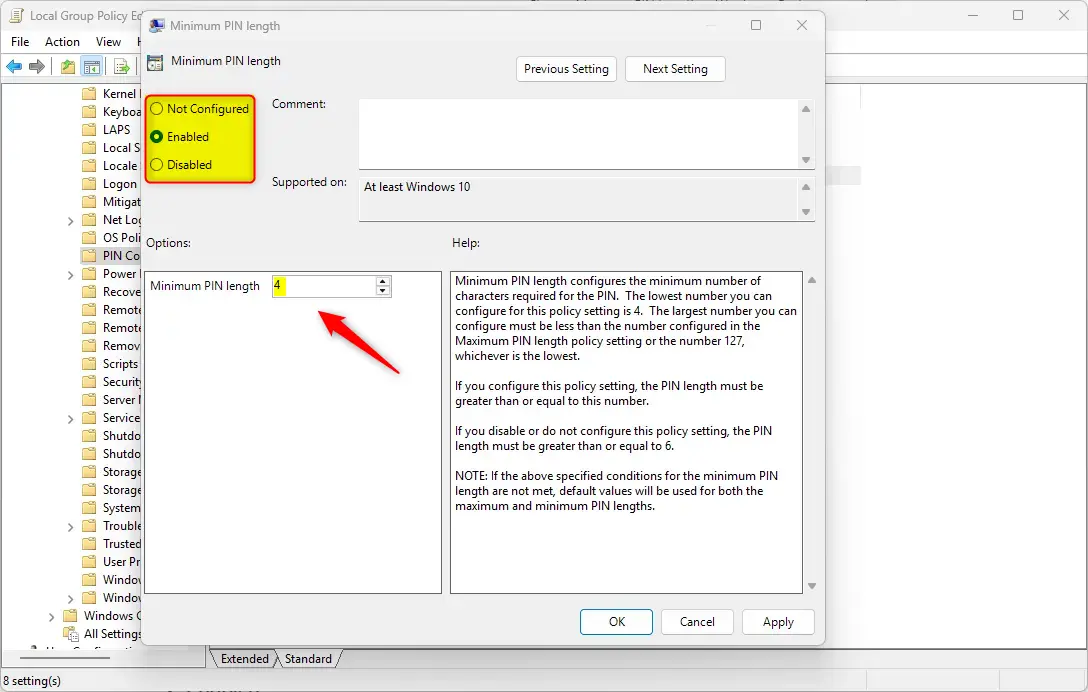
Computer Configuration > Administrative Templates > System > PIN Complexity. Click each folder in turn to expand it. When you reach the last one, its settings are listed on the right. - On the right side, find Minimum PIN length and double-click it. A settings window opens with three options: Not Configured, Enabled and Disabled.
- Choose Enabled. The box under Options, which was greyed out, becomes available.
- In the box below, enter the minimum number of digits you want your PIN to have (between 4 and 127). Pick a number you can live with. A very long PIN is hard to type every time you sign in.
- Click OK to save. The window closes and the setting now shows as Enabled.
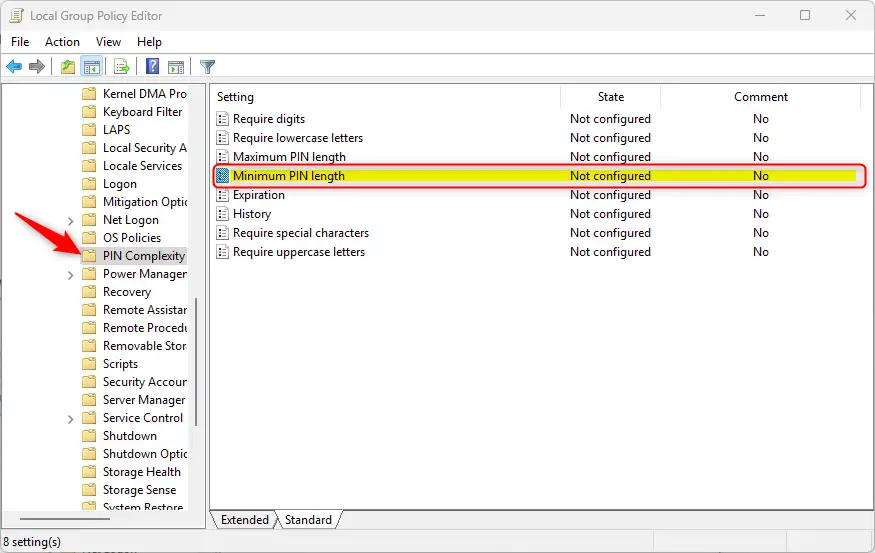
Example of the Minimum PIN length setting in Group Policy Editor.
What the Options Mean:
The Minimum PIN length policy has three states. Here is what each one does:
- Not ConfiguredUses the default PIN length (minimum 4 digits). Choose this to go back to the normal behavior.
- EnabledLets you set your own minimum PIN length, from 4 to 127 digits.
- DisabledRequires a minimum PIN length of 6 digits.
Method 2Using the Windows Registry Editor
The Registry Editor (a database that stores system and app settings) lets you change your Windows 11 PIN length on Windows 11 Home, which does not include the Group Policy tool. It also works on Pro, Enterprise and Education. You open it by pressing Win+R, typing ‘regedit’, and hitting Enter. Be careful here, because mistakes in the registry can cause system problems. If you want a safety net, back up the registry before you start. You need an administrator account, and you may see a User Account Control prompt to approve.
- Press
Windows + Ron your keyboard, typeregedit, and press Enter to open the Registry Editor. Click Yes if User Account Control asks for permission. The Registry Editor opens with a folder tree on the left. [Requires admin privileges] - Navigate to this folder:
HKEY_LOCAL_MACHINE\SOFTWARE\Policies\Microsoft\PassportForWork\PINComplexity. You can click through the folders in the left pane, or paste the path into the address bar at the top of the window. - If you don’t see the PassportForWork or PINComplexity folders, you can create them by right-clicking the folder above and selecting New Key. Create PassportForWork first, then right-click it and create PINComplexity inside it. Type each name exactly, then press Enter.
- Inside the PINComplexity folder, right-click on the right side, in the empty space, and select New DWORD (32-bit) Value. A new entry appears in the list with its name highlighted for editing.
- Name this new value MinimumPINLength and press Enter.
- Double-click MinimumPINLength, select Decimal under Base, and type a number between 4 and 127 in the Value data box for your minimum PIN length. Choosing Decimal matters, because Hexadecimal would read the same digits as a different number.
- Click OK and close the Registry Editor. The value now shows your number in the list.
- Restart your computer to apply the changes. After the restart, anyone whose PIN is shorter than the new minimum will need to choose a longer one when they next change it.
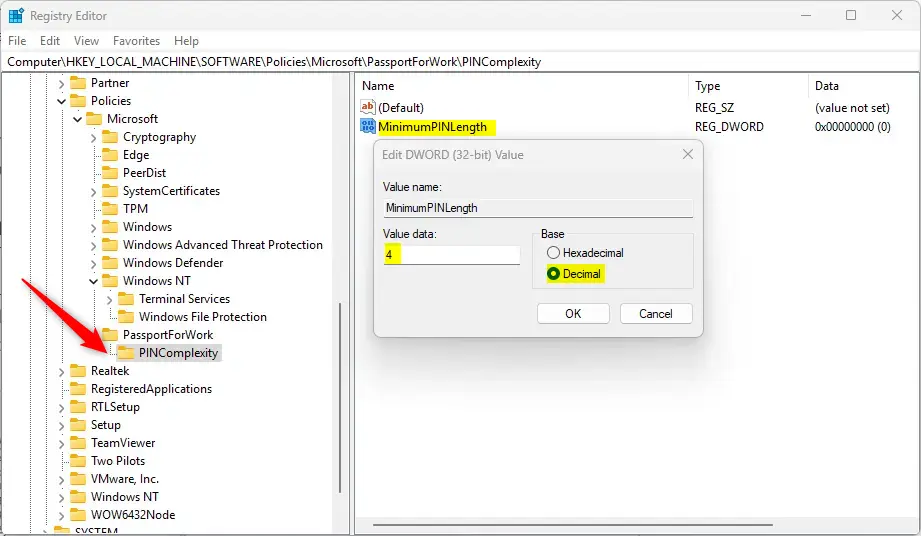
Registry Editor showing the MinimumPINLength value.
To Undo Changes:
The PIN length goes back to the default. If you used Group Policy instead, open the Minimum PIN length policy again and choose Not Configured.
Summary
Increasing your Windows 11 PIN length makes your computer more secure, and you can do this using either the Group Policy Editor (Pro, Enterprise and Education) or the Registry Editor (all editions, including Home).
Helpful Links:
- How to login with a PIN in Windows 11
- How to change your PIN in Windows 11
- How to open the Registry Editor in Windows 11
- How to backup and restore the Registry in Windows 11
- Microsoft official info on PIN length policies
Additional guides help you set up, update, or troubleshoot your sign-in options if you need more help with your Windows 11 PIN. These links cover how to sign in with a PIN, change your current code, and safely open or back up the registry. Use these resources if you run into any other sign-in issues while adjusting your security settings.
Have a question about this guide?
Answered by AI from this guide. Good questions may be added to this page — please don't include personal details.
Did this guide fix your problem?

About the Author
Richard
Tech Writer, IT Professional
Richard is a writer at Geek Rewind who turns complex IT tasks into clear, step-by-step guides. He draws on years of hands-on experience in system administration and enterprise IT operations, focusing on Windows, Linux and WordPress: the problems people actually run into, and the fixes that work. His server and WordPress guides come from systems he runs himself. Richard builds and maintains the platform behind Geek Rewind, from its Ubuntu servers and Nginx configuration to its custom WordPress plugins. Many new tutorials start with readers' questions, and he's always glad to answer them in the comments.
No comments yet — be the first to share your thoughts!