How to Remove a Single Passkey from a FIDO2 Security Key in Windows 11

Removing a single passkey from a FIDO2 security key is possible in Windows 11, but so far only in Windows Insider preview builds. Microsoft’s release notes for Experimental Build 26340.10013 (November 16, 2026) say you can see the passkeys stored on a FIDO2 security key. You can remove them one at a time, instead of resetting the entire key.
A passkey is a sign-in credential that replaces a password. A FIDO2 security key is a small physical device, usually plugged in by USB or tapped by NFC (a short-range wireless link), that stores passkeys on the device itself.
This feature is not in the regular Windows 11 release yet. Microsoft may change it before it ships, so this guide stays within what Microsoft has published and marks the points that are not confirmed.
Removing a single passkey from a FIDO2 security key in Windows 11 is possible only on Insider preview builds such as Experimental Build 26340.10013, according to Microsoft’s release notes. Confirm the build with winver, then remove the passkey one at a time instead of resetting the whole key. The exact Settings labels are not yet confirmed.
What Microsoft Has Confirmed So Far
Microsoft’s release notes make three points:
- Windows can now show the passkeys stored on a FIDO2 security key.
- You can remove those passkeys one at a time.
- Before this change, the only way to clear a passkey from the key was to reset the entire key.
The notes do not name the Settings page, the button labels or the prompts you see along the way. This guide does not guess at them. Where a step depends on a label that is not confirmed, the step says so.
The feature appears in an Experimental build, so it may look different from one preview build to the next. It may also move, be renamed or be removed before it reaches the public release of Windows 11.
Before You Start
Check these four things first. They may explain why the option does not appear.
- A preview build of Windows 11. Microsoft documents this feature only in the release notes for Windows Insider preview builds. A standard Windows 11 install does not list it.
- A FIDO2 security key. The notes describe FIDO2 security keys. Whether every key model supports listing and removing individual passkeys is not stated, so a key that works for sign-in may still not show a list.
- The key’s PIN. Keep the key’s PIN handy, the code you set on the security key itself, in case Windows asks for it. If you have forgotten it, see how to create a new security key PIN on Windows 11.
- The name of the account or site that uses the passkey. This helps you pick the correct entry, because you may have several passkeys on one key.
Check Your Windows Build
The release notes name Experimental Build 26340.10013, so start by finding out which build you run. Press Win+R, type winver and press Enter. The About Windows window opens. Read the OS Build line, which lists the build number.
If the number is far below 26340.10013, you are not on that preview build. The notes do not say whether later builds keep the feature, so check the Windows Insider release notes for the build you run.
Confirm You Are in the Windows Insider Program
Open Settings Windows Update Windows Insider Program. This page shows whether the PC is enrolled and which channel it follows. Microsoft describes the build in the release notes as an Experimental preview.
How to Remove a Passkey from a Security Key in 🪟 Windows 11
These steps remove one passkey from a FIDO2 security key without resetting the rest of the key. They are built from Microsoft’s release notes, which do not give the menu names. Where a label is unconfirmed, the step says so.
- Press Win+R, type
winverand press Enter. The About Windows window opens. Check that the OS Build line shows a preview build, such as 26340.10013, the build named in the release notes. Close the window.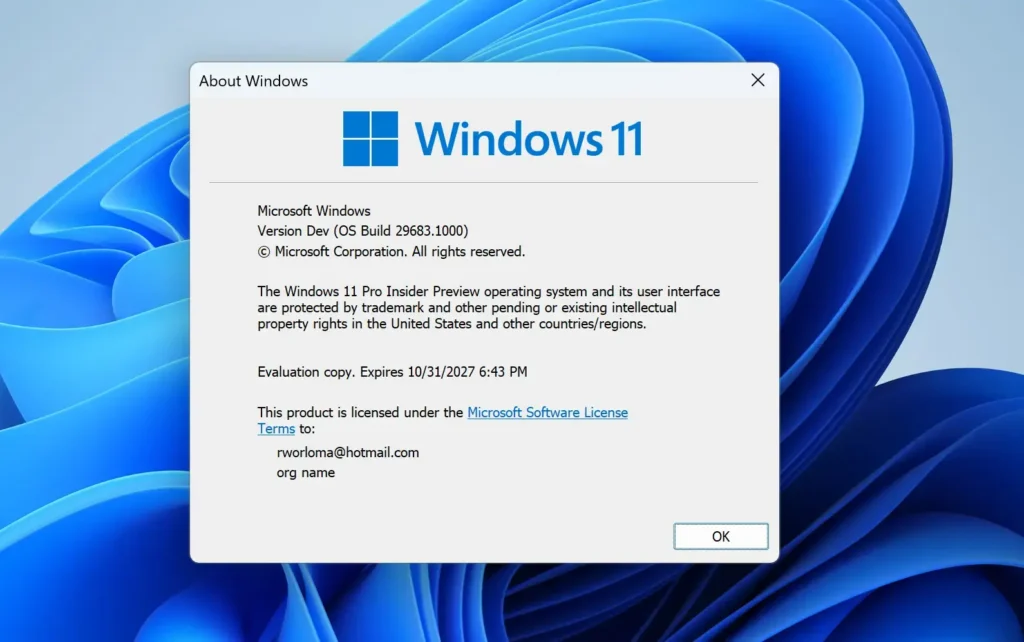
- Open Settings Windows Update Windows Insider Program. Confirm that the PC has joined the Windows Insider Program. If it is not, the passkey list is unlikely to appear.
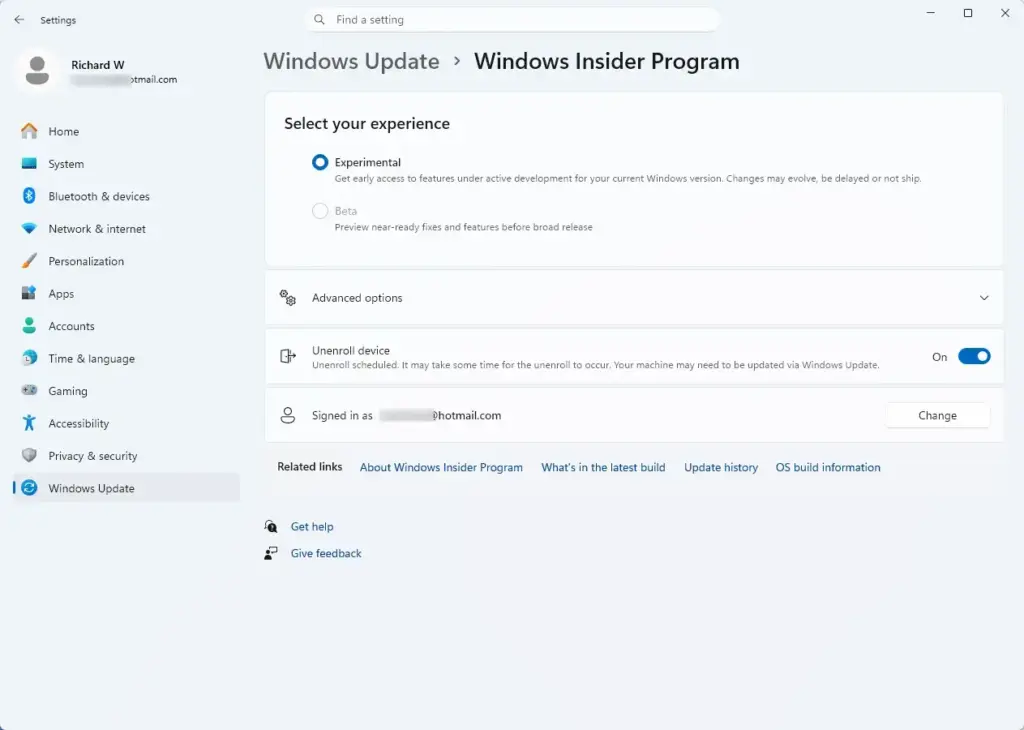
Settings › Windows Update › Windows Insider Program - Connect your FIDO2 security key. Plug it into a USB port, or hold it against the NFC reader (the spot on the PC that reads the key wirelessly) if your key supports that. Wait a few seconds for Windows to detect it.
- Open the security key settings in Settings Accounts. Security key settings sit under Accounts, so start on that page. Our guide to managing passkey security keys in Windows 11 Accounts settings shows where. Microsoft does not say where the new passkey list sits, so look on that page first. The exact location is not confirmed.
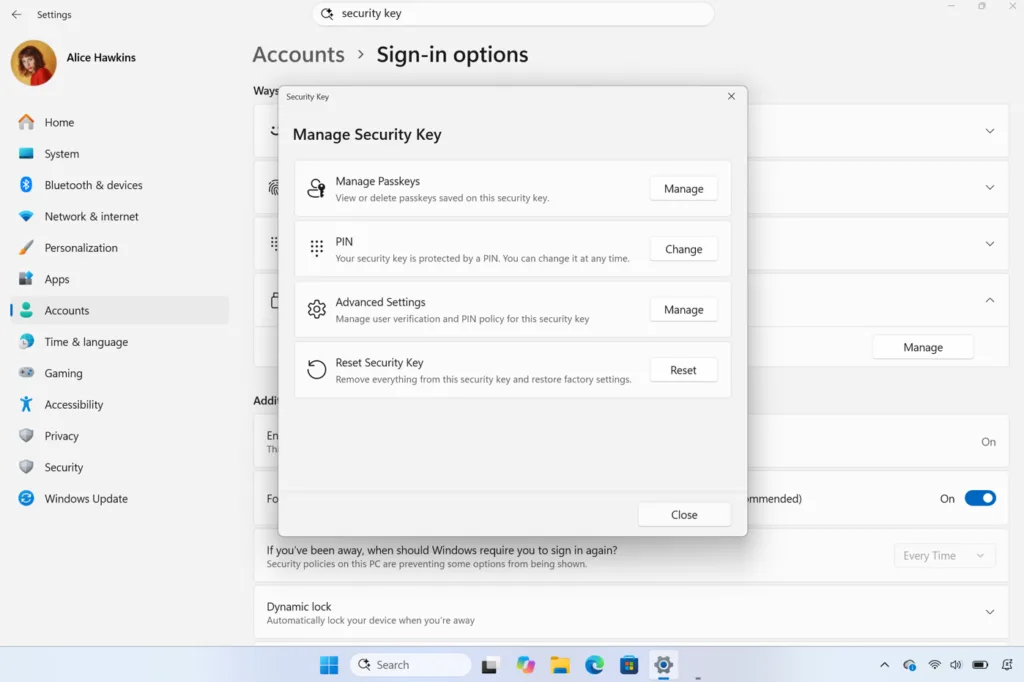
Settings > Accounts > Passkeys - Look for the list of passkeys stored on the key. This list is the new part of the feature. If the key shows only the old reset option and no list, see Why You Might Not See the Passkey List below.
- Select the passkey you want to remove. Read the account or site name on the entry before you continue. Each entry belongs to one sign-in, and other entries on the key stay untouched.
- Choose the option to remove that passkey. The release notes say you can remove passkeys one at a time. The notes do not name the button, so read the labels and pick the one that removes this passkey.
- Complete any prompt Windows shows. Windows may ask for the key’s PIN or a touch on the key. Follow the prompt exactly as it appears. Which prompts appear, and in what order, is not confirmed in the notes.
- Check the list again. The passkey you removed should no longer appear, and the others should still be there. If an entry you wanted to keep is missing, you cannot restore it from this screen. You must create a new passkey for that account.
What Removing a Passkey Does and Does Not Do
The release notes describe removing the passkey from the security key itself. They say nothing about the website or account that issued it. The account may still list that key as a sign-in method even though the passkey on the key is gone.
That has a practical effect. If you delete a passkey from the key and later try to sign in with it, the sign-in fails because the key no longer holds a matching passkey. Sign in another way, then review the account’s security settings and remove the entry for that key, since it no longer works.
For a Microsoft account, see how to remove a passkey from your Microsoft account. If you want to remove the key from the account entirely, use how to remove a security key from your Microsoft account.
Before you remove a passkey, make sure you have a second way into that account. A recovery method, a password or another registered passkey all work. Without one, you risk locking yourself out.
Why You Might Not See the Passkey List
Several causes would explain a missing list. The first two follow from the release notes. The rest are things to check, not confirmed causes.
- You are not on a preview build. Microsoft documents this feature only in the release notes for Windows Insider preview builds. A stable Windows 11 release does not offer it yet, and Microsoft has not given a date for when it will.
- Your build is older than the one in the notes. Microsoft names Experimental Build 26340.10013. Run
winverand compare. - The key is not detected. Unplug it, plug it back in, and try another USB port. Reconnecting also tells you whether the key itself is the problem.
- The key may not support it. The notes do not say which key models work. If the list stays empty on one key, try a second key if you have one.
- The page is in a different place. Experimental features move. Check the other pages under Settings Accounts before assuming it is missing.
If none of these helps, the feature may not be enabled on your PC yet. Microsoft rolls Insider features out in stages, and the release notes do not say whether this one reaches every device at once.
If You Are Not on an Insider Build
On a regular Windows 11 install, you cannot remove one passkey from a security key with this feature. The only way to clear passkeys from the key itself is to reset the entire key, which removes everything on it. The release notes describe the new feature as an alternative to that reset.
Think before you reset. A reset wipes all passkeys on the key, so every account that relies on it needs a fresh setup. If you only want to stop using one account with the key, you can instead remove that key from the account’s security settings. Our guide to removing a security key from your Microsoft account covers the Microsoft account case.
When you are ready to use the key again, set it up once more. Follow how to set up a Microsoft passkey with a security key or how to register a security key in a Microsoft account.
Passkeys Stored on the Key Versus Passkeys Stored in Windows
The passkeys in this guide live on the hardware key. They are separate from passkeys that Windows saves for you with Windows Hello, which protects them with your face, fingerprint or PIN. The new feature in the release notes covers only the passkeys on the FIDO2 security key.
If the passkey you want to delete is saved on the PC, this feature is not the right tool. Read how to save a passkey with Windows Hello in Windows 11 to see how those passkeys are stored. If you use a third-party passkey manager, see how to enable passkey managers on Windows 11.
What to Do Next
If the passkey list appears and the entry disappears after you remove it, check the account that used it and remove the matching sign-in method there. If the list does not appear on your build, watch the Windows Insider release notes, because Microsoft has not said when the feature moves to the public release. For a wider view of sign-in options, see how to manage Windows 11 accounts.
Have a question about this guide?
Answered by AI from this guide. Good questions may be added to this page — please don't include personal details.
Did this guide fix your problem?

About the Author
Richard
Tech Writer, IT Professional
Richard is a writer at Geek Rewind who turns complex IT tasks into clear, step-by-step guides. He draws on years of hands-on experience in system administration and enterprise IT operations, focusing on Windows, Linux and WordPress: the problems people actually run into, and the fixes that work. His server and WordPress guides come from systems he runs himself. Richard builds and maintains the platform behind Geek Rewind, from its Ubuntu servers and Nginx configuration to its custom WordPress plugins. Many new tutorials start with readers' questions, and he's always glad to answer them in the comments.
No comments yet — be the first to share your thoughts!