Fix Touchpad Issues in Windows 11

- 40 steps
- Needs administrator rights
- Includes a restart or sign-out
Touchpad problems in Windows 11 include a pointer that does not move, a cursor that jumps while you type, and scrolling or taps that stop responding. Most come from a switched-off setting or a faulty driver (the software that lets Windows talk to the touchpad hardware).
The quickest fix is to check the Touchpad toggle at Settings Bluetooth & devices Touchpad, then restart the laptop. If that does not work, update or reinstall the touchpad driver in Device Manager (a built-in tool that lists your hardware and its drivers).
Work through these fixes in order. The quickest checks come first, and most problems are solved by the early steps. Stop as soon as the touchpad works.
Touchpad problems in Windows 11 usually come from a switched-off touchpad or a faulty driver. Check the Touchpad toggle at Settings Bluetooth & devices Touchpad, then restart the laptop with Start Power Restart. If the pointer still does not respond, update or reinstall the touchpad driver in Device Manager.
Before you start: get a pointer you can use
Press Win+I to open Settings. Press Win+X, then M, to open Device Manager. Use Tab, the arrow keys and Enter to move around. If your laptop has a touch screen, the on-screen touchpad in Windows 11 gives you a temporary pointer by touch.
Fix touchpad issues in 🪟 Windows 11 step by step
These numbered steps fix touchpad issues in Windows 11, from the quickest checks to driver repairs and a hardware test. Step numbers carry on from one section to the next, so do not restart at 1 when you move on.
Check that the touchpad is turned on
A touchpad that has been switched off by a shortcut or a setting is the most common cause. Check this first.
- Press the touchpad key on your keyboard. On many laptops this is an Fn combination or a function key with a touchpad icon, such as Fn + F6 or F9. The key varies by manufacturer. Some laptops turn the touchpad off when you double-tap a small dot or corner of the pad.
- Open Settings. Press Win+I, or right-click Start and choose Settings.
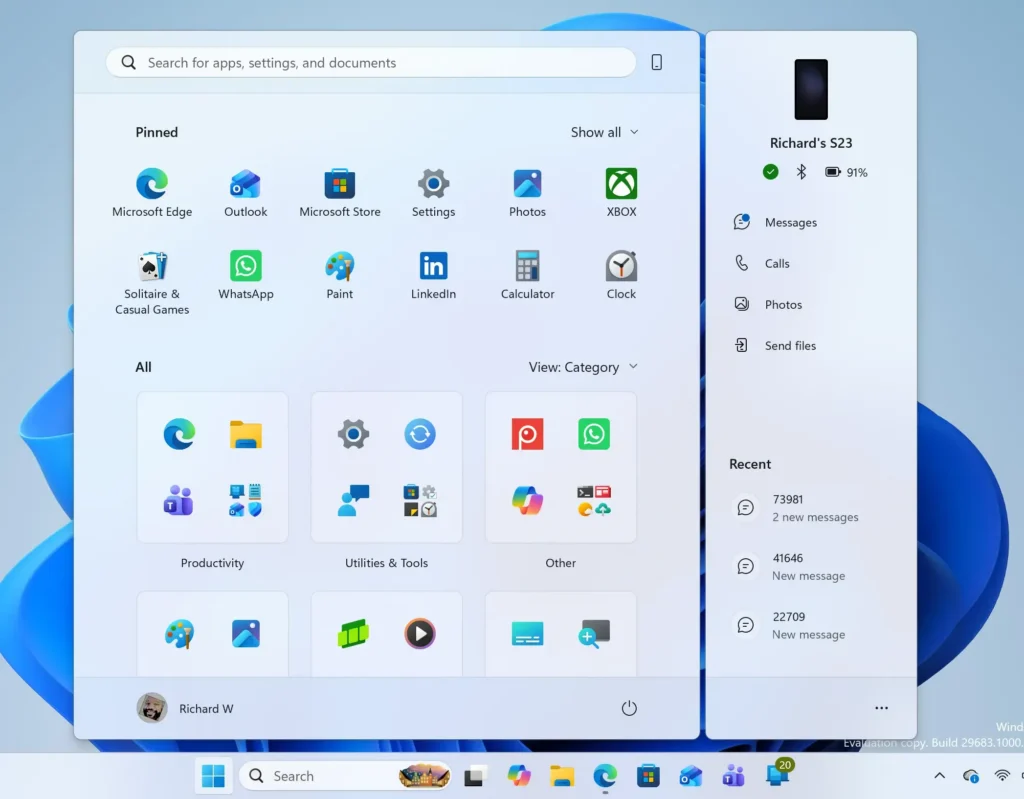
Windows 11 Start menu search panel for opening OpenSSH Client settings - Select Bluetooth & devices, then select Touchpad. You should see a Touchpad card with a toggle on the right.
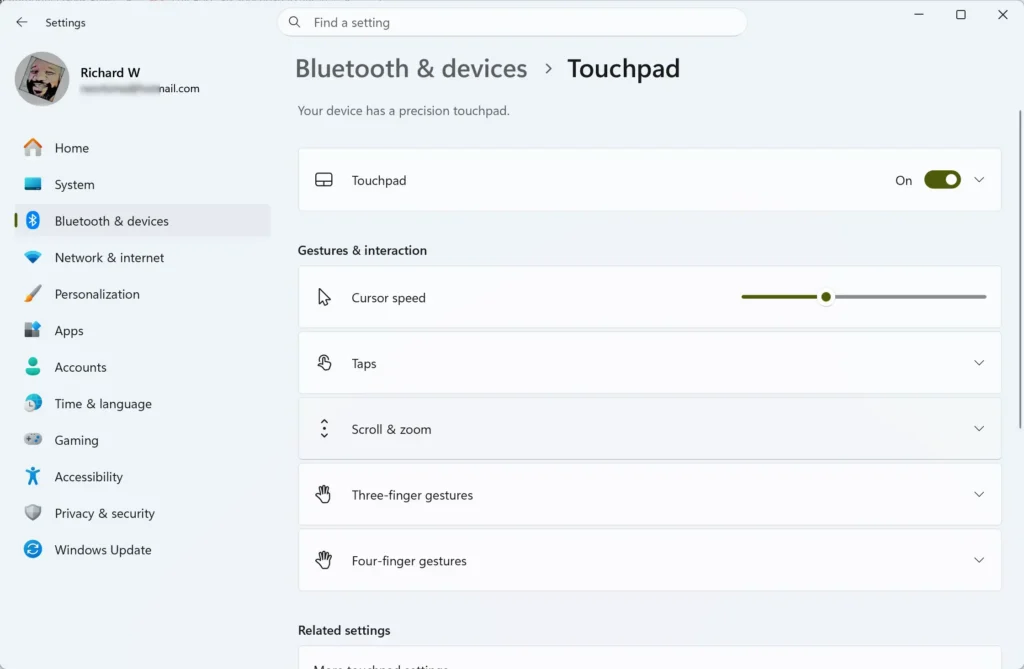
Settings > Bluetooth > Touchpad - Turn the Touchpad toggle to On. Expand the card if the options below it are hidden.
- Clear the Leave touchpad on when a mouse is connected check box only if you want it off. If the touchpad stops whenever you plug in a mouse, this box is unchecked. Tick it to keep both working.
- Restart the laptop. Select Start Power Restart. Use Restart, not Shut down, because a restart reloads the drivers fully.
For more on the toggle itself, see how to enable or disable the touchpad in Windows 11. The mouse-connected option is covered in how to disable the touchpad when a mouse is connected.
Check the touchpad settings
If the pad responds but behaves badly, a wrong setting is the likely cause. These settings sit on the same Touchpad page.
- Return to Settings Bluetooth & devices Touchpad. Expand the Touchpad card to see the sensitivity, tap and gesture options.
- Change Touchpad sensitivity to a lower level if the cursor jumps while you type. Your palm can trigger a highly sensitive pad. The options range from Most sensitive to Low sensitivity.
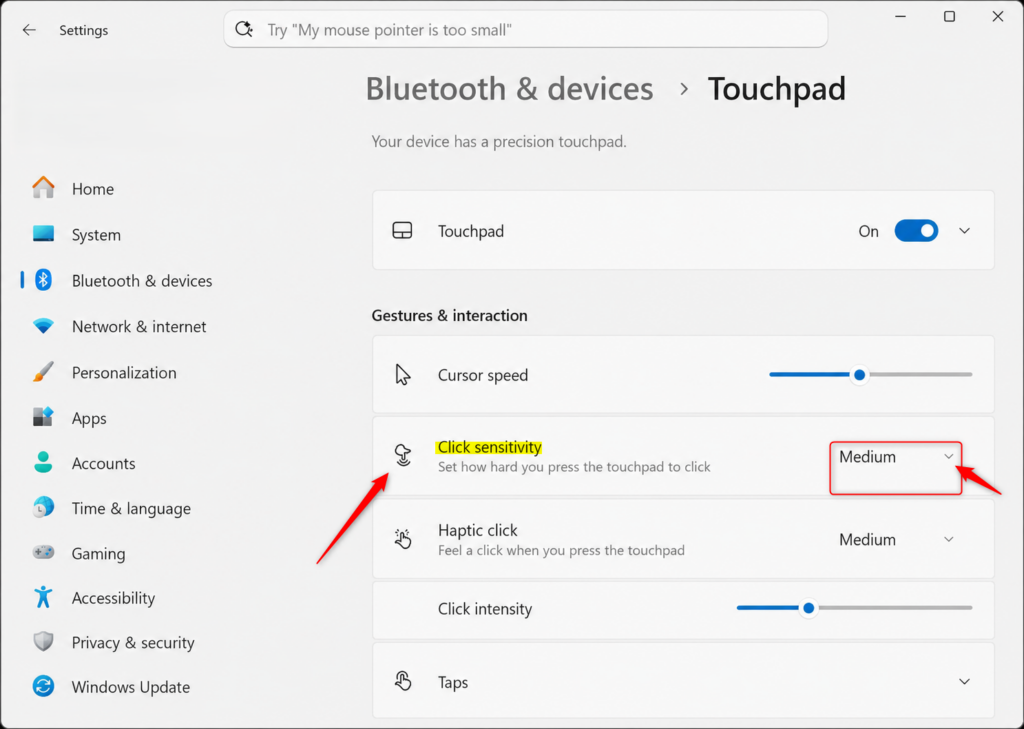
Windows 11 touchpad click sensitivity dropdown menu options - Open Taps and check that tapping to click is ticked. If tapping does nothing, this is the first place to look.
- Open Scroll & zoom and check that Drag two fingers to scroll and Pinch to zoom are ticked. Scrolling that stops working usually traces back to one of these.
- Select Reset if you cannot tell which setting you changed. This returns the touchpad settings and gestures to their defaults. The reset touchpad settings guide explains what it changes.
If you only need to adjust speed, see how to adjust touchpad sensitivity in Windows 11. For taps, see how to enable touchpad tapping.
Install Windows updates
Windows Update delivers touchpad driver fixes and bug fixes. Install anything pending before you change drivers by hand.
- Open Settings Windows Update.
- Select Check for updates. Windows lists anything it finds and starts downloading. Installing updates can require administrator rights if you are on a work or school PC.
- Select Advanced options, then Optional updates. If you see a Driver updates section, expand it. Optional updates do not install on their own.
- Tick any driver that names your touchpad, mouse or pointing device. Select Download & install.
- Restart the laptop when Windows asks. The touchpad should respond after the restart if the old driver was the problem.
Update the touchpad driver in Device Manager
You need administrator rights for the driver steps below. Windows asks for approval or an admin password when needed.
- Right-click Start and select Device Manager. A list of hardware categories opens.
- Expand Mice and other pointing devices. Some laptops list the touchpad under Human Interface Devices instead, often as an HID-compliant device or the maker’s name.
- Right-click your touchpad and select Update driver. If the entry shows a yellow warning icon, Windows has detected a driver fault.
- Select Search automatically for drivers. Windows checks for a newer driver and installs it. If it reports that the best drivers are already installed, move on to the next section.
- Restart the laptop after the update finishes.
Install the driver from the laptop maker
Windows often installs a generic driver. A driver from the laptop maker is sometimes the only one that supports every gesture on the pad.
- Find your laptop’s exact model name or serial number. Look on the underside of the laptop or in Settings System About.
- Go to the support site of your laptop’s maker and search for that model. Open the Drivers or Downloads section.
- Download the touchpad or pointing device driver. Choose the version listed for Windows 11. If only a Windows 10 driver exists, it often still works, but check the maker’s notes.
- Run the installer. Approve the administrator prompt when it appears.
- Restart the laptop when the installer finishes.
Roll back the driver if the problem started after an update
Rolling back replaces the current driver with the one you had before. Use this when the touchpad worked until a recent update.
- Open Device Manager and expand Mice and other pointing devices.
- Double-click your touchpad. The Properties window opens.
- Select the Driver tab.
- Select Roll Back Driver. This requires administrator rights. If the button is greyed out, Windows has no earlier driver stored, so skip to the next section.
- Pick a reason when asked, select Yes, and restart the laptop.
Uninstall and reinstall the driver
- Right-click your touchpad in Device Manager and select Uninstall device.
- Leave Attempt to remove the driver for this device unticked. Ticking it deletes the driver package from the PC, and you then need the maker’s installer to get it back.
- Select Uninstall. The touchpad stops responding. Use your mouse or keyboard from here.
- Restart the laptop. Windows detects the touchpad during start-up and reinstalls a driver.
- Open Settings Bluetooth & devices Touchpad. You should see the Touchpad toggle again. If the touchpad is still dead, install the maker’s driver as described earlier.
Rule out a hardware fault
Testing outside Windows shows whether the touchpad hardware works. This tells you if you are chasing a software problem at all.
- Restart the laptop and open the firmware setup screen (UEFI or BIOS, the low-level menu that runs before Windows). The key varies by maker. Common keys are F2, F10 and Delete, pressed repeatedly right after the restart.
- Try moving the pointer with the touchpad on the setup screen. Many setup screens respond to the pad, though some are keyboard-only.
- Look for a setting such as Internal Pointing Device if your laptop has one. Set it to Enabled. The name and location differ between manufacturers, so check your laptop’s manual.
- Save and exit, and Windows starts as normal.
If the touchpad works in setup but not in Windows, the cause is software, and the earlier steps apply. If it is dead in both, suspect hardware, such as a loose ribbon cable or a damaged pad.
Why the Touchpad page is missing or greyed out
The Touchpad page in Settings appears only when Windows detects a precision touchpad (a touchpad that uses the standard Microsoft driver model). A desktop PC has no touchpad, so the page does not show. A laptop shows the page only while its driver is working.
If the Touchpad page is missing on a laptop, the driver is probably not loaded or is a non-standard one. Some laptops with maker-specific drivers keep their options in a separate app from the manufacturer or under the mouse settings. Reinstalling the driver, as described above, normally brings the page back.
If the page is there but its options are greyed out, Windows may be waiting for a restart after a driver change. Restart and check again. Home and Pro editions of Windows 11 behave the same way here, so the edition does not matter.
Fix specific touchpad symptoms
The cursor jumps while you type
Lower Touchpad sensitivity in Settings Bluetooth & devices Touchpad. This helps the pad ignore palm contact. Clean the pad with a dry, lint-free cloth, because dirt and moisture can also make the pad register touches you did not make.
Gestures or scrolling stop working
Check the Scroll & zoom and gesture sections on the Touchpad page. If they are already on, reinstall the driver. Gestures depend on the precision driver (the driver that supports the Windows touchpad standard), so a generic driver can drop them. See touchpad gestures for Windows 11 for what each gesture does.
The touchpad stops when a mouse is connected
Tick Leave touchpad on when a mouse is connected. If the box was already ticked, the cause lies elsewhere, such as a driver that handles the setting poorly. Update or reinstall the driver.
The touchpad is too slow or too fast
Pointer speed is a setting, not a fault. Adjust the cursor speed slider on the Touchpad page. The guide on changing touchpad sensitivity in Windows 11 walks through it.
If this didn’t work
If the touchpad also fails in the BIOS or UEFI setup screen (the screen you reach at startup, before Windows loads), contact the laptop maker or a repair shop, because the pad or its cable likely needs replacement. A future Windows update can replace a working driver with a different one, so roll back from the Driver tab in Device Manager if the problem returns. Once the touchpad responds, read the Windows 11 touchpad gestures and settings guide to fine-tune it.
Have a question about this guide?
Answered by AI from this guide. Good questions may be added to this page — please don't include personal details.
Did this guide fix your problem?

About the Author
Richard
Tech Writer, IT Professional
Richard is a writer at Geek Rewind who turns complex IT tasks into clear, step-by-step guides. He draws on years of hands-on experience in system administration and enterprise IT operations, focusing on Windows, Linux and WordPress: the problems people actually run into, and the fixes that work. His server and WordPress guides come from systems he runs himself. Richard builds and maintains the platform behind Geek Rewind, from its Ubuntu servers and Nginx configuration to its custom WordPress plugins. Many new tutorials start with readers' questions, and he's always glad to answer them in the comments.
No comments yet — be the first to share your thoughts!