How to Choose the Hand You Write with for Pen in Windows 11

Windows 11 lets you tell it which hand you write with. Menus then open on the side your palm and wrist won’t cover while you sketch or take notes.
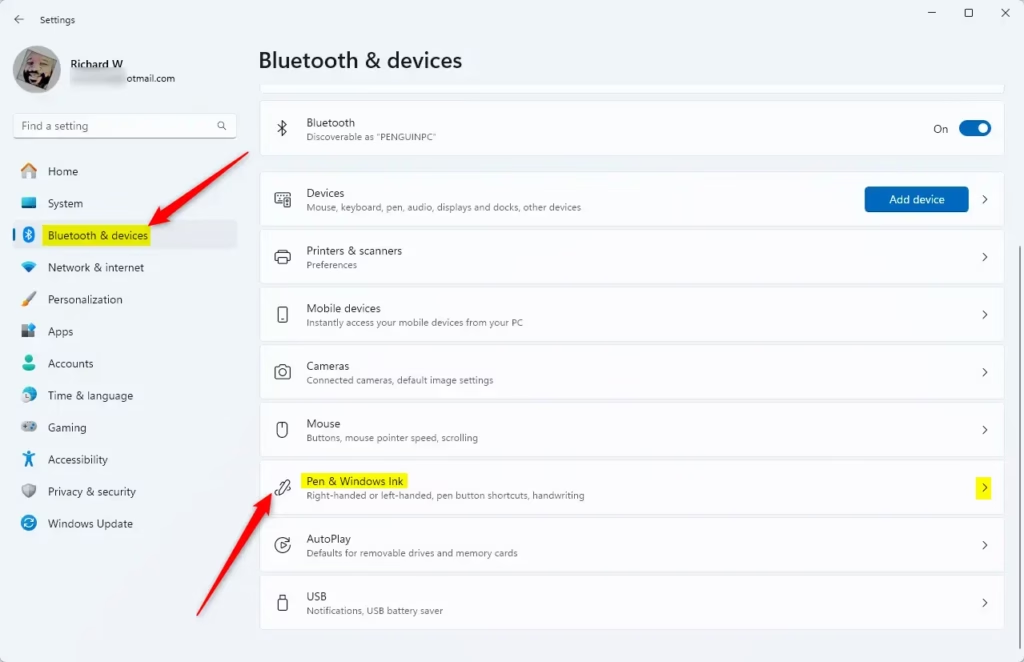
Open Settings by pressing Win+I, then go to Bluetooth & devices, and select Pen & Windows Ink. Choose your preferred hand from the ‘Choose which hand you write with’ dropdown menu.
Why Would You Do This?
Tablets and touchscreens running Windows 11 use this setting for left- and right-handed users. Menus that open away from your palm cause fewer accidental taps, and the tools stay visible while the pen is on the screen.
The setting is most useful on 2-in-1 laptops and tablets with a pen. It also applies to touch input on those devices.
What Happens When You Change This?
If you choose Left, menus open to the right of your pointer. Your left palm and wrist rest on the left, so the options stay clear of your hand. If you choose Right, menus open to the left of your pointer.
Windows flips a menu to the opposite side automatically when it would run off the edge of the screen. If a menu sometimes opens on the “wrong” side, this is usually the reason, not a faulty setting.
For more on using a tablet pen with Windows, including pairing, settings and productivity tips, see this guide: Use a pen with Windows – Microsoft Support
Option 1Use Settings
The simplest way to change this is in the Settings app. The setting is a dropdown on the Pen & Windows Ink page, where you pick Left or Right. The path is Settings Bluetooth & devices > Pen & Windows Ink.
- Press
Win+Ito open Settings. The Settings window opens. - Click Bluetooth & devices in the left pane. The device options appear on the right.
- Click Pen & Windows Ink on the right side. The pen settings page opens. Open Pen & Windows Ink settings
If you don't see Pen & Windows Ink, Windows probably hasn't detected a pen or a pen-capable screen. This is common on desktop PCs and on laptops without a pen digitizer. If you do own a pen, check that it's paired or connected, then look again.
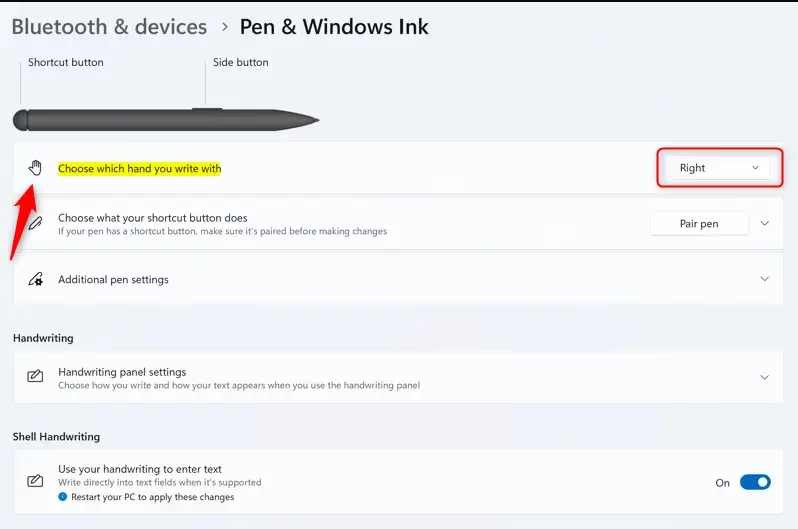
- Find the dropdown named Choose which hand you write with.
- Open the dropdown and select either Left or Right. The change applies straight away, and you don't need to restart.
To test it, open any right-click menu with your pen or finger and check which side it opens on. To undo the change, go back to the same dropdown and pick the other option.
- Close Settings when you're done.
Option 2Use Registry Editor
You can also set this through the registry, which helps if you're configuring several PCs or working from a script. Instead of opening Registry Editor yourself, you run a single command in Windows Terminal. The command writes the setting to the registry for you. Back up anything important first, because registry changes bypass the safety of the Settings page.
Open Windows Terminal and run one of the commands below.
For left hand:
reg add "HKCU\Software\Microsoft\Windows NT\CurrentVersion\Windows" /v MenuDropAlignment /t REG_SZ /d 0 /f
For right hand:
reg add "HKCU\Software\Microsoft\Windows NT\CurrentVersion\Windows" /v MenuDropAlignment /t REG_SZ /d 0 /f
Summary
If the change doesn't show up after running the command, sign out and back in, or restart the PC. Then open Settings Bluetooth & devices > Pen & Windows Ink to check that the dropdown shows the hand you chose. To switch back, run the other command.
Setting your writing hand in Windows 11 makes menus appear on the side your hand won't cover, so pen and touch use goes more smoothly.
Have a question about this guide?
Answered by AI from this guide. Good questions may be added to this page — please don't include personal details.
Did this guide fix your problem?

About the Author
Richard
Tech Writer, IT Professional
Richard is a writer at Geek Rewind who turns complex IT tasks into clear, step-by-step guides. He draws on years of hands-on experience in system administration and enterprise IT operations, focusing on Windows, Linux and WordPress: the problems people actually run into, and the fixes that work. His server and WordPress guides come from systems he runs himself. Richard builds and maintains the platform behind Geek Rewind, from its Ubuntu servers and Nginx configuration to its custom WordPress plugins. Many new tutorials start with readers' questions, and he's always glad to answer them in the comments.
No comments yet — be the first to share your thoughts!