How to Turn On or off Tap Touchpad with Two Fingers to Right-Click in Windows 11

Two-finger tap lets you right-click on a Windows 11 laptop without pressing a physical button. You tap the touchpad once with two fingers, and the context menu opens under the pointer. It does the same job as pressing the lower-right corner, and many people find it faster. The setting is the same on Windows 11 Home and Pro, and the change takes effect immediately, so you do not need to restart.
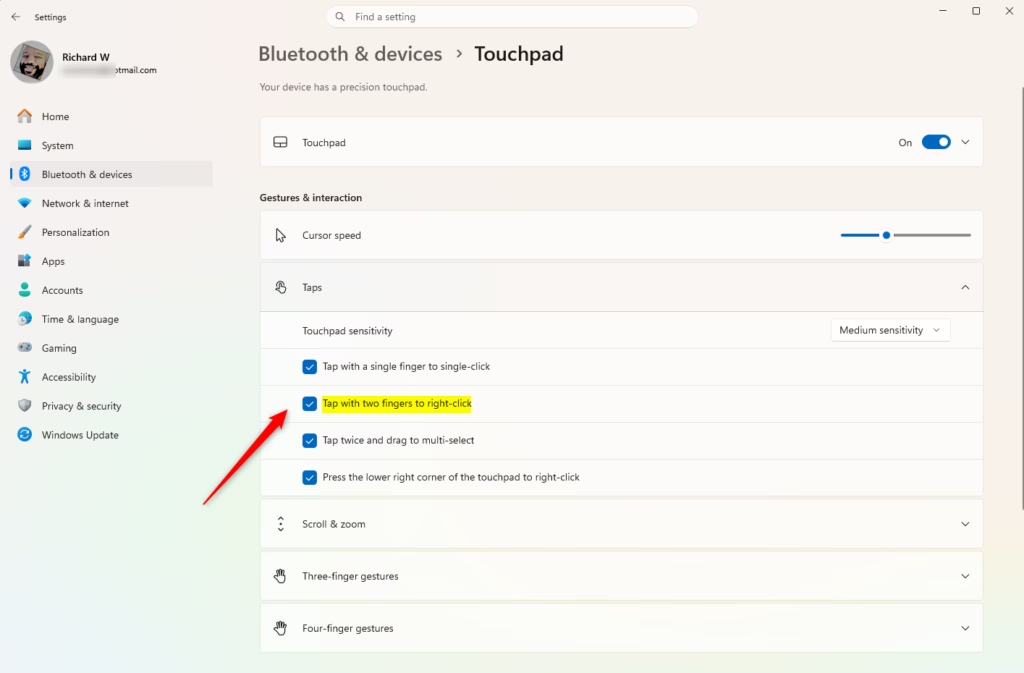
Open Settings, navigate to Bluetooth & devices, then Touchpad, and expand Taps. Check or uncheck “Tap with two fingers to right-click” to enable or disable the feature.
The gesture is a feature of precision touchpads, which almost every modern Windows 11 laptop has. If the option is missing from Settings, or the touchpad does not respond to it, you probably have an older non-precision touchpad. In that case the driver is usually the problem, so check Windows Update or the laptop maker’s support page for a newer touchpad driver. The setting can also be greyed out when the touchpad itself is switched off.
Here is how to turn the gesture on or off:
- Open Settings Bluetooth & devices Touchpad
- Check that the Touchpad toggle at the top is switched On. If it is off, the gesture settings below it are greyed out.
- Click Taps to expand the section. You should now see a list of checkboxes for tap gestures.
- Find Tap with two fingers to right-click. Select the checkbox to turn the gesture on, or clear it to turn the gesture off.
- Close Settings. Place the pointer over the desktop or a file and tap once with two fingers to test it. A right-click menu should appear. If you turned the gesture off, nothing happens.
Windows saves the change as soon as you click the checkbox, so there is no Apply button. To undo it, go back to the same page and flip the checkbox again. Menu names can differ slightly between Windows 11 builds, so look for the Taps section and the two-finger right-click option if your screen reads a little differently.
Tap only briefly. A long press or a slow tap may be read as a different gesture. If right-clicks trigger by accident while you type, turning the gesture off is a quick fix. The lower-right corner press still works as a right-click.
Turn On or Off Tap Touchpad with Two Fingers to Right-Click in Settings
You can turn on or off the Windows 11 touchpad two finger tap feature directly through the main system settings. This built-in control decides whether tapping the trackpad with two fingers performs a right-click action instead of pressing the physical bottom corner. Adjusting this option takes just a few clicks and applies immediately to your laptop trackpad.- Open Settings (Win+I).
- Click on Bluetooth & devices on the left side. Then click on Touchpad on the right side.
- Click on Taps to expand that section open.
- Check the box (on – this is the default) or uncheck the box next to Tap with two fingers to right-click based on what you want.
- You can now close Settings.
Option 2Using Registry Editor
Turn On or Off Tap Touchpad with Two Fingers to Right-Click Using Registry
You can change the Windows 11 touchpad two finger tap behavior by editing the system registry keys directly. This advanced method lets you enable or disable the right-click gesture by updating specific registry values without opening the main settings app . It is a quick alternative for system administrators or anyone who prefers working with configuration keys.
reg add "HKEY_CURRENT_USER\Software\Microsoft\Windows\CurrentVersion\PrecisionTouchPad" /v TwoFingerTapEnabled /t REG_DWORD /d 0xFFFFFFFF /f
Turn Off "Tap with two fingers to right-click"
reg add "HKEY_CURRENT_USER\Software\Microsoft\Windows\CurrentVersion\PrecisionTouchPad" /v TwoFingerTapEnabled /t REG_DWORD /d 0 /f
Summary
Managing the two-finger tap for right-clicking on a Windows 11 touchpad involves a couple of different paths. The Settings app provides the most direct route, whereas the Registry Editor serves advanced workflows. Both approaches achieve the exact same final result.
Have a question about this guide?
Answered by AI from this guide. Good questions may be added to this page — please don't include personal details.
Did this guide fix your problem?

About the Author
Richard
Tech Writer, IT Professional
Richard is a writer at Geek Rewind who turns complex IT tasks into clear, step-by-step guides. He draws on years of hands-on experience in system administration and enterprise IT operations, focusing on Windows, Linux and WordPress: the problems people actually run into, and the fixes that work. His server and WordPress guides come from systems he runs himself. Richard builds and maintains the platform behind Geek Rewind, from its Ubuntu servers and Nginx configuration to its custom WordPress plugins. Many new tutorials start with readers' questions, and he's always glad to answer them in the comments.
No comments yet — be the first to share your thoughts!