Invert Colors on Windows 11 with Color Filters

To invert colors on a PC running Windows 11, open Settings Accessibility Color filters, turn on Color filters, and select Inverted. The Inverted filter swaps every color on the screen for its opposite, so white becomes black and dark blue becomes light orange.
The change applies to your whole display at once, including the desktop, File Explorer and every open app. It needs no restart and no administrator rights. This article covers the full steps, the keyboard shortcut that switches the filter on and off, and what to check when the option is missing or does nothing.
To invert colors on a PC running Windows 11, open Settings , select Accessibility, then Color filters. Turn on the Color filters toggle and select Inverted. White backgrounds turn black and dark blue turns light orange across the whole screen. To switch the filter on and off, turn on Keyboard shortcut for color filters and press Win+Ctrl+C.
What the Inverted Color Filter Does
A color filter (a Windows accessibility feature that changes how the display renders color) works across all of Windows, not inside individual apps. It does not change the colors inside your documents or photos. It changes what the screen shows. Turn the filter off and everything returns to normal.
Inverted is not the same as dark mode. Dark mode changes the colors of Windows and of apps that support it, and photos stay as they are. Inverted flips everything, so photos look like film negatives. Many people use it for reading white-background pages in dim rooms, for reducing glare, or if bright light bothers your eyes.
Windows 11 offers six filters in total. The steps below use Inverted. Later, you will see when Grayscale inverted works better.
How to Invert Colors on PC in 🪟 Windows 11
Follow the steps below to invert colors, then set up the keyboard shortcut so you can switch inversion on and off with one keypress.
- Open Settings. Press the Windows key + I, or right-click Start and select Settings.

- Select Accessibility in the left pane. The Accessibility page opens with sections for Vision, Hearing and Interaction.
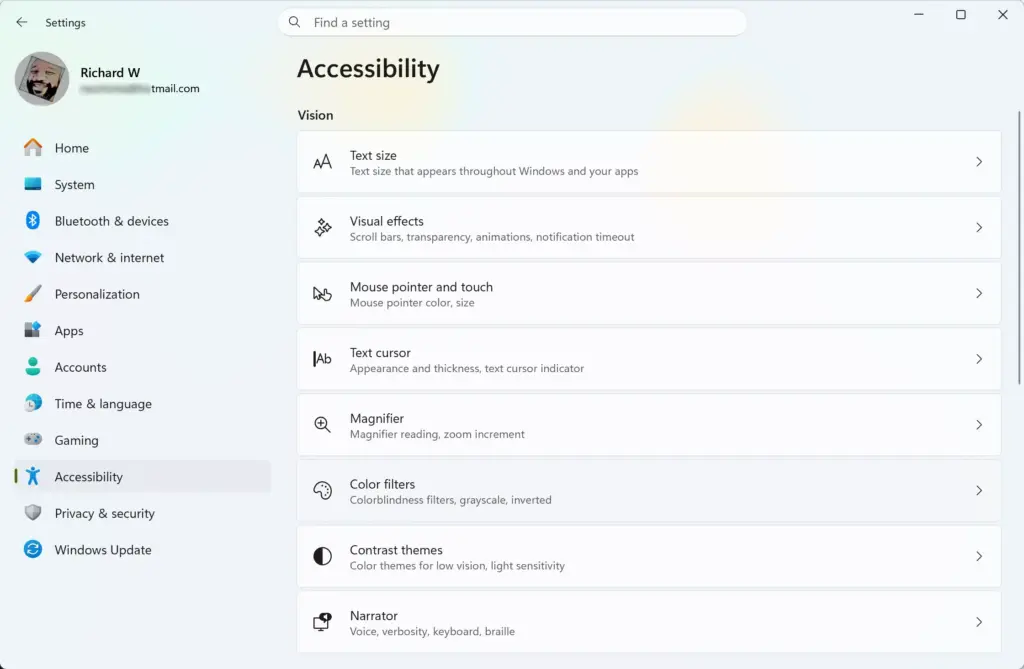
Settings › Accessibility - Select Color filters under the Vision section. You may need to scroll down to see it. The Color filters page opens.
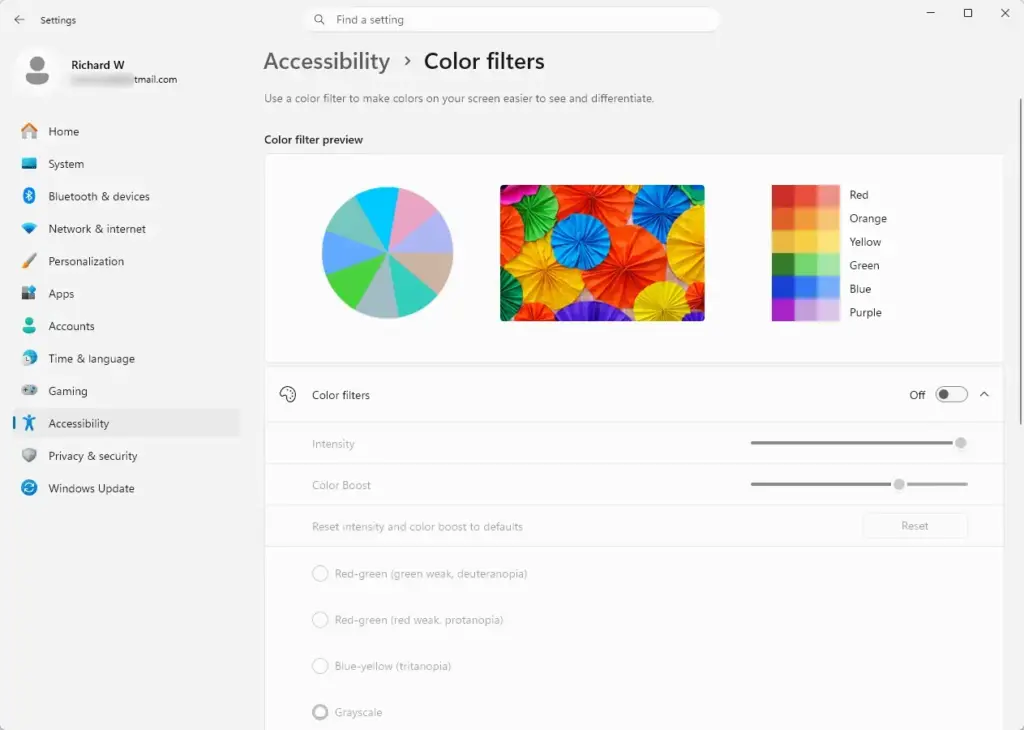
Settings › Accessibility › Color filters - Turn on the Color filters toggle at the top of the page. A list of filters appears below it, and the screen may change at once if a filter is already selected.
- Select Inverted from the filter list. If the list is collapsed, select Choose a filter to expand it first. The whole screen inverts immediately, and the Settings window inverts with it.
- Check the screen. White backgrounds now appear black and text appears light. If the screen turns gray instead, you picked Grayscale. Select Inverted instead.
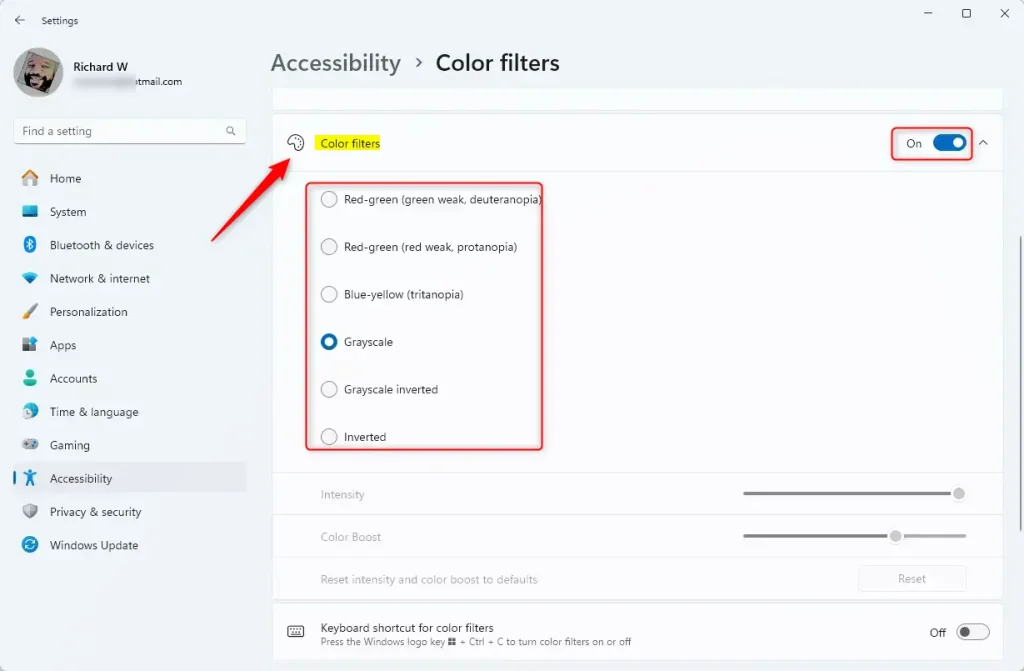
- Turn on Keyboard shortcut for color filters on the same page. This switch is off by default, and the shortcut does nothing until you turn it on.
- Press the Windows key + Ctrl + C. This toggles the selected filter on or off. Press it again to bring the filter back.
The filter stays on after you restart the PC or sign out. It stays on until you turn it off. The setting belongs to your user account, so other people who sign in to the same PC see normal colors.
Windows 10 uses a different route for the same feature: Settings Ease of Access Color filters The wording on the page is close, but the menu name is not the same. This article covers Windows 11.
Turn Inversion On and Off From Quick settings
Quick settings (the panel that opens when you select the network, speaker and battery icons in the taskbar) can hold a toggle for color filters. This is useful if you prefer the mouse to a keyboard shortcut. The steps below add the toggle if it is missing.
- Press the Windows key + A. The Quick settings panel opens above the taskbar.
- Select Accessibility. A small menu opens with accessibility toggles.
- Switch Color filters on or off. The screen changes at once and uses the filter you chose in Settings.
If you do not see an Accessibility tile, select the pencil icon (Edit quick settings) at the bottom of the panel. Select Add, choose Accessibility, then select Done. The tile appears in the panel.
Quick settings only switches the filter on and off. It does not choose between filters. You still pick Inverted on the Color filters page in Settings.
Choose Between Inverted and Grayscale Inverted
The Color filters page lists six filters. Two of them matter for inversion.
- Inverted flips every color and keeps the result in color. A blue button turns orange.
- Grayscale inverted flips the colors and then removes all color. You see only black, white and shades of gray, with dark and light swapped.
Use Inverted if you still need to tell colors apart, such as in charts or color-coded calendars. Use Grayscale inverted if color is distracting and you want maximum contrast between text and background.
The page also lists Grayscale and three filters for color blindness: Red-green (for weak green vision, also called deuteranopia), Red-green (red weak, protanopia) and Blue-yellow (tritanopia). These do not invert colors. They shift colors to make some shades easier to distinguish.
To switch filters at any time, return to Settings Accessibility Color filters and select a different option. The screen updates as soon as you select it.
How to Turn Inverted Colors Off
The quickest way is the shortcut. Press the Windows key + Ctrl + C. This only works if you turned on Keyboard shortcut for color filters earlier.
If the shortcut is not enabled, use Settings instead. You can still read Settings on the inverted screen, so follow the same route to turn the filter off.
- Open Settings with the Windows key + I.
- Select Accessibility, then select Color filters.
Settings › Accessibility › Color filters - Turn off the Color filters toggle. Normal colors return immediately.
Turning the toggle off does not forget your choice. The next time you turn it on, Windows uses the filter you selected last. Leave Keyboard shortcut for color filters on if you want the shortcut to keep working. Turn it off if you press the shortcut by accident and the screen changes unexpectedly.
If Color Filters Is Missing, Greyed Out or Not Working
Most problems come from one of a few causes. Check the symptom that matches yours.
The keyboard shortcut does nothing
The shortcut has its own switch. Open Settings Accessibility Color filters and confirm that Keyboard shortcut for color filters is on. Then press the Windows key + Ctrl + C again. Hold all three keys together, with the Windows key and Ctrl down before you press C.
A remote desktop window, or a virtual machine (a program that runs another computer inside a window), can grab the Windows key first. Click outside the remote window and try again, or use the toggle in Settings.
The screen turns gray instead of inverting
The shortcut applies whichever filter is selected on the Color filters page. If the screen goes gray, the selected filter is Grayscale, not Inverted. Open the page and select Inverted. The shortcut then inverts colors every time.
The toggle or filter list is greyed out
If a setting is greyed out and you see the message Some of these settings are managed by your organization, a work or school policy controls them. You cannot override this from a standard account. Ask your IT administrator to change it.
On a personal PC, restart the computer and open the page again. If the options are still unavailable, check that Windows is up to date in Settings Windows Update. Color filters is part of the Accessibility settings and is not limited to Pro, so Windows 11 Home has it too.
Color filters does not appear in Settings
Search for it in the Settings search box at the top left and type color filters. If it still does not show, your build of Windows 11 may be out of date or damaged. Install pending updates first. If the page is still missing after that, the Magnifier method below is a workaround. It inverts only the magnified view, not the whole screen.
Some apps or images look wrong
This is normal. The filter flips every pixel, so photos, videos and games look like negatives. Turn the filter off with the Windows key + Ctrl + C while you edit photos or judge colors. Turn it on again when you go back to reading.
Other Ways to Invert Colors in 🪟 Windows 11
Color filters is the main route, but two other tools affect how the screen looks. Neither replaces it, and they work differently.
Magnifier (a built-in tool that enlarges parts of the screen) has its own invert option. Open Magnifier with the Windows key + Plus sign (+), then press Ctrl + Alt + I to invert colors inside the magnified view. Press Windows key + Esc to close it. This works well for temporary use.
Contrast themes change the colors of Windows and apps to a fixed high-contrast palette. They are not an inversion, and the result is different from the Inverted filter. You find them in Settings Accessibility Contrast themes If you want true inversion of everything on screen, stay with Color filters.
What to do next
If inverted colors are too harsh for long reading sessions, try Grayscale inverted or switch to dark mode in Settings Personalization Colors. Dark mode keeps photos looking natural. Night light, in Settings System Display, warms the screen without flipping any colors, and you can use it alongside a color filter.
Have a question about this guide?
Answered by AI from this guide. Good questions may be added to this page — please don't include personal details.
Did this guide fix your problem?

About the Author
Richard
Tech Writer, IT Professional
Richard is a writer at Geek Rewind who turns complex IT tasks into clear, step-by-step guides. He draws on years of hands-on experience in system administration and enterprise IT operations, focusing on Windows, Linux and WordPress: the problems people actually run into, and the fixes that work. His server and WordPress guides come from systems he runs himself. Richard builds and maintains the platform behind Geek Rewind, from its Ubuntu servers and Nginx configuration to its custom WordPress plugins. Many new tutorials start with readers' questions, and he's always glad to answer them in the comments.
No comments yet — be the first to share your thoughts!